

Key Takeaways
- Identify Battery Drain Causes: Recognize that background apps, high display brightness, and hardware issues can significantly impact battery life.
- Manage Background Apps: Regularly close unused apps and restrict background data to prevent unnecessary battery consumption.
- Optimize Display Settings: Lower the screen brightness, use adaptive brightness, and shorten screen timeout to enhance battery performance.
- Check Battery Health: Monitor your battery’s condition using tools like AccuBattery, and consider replacing it if health drops below 80%.
- Use Certified Chargers: Ensure you use original or high-quality charging equipment to avoid inefficient charging and battery issues.
- Keep Software Updated: Regularly update your Android system and apps to fix bugs that may contribute to battery drain.
Ever find yourself staring at your Android phone, wondering why the battery drains faster than you can keep up? You’re not alone. Many users face this frustrating issue, often feeling like their device can’t keep up with their daily demands.
Common Causes Of Battery Drain On Android
Several factors contribute to rapid battery drain on Android devices. Understanding these causes can help you manage battery life more effectively.
Background Apps And Services
Background apps and services consume battery even when you’re not using them. Apps that refresh content, update in real-time, or track your location tend to drain batteries quickly. Examples include social media apps, streaming services, and navigation tools.
To minimize battery usage:
- Close Unused Apps: Regularly check and close apps running in the background.
- Limit Background Data: Go to your device settings and restrict background data for non-essential apps.
- Use Battery Saver Mode: Activate this feature to limit background activity on active apps.
Display Settings
Display settings significantly impact battery life. High brightness levels and prolonged screen time can lead to faster battery drain.
To optimize your display settings:
- Reduce Brightness: Lower your screen brightness or set it to auto-adjust based on your surroundings.
- Shorten Screen Timeout: Set your screen to turn off after 30 seconds to 1 minute of inactivity.
- Disable Animation Effects: Reducing or disabling animations can help save battery power.
By addressing background apps and adjusting display settings, you can significantly improve your Android device’s battery performance.
Battery Optimization Techniques
You can enhance battery life on your Android device with some practical techniques that target common battery drain culprits. Focus on managing background apps and adjusting display brightness.
Recommended Products

Kill Running Applications

Smart Cleaning: Automatically identifies and removes unnecessary files to free up storage.

Managing Background Apps
Close unused apps actively to reduce battery consumption. Many apps run in the background, even when you aren’t using them, consuming resources and energy. To manage these effectively, follow these steps:
- Check Recent Apps: Swipe up from the bottom (or press the recent apps button) to view all open apps.
- Close Unused Apps: Swipe sideways or tap the “X” to close apps no longer in use.
- Limit Background Data: Head to Settings > Network & internet > Data usage. Select individual apps and toggle off Background data.
Consider using apps designed to manage background processes. Apps like Greenify can help identify high-consumption apps, optimizing them for better battery performance.
Adjusting Display Brightness
Adjusting your display brightness significantly impacts battery life. Excessive brightness drains the battery quicker than moderate settings. Here’s how to manage your display effectively:
- Use Adaptive Brightness: Go to Settings > Display > Adaptive brightness. This feature automatically adjusts based on your surroundings.
- Manually Lower Brightness: Access quick settings by swiping down from the top of the screen. Drag the brightness slider to a lower, more comfortable level.
- Reduce Screen Timeout: Navigate to Settings > Display > Screen timeout, and set it to 15 or 30 seconds to ensure your screen turns off quickly when not in use.
By implementing these techniques, you can manage your device’s battery more efficiently and alleviate those rapid drain issues.
Hardware Issues To Consider
Hardware problems often contribute to fast battery drain on Android devices. Understanding these issues can help you identify the cause of your battery woes.
Recommended Products
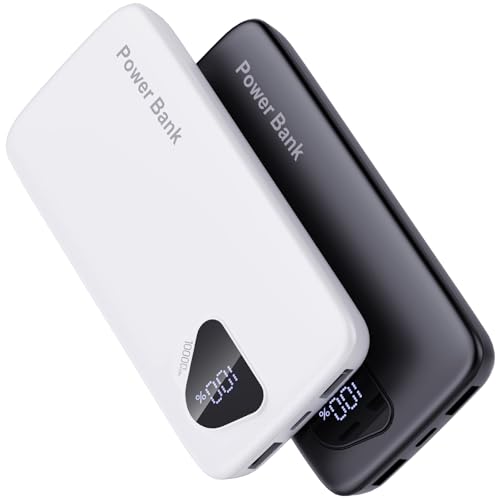
【Charge 4 Devices Simultaneously】Total 4 output ports (built-in 2 cabls,IOS cable and USB-C cable and 2 USB A), supports charging for 4 smart devices simultaneously, All in one portable charger, you would not need to carry various cables or adapter any more, save you time and no more waiting.

Perfect Magnetic Alignment & Precision Induction Technology - Experience effortless charging with our integrated high-grade magnetic ring, engineered to ensure perfect alignment for iPhones every single time. Utilizing advanced electromagnetic induction, this charger is fine-tuned to detect a placement offset of within ±2mm, keeping the transmitting and receiving coils synced for peak power transfer. Secure magnetic grip prevents slipping during travel.

【Why Choose This Magnetic Power Bank?】It packs an upgraded 10000mAh capacity, 20W fast charging, and a tiny body all in one. Unlike bulky chargers, it won't block your iPhone's rear camera. The strong magnetic grip holds your phone firmly – no slipping, no wobble. The smart LED display shows exact remaining battery percentage in real-time – so you're never caught off guard. Works with iPhone 18/17/16/15/14/13/12 series, giving you 1.8~2.5 full charges. When used with a magnetic phone case, it also supports fast wireless charging for Samsung Galaxy S26/S25/S25 Ultra, Huawei Mate 70/Pura 80 Pro and most Android phones, no need to remove the case.
Battery Age And Health
Battery performance diminishes over time. Li-ion batteries typically last around 300 to 500 charge cycles before their capacity declines. If your battery isn’t holding a charge or drains quickly, consider checking its health. Tools like AccuBattery provide insights into your battery’s wear level and charging patterns. If your battery health is under 80%, replacing it may be necessary.
Faulty Charging Equipment
Using non-certified chargers or cables can lead to poor charging efficiency. Faulty charging equipment might cause your battery to charge unevenly or at inappropriate rates. Always use the original charger or reputable third-party options. Inspect your cables for wear or damage; frayed cables can also affect charging. If your device charges slowly or not at all with certain chargers, replacing them may resolve the issue.
Software Solutions
Addressing battery drain on your Android device often involves software adjustments. Implementing these solutions can enhance battery life significantly.
Recommended Products

Updating Your Android Device
Updating your Android device can fix bugs that cause battery drain. Manufacturers release updates to improve performance and optimize battery usage. Navigate to Settings > System > System updates to check for available updates. Install updates promptly for the best results. Remember, keeping apps updated also helps. Visit the Google Play Store, go to My apps & games, and update any outdated apps.
Factory Reset Consideration
Performing a factory reset offers a last-resort option to resolve persistent battery issues. A factory reset returns your device to its original settings, often eliminating any software glitches. Before proceeding, back up your data to avoid loss. Go to Settings > System > Reset options > Erase all data (factory reset). Confirm the reset and allow your device to restart. After the reset, monitor battery performance to see if it improves. If battery drain persists, this might indicate a deeper issue needing professional attention.
Conclusion
Dealing with a rapidly draining battery can be frustrating but you don’t have to suffer in silence. By taking a few proactive steps you can significantly improve your Android device’s battery life. From managing background apps to adjusting display settings there’s a lot you can do to optimize performance.
Don’t forget to keep an eye on your battery’s health and consider replacing it if it’s underperforming. Regular updates and the right charging equipment also play a crucial role in maintaining battery efficiency. With these tips in your toolkit you’re well on your way to enjoying longer-lasting battery life and a smoother experience on your Android device.
Frequently Asked Questions
What causes rapid battery drain on Android phones?
Battery drain can be caused by several factors, including background apps and services that continue to run, high display brightness, and inefficient charging accessories. Common culprits include social media and navigation apps that consume energy even when not actively used.
How can I improve my Android phone’s battery life?
To enhance battery life, close unused apps, limit background data, and activate battery saver mode. Lowering screen brightness, reducing the screen timeout, and disabling animation effects also help conserve energy, allowing you to use your phone for longer periods.
Should I replace my phone’s battery?
If your battery health is below 80%, it may be time for a replacement, as Li-ion batteries typically last between 300 to 500 charge cycles. Use tools like AccuBattery to check your battery’s health and consider replacement if necessary.
Can software updates help with battery drain?
Yes, updating your Android device and apps can fix bugs that lead to battery issues. Regular updates often include optimizations that improve overall performance and battery management capabilities.
How do I check for app battery usage?
You can check app battery usage by going to Settings > Battery > Battery Usage. This section shows which apps are consuming the most power, allowing you to manage or limit their background activity efficiently.
Is it safe to use third-party chargers?
It’s best to use the original charger or certified third-party options to avoid poor charging efficiency. Non-certified chargers can lead to overheating and uneven battery charging, which can worsen battery drain issues.
When should I perform a factory reset?
Perform a factory reset as a last resort if you experience persistent battery problems after trying other solutions. Make sure to back up your data beforehand, and monitor battery performance afterward to see if it improves.
