

Key Takeaways
- Identify Common Issues: Charging problems can arise from hardware issues like faulty chargers, worn-out batteries, or damaged ports, as well as software conflicts like outdated drivers or incorrect power settings.
- Troubleshooting Steps: Begin by checking the power adapter and outlet, inspect battery health through diagnostics, and verify charger specifications to isolate the problem.
- Optimal Charging Practices: Maintain battery health by avoiding full discharges, using native chargers, unplugging once fully charged, and opting for partial charges throughout the day.
- Regular Maintenance: Ensure your operating system and drivers are up-to-date, optimize power settings, and uninstall unused applications to improve battery performance.
- Seek Professional Help: Contact a professional if you notice physical damage, battery swelling, unusual laptop behavior, or persistent charging issues despite self-diagnosis.
Ever found yourself staring at your Lenovo laptop, frustrated because the battery just won’t charge? You’re not alone. Many users face this issue at some point, and it can be a real headache when you need your device to stay powered up for work or leisure.
Common Reasons For Charging Issues
Charging issues can stem from various factors. Understanding these can help you troubleshoot and restore your Lenovo laptop’s functionality.
Hardware Problems
- Faulty Charger: A damaged or incompatible charger can result in charging failures. Inspect the charger for frayed cables or bent connectors.
- Worn-out Battery: Over time, batteries lose their ability to hold a charge. If your laptop is several years old, consider a battery replacement.
- Damaged Charging Port: A dirty or broken charging port can hinder charging. Check for debris or signs of physical damage in the port.
- Power Source Issues: Ensure that the wall outlet is working. Plugging the charger into a different outlet can verify if the original one is faulty.
Software Conflicts
- Outdated Drivers: Accumulating outdated drivers can impact battery performance. Regularly check for driver updates, especially for the battery and power management.
- Power Settings Misconfiguration: Incorrect power settings can interfere with charging. Navigate to your power options and ensure the settings are optimized for charging.
- BIOS Issues: Sometimes, BIOS conflicts prevent effective charging. Check for BIOS updates on the Lenovo support site to resolve potential issues.
- Background Applications: Heavy applications running in the background may drain the battery faster than it charges. Close unnecessary programs to ease the power load.
Using these insights, you can identify the underlying cause of your Lenovo laptop’s charging issues and take steps to resolve them.
Troubleshooting Steps
Let’s get your Lenovo battery charging again. Follow these steps to diagnose and resolve the issue effectively.
Recommended Products

Output:20V-3.25A / 15V-3A / 9V-2A / 5V-2A, 65W USB Type C
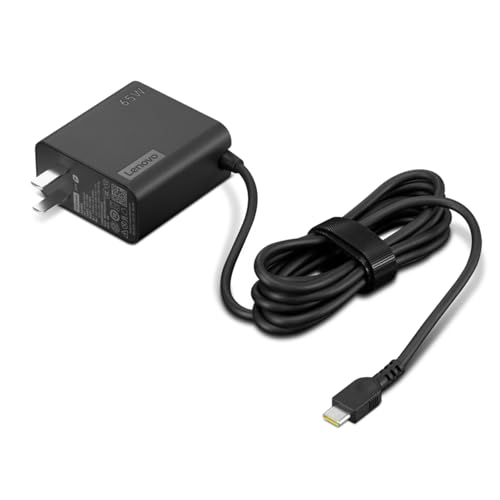
[PORTABLE CHARGING] Slim, light design and extra-long 1.7 m (5.9 ft) cable lets you charge in any spot, making powering up more convenient.
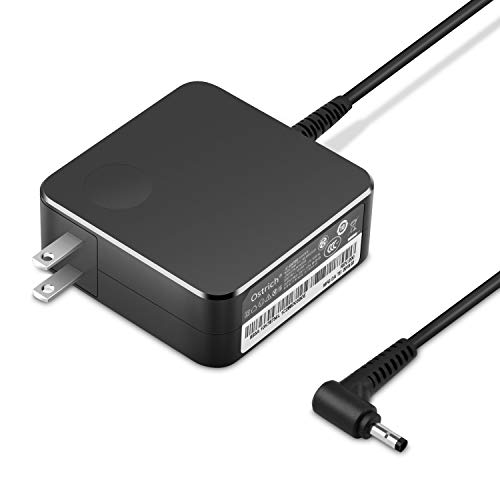
POWER SPECS Output Max: 20V 3.25A 65W/20V 2.25A 45W Input Volt Range: 110-240V/50/60Hz (For Worldwide Use) Compatible with Lenovo Charger Laptop AC Adapter Power Cord
Check Power Adapter and Cable
- Examine the charger. Ensure the power adapter is securely connected to both the laptop and a working outlet. Check for any visible damages on the charger or the cable.
- Verify the specifications. Confirm that the charger matches your laptop’s required voltage and amperage. Incorrect specifications might prevent charging.
- Test a different outlet. Try plugging the charger into another outlet. Sometimes, the outlet can be the problem.
- Look for indicator lights. Observe any indicator lights on the charger or laptop. If they’re not illuminated, the charger might be defective.
Inspect Battery Health
- Access battery information. Use the battery report tool by typing “battery report” in the Windows search bar and selecting “Generate Battery Report.” This report provides details on battery health, usage, and cycle count.
- Check for swelling. Inspect the battery for physical deformities such as swelling or bulging. A swollen battery requires immediate replacement.
- Run diagnostics. Use Lenovo’s Vantage software to assess battery health. It identifies potential issues and offers guidance on fixes.
- Consider age. Remember that batteries degrade over time. If your battery is over two years old, it may no longer hold a charge effectively.
By following these troubleshooting steps, you can identify the underlying cause of your charging issues and take the appropriate measures to resolve them.
Tips For Maintaining Battery Life
Proper care ensures your Lenovo battery remains efficient and prolongs its lifespan. Consider adopting the following practices.
Recommended Products

Safety assured — This power adapter meets nationally recognized electronic safety standards and is built with high-quality materials and workmanship to ensure reliable, durable, and safe performance.

USB C Laptop charger:Watt: 65W 45W Input :100-240V 1.5A 50-60Hz Output:5V-3A or 9V-3A or 15V-3A or 20V -3.25A,Connector:USB Type-C; VJYUIJAY Laptop Charger Fast charging Compatible with More USB C laptops,For use with compatible devices only,Do not exceed the rated power,Use certified cables,and Avoid placing in enclosed, high-temperature areas

Safe & Efficient Charging: Engineered with Power Delivery (PD) 3.0 technology, this 65W USB C charger provides rapid power for your laptops. Input: 100-240V, Output: 5V/3A, 9V/3A, 15V/3A, 20V/3.25A. Multi-certified to ensure safe use during working, studying, or traveling.
Optimal Charging Practices
- Avoid Full Discharges: Letting your battery drain to 0% can harm its health. Charge your laptop when it drops to around 20%.
- Use Native Chargers: Always use the charger that came with your device. Third-party chargers might not provide adequate voltage.
- Don’t Overcharge: Once the battery reaches 100%, unplug it. Keeping it plugged in can generate excess heat, which can damage the battery.
- Charge Wisely: Aim for partial charges throughout the day rather than a single long charge. This practice can help maintain battery performance.
Regular Software Updates
- Keep Operating System Updated: Regularly check for and install updates for Lenovo’s operating system; they improve performance and battery management.
- Update Drivers: Ensure your battery drivers are always current. Go to Lenovo Vantage or the Lenovo Support website to find the latest versions.
- Optimize Power Settings: Adjust your laptop’s power settings for efficient battery usage. Make use of features like “Battery Saver” when running on battery.
- Uninstall Unused Applications: Regularly review applications running in the background. Uninstall those you don’t use to free up system resources and optimize battery life.
Following these tips can help you maintain optimal battery performance and extend the life of your Lenovo laptop battery.
When To Seek Professional Help
You might encounter persistent charging issues despite attempting various troubleshooting steps. In such cases, consider seeking professional help. Here are specific situations to watch for:
- Physical Damage: If you notice any cracks, bends, or other physical damage to your laptop or charger, it’s time to consult an expert.
- Battery Swelling: Swelling or bulging of the battery indicates severe issues. Handle the situation with care and get professional assistance immediately.
- Unusual Behavior: If your laptop behaves unpredictably, such as shutting down suddenly or failing to recognize the charger, professional diagnostics can uncover underlying problems.
- Repeated Software Failures: Continuous software-related issues, like driver failures or BIOS errors, point to deeper issues warranting expert intervention.
- Incompatible Components: Using third-party chargers or batteries may lead to compatibility issues. Professionals can recommend the right components for your device.
- Warranty Coverage: If your laptop is still under warranty, accessing professional services ensures you maintain coverage and avoid voiding it.
Recognizing these signs can save time and prevent potential harm to your device. Taking action sooner rather than later often results in more effective solutions. If uncertainty remains about your Lenovo laptop’s charging issues, don’t hesitate to reach out to certified technicians.
Recommended Products

【Tech Specs & 100% New Products】Model: L18M4PH0 Voltage: 7.68V Capacity:60Wh/7820mAh Battery type: Li-ion. (We only use grade A battery cells that provide up to 500 recharge cycles over the life of the battery.Come with screwdrivers.)

Specifications :Model:L18C4PF3 ; Voltage:15.36V;Capacity:45Wh ;100% brand new from manufacture. Grade A product ensure fast charges and low power consumption.

Specifications:Model:L15L3PB0; Voltage:11.4V;Capacity:52.5Wh;Cell:3Cells;100% brand new from manufacture. Grade A cells ensure fast charges and low power consumption.
Conclusion
Dealing with a Lenovo battery that won’t charge can be frustrating but you’re not alone in this struggle. By following the troubleshooting steps outlined in the article you can often pinpoint the problem and get your laptop back up and running.
Remember to keep an eye on your battery’s health and practice good charging habits to extend its lifespan. If you find yourself facing persistent issues don’t hesitate to reach out for professional help. Taking action sooner rather than later can save you time and prevent further complications. Your Lenovo laptop deserves the best care so you can continue enjoying its features without interruption.
Frequently Asked Questions
Why won’t my Lenovo laptop battery charge?
Charging issues can arise from hardware problems like a faulty charger or worn-out battery, or software issues like outdated drivers or misconfigured power settings. It’s essential to diagnose whether the issue stems from physical damage or software conflicts to find an effective solution.
How can I troubleshoot a Lenovo laptop battery not charging?
Start by checking the power adapter and cable for damage, ensure connections are secure, and verify the charger is compatible with your laptop. Test different power outlets and check indicator lights. If problems persist, inspect the battery health using Lenovo’s Vantage software.
How can I check if my Lenovo laptop battery is healthy?
You can generate a battery report through your laptop’s settings or use Lenovo’s Vantage software for diagnostics. Look out for physical signs like swelling or deformities in the battery. Regularly checking battery health helps identify potential issues early.
What are the best practices for maintaining my Lenovo laptop battery?
To maintain optimal battery life, avoid letting your battery fully discharge, use the original charger, and unplug it once fully charged. Consider partial charges throughout the day and regularly update your software, including operating system and battery drivers.
When should I seek professional help for charging issues?
If you notice physical damage to your laptop or charger, battery swelling, unusual laptop behavior, or repeated software failures, it’s time to seek professional assistance. Additionally, consider warranty coverage for repairs to ensure your device is handled correctly.
