

Key Takeaways
- Understand Battery Drain Factors: Be aware that screen brightness, active apps, heart rate monitoring, GPS usage, and unnecessary connections significantly affect battery life on your Samsung Watch 4.
- Display Settings Adjustments: Lowering screen brightness, shortening display timeout, and opting for simple watch faces can conserve energy while maintaining usability.
- Limit Notifications: Reducing and prioritizing app notifications, along with utilizing Do Not Disturb mode, helps minimize battery consumption from continuous alerts.
- Utilize Power Saving Mode: Activating Power Saving Mode reduces functionality but extends battery life by limiting connectivity and background activity while still allowing essential notifications.
- Regular Maintenance: Keep your watch’s software updated and periodically clear cache and unused apps to enhance overall performance and battery efficiency.
Do you find yourself constantly charging your Samsung Watch 4? You’re not alone. Many users struggle with battery life, especially during busy days filled with notifications, workouts, and app usage. It can be frustrating when your watch dies right when you need it most.
Luckily, there are simple ways to extend your watch’s battery life without sacrificing functionality. This article will share practical tips and tricks that can help you get the most out of your Samsung Watch 4. By making a few adjustments, you can enjoy longer usage times and keep your watch ready for anything life throws your way.
Understanding Samsung Watch 4 Battery Life
The Samsung Watch 4’s battery life plays a crucial role in your daily usage and experience. Understanding this can help you optimize settings for longer battery life.
Importance of Battery Management
Managing battery life on your Samsung Watch 4 enhances both performance and user experience. Effective management allows you to make the most of features like fitness tracking, notifications, and health monitoring without frequent interruptions for charging. You can enjoy the benefits of the watch all day, ensuring that it’s ready when you need it the most.
Common Causes of Battery Drain
Several factors contribute to battery drain on the Samsung Watch 4:
- Screen Brightness: High brightness settings can significantly reduce battery life.
- Apps and Notifications: Constant notifications and running apps, especially background processes, consume energy.
- Heart Rate Monitoring: Continuous heart rate tracking uses more battery than sporadic checks.
- GPS Usage: GPS services in fitness apps can quickly deplete battery reserves during activities.
- Wi-Fi and Bluetooth Connections: Active connections can drain battery when not needed.
- Watch Faces: Animated or bright watch faces can increase power consumption.
Identifying these factors can help you prioritize adjustments to extend battery life and enhance your overall experience.
Tips for Extending Battery Life
You can enhance your Samsung Watch 4’s battery life through several practical adjustments. Implementing these tips helps maximize usage time without sacrificing essential features.
Recommended Products

Proven Compatibility: Compatible with Samsung Galaxy Watch Watch 8┃Ultra 47mm (SM-L705U)┃Watch 7 40mm (SM-L300NZ)┃Watch 7 44mm (SM-L310NZ)┃Watch FE 40mm (SM-R861)┃Watch 6 40mm(SM-R930)┃Watch 6 44mm (SM-R940)┃Watch 6 Classic 43mm (SM-R950)┃Watch 6 Classic 47mm (SM-R960)┃Watch 5 Pro 45mm (SM-R920)┃Watch 5 40mm (SM-R900)┃Watch 5 44mm (SM-R910)┃Watch 4 40mm (SM-R860)┃Watch 4 44mm (SM-R870)┃Watch 4 Classic 42mm (SM-R880)┃Watch 4 Classic 46mm (SM-R890)┃Watch 3 41mm (SM-R850)┃Watch 3 45mm (SM-R840)┃Active 2 40mm (SM-R830)┃Active 2 44mm (SM-R820)┃Active 1 40mm (SM-R500). Not for Galaxy watch (released in 2018) and Gear S2/S3/S4

👉2-Pack Convenient Spare Charger: Comes with 2 chargers in one pack, which can be used in various ways. Long, lightweight and compact enough fit in travel, home and office, such as night stand, desk, end table, car, camper and motorhome etc. You can carry it in your bag at any time in case you forget an extra charger

【Complete Charging Kit for Daily Use】 This charging set includes a 3.3FT/1M magnetic charging cable and a 5V 1A USB power adapter, providing a convenient replacement charger solution for your Samsung Galaxy Watch. Ideal for bedroom, office, travel, and everyday charging needs.
Adjusting Display Settings
- Lower Screen Brightness: Reduce the brightness to a comfortable level. Access the settings by swiping down on the home screen and adjusting the brightness slider.
- Set Shorter Timeout Duration: Shortening the display timeout conserves battery. Navigate to Settings > Display > Screen timeout and select a shorter duration, such as 15 or 30 seconds.
- Use Always-on Display Wisely: Turn off the always-on display feature when you don’t need instant time access. This can be found in Settings > Display > Always On Display.
- Choose Simple Watch Faces: Opt for minimalistic watch faces. Animated or brightly colored watch faces consume more power. You can select from several battery-efficient options in the Galaxy Wearable app.
Managing App Notifications
- Limit Notifications: Reduce the number of app notifications you receive. Go to Settings > Notifications, and disable notifications for apps that aren’t essential.
- Prioritize Important Apps: Allow notifications only for critical apps. This keeps your watch active only for pertinent alerts, reducing battery consumption.
- Schedule ‘Do Not Disturb’: Enable Do Not Disturb mode during specific hours. You can access this feature from Quick Settings and set a schedule that suits your routine.
- Review Third-Party App Permissions: Check permissions for third-party apps. Disable notifications that aren’t necessary to decrease background activity and preserve battery life.
These adjustments create a balance between functionality and battery longevity, allowing you to enjoy your Samsung Watch 4 for longer periods.
Power Saving Modes
Power saving modes on your Samsung Watch 4 help extend battery life significantly. Activating these modes limits functionality while preserving essential features. Here’s how to take advantage of them.
Recommended Products
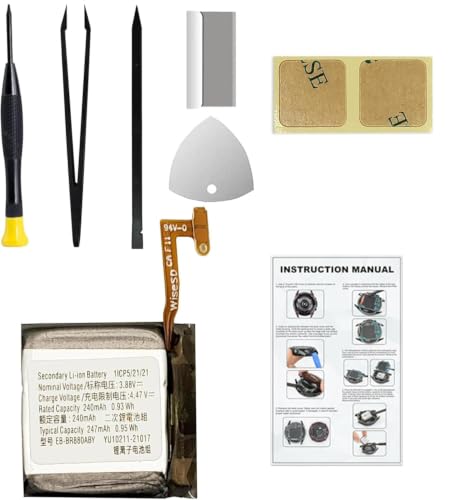
Compatible Smartwatch Model: This battery kit is specifically designed for Samsung Galaxy Watch 4 40mm (with model SM-R860 series) / Watch 4 Classic 42mm (with model SM-R880 series), please double confirm your smartwatch model before purchasing

COMPATIBILITY: The battery model is EB-BR880ABY, it is only compatible with Samsung Galaxy Watch 4 (40 mm), SM-R860 SM-R865 series and Galaxy Watch 4 Classic (42mm) SM-R880 SM-R885, please carefully confirm the model of your smartwatch before purchase.

【Exact Fit Compatibility】 Designed specifically for Samsung Galaxy Watch 4 (40mm SM-R860/SM-R865) and Watch 4 Classic (42mm SM-R880/SM-R885). Matches OEM part number EB-BR880ABY for a seamless drop-in replacement.
Using Power Saving Mode
To enable Power Saving Mode, swipe down on your watch face to access the quick settings panel. Look for the battery symbol and tap it. Toggle on Power Saving Mode. This setting reduces overall performance by disabling features like the always-on display, background data, and some animations. You can still receive calls and texts, but notifications may be limited.
Features of Battery Saver
Battery Saver offers various features to optimize battery life. Here are some key options:
- Reduced Screen Brightness: The watch lowers brightness to conserve energy.
- Limited Connectivity: Background connectivity for apps is restricted, reducing data usage and draining less power.
- Single App Usage: You can choose to keep only essential apps running, minimizing resource consumption.
- Vibration Alerts: Sound notifications may switch to vibration mode, using less battery than playing sound.
Each feature ensures that you can maintain some functionality while saving battery. Adjust these settings based on your needs, and regularly monitor your battery usage through the settings menu to maximize efficiency.
Regular Maintenance Practices
Regular maintenance keeps your Samsung Watch 4 running efficiently and prolongs battery life. Simple actions can significantly affect performance and overall enjoyment.
Updating Software
Updating your watch software is crucial for battery optimization. New software versions often include enhancements that improve battery management. Check for updates regularly by following these steps:
- Open the Settings app on your watch.
- Scroll down and select About Watch.
- Tap on Software Update.
- Follow the prompts to download and install any available updates.
Updated software ensures you benefit from the latest efficiency improvements.
Clearing Cache and Unused Apps
Clearing cache and removing unused apps can help manage battery consumption. Residual data can slow down performance and consume extra battery power. Here’s how to clear cache and remove apps:
- Open the Settings app on your watch.
- Select Apps.
- Choose an app you want to clear cache for.
- Tap Storage, then select Clear Cache.
To remove unused apps:
- Access the Apps menu again.
- Swipe to find the app you no longer need.
- Tap and hold the app icon, then select Uninstall.
Doing this regularly helps maximize available storage and improves battery efficiency.
Conclusion
Taking control of your Samsung Watch 4’s battery life can make a real difference in how you experience your day. By making a few simple adjustments and being mindful of your usage, you can enjoy all the features your watch offers without constantly worrying about charging.
Remember to regularly check your settings and keep your watch updated to ensure optimal performance. With these tips in mind, you can maximize your watch’s battery life and stay connected longer. Enjoy your time with your Samsung Watch 4 knowing you’ve got the battery life under control!
Frequently Asked Questions
What factors contribute to battery drain on the Samsung Watch 4?
Battery drain on the Samsung Watch 4 can be caused by high screen brightness, constant notifications, active apps, continuous heart rate monitoring, GPS usage, and having Wi-Fi and Bluetooth constantly on. Using bright or animated watch faces can also contribute to quicker battery depletion.
How can I extend the battery life of my Samsung Watch 4?
To extend battery life, lower the screen brightness, set a shorter screen timeout, manage notifications, and choose simpler watch faces. Additionally, consider activating Power Saving Mode and regularly review app permissions to limit background activity.
What is Power Saving Mode, and how does it help?
Power Saving Mode on the Samsung Watch 4 limits certain features to conserve energy. It reduces screen brightness, restricts connectivity, and allows usage of only essential apps. Activating this mode can significantly prolong battery life while keeping necessary functions available.
How often should I update my Samsung Watch 4?
Regularly update your Samsung Watch 4 to ensure optimal performance and battery management. Software updates often include enhancements that help improve battery life and system efficiency. Check for updates frequently to take advantage of these benefits.
What maintenance practices can help improve battery longevity?
To improve battery longevity, clear cache regularly, remove unused apps, and keep your watch software updated. Regular maintenance ensures that the Samsung Watch 4 runs efficiently and maintains optimal battery performance, allowing for longer usage periods.
