

Key Takeaways
- Understanding the Feature: The “Protect Battery” feature on Samsung phones optimizes battery health by limiting the maximum charge to around 85%, enhancing longevity.
- Enhanced Battery Lifespan: Regularly using Protect Battery can significantly extend your battery’s lifespan by reducing stress and heat exposure associated with full charges.
- Improved Device Performance: Keeping the battery in optimal condition results in better overall device performance, including responsiveness and reduced overheating during tasks.
- Easy Activation: You can activate Protect Battery easily through the Battery settings in your phone, ensuring quick access to enhanced battery care.
- Troubleshooting Tips: Common issues with the feature can often be resolved by checking settings, updating software, and restarting your device, ensuring consistent performance.
- User Feedback: While many users appreciate the benefits of the Protect Battery feature, some express concerns over limited charging and seek more customization options.
Have you ever noticed the “Protect Battery” feature on your Samsung phone and wondered what it actually does? You’re not alone. Many users see this option and feel unsure about its purpose and benefits.
Imagine this: you’re trying to extend your phone’s battery life, especially during those long days when you can’t find a charger. That’s where the “Protect Battery” feature comes in handy. It helps manage your battery’s health by preventing it from charging beyond a certain level. In this article, you’ll learn exactly what this feature means and how it can help you keep your device running smoothly for longer.
Understanding Protect Battery Feature
The Protect Battery feature on Samsung phones optimizes battery health by limiting maximum charge levels. This functionality ensures the device remains useful while prolonging the lifespan of its battery.
Purpose of Protect Battery
The main purpose of the Protect Battery feature is to enhance battery longevity. It prevents the battery from fully charging to 100%, which can create stress and lead to faster degradation. By restricting charging to around 85%, you maintain optimal conditions for the battery’s health. This feature is especially useful when you’re away from a charger for extended periods, as it helps ensure your phone stays functional throughout the day.
How It Works
The Protect Battery feature functions by regulating the charging process. Once activated, the phone monitors battery levels and limits charging as necessary.
- Activation: You can enable Protect Battery through your phone’s settings. Navigate to Battery settings and toggle the feature on.
- Charging Limitation: When charging, the phone ceases to accept more energy once it reaches around 85%, preserving optimal health.
- Deactivation: If you need a full charge, you can easily disable the feature temporarily through the same settings.
Overall, this approach not only safeguards the battery’s condition but also aligns with sustainable practices by reducing energy consumption.
Benefits of Using Protect Battery
Using the Protect Battery feature on your Samsung phone offers several advantages that enhance your device’s longevity and efficiency.
Recommended Products

Massive 20,000mAh capacity delivers extended power for smartphones, tablets, and USB-C devices, ideal for travel, commuting, and backup charging without worrying about battery drain throughout the day
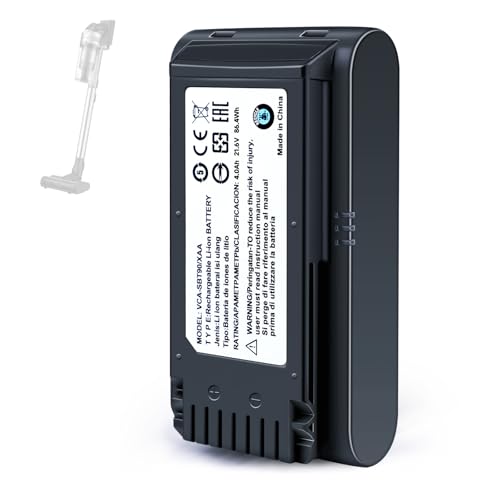
【Specifications】 Model:VCA-SBT90 ;Battery Type: Li_ion, Voltage:21.6V Capacity: 4000mAh ; Color: Gray and black

SLB-10A Li-ion Battery for Samsung EX2F HZ15W SL202 SL420 SL620 SL820 WB150F WB250F WB350F WB750 WB800F WB850F WB1100F
Extending Battery Lifespan
You maintain the health of your battery by limiting its charge to around 85%. By avoiding full charges, you reduce stress and heat exposure. Over time, this practice slows down battery degradation, ensuring that your device lasts longer between replacements. Regularly using Protect Battery can increase your battery’s lifespan by several months or even years.
Improving Device Performance
You may notice better overall performance when your battery remains in optimal condition. With less frequent overheating and stress, your phone operates more efficiently. Additionally, maintaining battery health can lead to improved software performance and responsiveness, contributing to a smoother user experience during daily tasks like gaming or multitasking. By using Protect Battery, you keep your device in excellent working order.
How to Enable Protect Battery
Enabling the Protect Battery feature on your Samsung phone is simple and quick. Follow these steps to activate it and improve your battery’s health.
Recommended Products


This battery is compatible with Samsung Galaxy SCH-U360 a870 a930 U310, to ensure that the battery you purchase is a perfect match for your device, be sure to check the model number of your device before ordering (you can check the model number of your device in the ‘Settings’ of your device).
Step-by-Step Guide
- Open Settings: Locate the Settings icon on your home screen or app drawer and tap it.
- Select Battery and Device Care: Scroll down and find the Battery and Device Care option, then tap on it.
- Choose Battery: In the Battery section, tap on the Battery option to access battery settings.
- Find More Battery Settings: Look for the More Battery Settings option and tap on it.
- Enable Protect Battery: Toggle the Protect Battery switch to enable the feature. The setting restricts charging to around 85%, enhancing battery life.
Troubleshooting Common Issues
If you run into problems with the Protect Battery feature, consider these tips:
- Check Battery Settings: Ensure that Protect Battery is toggled on by revisiting the battery settings.
- Update Software: Make sure your device runs the latest software. Navigate to Settings > Software update to check for updates.
- Remove Protective Cases: If your phone gets too hot while charging, try removing any cases that may trap heat.
- Restart Your Phone: A simple restart can resolve minor glitches that might affect feature functionality.
- Factory Reset: As a last resort, a factory reset can fix persistent issues. Back up your data first, then go to Settings > General management > Reset > Factory data reset.
Following these steps ensures you effectively enable Protect Battery and address any issues that might arise.
User Experiences and Feedback
Users frequently share their experiences with the Protect Battery feature, highlighting its advantages and drawbacks.
Positive Impressions
Many find the Protect Battery feature beneficial for daily usage. Users report improved battery longevity, noting that their devices last longer during busy days. Some appreciate the simplicity of the feature, easily enabling it through the settings. They enjoy the peace of mind that comes with knowing their battery health is being maintained. Gamers, in particular, praise the enhanced performance during intense gaming sessions, as the device stays cooler and less prone to overheating.
Criticisms and Concerns
Despite the positive feedback, some users express concerns. A common issue involves the inconvenience that arises from limiting charge levels. Some find it frustrating when their devices don’t charge fully, especially when needing them for extended periods. Additionally, users occasionally encounter confusion about the feature’s functionality, leading them to question if their phones are charging correctly. Others wish for more customization options, such as setting different maximum charge levels for varying situations.
Conclusion
Embracing the Protect Battery feature on your Samsung phone can make a real difference in how you manage your device’s battery life. By limiting the charge to around 85% you’re not just extending battery longevity but also enhancing overall performance.
While it might take some getting used to, the benefits often outweigh the initial inconvenience. With a little adjustment you’ll find yourself enjoying longer-lasting power throughout your busy days.
Remember to explore the settings and keep an eye on your device’s health. Your phone will thank you for it in the long run.
Frequently Asked Questions
What is the “Protect Battery” feature on Samsung phones?
The “Protect Battery” feature is designed to extend battery life on Samsung phones. It prevents the battery from charging beyond a certain level, typically around 85%, which helps optimize battery health and reduce stress and heat exposure, prolonging the battery’s overall lifespan.
How do I enable the Protect Battery feature?
To enable the Protect Battery feature, go to your phone’s Settings. Select “Battery and Device Care,” then find and toggle the “Protect Battery” switch. This simple step will help you maintain optimal battery conditions.
What are the benefits of using the Protect Battery feature?
Using the Protect Battery feature helps extend your battery’s lifespan, optimizes device performance, and improves efficiency during multitasking or gaming. By limiting the maximum charge, it reduces wear and tear on your battery.
Are there any troubleshooting tips for the Protect Battery feature?
If you experience issues with the Protect Battery feature, check your battery settings, update your software, and remove any protective cases that might cause overheating. Restarting the phone can also resolve persistent problems, and a factory reset is a last resort.
Do users have mixed feelings about the Protect Battery feature?
Yes, user feedback varies. Many appreciate the extended battery life and enhanced performance, especially during intense tasks. However, some find the limited charge levels inconvenient and seek greater customization options for maximum charging limits.
