

Key Takeaways
- Preparation is Key: Gather all necessary tools, including a Phillips screwdriver, suction cup, and anti-static wrist strap, before starting the battery replacement process.
- Proper Power Down: Always power off your Google Pixel completely to prevent any electrical mishaps during the replacement.
- Handle Components with Care: Use tweezers to gently connect and disconnect the battery without applying excessive force that can damage the motherboard.
- Calibrate Your New Battery: After installation, drain the new battery fully before charging it back to 100% for the first time to ensure accurate readings.
- Inspect for Damage: After replacing the battery, thoroughly check your device for any signs of physical damage or loose components.
- Troubleshoot Common Issues: If problems like charging issues or overheating occur post-replacement, double-check battery connections and compatibility.
Is your Google Pixel dying faster than it used to? You’re not alone. Many users face battery issues as their phones age, leading to frustrating moments when you need your device most.
Tools Needed for Replacement
When replacing the battery in your Google Pixel, having the right tools is essential. Here’s a list of the equipment you’ll need:
- Phillips screwdriver
Use a Phillips screwdriver to remove screws from the device casing.
- Plastic opening tool
Utilize a plastic opening tool to pry the phone open without damaging the screen.
- Tweezers
Employ tweezers for handling small components during the replacement process.
- Suction cup
A suction cup can help lift the screen from the body of the phone gently.
- Battery replacement kit
Consider purchasing a battery replacement kit specific to your Google Pixel model, which may include replacement batteries and adhesive.
- Heat gun or hairdryer
Apply heat to soften the adhesive holding the screen, making it easier to open.
- Anti-static wrist strap
Wearing an anti-static wrist strap prevents static electricity from damaging your phone’s internal components.
Ensure you have these tools on hand before starting the replacement process. This preparation makes the task more manageable and reduces the chance of damaging your device.
Recommended Products
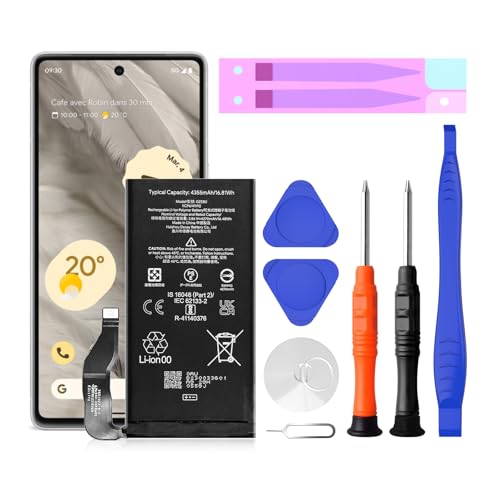
【Pixel 7 battery replacement 】quality battery replacement for Google Pixel 7 perfect fit your phone. It is safer than so-called upgraded high-capacity batteries. No potential risks during use. Multiple protection features to prevent overcharging and prevent overheating. Built-in microchip to ensure safe battery charging and improve battery life. NOTE: Please fully charge and discharge your new battery 3 to 5 cycles to release all capacity of the new battery.

✅【4385mAh EXACT CAPACITY】 Precision-engineered replacement battery for Google Pixel 7a – matching the original 4385mAh capacity to restore your phone's battery life to peak performance. Enjoy all-day usage for 5G connectivity, 90Hz display, and everyday multitasking without hunting for a charger

【1. Brand New 0 Cycle – Not a Pulled Battery】 100% new cells, 0 charge cycles. Absolutely not a pulled or used battery. Capacity is 4614mAh, matching original specifications, ensuring reliable daily battery life.
Steps to Replace Battery in Google Pixel
Replacing the battery in your Google Pixel isn’t as daunting as it might seem. Follow these steps for a smooth replacement process.
Recommended Products
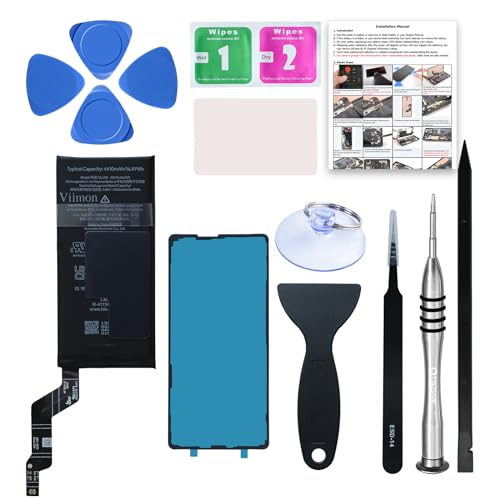
【OEM Battery Cells】 OEM quality battery replacement for Google Pixel 6a. It is safer than so-called upgraded high-capacity batteries. No potential risks during use. Multiple protection features to prevent overcharging and prevent overheating. Built-in microchip to ensure safe battery charging and improve battery life. NOTE: Please fully charge and discharge your new battery 3 to 5 cycles to release all capacity of the new battery.

【Why Don't Sell Increased Capacity Battery 】- Because most of the so-called upgraded batteries on the market are exaggerated, the actual use time does not increase much, but the price is expensive. Our battery capacity and voltage is 100% same as your original Pixel 6 battery, it is a real 4614mAh can be perfectly compatible with the motherboard of your phone, and will not damage the hardware and reduce the service life of phone, true to providing long-lasting battery life.

✅【4575mAh High-Capacity Replacement】Restore your Google Pixel 8 battery life with a 4575mAh lithium-polymer cell. Matches OEM model GS35E specification with 3.89V voltage and 17.79Wh watt-hour for stable, reliable power output.
Powering Down the Device
Power down your Google Pixel completely. Hold the power button and select “Power off” to ensure safety during the battery replacement.
Removing the Back Cover
Use a heat gun or hairdryer to warm the edges of the back cover. This softens the adhesive. Next, apply a suction cup near the bottom edge of the device. Pull gently while inserting a plastic opening tool into the gap. Slide the tool around the edges to detach the back cover completely.
Disconnecting the Old Battery
Locate the battery connector on the motherboard. Use a plastic opening tool to lift the connector gently. Ensure you do this carefully to avoid damage to any surrounding components. Once disconnected, follow the adhesive around the battery to remove it fully. Tweezers can help lift the battery out.
Installing the New Battery
Place the new battery into the designated area. Align it correctly with the contacts on the motherboard. Press the battery down to adhere firmly. Reconnect the battery connector to the motherboard, ensuring it clicks into place securely.
Common Issues and Troubleshooting
Sometimes, battery replacement in your Google Pixel can lead to unforeseen issues. Here are some common challenges and how to troubleshoot them.
Recommended Products

Compatible Phone Model: This battery kit is specifically designed for Google Pixel 5 (with model GD1YQ, GTT9Q, G5NZ6 series), NOT work for Pixel 5A, please double confirm your phone model before purchasing

Model-Specific Compatibility: This battery only works for Pixel 5, please verify your phone model before ordering.

[Compatible Models]: Our upgraded pixel 6 replacement battery is compatible with with HTC Google Pixel 6 Model GB7N6, G9S9B16(Not compatible with Pixel 6A and Pixel 7), please verify the part number and model of your old battery
Phone Won’t Turn On
If your phone doesn’t power up after installing the new battery, check the following:
- Battery Connection: Ensure the battery connector is securely attached to the motherboard. A loose connection can prevent your device from turning on.
- Battery Compatibility: Confirm the new battery matches your device model. Using an incompatible battery can cause functionality issues.
Overheating
If your phone overheats after replacing the battery, address these factors:
- Installation Check: Verify that the battery is installed correctly. Improper alignment can lead to overheating.
- Background Apps: Minimize background applications running simultaneously. Too many active apps can increase heat.
Charging Problems
When your phone won’t charge, consider these steps:
- Charger and Cable: Test a different charger and cable. Faulty equipment can result in charging issues.
- Port Inspection: Check the charging port for dust or debris. Clean it carefully with a soft brush or compressed air if necessary.
Battery Life Issues
If the new battery drains quickly, keep these solutions in mind:
- Calibration: Fully charge the battery to 100%, then let it drain completely. Repeat this process to help with calibration.
- Settings Adjustment: Review power-hungry apps in your settings. Limit their use or uninstall unnecessary applications to improve battery longevity.
Physical Damage
After replacement, inspect for any physical damage to your device:
- Screen or Housing: Look for cracks or dents in the screen or housing. Damage can worsen during the removal or installation process.
- Internal Components: If you hear unusual sounds or experience glitches, consider consulting a professional for an internal examination.
By addressing these common issues, you can ensure your Google Pixel functions effectively post-battery replacement.
Tips for a Successful Replacement
- Gather all necessary tools: Ensure you have a Phillips screwdriver, plastic opening tool, tweezers, suction cup, battery replacement kit, heat gun or hairdryer, and an anti-static wrist strap ready before starting.
- Power down your device: Turn off your Google Pixel completely. This step prevents any electrical issues during the replacement process.
- Warm the edges of the back cover: Use a heat gun or hairdryer to soften the adhesive. Apply heat evenly around the edges for a few seconds.
- Use a suction cup effectively: Place the suction cup near the bottom edge of the back cover. Pull gently while using the plastic opening tool to pry the cover away from the phone.
- Handle connectors with care: When disconnecting the old battery, carefully lift the connector using tweezers. Avoid using excessive force, as this can damage the motherboard.
- Position the new battery correctly: Align the new battery’s connector with the motherboard. Ensure it fits snugly before pressing down.
- Revitalize battery calibration: After installation, let the new battery drain completely before charging it fully for the first time. This helps calibrate the battery for accurate readings.
- Check for damage: After replacing the battery, inspect your device for any signs of physical damage, such as cracks or loose components.
- Address common post-replacement issues: If your phone doesn’t turn on or exhibits other issues, double-check connections and ensure compatibility with your device model.
- Stay patient and thorough: If complications arise, take your time. Rushing can lead to mistakes, so ensure every step is performed correctly.
Implementing these tips enhances the likelihood of a smooth and successful battery replacement in your Google Pixel.
Conclusion
Replacing the battery in your Google Pixel can breathe new life into your device. With the right tools and a little patience you can tackle the process confidently. Remember to take your time and follow each step carefully to avoid any mishaps.
After the replacement don’t forget to calibrate your new battery for optimal performance. If you run into any issues just keep your troubleshooting tips handy.
Your Pixel deserves to work at its best so enjoy the renewed battery life and keep capturing those special moments without worrying about your phone dying on you. Happy replacing!
Frequently Asked Questions
What tools do I need to replace the battery in my Google Pixel phone?
To replace the battery in your Google Pixel, you will need a Phillips screwdriver, plastic opening tool, tweezers, suction cup, battery replacement kit, heat gun or hairdryer, and an anti-static wrist strap. These tools ensure a safe and thorough replacement process.
How do I start the battery replacement process?
Begin by completely powering down your Google Pixel phone. This step is crucial for safety, preventing any electrical damage while you work on the device.
What is the step for removing the back cover?
To remove the back cover, heat the edges of the device using a heat gun or hairdryer. Then, use a suction cup to lift the cover slightly and insert a plastic opening tool to detach it carefully.
How do I disconnect the old battery?
To disconnect the old battery, lift the battery connector gently using tweezers. Then, carefully remove the battery itself from its compartment.
What should I check after replacing the battery?
After replacing the battery, check to ensure that it’s aligned correctly with the motherboard contacts and that the battery connector is securely reconnected. Inspect for any signs of physical damage as well.
What if my phone doesn’t turn on after the replacement?
If your phone doesn’t turn on, double-check the battery connections and ensure that the new battery is compatible with your device. Also, try charging the phone for at least 30 minutes.
How can I calibrate my new battery?
To calibrate your new battery, let it drain completely for the first time after installation. Then, charge it to 100% without interruption. This process helps optimize battery performance.
Why is my battery draining quickly after replacement?
Rapid battery drain can result from poor battery connections, using an incompatible battery, or issues with your charger. Inspect connections, confirm compatibility, and troubleshoot your charger to resolve the issue.
What other issues should I be aware of post-replacement?
Be aware of potential issues like overheating, charging problems, or unexplained rapid battery drain. Each of these problems can often be resolved by checking connections, compatibility, or calibrating the battery.
Do I need to be careful during the process?
Yes, handling connectors with care is crucial during battery replacement. Additionally, take your time and be patient to ensure that each step is completed correctly for a successful replacement.
