

Key Takeaways
- Understanding Remote Types: Familiarize yourself with the various Samsung TV remote types (Standard, Smart, Universal) to effectively check battery levels and troubleshoot issues.
- Battery Level Indicators: Use the LED indicator on your remote to check battery status: a single blink means full, two blinks indicate low, and no response shows depleted batteries.
- Checking via TV Settings: You can also determine battery life through your TV settings by navigating to Support > Remote Control, providing a precise battery level reading.
- Replacement and Maintenance: Regularly check and replace batteries to prevent interruptions; use proper storage and optimal usage practices to extend battery life.
- Troubleshooting Tips: If the remote is unresponsive, examine the battery compartment for corrosion, ensure correct battery placement, and check the remote’s connection with the TV. If issues persist, reset the remote.
- Power-Saving Practices: Implement power-saving features on your TV and unpair devices when not in use to conserve remote battery life.
Ever found yourself in the middle of a binge-watching session only to realize your Samsung TV remote’s not working? It’s frustrating when you can’t figure out if it’s the batteries or something else. Knowing how to check the battery level can save you from those awkward moments when your remote suddenly stops responding.
Understanding Your Samsung TV Remote
Your Samsung TV remote comes in different designs, each equipped with unique features. Understanding these can help you manage your viewing experience more effectively, including checking the battery level.
Types of Samsung TV Remotes
- Standard Remote: This basic remote features essential buttons for navigation, volume control, and channel selection.
- Smart Remote: This advanced version often includes a built-in microphone for voice control and a touchpad for easier navigation. It enhances connectivity with smart devices.
- Universal Remote: This remote can control multiple devices, not limited to your Samsung TV. It’s great for managing all your entertainment devices from one controller.
Common Features of Samsung TV Remotes
- Power Button: Turns your TV on and off easily.
- Volume Controls: Adjusts sound levels with dedicated buttons.
- Channel Navigation: Changes channels quickly and efficiently, often with up/down buttons.
- Home Button: Accesses the main interface of your TV, allowing you to explore apps and settings.
- Number Pad: Enter specific channel numbers directly for speedy navigation.
- Function Buttons: May include buttons for Netflix or other streaming services, providing quick access to your favorite content.
Knowing these details helps in troubleshooting when the remote stops functioning, making battery level checks straightforward.
Methods to Check Battery Level
Checking the battery level of your Samsung TV remote is essential for uninterrupted viewing. Here are a couple of effective methods to determine the battery status.
Recommended Products

【Package lncluded】 Pack of 2 remote. Two-pack remote control can solve your home backup remote control needs. Infrared remote no pairing or programming needed. Just Insert 2 Pcs*AAA batteries to get it work(Batteries and manual are not included)
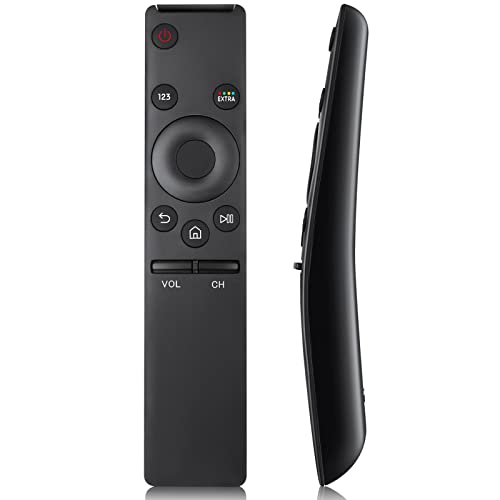
Compatibility: Universal Smart TV Remote Control for All Samsung Smart TV Curved QLED Frame LED LCD HDTV QLED SUHD UHD HDTV 3D 4K TV

Value Pack of 2 Remotes: BN59-01312A remote-control replacement for Samsung Smart LCD LED UHD QLED Smart TV, with Netflix/ Prime Video / Hulu
Using the LED Indicator
Most Samsung TV remotes feature an LED indicator that signals the remote’s battery status. When you press any button, watch the LED light:
- Single blink: Indicates a nearly full battery.
- Two blinks: Shows the battery is low and may need replacement soon.
- No response: Means the battery is dead or the remote isn’t functioning.
Through the TV Settings
You can also check the battery level through your TV settings if the remote supports it. Here’s how:
- Turn on your Samsung TV.
- Press the Home button on the remote.
- Navigate to Settings and select Support.
- Choose Remote Control.
This displays the battery level, allowing you to see exactly how much power remains. Knowing your remote’s battery level helps you prepare for replacements before the next binge-watching session.
Alternative Tips for Battery Management
Managing your remote’s battery effectively can enhance your viewing experience. Here are some tips to help ensure your remote stays powered.
Recommended Products

【KEY FEATURES】 The EWO'S tv remote features shortcut buttons for Netflix, Prime Video, and web browsing for extra convenience. Our remote has been upgraded to give you a greater transmitting distance (over 40 ft) and a more stable performance. Replace your old or damaged remote with the EWO'S remote and keep all the functionality of the original remote.

The replacement remote control compatible with samsung tv models: UN55EH6001F, UN55EH6001FXZA, AH01, CH02, UN55EH6001FXZATH03, UN55ES6003F, UN55ES6003FXZA, UN55ES6003FXZATS01, UN60EH6003F, UN60EH6003FXZA, UN60ES6003F, UN60ES6003FXZA, UN60ES6003FXZAHH01,LH32HDBPLGA, UN32EH4003FXZA, UN39EH5003FXZA, UN60EH6003FXZAHH01, H32B, H40B, H46B, LH32HDBPLGA/ZA, LH40HDBPLGA/ZA, LH46HDBPLGA/ZA, PN64E533D2F, PN64E533D2FXZA, UN32EH4003, UN32EH4003F, UN32EH4003FXZACH02, UN32EH4003FXZAEH01, UN32EH4003V, UN32EH4003VXZA, UN32EH4003VXZADH01, UN39EH5003, UN39EH5003F, UN39EH5003FXZACD01, UN39EH5003FXZAMD02, UN40ES6003F

AIDITIYMI AA59-00580A AA5900580A Replacement Remote Control fits for SAMSUNG LED LCD TV HDTV sub for remote AA59-00579A
Replacing Batteries
Replacing batteries in your Samsung TV remote is straightforward.
- Identify Battery Type: Check your remote to find the correct battery type, which often includes AA or AAA.
- Open Battery Compartment: Locate the battery cover on the back of the remote. Slide it off or press the latch to open it.
- Remove Old Batteries: Take out the old batteries, noting their orientation (+ and – ends).
- Insert New Batteries: Insert fresh batteries, ensuring proper alignment with the polarity indicators.
- Close Battery Compartment: Slide the battery cover back into place or secure it.
Frequent battery checks every few months add convenience.
Maintaining Battery Life
You can extend your remote’s battery life with simple practices.
- Minimize Usage: Avoid pressing buttons when not in use. This reduces battery drain.
- Store Properly: Keep the remote in a cool, dry place. Avoid exposure to extreme temperatures.
- Unpair When Not Needed: If you use a smart remote for specific functions, unpair it when not in use to conserve power.
- Use Power-Saving Features: Check your TV settings for power-saving modes, which can help reduce battery consumption.
These tips promote efficient battery management, ensuring your remote stays functional for your next binge-watching session.
Troubleshooting Battery Issues
When your Samsung TV remote stops responding, troubleshooting battery issues can help you determine the cause. Here are some key areas to focus on.
Recommended Products

【Wide Compatibility】 This premium voice remote is designed for All 2019–2026 Samsung TVs that support voice control. It is a perfect replacement for All 2019–2026 Samsung voice remotes. If your Samsung TV does not support voice control, that feature on this remote may not work.

【Universal Remote for Samsung TVs】Compatible with Samsung Crystal UHD, Neo QLED, QLED, OLED, Curved, Frame Smart TV Models — A replacement remote for all original Samsung TV remotes (Note: The Disney+ button on this remote may not function with TV models manufactured before 2022.)

Broad Compatibility Guide – When the original remote is lost, damaged, slow to respond, or no longer easy to use, this 2-pack replacement for Samsung TV remote helps bring daily TV control back quickly. Compatible with most Samsung Smart TVs from 2019–2026, including Crystal UHD, QLED, OLED, 4K, 8K, The Frame, Curved, LED, LCD, and HDTV series. Also compatible with remote models such as BN59-01484A, BN59-01455A, BN59-01312A, BN59-01315A, and more. Please note: voice control is not supported.
Remote Not Responding
If the remote isn’t working, first check the batteries. Look for signs of corrosion or leaks in the battery compartment. Replace old batteries with fresh ones, ensuring they’re oriented correctly. If the remote still doesn’t respond, try pairing it again with your TV. Remove the batteries, wait 10 seconds, then reinsert them. Hold the “Power” button for 10 seconds to reset the remote.
Ensuring Proper Connection
A proper connection between your remote and TV is vital for functionality. Confirm that your TV is on and within range. Move closer to the TV for a better signal. If you’re using a Smart Remote, ensure it’s paired correctly with the TV via Bluetooth. If it’s not paired, press the “Pairing” button while the remote is near the TV. Check the TV settings to confirm the remote is linked properly.
Conclusion
Keeping an eye on your Samsung TV remote’s battery level can save you from those frustrating moments when it suddenly stops working. By knowing how to check the battery status and following simple maintenance tips you can ensure your remote’s always ready for action.
Whether you’re using a Standard Remote or a Smart Remote understanding the features and battery management techniques can enhance your viewing experience. So next time you settle in for a binge-watch session take a moment to check those batteries. You’ll appreciate the peace of mind that comes with knowing your remote is good to go. Happy watching!
Frequently Asked Questions
How do I check the battery level of my Samsung TV remote?
You can check the battery level of your Samsung TV remote in two ways. First, observe the LED indicator on the remote: a single blink indicates a full battery, while two blinks mean low battery, and no blinks suggest a dead battery. Alternatively, you can check the battery level through your TV’s settings under the Support section.
What types of remotes are available for Samsung TVs?
Samsung offers several types of remotes including the Standard Remote, Smart Remote, and Universal Remote. Each remote has unique features designed to enhance your viewing experience, such as dedicated buttons for streaming services and controls for volume and channel navigation.
How can I troubleshoot my Samsung TV remote if it stops working?
To troubleshoot your remote, first check the battery for corrosion or leaks and replace with fresh batteries if necessary. If it still doesn’t work, reset the remote by removing the batteries, waiting 10 seconds, and reinserting them while holding the “Power” button. Ensure the remote is paired correctly with your TV.
What steps should I follow to replace the batteries in my remote?
To replace the batteries, first identify the correct type needed. Open the battery compartment, remove the old batteries, and insert new ones, ensuring the correct orientation. Then, close the compartment securely. Always handle batteries with care to avoid any issues.
How can I maintain my Samsung TV remote’s battery life?
To maintain your remote’s battery life, minimize usage by turning off the remote when not in use. Store it properly, unpair smart remotes to conserve energy, and utilize power-saving features found in TV settings. Following these tips can help prolong battery life.
