

Key Takeaways
- Identify Background Apps: Close or uninstall apps running in the background to reduce battery consumption by navigating to Settings > Apps.
- Adjust Screen Brightness: Lower the brightness or enable adaptive brightness in Settings > Display to conserve battery life.
- Keep Software Updated: Regular updates can fix bugs and improve efficiency, so check for updates under Settings > Software Update frequently.
- Utilize Power Saving Features: Activate power saving mode and limit background data usage in Settings to extend battery life.
- Monitor Battery Usage: Use built-in features or apps to track battery consumption and identify power-hungry applications.
- Recognize Battery Wear Signs: Look for signs like decreased lifespan, overheating, and unexpected shutdowns to determine when a battery replacement may be necessary.
Ever found yourself frustrated with your Samsung Galaxy tablet’s battery draining faster than you’d like? You’re not alone. Many users face this common issue, and it can be a real hassle when you’re trying to get things done on the go.
Common Reasons for Fast Battery Drain
Many Samsung Galaxy tablet users notice their battery drains quickly. Understanding the underlying causes can help you take steps to extend your battery life.
Background Apps and Processes
Background apps consume power even when you’re not actively using them. Apps that run in the background include social media, messaging, and location services. To manage this, check which apps are running by going to Settings > Apps. Here, you can close or uninstall apps that you rarely use. Using battery optimization settings can also restrict background activity for non-essential apps.
Screen Brightness and Settings
High screen brightness significantly drains battery life. Lowering brightness settings or enabling adaptive brightness can help. To adjust this, go to Settings > Display > Brightness Levels. Reduce the brightness slider or toggle on adaptive brightness for automatic adjustments based on your environment. Additionally, consider using a dark mode, which can save battery on devices with OLED screens.
Software Updates and Bugs
Outdated software can lead to battery issues due to bugs or inefficiencies. Regularly check for updates to keep your device running smoothly. To do this, go to Settings > Software Update. Install any available updates, as these often include fixes that enhance battery performance. In some cases, newly updated software may introduce battery drain, so monitor your battery usage after updates and report issues if necessary.
Tips to Improve Battery Life
Improving the battery life of your Samsung Galaxy tablet can lead to a better experience. Here are some effective strategies you can implement.
Recommended Products

【Battery Specifications】Model:SCUD-WT-N19; Battery Type: Rechargeble Lithium polymer; Capacity:27.1 Wh 7040 mAh; Voltage:3.85V; Battery life: Up to 500 recharge cycles.
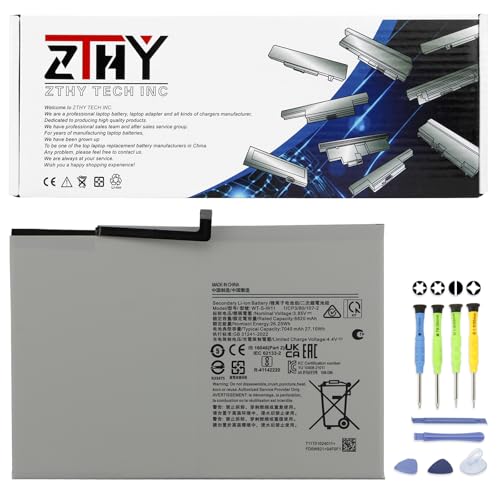
Specifications: Battery type: Li-ion. Color: White. Voltage: 3.85V. Capacity: 27.1Wh. New from Manufacturer

Adjusting Settings
- Reduce Screen Brightness: Lower the screen brightness through the Settings menu. A brighter screen consumes more power.
- Enable Power Saving Mode: Activate power saving mode in the Settings under “Battery.” This feature reduces background activity and extends battery life.
- Turn Off Location Services: Disable GPS when not in use. Go to Settings, then “Location,” and toggle it off for apps that don’t require it.
- Limit Background Data: Restrict apps from using data in the background. Navigate to Settings, select “Apps,” choose the app, and adjust data permissions.
- Use Dark Mode: If your tablet has an OLED screen, switch to dark mode. It uses less power compared to the standard light mode.
Managing Apps and Notifications
- Close Unused Apps: Regularly close apps running in the background. Tap the recent apps button and swipe them away to minimize battery use.
- Uninstall Unnecessary Apps: Remove apps you rarely use. Go to Settings, then “Apps,” and uninstall any that aren’t essential.
- Limit App Notifications: Reduce notifications to avoid constant syncing. In Settings, find “Notifications” and customize them for each app.
- Check for Battery-Hungry Apps: Monitor battery usage by going to Settings, selecting “Battery,” and reviewing which apps consume the most power. Consider alternatives for those apps.
- Update Apps Regularly: Keep apps up to date to benefit from performance improvements and bug fixes that enhance battery life.
Implementing these tips can lead to noticeable improvements in your battery performance, allowing you to use your tablet longer without needing to recharge.
When to Consider a Battery Replacement
If you notice your Samsung Galaxy tablet’s battery draining excessively despite following all recommended tips, it might be time to consider a battery replacement.
Recommended Products

Replacement For Tablet: Fit for Samsung Galaxy Tab A8 10.5 Inch SM-X200 SM-X205 SM-X200N SM-X205N SM-X205NZAAEUE SM-X200NZAAEUA Tablet.

Compatible with: Fit for Samsung Galaxy Tab S6 10.5” SM-T860 T865, Samsung Galaxy Tab S5e 10.5” SM-T720 T725, please check the model of your tablet before purchase. Compatible Part Numbers: EB-BT725ABU. Installation Notice: Replacing battery for Samsung Galaxy Tab S6 / S5E requires careful disassembly. Please watch professional teardown video before installation. Improper installation may result in charging recognition error.

【Battery Specifications】Model:SCUD-WT-N19 Rechargeable Battery/Capacity:27.1Wh/Voltage: 3.85V/Cycle life: Up to 500 recharge cycles.
Signs of Battery Wear
- Decreased Lifespan: If your tablet’s battery life has significantly reduced—for instance, lasting less than half of its original time—it’s a key indicator of wear.
- Overheating: Frequent overheating during regular use signals potential battery issues.
- Unexpected Shutdowns: If your tablet shuts down abruptly when it has a decent charge left, the battery may not hold power correctly.
- Swelling: Any visible bulging or swelling of the battery indicates a serious problem that requires immediate attention.
How to Test Battery Health
- Built-in Settings: Access the battery usage report in your tablet’s settings. Go to Settings > Device care > Battery, then tap on Battery usage to see which apps drain the battery.
- Battery Monitoring Apps: Utilize third-party apps like GSam Battery Monitor or AccuBattery. These tools provide in-depth analysis of your battery’s performance and health.
- Samsung Members App: This app offers a diagnostics tool that checks battery health. Download it from the Galaxy Store and follow the prompts to run the test.
Recognizing these signs and testing your battery health can help you assess whether a replacement is necessary.
Conclusion
Dealing with a fast-draining battery can be frustrating but you have the power to make a difference. By managing your apps adjusting screen brightness and keeping your software updated you can significantly enhance your tablet’s battery life.
Remember to regularly check for battery-hungry apps and consider implementing power-saving features. If you notice persistent issues even after trying these tips it might be time to evaluate your battery’s health. Taking these steps will help ensure your Samsung Galaxy tablet stays ready for whatever you need it for throughout the day. Enjoy your device without the constant worry of running out of juice.
Frequently Asked Questions
What causes rapid battery drain on Samsung Galaxy tablets?
Rapid battery drain on Samsung Galaxy tablets can be caused by several factors, including background apps consuming power, high screen brightness, outdated software, and location services being turned on. Adjusting these settings can help extend battery life.
How can I manage background apps to save battery?
To manage background apps on your Samsung Galaxy tablet, go to the Settings menu, navigate to ‘Apps,’ and close or uninstall apps that you don’t actively use. Limiting background data for these apps can also help conserve battery power.
Does screen brightness affect battery life?
Yes, screen brightness significantly impacts battery life. Lowering your screen brightness or enabling adaptive brightness can help save power. For OLED screens, using dark mode can also make a noticeable difference in battery performance.
How often should I update my tablet’s software?
It’s recommended to check for and install software updates regularly. Keeping your tablet’s software updated helps eliminate bugs and inefficiencies that could lead to battery drain, improving overall device performance.
What are some tips for extending battery life?
To extend battery life, you can lower screen brightness, enable power-saving mode, turn off location services, limit background data, close unused apps, and uninstall unnecessary applications. These simple changes can lead to longer usage times between charges.
When should I consider replacing my tablet’s battery?
Consider replacing your tablet’s battery if you notice signs like decreased battery lifespan, frequent overheating, unexpected shutdowns, or visible swelling. Monitoring battery health through built-in settings or apps can help you assess when a replacement is needed.
How can I check the battery health of my Samsung tablet?
You can check your Samsung tablet’s battery health by accessing the device’s built-in settings under ‘Battery,’ using third-party battery monitoring apps, or using the Samsung Members app, which provides detailed insights about battery performance.
