

Key Takeaways
- Factors Affecting Battery Life: High screen brightness, running multiple apps, frequent notifications, GPS, and continuous Bluetooth connections can significantly drain your Samsung watch’s battery.
- Importance of Software Updates: Regular software updates improve battery performance, fix bugs, and may introduce features that enhance battery management.
- Identifying Battery Drain: Check battery usage statistics to pinpoint energy-hungry apps and recognize usage patterns to adjust settings for better battery longevity.
- Managing Background Processes: Monitor and close background apps, limit Bluetooth and GPS use, and optimize app settings to reduce unnecessary power consumption.
- Adjusting Settings for Longevity: Reduce screen brightness, limit always-on display, and activate battery saving mode to extend battery life during critical times.
- Regular Maintenance: Review app permissions, restrict location services, uninstall unused apps, and keep apps updated to ensure efficient battery performance.
Have you noticed your Samsung watch draining battery faster than usual? You’re not alone. Many users face this frustrating issue, and it can really put a damper on your daily routine.
Understanding Samsung Watch Battery Performance
Samsung watches have impressive capabilities, but various factors can affect battery performance. Understanding these elements helps you manage your watch’s battery life more effectively.
Common Factors Affecting Battery Life
- Screen Brightness: High brightness drains the battery quickly. Lowering the brightness settings enhances battery longevity.
- Active Apps: Running multiple apps simultaneously consumes power. Close unused apps to conserve battery.
- Notifications: Frequent notifications cause the watch to wake up often. Reducing notification frequency can help prolong battery life.
- GPS Usage: GPS is resource-intensive. Use it only when necessary to save battery.
- Bluetooth Connection: Continuous Bluetooth connections with your phone may impact battery longevity. Disconnect when not in use.
Importance of Software Updates
- Performance Improvements: Updates often include optimizations that improve battery performance. Regularly check for software updates.
- Bug Fixes: Updates address bugs that can cause battery drain. Keeping your watch updated prevents unnecessary power loss.
- New Features: Software updates may introduce new features that enhance battery management, leading to better performance.
- Security Enhancements: Updates also provide security patches that protect your device. An up-to-date watch runs more efficiently.
By keeping these factors and tips in mind, you can manage your Samsung watch’s battery performance effectively, ensuring it lasts throughout your day.
Identifying Battery Drain Issues
You can identify battery drain issues on your Samsung watch by examining specific aspects of its usage and settings. This section outlines effective ways to pinpoint the cause of battery loss.
Recommended Products

Compatible Model:This Replacement Battery model is SM-R910 SM-R915 SM-R915U. please carefully examine your device model and old battery if it fits before purchasing.

Checking Battery Usage Statistics
Check the battery usage statistics to find out which apps or features consume the most power. Follow these steps:
- Open Settings: Swipe down from the main watch face and tap on the gear icon.
- Select Battery: Scroll to find the battery settings.
- View Usage: Tap on “Battery” to see a breakdown of which apps or services consume battery life.
By reviewing these statistics, you can identify any apps that may be using excessive power. Uninstall or limit the usage of those apps for improved battery performance.
Noticing Patterns in Battery Drain
Notice patterns in battery drain to determine the triggers behind the issue. Keep an eye out for:
- Activity Level: Track battery life during periods of heavy use, such as workouts or GPS navigation, versus lighter usage days.
- Settings Changes: Observe how changes in settings, like screen brightness or notifications, impact battery life.
- Time of Day: Note if battery drain increases at specific times, such as during nighttime syncing or data updates.
Recognizing these patterns allows you to adjust your usage habits and settings. Making small changes can extend your watch’s battery life significantly.
Potential Reasons for Sudden Battery Drain
Several factors may cause your Samsung watch to drain its battery faster than expected. Understanding these reasons can help you take steps to improve battery life.
Recommended Products
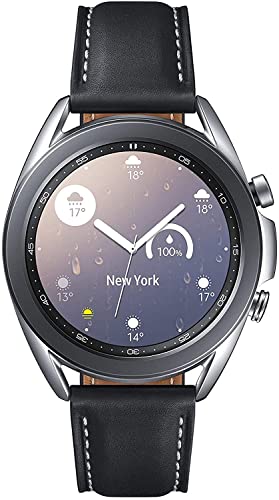
STYLE YOU CAN COUNT ON: Galaxy Watch3 combines style—two sizes, two finishes, three colors and, 50,000 plus¹ watch faces-with military-grade durability² and water resistance³.

International Model - No Warranty. Bluetooth Version: Wi-Fi + GPS Only. Not Compatible with Iphone/IOS. Supports Samsung Pay. (Important: Country selection may not be available during setup. Select Any, as Country will updated later after Connecting to WIFI in Settings.)
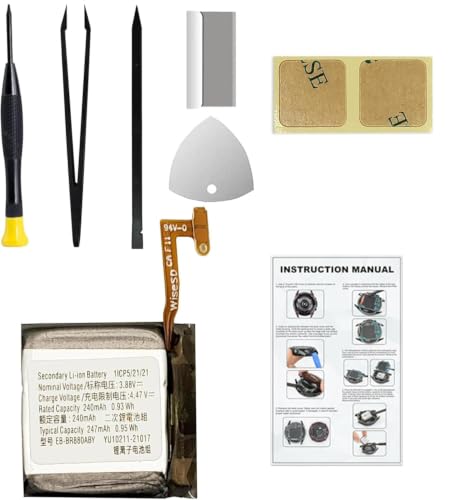
Compatible Smartwatch Model: This battery kit is specifically designed for Samsung Galaxy Watch 4 40mm (with model SM-R860 series) / Watch 4 Classic 42mm (with model SM-R880 series), please double confirm your smartwatch model before purchasing
Background Apps and Processes
Apps running in the background consume battery power, even when you’re not actively using them. These processes may include fitness trackers, health monitors, and notifications.
- Monitor active apps: Check your watch for apps that refresh frequently or utilize location services.
- Close unused applications: Regularly exit apps you don’t use to minimize battery consumption.
- Optimize app settings: Adjust settings for specific apps to reduce their background activity.
Bluetooth and GPS Usage
Bluetooth and GPS features can significantly impact your watch’s battery life. Constantly searching for devices or maintaining a GPS fix requires excessive power.
- Disconnect unused Bluetooth devices: Limit connections to only essential devices, such as your smartphone.
- Turn off GPS when not in use: Disable location services if you don’t need real-time tracking.
- Adjust tracking intervals: If you rely on GPS for fitness activities, change the tracking frequency to optimize battery use.
By managing background apps and monitoring Bluetooth and GPS usage, you can enhance the battery performance of your Samsung watch.
Solutions to Extend Battery Life
You can take several steps to extend the battery life of your Samsung watch. By adjusting settings and managing app permissions, you’ll notice improvements in battery performance.
Adjusting Settings for Improved Efficiency
- Reduce Screen Brightness: Lower the brightness to a comfortable level. A dim screen can save significant battery life.
- Limit Always-On Display: Disable the always-on feature. This keeps the screen off when not in use, conserving power.
- Turn Off Wake-Up Gesture: Disable the wrist raise feature. This prevents the screen from activating every time you move your wrist.
- Optimize Notifications: Limit the number of notifications. Only receive alerts from essential apps to reduce constant notifications and screen activation.
- Activate Battery Saving Mode: Use battery saver mode during periods of low battery. This feature minimizes background activity and disables unnecessary functions.
Managing App Permissions
- Review Background App Usage: Open the battery settings, and check which apps consume the most power. Disable background activity for non-essential apps.
- Restrict Location Services: Set location access to ‘While Using the App’ only. This prevents GPS from running continuously in the background.
- Limit Sync Intervals: Adjust sync settings for apps like email and health trackers. Set them to sync less frequently to reduce power consumption.
- Uninstall Unused Apps: Remove apps that you rarely use. This clears up resources and prevents unnecessary battery drain from background tasks.
- Update Apps Regularly: Keep apps updated. Developers frequently release updates that improve efficiency and reduce battery usage.
By implementing these tips, you can significantly improve the battery life of your Samsung watch and ensure it meets your daily needs.
Conclusion
Dealing with a Samsung watch that drains battery unexpectedly can be frustrating. By taking a closer look at your settings and usage habits you can often pinpoint the culprits behind the drain. Simple adjustments like managing notifications and turning off unused features can make a big difference.
Remember to keep your watch updated and regularly check which apps are using the most power. With a little attention and some tweaks you can enjoy your watch without constantly worrying about battery life. Here’s to getting the most out of your Samsung watch every day!
Frequently Asked Questions
Why is my Samsung watch battery draining so fast?
The fast battery drain on your Samsung watch can be caused by several factors, including high screen brightness, active apps, frequent notifications, and GPS or Bluetooth usage. Monitoring these elements and adjusting settings can help extend battery life.
How can I identify which apps are draining my battery?
You can check battery usage statistics in your watch settings to see which apps consume the most power. This helps you identify patterns in battery drain related to specific apps or features, enabling you to make informed adjustments.
What settings can I change to save battery life?
To save battery life, consider reducing screen brightness, limiting the always-on display, and turning off wake-up gestures. Activating battery-saving mode and managing app notifications can also contribute to better battery performance.
Is regularly updating my Samsung watch beneficial for battery life?
Yes, regular software updates can enhance battery performance by fixing bugs, introducing new features, and improving security. Keeping your watch updated helps ensure optimal functionality and may alleviate battery drain issues.
How does Bluetooth and GPS usage affect battery life?
Bluetooth and GPS can significantly impact your Samsung watch’s battery life, as they require constant power. Disconnecting unused Bluetooth devices and turning off GPS when not in use can help conserve battery.
What can I do about background apps consuming power?
To address background app power consumption, close unused applications and adjust settings to minimize background activity. Regularly review and restrict app permissions to prevent unnecessary battery drain.
Can syncing intervals affect battery performance?
Yes, frequent syncing can drain your watch’s battery. Limiting sync intervals for apps and services can help extend battery life, allowing your watch to run longer between charges.
Should I uninstall unused apps to improve battery life?
Absolutely! Uninstalling apps that you no longer use can reduce battery drain, as they won’t consume resources or run background processes when not needed. It’s an effective way to improve overall battery performance.
