

Key Takeaways
- Identify Common Battery Drain Causes: Background app usage, high screen brightness, and GPS services are primary culprits for rapid battery drain on Samsung phones.
- Optimize Settings: Adjusting display brightness and timeout settings, along with turning off unused features like Bluetooth and Wi-Fi, can significantly extend battery life.
- Manage App Activity: Limit background activity for non-essential apps and use Battery optimization settings to manage phone resources effectively.
- Utilize Battery Saver Mode: Activate Battery Saver mode to reduce performance and limit background tasks, especially when battery levels drop.
- Monitor Battery Usage: Regularly check battery stats to identify and address apps that consume excessive power, promoting informed adjustments for better battery performance.
- Seek Professional Help if Necessary: If battery issues persist, look for signs of battery damage and consider consulting Samsung support or authorized service centers for diagnosis and repair.
Is your Samsung phone draining faster than you can keep it charged? You’re not alone. Many people face this frustrating issue, especially when they rely on their phones for everything from social media to navigation.
Common Reasons for Battery Drain
If your Samsung phone experiences rapid battery drain, several factors may contribute to the issue. Understanding these common culprits can help you manage your battery life more effectively.
Background App Usage
Background apps consume battery even when you’re not using them. Apps like messaging, social media, and email often run in the background to deliver notifications. You can check this by going to Settings > Battery and device care > Battery > Usage. Disable or limit background data for apps that aren’t essential. Additionally, consider utilizing the Battery optimization feature in settings to restrict background activity significantly.
Screen Brightness and Timeout Settings
High screen brightness and lengthy timeout settings lead to increased battery consumption. Screen displays use substantial power, especially indoors or in bright environments. To minimize this, adjust your brightness to Auto or set it to a lower level manually. You can change timeout settings too: navigate to Settings > Display > Screen timeout and choose a shorter duration, like 30 seconds or 1 minute.
Location Services and GPS
Location services drain battery as they continually use GPS to provide accurate location tracking. Apps with location access—including maps, rideshares, and fitness trackers—can be power-hungry. Go to Settings > Location and adjust settings for individual apps. Use Battery saving mode instead of High Accuracy mode unless precise location is necessary. This change reduces GPS usage, conserving battery life effectively.
Battery-Saving Tips for Samsung Phones
You can take several steps to extend your Samsung phone’s battery life. Adjusting settings, managing applications, and utilizing battery saver mode are practical ways to reduce power consumption.
Recommended Products

Kastar 2-pack high-capacity BP-70A batteries with slim USB charger. Compatible with Samsung BP-70A / BP70A / EA-BP70A cameras (full model list in description). Each battery: 3.7 V, 1400 mAh, 5.2 Wh; approx. 1.0 oz. (39.4 × 31 × 5.8 mm / 1.55 × 1.22 × 0.23 in). Includes 2 batteries + 1 USB charger + 1 battery case.
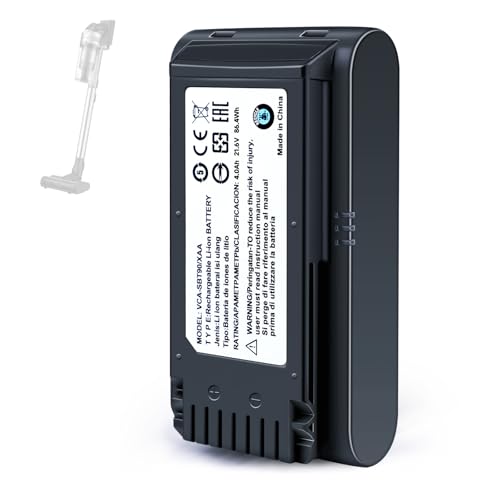
【Specifications】 Model:VCA-SBT90 ;Battery Type: Li_ion, Voltage:21.6V Capacity: 4000mAh ; Color: Gray and black

SLB-10A Li-ion Battery for Samsung EX2F HZ15W SL202 SL420 SL620 SL820 WB150F WB250F WB350F WB750 WB800F WB850F WB1100F
Adjusting Settings
Adjust your phone’s display and connectivity settings. Lowering screen brightness makes a significant difference. Navigate to Settings > Display, and then reduce the brightness slider. Set the screen timeout to a shorter duration under Settings > Display > Screen Timeout to minimize light usage when inactive. Turning off features like Bluetooth, Wi-Fi, or mobile data when not in use also conserves battery; do this via the quick settings panel.
Managing Applications
Managing applications helps prevent unnecessary battery drain. Identify and restrict background processes by going to Settings > Apps. Choose apps you rarely use and disable them or limit their background data. Check Settings > Battery and device care > Battery > App power management to enable options like Sleeping apps or Deep sleeping apps for those that drain your battery most.
Using Battery Saver Mode
Utilizing the battery saver mode offers immediate benefits. Access this feature by navigating to Settings > Battery and device care > Battery. Activate Battery saver to reduce performance and limit background activity, helping you stretch battery life. You can also set it to activate automatically when the battery reaches a certain percentage to ensure your phone lasts through the day.
Monitoring Battery Usage
Monitoring battery usage helps you understand what’s draining your Samsung phone’s power. You’re able to pinpoint apps and features consuming the most energy, allowing for informed adjustments to improve battery life.
Accessing Battery Stats
Access battery stats through your Samsung phone’s settings. Follow these steps:
- Open the Settings app.
- Tap on Battery and device care.
- Choose Battery.
- Select Battery usage.
Here, you’ll see a list of apps alongside their respective battery usage percentages. This overview provides insight into which apps require the most energy.
Identifying Problematic Apps
Identifying problematic apps allows you to take corrective action. Look closely at the battery usage statistics from the previous step.
- Check for apps using excessive battery, like social media or streaming services.
- Uninstall or disable apps that you frequently don’t use.
- Consider alternatives to power-hungry apps. For example, use a lighter version of an app or a different tool that accomplishes similar tasks more efficiently.
With these strategies, you can manage how your Samsung phone utilizes its battery, contributing to longer-lasting power throughout your day.
When to Seek Professional Help
If your Samsung phone continues to drain battery quickly despite your efforts, consulting a professional can provide valuable insights and solutions.
Signs of a Faulty Battery
Recognizing when your battery may be faulty is vital. Watch for these signs:
- Overheating: If your phone feels excessively hot during use or charging, it indicates potential battery issues.
- Inconsistent charge: Experiencing rapid changes in battery percentage, like dropping drastically within minutes, often signals battery malfunction.
- Physical damage: Noticeable swelling, cracking, or unusual bulges in your phone suggests a battery that needs immediate attention.
- Short battery life: If fully charging your phone fails to sustain typical usage throughout the day, the battery might be degrading and in need of replacement.
Samsung Support Options
Utilizing Samsung’s support services can help resolve your battery problems effectively. Consider these options:
- Samsung Members app: Use this app to run diagnostics on your phone’s performance. It provides helpful information about battery health.
- Contact customer support: You can reach out to Samsung’s customer service for assistance and troubleshooting tips tailored to your device.
- Authorized service centers: If needed, visit an authorized service center for professional diagnosis and repair. Technicians can replace faulty batteries or resolve underlying issues.
- Warranty claims: If your phone is still under warranty, explore your options for battery replacement or repair at no extra cost.
Ensuring your Samsung phone functions optimally often requires expert help when issues persist.
Conclusion
Managing your Samsung phone’s battery life doesn’t have to be a daunting task. By making a few simple adjustments to settings and being mindful of app usage, you can significantly extend your battery’s longevity. Remember to keep an eye on your battery stats to identify any trouble spots. If you’ve tried everything and the battery drain persists, don’t hesitate to reach out for professional help. Your phone’s performance should match your needs, and with the right steps, you can enjoy longer-lasting power throughout your day.
Frequently Asked Questions
What causes battery drain on Samsung phones?
Many factors contribute to battery drain on Samsung phones, including background app usage, high screen brightness, and active location services. Background apps can continue to use power even when not visible, while bright screens and GPS can quickly deplete battery life.
How can I reduce screen brightness to save battery?
To reduce screen brightness on your Samsung phone, go to Settings > Display, and adjust the brightness slider. You can also enable Adaptive brightness to automatically adjust based on lighting conditions, which helps conserve battery life.
What are some effective battery-saving tips for Samsung devices?
To save battery on your Samsung device, try lowering screen brightness, setting a shorter screen timeout, turning off Bluetooth and Wi-Fi when not needed, managing background apps, and using battery saver mode to limit power usage.
How do I manage background app usage?
To manage background app usage, navigate to Settings > Apps, select an app, and adjust background activity settings. You can enable Sleeping apps or Deep sleeping apps options to restrict apps from consuming power when not in use.
When should I seek professional help for battery issues?
Seek professional help if your Samsung phone exhibits signs of a faulty battery, such as overheating, inconsistent charging, short battery life, or physical damage. Utilize Samsung’s support services, contact customer support, or visit authorized service centers for assistance.
