

Key Takeaways
- Identify Battery Drain Causes: Understanding factors like screen brightness, background apps, connectivity features, and outdated software is crucial for managing battery usage.
- Adjust Display Settings: Lowering screen brightness and reducing screen timeout can significantly improve battery life.
- Manage Background Apps: Closing unused applications and disabling background data for certain apps can help conserve power.
- Utilize Battery Saver Mode: Activating battery saver mode and customizing its settings maximizes your device’s longevity during low-power times.
- Regular Software Updates: Keeping your device updated ensures optimal battery management by fixing bugs and improving performance.
- Assess Battery Health: Monitoring battery health and considering a replacement if necessary can help maintain your tablet’s performance.
Is your Samsung Galaxy Tab’s battery draining faster than you’d like? You’re not alone. Many users find themselves frustrated as their device struggles to keep up with daily tasks. Whether you’re streaming videos, browsing the web, or working on important projects, a dwindling battery can be a real hassle.
Understanding Battery Drain Issues
Battery drain issues in your Samsung Galaxy Tab can stem from various factors. Identifying the culprits helps manage and reduce power consumption effectively.
Common Reasons for Battery Drain
- Screen Brightness: High screen brightness settings consume significant battery power. Reducing brightness or enabling adaptive brightness can extend battery life.
- Background Apps: Apps running in the background consume resources. Closing unused apps or disabling background activity for certain apps helps preserve power.
- Connectivity Features: GPS, Wi-Fi, and Bluetooth connections drain battery life. Turning these features off when not needed improves overall battery performance.
- Outdated Software: Running outdated software may lead to inefficiencies. Keeping your device updated ensures optimal battery management.
- Battery Health: Over time, battery performance declines. If your tablet’s battery is several years old, consider replacing it to improve longevity.
Signs of a Draining Battery
- Rapid Discharge: If your tablet’s battery percentage drops quickly, it indicates a problem.
- Device Heating: Overheating while charging or during usage signals potential battery issues.
- Unexpected Shutdowns: Shutting down unexpectedly, even when there’s remaining battery, suggests battery health concerns.
- Charging Without Effect: If your device charges slowly or not at all, the problem may lie with the battery or charger.
- Battery Percentage Fluctuations: If the battery icon fluctuates inconsistently, there’s likely a malfunction in the battery system.
Understanding these issues allows you to tackle battery drain effectively, improving the performance of your Samsung Galaxy Tab.
Key Factors Contributing to Battery Drain
Battery drain on your Samsung Galaxy Tab can result from several factors. Understanding these causes helps you manage power consumption and extend battery life.
Recommended Products

【Battery Specifications】Model:SCUD-WT-N19; Battery Type: Rechargeble Lithium polymer; Capacity:27.1 Wh 7040 mAh; Voltage:3.85V; Battery life: Up to 500 recharge cycles.

Replacement For Tablet: Fit for Samsung Galaxy Tab A8 10.5 Inch SM-X200 SM-X205 SM-X200N SM-X205N SM-X205NZAAEUE SM-X200NZAAEUA Tablet.

Background Applications
Background applications consume battery by continuing to run even when you’re not actively using them. You can check which apps are running by navigating to Settings > Apps and selecting the “Running” tab. Examples of common background apps include social media platforms, music streaming services, and news aggregators. To reduce battery drain, close unused apps, or disable background activity for less important applications.
Display Settings
Your display settings significantly impact battery usage. High screen brightness and long screen timeout settings contribute to faster battery drain. For optimal battery life, adjust your brightness by going to Settings > Display and selecting “Adaptive brightness” or lowering it manually. Also, consider reducing the screen timeout duration to 30 seconds or 1 minute, ensuring the display turns off quickly when not in use.
Connectivity Features
Connectivity features like Wi-Fi, Bluetooth, and GPS can deplete battery life when left enabled unnecessarily. Consider turning off these features when not in use. For example, switch off Wi-Fi and Bluetooth from the quick access menu or through Settings. Additionally, disabling location services for apps that don’t require GPS can help conserve battery. You can adjust these settings by going to Settings > Location and modifying app permissions.
Tips for Reducing Battery Drain
Taking steps to conserve battery life on your Samsung Galaxy Tab helps enhance its performance and usability. Here are some effective strategies.
Recommended Products

Compatible with: Fit for Samsung Galaxy Tab S6 10.5” SM-T860 T865, Samsung Galaxy Tab S5e 10.5” SM-T720 T725, please check the model of your tablet before purchase. Compatible Part Numbers: EB-BT725ABU. Installation Notice: Replacing battery for Samsung Galaxy Tab S6 / S5E requires careful disassembly. Please watch professional teardown video before installation. Improper installation may result in charging recognition error.
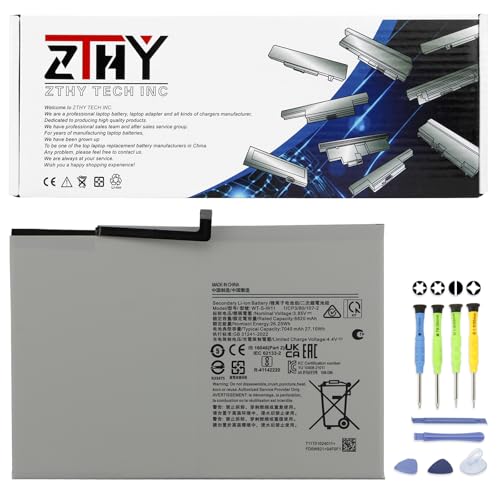
Specifications: Battery type: Li-ion. Color: White. Voltage: 3.85V. Capacity: 27.1Wh. New from Manufacturer

Battery Condition: Brand New; Voltage: 3.86V. Capacity: 30.88Wh/8000mAh
Adjusting Settings
Adjusting your settings is crucial for optimizing battery life.
- Reduce screen brightness: Lowering brightness can significantly decrease battery consumption. Access the Quick Settings menu and slide the brightness bar down.
- Shorten screen timeout: Set the screen timeout to 30 seconds or 1 minute. Go to Settings > Display > Screen timeout to make changes.
- Disable notifications: Limit notifications from apps that aren’t essential. Navigate to Settings > Notifications to customize which apps can send alerts.
Managing Applications
Managing your applications effectively ensures that only necessary apps consume power.
- Close unused apps: Swipe up from the bottom of the screen to view background apps and swipe away any you don’t need.
- Uninstall unnecessary apps: Delete apps that you rarely use. Long-press the app icon and select “Uninstall” for a quick removal.
- Limit background data: Disable background data for apps that don’t require constant updates. Go to Settings > Apps, select an app, and toggle off “Allow background data usage.”
Utilizing Battery Saver Mode
Utilizing battery saver mode maximizes your battery’s longevity.
- Enable Battery Saver: Activate this feature by swiping down to the Quick Settings panel and tapping on the battery icon. This changes various settings to conserve power.
- Adjust battery saver settings: Customize what happens when battery saver kicks in. Go to Settings > Battery > Battery Saver, and choose options like limiting background usage or reducing performance.
- Schedule battery saver: Set a schedule for battery saver to activate automatically during your typical low-power times.
Implementing these tips will help in managing battery drain effectively, enhancing your overall experience with your Samsung Galaxy Tab.
Troubleshooting Steps
Follow these steps to address the battery drain issue on your Samsung Galaxy Tab.
Recommended Products

【Battery Specifications】Model:SCUD-WT-N19 Rechargeable Battery/Capacity:27.1Wh/Voltage: 3.85V/Cycle life: Up to 500 recharge cycles.

Replacement For Tablet: Fit for ①Samsung Galaxy Tab A7 10.4 2020 SM-T500 SM-T500N Series; ② SM-T505 SM-T505N Series; ③ SM-T503 SM-T507 Series; ④ SM-T500NZDAXAR SM-T500NZSAXAR Series.

Replacement For Laptop: Fit for Samsung Galaxy Tab A7 Lite 8.7 2021 SM-T220 SM-T225 SM-T225C SM-T225N.
Checking Battery Health
Check the battery health status to determine its condition. Go to Settings > Device care > Battery. Tap on Battery usage to see which apps consume the most power. If your battery health appears low, consider replacing it if it no longer holds a charge effectively.
Performing Software Updates
Ensure your device runs the latest software. Go to Settings > Software update and select Download and install. Keeping your tablet updated can fix bugs that affect battery performance. Regular updates improve security and sometimes enhance battery life.
Conclusion
Dealing with a fast-draining battery on your Samsung Galaxy Tab can be frustrating but you can take control of the situation. By understanding the factors that contribute to battery drain and implementing simple adjustments you can significantly improve your device’s performance.
From managing background apps to adjusting display settings and utilizing battery saver mode there are plenty of ways to extend your tablet’s battery life. Regularly checking your battery health and keeping your software updated also play a crucial role in maintaining optimal performance.
With a few tweaks you’ll be able to enjoy your tablet for longer periods without the constant worry of running out of power. Happy browsing and streaming!
Frequently Asked Questions
What causes battery drain in Samsung Galaxy Tabs?
Battery drain in Samsung Galaxy Tabs can be caused by high screen brightness, background apps running, connectivity features like Wi-Fi and Bluetooth being turned on, outdated software, and declining battery health.
How can I tell if my tablet battery is draining quickly?
Signs of a draining battery include rapid discharge, device overheating, unexpected shutdowns, slow charging, and fluctuating battery percentages.
What settings can I adjust to extend battery life?
To extend battery life, reduce screen brightness, shorten screen timeout duration, and disable unnecessary connectivity features and notifications.
How do I manage background apps to save battery?
Manage background apps by checking which apps are running and closing unused ones. Consider uninstalling rarely used applications to prevent them from consuming battery power.
What is battery saver mode, and how can I use it?
Battery saver mode helps maximize battery longevity by limiting background activity and notifications. You can enable it in the settings and customize or schedule it to activate during low-power times.
How can I check the battery health of my Samsung Galaxy Tab?
You can check battery health by navigating to Settings > Device care > Battery. This will show you power-hungry apps and indicate if a battery replacement may be necessary.
Why is software updating crucial for battery performance?
Regularly updating software ensures that your device benefits from bug fixes and security enhancements. These updates can improve battery management and overall device performance.
What to do if the battery drain issue persists?
If battery drain issues continue, consider resetting your device to factory settings, assessing your usage habits, or consulting a professional for potential battery replacement.
