

Key Takeaways
- CMOS Battery Functionality: The CMOS battery is essential for retaining system settings, including time and BIOS configurations, when the computer is powered off.
- Common Locations: On ASUS motherboards, the CMOS battery is typically located near the CPU socket, along the motherboard’s edge, or sometimes underneath the GPU.
- Battery Type: The most commonly used battery in ASUS motherboards is the CR2032 lithium battery, easily identifiable by its size and labeling.
- Replacement Steps: Replacing the CMOS battery involves powering down the computer, opening the case, locating the battery, removing it, and inserting a new one while ensuring the correct orientation.
- Troubleshooting Symptoms: Signs of a failing CMOS battery include incorrect system time, BIOS settings resetting, boot issues, and date/time-related errors, indicating a need for replacement.
- Replacement Options: CR2032 batteries can be purchased at electronics stores or online, or you can seek professional help if replacing the battery yourself feels daunting.
Have you ever wondered why your computer loses time or settings when it’s turned off? If you’re dealing with this frustrating issue, it might be time to check the CMOS battery. Knowing where to find it on your ASUS motherboard can save you a lot of hassle.
You might be surprised to learn that replacing the CMOS battery is a simple fix that can restore your system’s performance. In this article, you’ll discover exactly where to locate the battery on your ASUS motherboard and how to replace it. By the end, you’ll feel more confident tackling this common maintenance task.
Understanding CMOS Batteries
CMOS batteries play a crucial role in maintaining system settings when your computer is powered off. They’re responsible for keeping the real-time clock and BIOS settings intact so you can experience seamless startup every time.
What Is a CMOS Battery?
A CMOS battery is a small coin-cell battery located on your motherboard. Typically, it’s a CR2032 lithium battery that provides power to the Complementary Metal-Oxide-Semiconductor (CMOS) chip when the computer is turned off. This chip stores essential data, like system time and hardware settings.
Importance of CMOS Battery in Motherboards
The CMOS battery ensures your computer retains critical information. When the battery is functioning, your machine remembers BIOS settings, system time, and date even without power. A dead battery leads to issues like incorrect time display and reset settings, causing inconvenience. Regularly checking the battery status can prevent potential disruptions in system performance.
Locating the CMOS Battery on ASUS Motherboards
Finding the CMOS battery on an ASUS motherboard is straightforward with a little guidance. The battery is usually easily accessible, allowing you to replace it when needed.
Recommended Products

We use high quality battery,manufactured by Japanese battery giant to produce the CMOS battery.


3V LITHIUM COIN 2032 BATTERY PACK: One 10 pack of Energizer lithium 2032 Batteries. Packaging may vary
Common Placement Areas
- Near the CPU Socket: Many ASUS motherboards place the CMOS battery in close proximity to the CPU socket. Look for a circular, coin-shaped battery in that region.
- Along the Edge of the Motherboard: Some models feature the battery along the motherboard’s edge. This location allows for easier access without obstructing other components.
- Underneath the GPU: Occasionally, you might find the battery hidden under a graphics card. If you can’t locate it, consider checking behind your GPU for any concealed batteries.
Identifying the Battery Type
- CR2032: Most ASUS motherboards use a CR2032 lithium battery. This battery type is widely available in electronics stores and online.
- Labeling: Check the battery for a numeric code or label. The CR2032 designation typically appears on the battery. If the battery isn’t clearly marked, refer to your motherboard’s manual.
- Alternatives: In rare instances, some models may feature alternative battery types. If you’re unsure about compatibility, consult the motherboard specifications or the manufacturer’s website for detailed information.
Steps to Access the CMOS Battery
Accessing the CMOS battery on your ASUS motherboard involves a few simple steps. Follow this guide to ensure a smooth process.
Recommended Products

Rome Tech Dell Inspiron CMOS Battery Replacement – This dell inspiron cmos battery is a CR2032 3V BIOS RTC coin cell designed to restore motherboard clock and BIOS settings in compatible Dell Inspiron laptops. Please verify your exact model before purchasing.

Rome Tech BIOS CMOS battery CR2032-LC1 best suits to replace your broken or non-working old battery - we provide premium quality only
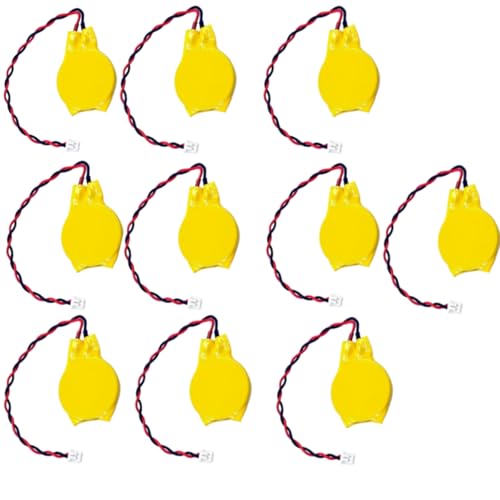
COMPATIBILITY: 3V CR2032 CMOS batteries designed for motherboard backup power with universal MOLEX connector for easy installation
Tools Required
- Screwdriver: A Phillips-head screwdriver works best.
- Anti-static wrist strap: This prevents static electricity damage to components.
- Flashlight: Useful for illuminating dark areas inside the case.
- Replacement battery: A CR2032 lithium battery, commonly used across many ASUS motherboards.
Step-by-Step Process
- Power Down the Computer: Shut down your computer without delay. Unplug the power cable from the outlet.
- Open the Case: Remove the screws holding the side panel of the case. Slide off the panel to access the interior.
- Locate the Motherboard: Identify the motherboard within the case. It’s the large board where all components connect.
- Find the CMOS Battery: Look for the round, silver battery. It’s often located near the CPU socket but may be positioned along the motherboard edge or under components like the GPU.
- Remove the Battery: Gently press down on the metal clip holding the battery in place. The battery should pop out easily.
- Install the New Battery: Place the new CR2032 battery in the same orientation, ensuring the positive side faces up. The clip should hold it securely.
- Close the Case: Put the side panel back on and secure it with screws. Plug in all cables and power up your computer.
By following these steps, you can swiftly access and replace the CMOS battery on your ASUS motherboard, ensuring your system retains its settings effectively.
Troubleshooting CMOS Battery Issues
Identifying issues related to the CMOS battery helps maintain your computer’s performance. Recognizing the symptoms and knowing your replacement options allows for effective troubleshooting.
Recommended Products

Voltage: 3V; Capacity: Diameter: 20.5mm, Height: 6.5mm. Connector: CR2032-MX51021.

Applicable to the following models: CR2032,,2032, CR2032BP,DL2032,ECR2032,KCR2032,BR2032,LM2032,5004LC,5004LB,L14,SB-T15,EA2032C,EA-2032C,L2032,2032,DJ2032,KL2032,E- CR2032,KECR2032,GPCR2032,KT-CR2032

Rome Tech BIOS Lenovo CMOS battery CR2032-t best suits to replace your broken or non-working old battery - we provide premium quality only
Symptoms of a Failing CMOS Battery
Several signs indicate a failing CMOS battery.
- Time reset: Your computer shows incorrect time or date each time you start it.
- BIOS settings reset: Changes made in BIOS revert to default settings unexpectedly.
- Boot issues: The system may fail to boot or display error messages related to hardware configurations.
- Date and time errors: Applications that rely on accurate time may malfunction.
These symptoms often signal that the battery needs replacement to ensure consistent data retention.
Replacement Options
Various options exist for replacing a CMOS battery.
- Purchase CR2032 Battery: Most ASUS motherboards require a CR2032 lithium battery. Find this battery at electronics stores or online retailers.
- Battery Kits: Some stores offer kits that include multiple batteries and tools for installation.
- Local Repair Shops: If you’re uncomfortable replacing the battery yourself, consider taking your motherboard to a local repair shop for professional assistance.
Ensure you follow proper guidelines for handling electronic components, including disconnecting power sources and grounding yourself to avoid static damage.
Conclusion
Knowing where to find the CMOS battery on your ASUS motherboard can save you a lot of hassle. When your computer starts acting up with time or setting issues a quick battery check can often solve the problem.
By locating and replacing the CR2032 battery you’ll keep your system running smoothly. Remember to handle everything carefully to avoid static damage and always double-check your motherboard manual if you’re unsure.
With this simple maintenance task you can ensure your computer remains reliable and efficient for all your needs. Happy computing!
Frequently Asked Questions
What causes a computer to lose time and settings when turned off?
A computer often loses time and settings due to a failing CMOS battery. This battery powers the chip that maintains important system settings, including the real-time clock and BIOS configurations, when the computer is disconnected from power.
How can I identify the CMOS battery on my ASUS motherboard?
On ASUS motherboards, the CMOS battery is typically a CR2032 lithium battery. You can find it near the CPU socket, along the edge of the motherboard, or occasionally underneath the GPU. Check for labels on the battery or refer to your motherboard manual for confirmation.
What tools do I need to replace the CMOS battery?
To replace the CMOS battery, you will need a Phillips-head screwdriver, an anti-static wrist strap, a flashlight, and a replacement CR2032 battery. These tools help ensure safe and effective handling during the replacement process.
What steps are involved in replacing the CMOS battery?
To replace the CMOS battery, power down your computer and unplug it. Open the case, locate the battery on the motherboard, remove the old battery, and insert the new one. Finally, close the case and power on the computer.
What symptoms indicate a failing CMOS battery?
Common symptoms of a failing CMOS battery include incorrect time displays, unexpected BIOS resets, boot issues, and date errors in applications. Recognizing these signs can help you maintain optimal computer performance.
Where can I buy a replacement CMOS battery?
You can purchase a CR2032 battery at electronics stores, online retailers, or in battery kits that include multiple batteries and tools. This makes replacement easy and convenient for users.
Should I seek professional help for CMOS battery replacement?
If you feel uncomfortable or unsure about replacing the CMOS battery yourself, seeking assistance from a local repair shop is a good option. Professionals can ensure the job is done correctly and safely.
