

Key Takeaways
- Identify Background Apps: Regularly check and close background apps that consume battery life, particularly social media and streaming applications.
- Adjust Screen Settings: Lower your screen brightness and enable adaptive brightness to help reduce battery drain significantly.
- Limit Connectivity Features: Turn off Wi-Fi, Bluetooth, and GPS when not in use to conserve battery power.
- Manage Push Notifications: Limit or disable push notifications for less important apps to decrease data usage and save battery.
- Keep Software Updated: Regularly update your Android device to improve performance and battery management through manufacturer-released patches.
- Utilize Battery Monitoring Tools: Use built-in and third-party apps to monitor battery usage for better management and to identify high-drain applications.
Ever wondered why your Android phone seems to lose battery life faster than you can charge it? You’re not alone. Many people face the frustration of checking their phone only to find it’s nearly dead after just a few hours of use.
You might be scrolling through social media, streaming music, or just browsing the web, and suddenly, your battery percentage plummets. This article will help you pinpoint the culprits behind your battery drain and offer practical tips to extend your phone’s life. By understanding what drains your battery, you can enjoy your device without constantly worrying about finding a charger.
Understanding Battery Drain Issues
Battery drain can stem from several factors. Identifying these issues helps you manage your Android phone effectively.
Common Causes of Battery Drain
- Background Apps: Apps running in the background consume power. Social media, email, and location services commonly use battery even when not in active use.
- Screen Brightness: High screen brightness significantly drains battery. Reducing brightness or using adaptive brightness can conserve energy.
- Connectivity Features: Wi-Fi, Bluetooth, and GPS use power constantly. Turning off unused features can help extend battery life.
- Push Notifications: Frequent notifications require data updates. Limiting or disabling push notifications can save battery power.
- Outdated Software: Older software versions may have bugs that affect battery performance. Keeping your device updated helps improve efficiency.
Practical Tips to Reduce Battery Drain
- Close Unused Apps: Regularly close apps you no longer use. This reduces unnecessary background activity.
- Adjust Screen Settings: Set your screen to a lower brightness level. Use dark mode where possible to save energy.
- Limit Connectivity Use: Disable Wi-Fi, Bluetooth, and GPS when they aren’t needed. This can provide significant battery savings.
- Manage Notifications: Turn off or limit notifications for less important apps. Fewer updates mean less battery usage.
- Update Your Phone: Regularly check for software updates. Manufacturers often release updates that improve power management.
By understanding these battery drain issues and implementing these practical tips, you can enhance your Android phone’s battery life significantly.
Common Causes of Battery Drain
Several factors can cause your Android phone’s battery to drain quickly. Identifying these reasons helps you manage your phone’s performance effectively.
Background App Activity
Background apps consume battery power even when you’re not actively using them. Apps like social media, music players, or games that run in the background can significantly impact battery life. You can check battery usage stats in your phone’s settings to see which apps are draining power. Close unused apps or limit background activity through your settings to conserve battery.
Screen Brightness and Timeout Settings
Screen brightness plays a critical role in battery consumption. Higher brightness levels require more power, resulting in quicker battery drain. Adjust your screen brightness to a lower level or enable the adaptive brightness feature for automatic adjustments based on surrounding light. Additionally, set a shorter screen timeout duration. A timeout setting of 30 seconds to 1 minute helps reduce power usage when the phone isn’t in active use.
Location Services and GPS
Location services can lead to significant battery drain, especially when GPS is active. Apps frequently checking your location, like navigation or tracking apps, increase battery consumption. Turn off location services when not needed or set them to battery-saving mode. You can manage location settings in the privacy or location settings menu, allowing you to enable location only for specific apps that require it.
App-Specific Issues
Some apps are notorious for excessive battery consumption. Certain social media apps, video streaming services, or live wallpaper applications can drain your battery faster than others. Consider uninstalling or replacing apps that use too much power. Regularly check for updates, as developers often release patches to improve efficiency. Utilizing battery-saving alternatives or lighter versions of apps can also help prolong your phone’s battery life.
Monitoring Battery Usage
Monitoring your phone’s battery usage helps identify what’s draining your battery. Understanding which apps and settings consume power can lead to smarter usage decisions and longer battery life.
Using Built-in Battery Settings
Access your phone’s built-in battery settings to review which apps use the most power.
- Open Settings on your Android device.
- Scroll down and select Battery.
- Tap on Battery Usage to see a detailed list of apps and their battery consumption.
You’ll notice apps that consume a significant amount of battery, even when not in active use. Closing these apps or adjusting their settings can optimize battery efficiency. For instance, if a social media app frequently updates in the background, consider restricting its background activity.
Third-party Apps for Monitoring
Consider using third-party apps for more in-depth monitoring. Several apps analyze battery health and usage patterns.
- AccuBattery provides real-time battery usage information and estimates your battery’s lifespan.
- GSam Battery Monitor allows you to track individual app power consumption over time.
These tools offer insights such as historical usage trends, helping you pinpoint specific behaviors or apps that lead to rapid battery drain. Adjust your usage based on these analytics to improve your overall battery performance.
Tips to Extend Battery Life
Extend your Android phone’s battery life with simple adjustments and proactive management of apps and settings.
Recommended Products

Kaisi 20 pcs opening pry tools kit for smart phone,laptop,computer tablet,electronics, apple watch, iPad, iPod, Macbook, computer, LCD screen, battery and more disassembly and repair

Battery Widget information that indicates battery power as a % with remaining battery life indicated in minutes.
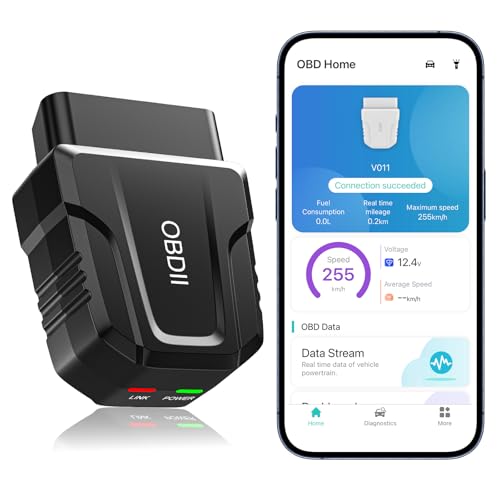
【Comprehensive Performance Testing】V011 OBD2 Scanner provides a complete diagnostic solution, giving you a thorough understanding of your vehicle's condition. It supports a variety of performance tests, support 9 protocols,👍automotive fault clearing,including fast reading of DTCs, access to electronic emission readiness, turning off CEL or MIL, resetting monitors, reading live data and retrieving the vehicle's VIN, freeze frame, sensor data, data streaming, diagnostic reports, onboard monitoring, live data streaming, and more. With these features, you can monitor your car's performance in real time and discover potential problems before they become major issues.
Adjusting Settings
Lower the screen brightness to save battery. Navigate to Settings > Display and adjust the brightness slider. Activate Adaptive brightness for automatic adjustments based on your environment. Reduce the screen timeout duration to 30 seconds or 1 minute under Settings > Display > Screen timeout. Turn off features like Bluetooth, Wi-Fi, and Mobile Data when not in use, as they drain power. Access these from the quick settings panel by swiping down from the top of the screen.
Managing App Usage
Identify high-drain apps through Settings > Battery > Battery usage. Close or uninstall any unnecessary apps. Use alternatives for social media and streaming services that are known for excessive battery use. Limit resource-intensive activities, like video streaming or gaming, especially when on battery power. You can also enable Battery Saver mode under Settings > Battery > Battery Saver to extend battery life further.
Optimizing Background Activity
Restrict background activity for apps that frequently run processes, even when not actively used. Go to Settings > Apps > [App Name] > Battery, then select Restrict background activity. Remove apps that frequently send push notifications, as they keep your phone awake. Check location services in Settings > Location and switch off GPS for apps that don’t require it. This adjustment can significantly conserve battery life.
Conclusion
With a little awareness and some simple adjustments you can keep your Android phone running longer between charges. By monitoring your battery usage and tweaking settings you’ll be able to pinpoint what’s draining your power.
Taking steps like closing unused apps lowering screen brightness and managing connectivity can make a big difference. Regularly checking for app updates and being mindful of location services will also help preserve battery life.
Embrace these tips and enjoy a more reliable phone experience without the constant worry of your battery dying on you. You’ve got this!
Frequently Asked Questions
What causes rapid battery drain in Android phones?
Rapid battery drain can be caused by several factors, including background apps running continuously, high screen brightness, active connectivity features like Wi-Fi and Bluetooth, frequent push notifications, and outdated software. These elements can significantly impact battery life, leading to the need for more frequent charging.
How can I check which apps are draining my battery?
To check which apps are consuming the most battery, go to your phone’s settings, select “Battery,” and then look for “Battery Usage.” This section displays which apps use the most power, helping you identify high-drain apps and take action accordingly.
What are some tips to extend my Android phone’s battery life?
To extend battery life, close unused apps, lower screen brightness, reduce screen timeout, disable unnecessary connectivity features, manage notifications, and regularly check for software updates. These simple adjustments can help you conserve energy throughout the day.
Should I disable location services to save battery?
Yes, turning off location services when not needed can help save battery life. GPS and location tracking consume a lot of power, so disabling these features can significantly extend your phone’s battery.
Are there apps that I should avoid to prevent battery drain?
Yes, certain apps are known for high battery consumption, particularly social media and streaming apps. If you notice excessive battery drain, consider uninstalling or replacing these apps with more battery-efficient alternatives.
How can I monitor my battery health more effectively?
Using third-party apps like AccuBattery and GSam Battery Monitor can provide detailed insights into your battery health and usage patterns. These tools help you track consumption and identify apps that drain your battery excessively.
What settings should I adjust for better battery performance?
Adjust screen brightness to a lower level, activate adaptive brightness, and set a shorter screen timeout duration. Additionally, limit background activity for apps, turn off push notifications, and disable connectivity features when not in use to improve battery performance.
How often should I update my Android phone for better battery life?
Regularly updating your Android phone is crucial for optimal performance, including battery efficiency. Software updates often include improvements and bug fixes that can enhance your phone’s energy management, so aim to update whenever a new version is available.
