

Key Takeaways
- Understand Battery Types: Familiarize yourself with the different Samsung tablet models (Galaxy Tab S, A, Active) and their unique battery specifications for optimal performance.
- Know Battery Specifications: Recognize key battery details such as capacity (mAh), voltage (3.7V), and charge cycles (300-500) to assess battery health and plan replacements.
- Preparation is Key: Gather necessary tools (screwdrivers, pry tools, tweezers) and follow safety precautions (power off device, discharge static) before attempting battery removal.
- Follow a Step-by-Step Guide: Carefully power off the device, open the tablet, disconnect the battery, and safely remove it following the defined instructions.
- Choose Authentic Replacements: Select replacement batteries compatible with your specific model, ensuring they meet original specifications and come from reputable sources.
- Installation Process: Follow proper steps to install the new battery, including securing it correctly and testing the device post-installation for functionality.
Have you ever faced the frustrating situation of a sluggish Samsung tablet that just won’t hold a charge? You’re not alone. Many users find themselves needing to replace or remove their tablet’s battery to restore its performance.
Understanding Samsung Tablet Batteries
Samsung tablets come equipped with different battery types that affect performance and battery life. Understanding these variations helps you manage your device better.
Types of Samsung Tablets
Samsung offers several tablet lines, including Galaxy Tab, Galaxy Tab S, and Galaxy Tab A. Each line features distinct specifications. For instance:
- Galaxy Tab S: Designed for high performance, uses premium materials, and typically has a larger capacity battery.
- Galaxy Tab A: Targeted at budget-conscious consumers, these models feature moderate battery capacities.
- Galaxy Tab Active: Built for rugged environments, these tablets often include replaceable batteries.
Each model’s design influences battery characteristics, making it important to know your specific tablet type when considering battery maintenance or replacement.
Battery Specifications
Samsung tablets generally use lithium-ion (Li-ion) batteries, known for their efficiency and durability. Key specifications include:
- Capacity: Measured in milliampere-hours (mAh). Larger mAh ratings typically mean longer usage times. For example, a tablet with a 7,000 mAh battery may last significantly longer than one with a 4,000 mAh battery.
- Voltage: Most Samsung tablet batteries operate at around 3.7 volts. Consistent voltage is crucial for stable performance.
- Charge cycles: Samsung batteries typically last through 300 to 500 full charge cycles. After this, performance may decrease.
- Replacement: Consider replacing batteries with original Samsung parts to ensure compatibility and safety.
Recognizing these specifications allows you to assess battery health and plan for potential replacements, optimizing your tablet’s performance and longevity.
Preparing for Battery Removal
Before removing the battery from your Samsung tablet, ensure you’re well-prepared. Gather the necessary tools and follow safety precautions to make the process smoother.
Recommended Products

Replacement For Laptop: Fit for Samsung Galaxy Tab A7 Lite 8.7 2021 SM-T220 SM-T225 SM-T225C SM-T225N.

Compatible models: Compatible with all screwless Samsung TVs

Powerful Function: This 2 in 1 opening repair tool kit is professtional tool that compatible with repairing moble devices, iPhone, iPads, iPods or any other smart phones.Good helper to remove screen when you need repair your phone.
Tools Required
- Screwdrivers: You’ll need a small Phillips screwdriver for the screws.
- Plastic Pry Tools: Use these to gently detach the tablet’s display from the casing without causing damage.
- Tweezers: These help in handling small components safely.
- Spudger: A spudger can assist in disconnecting connectors.
- Cleaning Cloth: Keep a microfiber cloth handy to clean any dust or debris from the components.
Safety Precautions
- Power Off Your Device: Always turn off your tablet before starting.
- Discharge Static Electricity: Ground yourself to prevent static discharge. You can do this by touching a metal object or using an anti-static wrist strap.
- Work in a Clean Area: Choose a flat, clean surface to avoid losing small components.
- Avoid Excessive Force: Use gentle pressure to avoid damaging parts during removal.
- Be Cautious with the Battery: Lithium-ion batteries can be hazardous. If the battery appears swollen or damaged, handle it with extra care and avoid puncturing it.
Step-by-Step Guide to Removing the Battery
Removing the battery from your Samsung tablet involves several clear steps. Follow these instructions carefully to ensure a safe and effective process.
Recommended Products

【Suitable for TV models】: Compatible with Samsung screwless TVs.
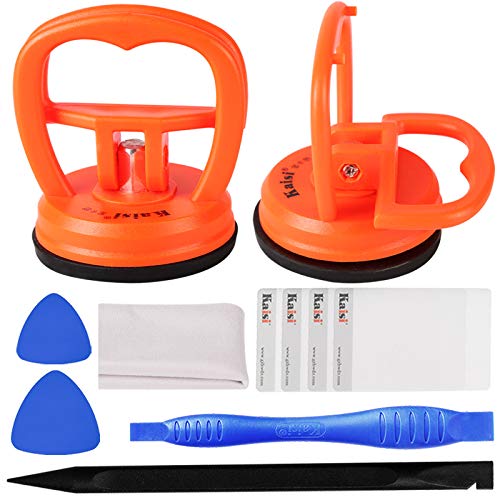
High Quality & Super Suction-- Screen suction cup is made of durable ABS and natural rubber materials, and has a long service life. The suction cup has a lifting capacity of 1-2 kg , which can help you open the phone screen.
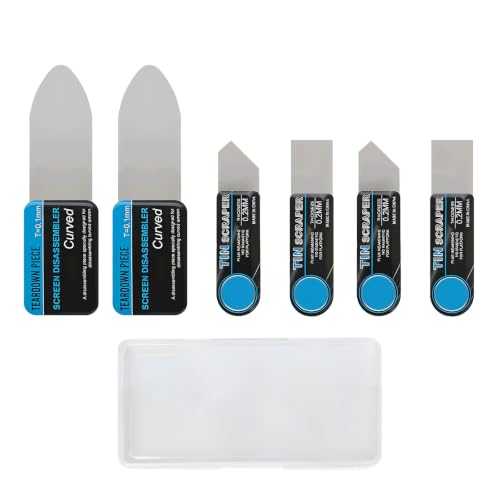
Multi-Function Electronics Repair Kit: Includes 3 independent stainless steel pry tools(2 set): 2 large ultra-thin 0.1 mm card and 4 small 0.2 mm spudgers, perfect for phones, tablets & laptops. Flat pry bar design for leverage and precision
Powering Off the Device
First, turn off your tablet completely. Press and hold the power button until the shutdown menu appears, then select “Power Off.” This action prevents any potential electrical issues while you work on the device.
Opening the Tablet
Next, use a plastic pry tool to open your tablet. Insert the tool into the seam along the edge of the device. Gently slide it around the perimeter to loosen the adhesive. Avoid using metal tools, as they can scratch or damage the screen. Once you’ve unsealed the device, carefully lift the front casing away to expose the internal components.
Disconnecting the Battery
Locate the battery connector once the tablet is open. It’s typically a small ribbon cable attached to the motherboard. Use a spudger or tweezers to carefully disconnect this cable by lifting it straight up. Be gentle to avoid damaging the connector or the cable. After disconnection, you can remove the battery itself by lifting it out of its compartment.
These steps should guide you through safely removing the battery from your Samsung tablet.
Replacing the Battery
Replacing the battery in your Samsung tablet can revitalize its performance. Follow these guidelines for a successful battery replacement experience.
Recommended Products

【Battery Specifications】Model:SCUD-WT-N19 Rechargeable Battery/Capacity:27.1Wh/Voltage: 3.85V/Cycle life: Up to 500 recharge cycles.

【Battery Specifications】Model:SCUD-WT-N19; Battery Type: Rechargeble Lithium polymer; Capacity:27.1 Wh 7040 mAh; Voltage:3.85V; Battery life: Up to 500 recharge cycles.

Replacement For Tablet: Fit for ①Samsung Galaxy Tab A7 10.4 2020 SM-T500 SM-T500N Series; ② SM-T505 SM-T505N Series; ③ SM-T503 SM-T507 Series; ④ SM-T500NZDAXAR SM-T500NZSAXAR Series.
Choosing a Replacement Battery
When selecting a replacement battery, prioritize compatibility with your specific Samsung tablet model. Check the following:
- Model Number: Find your tablet’s model number, usually located on the back or in the settings menu.
- Specifications: Look for a battery that matches the original specifications, including capacity (mAh), voltage (V), and size.
- Authenticity: Consider purchasing from reputable sources, such as authorized retailers or official Samsung parts, to ensure quality and safety.
- Warranty: Check if the replacement battery comes with a warranty, giving you peace of mind in case of defects.
Installing the New Battery
Installing the new battery requires careful handling. Follow these steps:
- Prepare your workspace: Ensure a clean, static-free area for installation.
- Reconnect the battery: Align the new battery’s connector with the tablet’s connector and press it into place.
- Secure the battery: If applicable, use adhesive or clips to secure the new battery as needed.
- Close the tablet: Carefully snap the tablet’s casing back together or reattach any screws you removed.
- Power on the device: Turn your tablet on to verify the new battery is functioning correctly.
Taking these steps ensures a successful battery replacement, helping your tablet regain its efficiency.
Conclusion
Taking out the battery from your Samsung tablet can seem daunting but with the right tools and steps, it becomes manageable. By understanding your tablet’s specifications and following safety precautions, you can ensure a smooth process. Remember to handle everything with care and always prioritize safety.
Once you’ve successfully replaced the battery, you’ll likely notice a significant boost in your tablet’s performance. Keeping your device in top shape not only enhances your experience but also extends its lifespan. Enjoy your revitalized tablet and the many possibilities it offers!
Frequently Asked Questions
What causes sluggish performance in Samsung tablets?
Sluggish performance in Samsung tablets can stem from various factors including outdated software, background apps consuming resources, and insufficient storage space. Additionally, degraded battery health can significantly impact overall device responsiveness. Regular maintenance, such as clearing cache and updating the software, can help alleviate these issues.
How can I tell if my tablet’s battery needs replacement?
You can assess your tablet’s battery health by observing symptoms like rapid battery drain, overheating, or the device not holding a charge. If you notice any physical damage, such as swelling, it’s crucial to replace the battery immediately for safety and performance reasons.
What types of batteries are used in Samsung tablets?
Samsung tablets primarily use lithium-ion batteries, known for their efficiency and longevity. However, specific battery types may differ across various tablet models, such as the Galaxy Tab S, Galaxy Tab A, and Galaxy Tab Active. Understanding your tablet’s battery type can help with better management and replacement.
What tools do I need to remove a Samsung tablet battery?
To safely remove a Samsung tablet battery, you’ll need a few essential tools: screwdrivers, plastic pry tools, tweezers, a spudger, and a cleaning cloth. These tools facilitate a precise and careful disassembly of the tablet without damaging internal components.
What safety precautions should I take before replacing the battery?
Before replacing the battery, ensure the tablet is powered off and completely discharged. Work in a clean area, discharge any static electricity, avoid excessive force, and handle lithium-ion batteries carefully, especially if they show signs of damage or swelling. These steps minimize risks during the process.
How do I replace the battery in my Samsung tablet?
To replace your Samsung tablet battery, first power off the device. Use a plastic pry tool to open the tablet gently, then disconnect the battery connector. Remove the old battery and install the new one by reconnecting it securely. Finally, close the tablet and power it on to verify functionality.
Where can I find a compatible replacement battery for my tablet?
You can find compatible replacement batteries for your Samsung tablet through trusted online retailers, official Samsung stores, or authorized service centers. Always verify the model number, match specifications, and ensure authenticity to avoid counterfeit products. Consider checking warranty options as well.
