

Key Takeaways
- Battery Management is Key: Understanding and utilizing battery management settings on your Lenovo laptop can significantly enhance battery health and longevity.
- Charging Limit Benefits: Limiting your laptop’s charging to 80% minimizes wear on the battery, extending its lifespan and improving overall performance.
- Optimal Charging Practices: Employ techniques such as charging during use, avoiding overnight charging, and enabling Battery Saver mode to maintain battery health.
- Simple Adjustment Steps: Access the Lenovo Vantage app to easily adjust your charging thresholds and preferences, ensuring your laptop charges only to your desired limit.
- Troubleshoot Effectively: Common issues such as battery health, charger compatibility, and overheating can affect charging performance; regular maintenance and updates can mitigate these problems.
- Stay Updated: Keeping both Lenovo Vantage and your Windows operating system updated can help resolve any bugs and optimize battery management.
Have you ever wondered why your Lenovo laptop keeps charging up to 80% and not beyond? If you’re like many users, this can be frustrating, especially when you want to maximize your battery life.
Most laptops come with settings that limit charging to preserve battery health, but it’s not always clear how to adjust these settings. This article will guide you through the simple steps to stop your laptop from charging at 80%, helping you get the most out of your device. You’ll learn how to tweak settings and ensure your laptop runs smoothly while keeping your battery in top shape.
Understanding Battery Management on Lenovo Laptops
Battery management plays a crucial role in extending the life of your Lenovo laptop’s battery. Most Lenovo models include built-in features to optimize battery health, often limiting charging to 80%. Understanding these features helps you make informed decisions about managing your device’s power.
Importance of Battery Health
Battery health is vital for maintaining your laptop’s performance over time. Lithium-ion batteries, commonly used in laptops, benefit from limited charging. Keeping charge levels between 20% and 80% prevents excessive wear. This range helps maintain capacity, ensuring your laptop operates effectively for years. By promoting battery longevity, you minimize replacement costs and enhance your device’s lifespan.
Common Charging Practices
Many users default to charging their laptops to 100%. This practice may seem convenient, but it’s not always the best choice for battery life. For Lenovo laptops, adopt these common practices to improve overall battery health:
- Charge During Use: Plug in your laptop while working to keep it in the optimal charging range without fully charging.
- Avoid Overnight Charging: Disconnect once the battery reaches 80%. Overnight charging can lead to unnecessary wear.
- Use Battery Saver Mode: Enable this mode to protect your battery further. It limits performance to extend your laptop’s battery life.
By implementing these practices, you can effectively manage your Lenovo laptop’s battery and enhance its longevity.
Steps to Stop Charging Laptop Battery at 80 Lenovo
To change the charging limit on your Lenovo laptop, follow these straightforward steps.
Accessing Lenovo Vantage
- Open Lenovo Vantage: Click the Start menu and search for ‘Lenovo Vantage.’ Open the app.
- Navigate to Power Settings: In the Lenovo Vantage interface, find the ‘Power’ section on the left sidebar. Click it to access battery management options.
Adjusting Battery Charging Settings
- Select Battery Information: Within the Power section, look for ‘Battery Information.’ This area displays your battery’s current charging state and health.
- Change Charging Thresholds: Find the option labeled ‘Battery Charge Threshold’ or a similar term. You may see settings like ‘Conserve Mode’ or ‘Standard.’
- Set Your Preference: Adjust the slider or select the option to prevent charging above 80%. Confirm the changes.
- Test the New Settings: Disconnect and reconnect your charger to ensure your laptop charges only up to the specified limit.
By following these steps, you’ll effectively manage your Lenovo laptop’s charging settings, promoting better battery health and optimizing performance.
Benefits of Limiting Charge to 80%
Limiting your Lenovo laptop’s charge to 80% provides several advantages that enhance battery health and overall performance.
Extending Battery Lifespan
Extending your battery’s lifespan occurs through careful management of charge levels. Lithium-ion batteries, common in laptops, experience less stress when you charge them between 20% and 80%. If you consistently charge them fully to 100%, it creates strain that can shorten lifespan. For instance, maintaining an 80% charge can effectively reduce the number of charge cycles, ultimately prolonging battery life. Some users notice a difference after following this practice for several months.
Enhancing Overall Performance
Enhancing overall performance results from better battery management. When you limit the charge, you avoid overheating and excessive discharge, which can lead to performance drops. A battery kept in the optimal range operates more efficiently, providing reliable power without sudden shutdowns. Additionally, your laptop may run cooler, which protects internal components and maintains your device’s responsiveness. Users often report smoother operation and fewer glitches when they adopt this charging strategy.
Implementing these practices helps you optimize your Lenovo laptop’s battery health and performance over time.
Troubleshooting Issues
If your Lenovo laptop continues charging only up to 80%, several common problems might contribute to this. Addressing these issues can enhance your device’s charging performance and overall efficiency.
Recommended Products

USB C Laptop charger:Watt: 65W 45W Input :100-240V 1.5A 50-60Hz Output:5V-3A or 9V-3A or 15V-3A or 20V -3.25A,Connector:USB Type-C; VJYUIJAY Laptop Charger Fast charging Compatible with More USB C laptops,For use with compatible devices only,Do not exceed the rated power,Use certified cables,and Avoid placing in enclosed, high-temperature areas
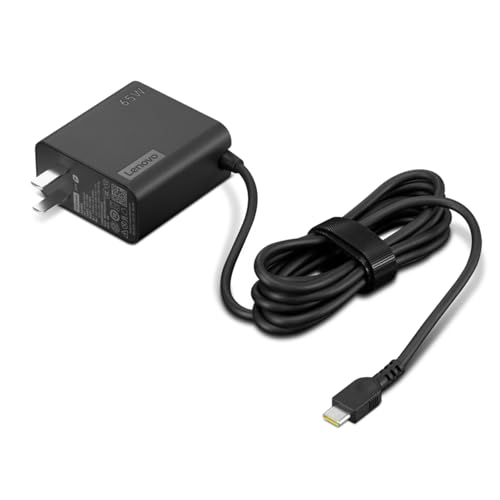
[PORTABLE CHARGING] Slim, light design and extra-long 1.7 m (5.9 ft) cable lets you charge in any spot, making powering up more convenient.
Common Problems and Solutions
- Power Management Settings
Check your Lenovo Vantage app settings; if Battery Charge Threshold is set to 80%, adjust it to your preference. Open the app, go to Power settings, and modify the charging limit.
- Battery Health
Assess your battery’s health using the Lenovo Vantage app. Navigate to the Battery Information section to view battery status. A degraded battery may not hold charges effectively; consider replacing it if necessary.
- Charger Compatibility
Verify that you’re using the original or a compatible charger. An incompatible charger may not provide the correct voltage, leading to charging issues. Always use Lenovo-approved chargers for optimal performance.
- Software Conflicts
Disable any third-party battery management software. Sometimes, these tools conflict with Lenovo’s built-in settings. Uninstall such programs and revert to Lenovo Vantage to control charging settings.
- Overheating
Monitor the laptop’s temperature. If the laptop overheats, it may limit charging to prevent damage. Clean the air vents, use cooling pads, and avoid using the laptop on soft surfaces that block airflow.
Checking for Software Updates
Regular software updates can resolve bugs and improve performance. Follow these steps to check for updates:
- Open Lenovo Vantage
Launch the Lenovo Vantage app on your laptop.
- Navigate to Updates
Click on the “System Update” option within the app. This section shows available updates for your device.
- Install Updates
Follow the prompts to install any available updates. Restart your laptop after the installation to ensure changes take effect.
- Check Windows Updates
In addition to Lenovo updates, make sure your Windows operating system is current. Go to Settings, select “Update & Security,” then click “Check for updates.”
By addressing these common issues and keeping your software updated, you can minimize troubleshooting interruptions and optimize your Lenovo laptop’s battery charging capabilities.
Conclusion
By adjusting your Lenovo laptop’s charging settings you can take control of your battery health and performance. Limiting the charge to 80% not only helps extend the lifespan of your battery but also enhances your device’s overall efficiency.
Remember to regularly check your settings and keep your software updated to ensure everything runs smoothly. With these simple adjustments you can enjoy a more reliable and longer-lasting laptop experience. Happy computing!
Frequently Asked Questions
Why is my Lenovo laptop charging only to 80%?
Many Lenovo laptops have built-in settings that limit battery charging to 80% to preserve battery health and lifespan. This setting is designed to reduce wear on the lithium-ion battery and improve long-term performance.
How can I change the charging limit on my Lenovo laptop?
To change the charging limit, open the Lenovo Vantage app, navigate to Power settings, and select Battery Information. From there, adjust the Battery Charge Threshold to set the maximum charge limit as needed.
Is it harmful if my laptop charges only up to 80%?
No, charging to 80% is generally beneficial as it reduces stress on the battery. Lithium-ion batteries experience less wear when kept between 20% and 80%, leading to a longer lifespan and better performance.
What are some best practices for maintaining battery health?
To maintain battery health, avoid overnight charging, use battery saver mode when needed, and charge your laptop during use. Keeping the battery level between 20% and 80% is also crucial for longevity.
How can I troubleshoot if my laptop still charges to only 80%?
Check the Lenovo Vantage app for power management settings, assess battery health, ensure your charger is compatible, and disable any conflicting software. Keeping your software updated can also resolve charging issues.
