

Key Takeaways
- Understanding Battery Health: Battery health reflects how well your Samsung phone’s battery performs compared to its original state, affecting overall performance and longevity.
- Key Factors Affecting Battery Health: Charge cycles, temperature, usage patterns, and charging habits play significant roles in determining battery health.
- Identifying Declining Health: Look out for signs like rapid discharge, incomplete charges, and overheating, which may indicate battery problems.
- Checking Battery Health: Access your battery health information through Samsung settings or the Samsung Members app for a comprehensive view.
- Maintaining Battery Health: Avoid extreme temperatures, use official chargers, minimize background activity, and enable power-saving modes to enhance battery longevity.
- Monitoring Usage Trends: Regularly track screen time, app usage, and charging habits to optimize and extend your battery’s lifespan.
Ever wondered how your Samsung phone’s battery is holding up? You’re not alone. Many people face the frustration of a phone that doesn’t last as long as it used to. Knowing your battery health can help you make informed decisions about charging habits or even if it’s time for a replacement.
Overview of Battery Health
Battery health indicates how well your Samsung phone’s battery performs compared to its original state. A healthy battery holds a significant charge, maintains performance, and contributes to your phone’s overall longevity. Monitoring battery health helps you identify issues early, so you can take necessary actions.
Factors Affecting Battery Health
- Charge Cycles: Each full discharge and charge counts as one cycle. Frequent complete cycles can degrade battery health over time.
- Temperature: High temperatures can damage batteries. Keep your phone in a cool environment to prolong battery life.
- Usage Patterns: Intensive tasks like gaming or video streaming drain batteries quickly. Adjusting usage habits can enhance battery health.
- Charging Habits: Using the correct charger and avoiding overnight charging helps maintain battery wellness.
Signs of Declining Battery Health
- Rapid Discharge: If your battery depletes faster than before, it may signal decline.
- Incomplete Charges: Stops charging before reaching 100%? This indicates potential battery issues.
- Overheating: Excessive heat during use or charging often points to a failing battery.
Checking Battery Health on Samsung Devices
To check your battery health, use the following steps:
- Open Settings: Locate the “Settings” app on your phone.
- Select Device Care: Tap on “Device Care” or “Device Maintenance.”
- Access Battery: Click on “Battery” to view health details.
- Check Usage: Review stats for “Usage” and “Charging” to assess overall health.
Tools for Battery Health Assessment
You can also download battery health apps from the Galaxy Store or Google Play. Popular options include:
- AccuBattery: Provides detailed insights and estimates battery lifespan.
- GSam Battery Monitor: Offers detailed statistics on usage patterns.
Regularly checking battery health helps you make informed decisions about when to charge, replace, or upgrade your device.
Accessing Battery Health Information
You can easily access your Samsung device’s battery health information using built-in settings or dedicated apps. Knowing this information helps you maintain optimal performance and extend the life of your battery.
Recommended Products
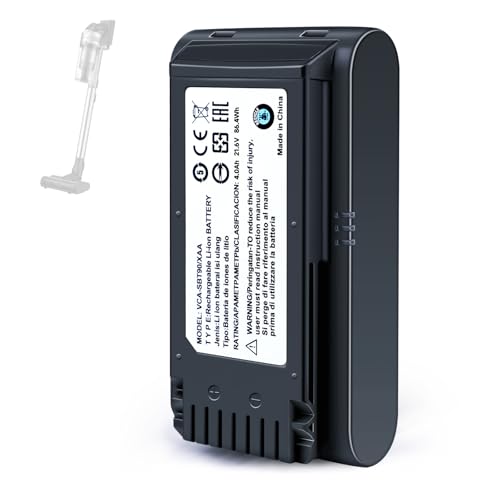
【Specifications】 Model:VCA-SBT90 ;Battery Type: Li_ion, Voltage:21.6V Capacity: 4000mAh ; Color: Gray and black
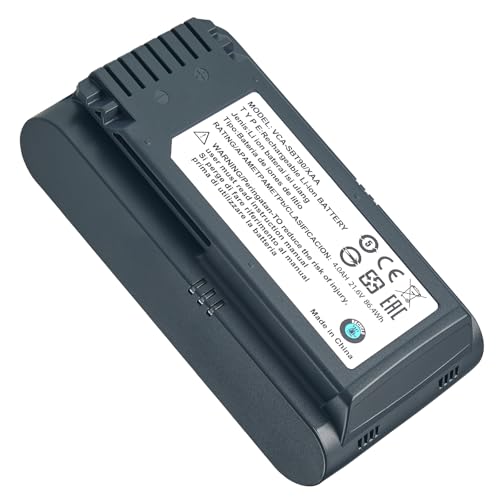
Compatibility: This battery is a VCA-SBTA60 VCA-SBT90 VCA-SBT90EB compatible replacement battery for Samsung Jet 60 Jet 65 Jet 70 Jet 75 Jet 90 Complete Stick Vacuum, ensuring a perfect fit and easy installation.

Locked to the GSM network and only compatible with GSM carriers like AT&T and T-Mobile. Will not work with Sprint, Verizon, US Cellular or Cricket.
Using Samsung Settings
- Open Settings: Start by tapping on the gear icon to open your phone’s settings.
- Select Battery and Device Care: Scroll down and select “Battery and Device Care” from the menu.
- Tap on Battery: Here, you can view your battery’s current status, including charge levels and usage patterns.
- Check Battery Health: Look for the “Battery Health” option. You’ll find information about your battery’s overall health, including whether it needs replacement or appears to be in good condition.
Utilizing Samsung Members App
- Install the Samsung Members App: If it’s not already installed, download the Samsung Members app from the Google Play Store.
- Open the App: Launch the app and log in with your Samsung account.
- Navigate to the Diagnostics Section: Tap on the “Support” tab at the bottom, then choose “Diagnostics.”
- Select Battery Status: Here, you’ll see your battery information, including its health. This feature provides a more detailed analysis compared to standard settings.
By following these steps, you can effectively monitor your Samsung device’s battery health and take necessary actions to maintain its performance. Regular checks ensure your device stays reliable and efficient.
Interpreting Battery Health Data
Understanding battery health data helps you make informed decisions about your device’s usage and charging habits. By monitoring key indicators, you can optimize battery performance and extend its lifespan.
Recommended Products



ADVANCED SLEEP COACHING: Manage your overall sleep quality with an advanced sleep tracker that detects and analyzes sleep stages while you rest; Plus, Advanced Sleep Coaching helps you develop better sleep habits by analyzing your sleep patterns*.Supported Application:Fitness Tracker,Blood Pressure Monitor,Multisport Tracker,Time Display,GPS. Connectivity technology:Bluetooth. Wireless comm standard:Bluetooth,802_11_AGNAC
Key Indicators of Battery Health
- Battery Capacity: Check the remaining capacity percentage. A capacity below 80% might indicate that the battery is aging and may need replacement.
- Charging Cycles: Review the number of complete charge cycles performed. Most lithium-ion batteries last between 300 to 500 cycles before degrading significantly.
- Temperature: Monitor the operating temperature while charging and using the device. High temperatures can cause premature battery wear.
- Charge Rate: Observe the charge speed during charging sessions. Slower charging may signal battery issues, especially if it irregularly takes longer than usual.
- Discharge Patterns: Note how quickly the battery drains during regular use. Rapid discharge despite low activity often suggests declining battery health.
Understanding Battery Usage Trends
- Screen On Time: Track how long your screen remains active each day. Increased screen time can lead to quicker battery drain.
- App Usage: Analyze individual app consumption. Some apps may consume more power than others, affecting overall battery performance.
- Background Activity: Identify apps running in the background that consume power. Disable unnecessary background processes to extend battery life.
- Charging Habits: Evaluate your charging patterns. Frequent short charges can affect battery health negatively. Aim for complete cycles when possible.
- Power-Saving Modes: Explore the effects of power-saving modes on battery life. Using these modes can help stretch battery life during heavy usage periods.
By monitoring these indicators and understanding usage trends, you can maintain optimal battery health for your Samsung device.
Tips for Maintaining Battery Health
- Avoid Extreme Temperatures
Keep your Samsung device out of very hot or very cold environments. Excessive heat can damage battery components, while extreme cold may affect performance.
- Charge Within Optimal Range
Charge your battery between 20% and 80% for optimal longevity. Frequent full discharges or overcharging can decrease battery capacity over time.
- Use Official Charging Equipment
Use Samsung-approved chargers and cables to ensure compatibility and efficiency. Third-party chargers may charge your device too quickly or irregularly, leading to potential damage.
- Minimize Background Activity
Close apps running in the background that you’re not actively using. Background processes can drain battery life unexpectedly.
- Enable Battery-Saving Modes
Activate power-saving modes to extend battery life during critical times. This feature reduces background activity and limits performance to conserve energy.
- Monitor Battery Usage
Regularly check your battery usage settings. Identify apps consuming excessive battery and adjust their settings or usage accordingly.
- Limit High-Performance Features
Turn off features like location services, Bluetooth, and mobile data when not in use. These functionalities can significantly drain your battery.
- Keep Software Updated
Install updates promptly as these often include optimizations that improve battery efficiency. Staying updated can also fix bugs that negatively impact battery health.
- Avoid Live Wallpapers
Opt for static wallpapers instead of live ones. Live wallpapers consume more power by requiring additional processing.
- Adjust Screen Brightness
Set your screen brightness to a lower level or enable adaptive brightness. High brightness levels significantly drain battery life.
By incorporating these tips, you can effectively maintain the battery health of your Samsung device and enhance its longevity.
Recommended Products

240W Fastest Charging Speed Ever: The 240W samsung a17 charger cable usb c to c cable fast charging sets a new fast-charging record, becoming the world's fastest charger to date. Experience lightning-fast charging for all your devices—reach 88% on MacBook Pro, 91% on iPad Pro, 84% on Samsung S25, 80% on iPhone 16, and 65% on SteamDeck in just 30 minutes. Say goodbye to charging wait times. (Note: Requires a power-matched USB-C fast wall charger adapter)
![INIU 240W USB C to USB C Cable, [6.6ft+6.6ft] Fast Charging Type C Cord](https://m.media-amazon.com/images/I/41r3DXOHFvL._SL500_.jpg)
[From INIU—the SAFE Fast Charge Pro] Experience the safest charging with over 38 million global users. At INIU, we use only the highest-grade materials, so we do have the confidence to provide an industry-leading 3-year iNiu Care.

⚡ SUPER FAST 45W CHARGING — Charge your Samsung Galaxy S26, S25, S24, or S23 Ultra from 0 to 60% in just 30 minutes — 5x faster than a standard USB-C charger. Stop waiting around and get back to what matters most with industry-leading 45W charging power built for today's demanding lifestyle.
Conclusion
Keeping an eye on your Samsung battery health is essential for getting the most out of your device. By regularly checking its status and understanding the key indicators, you can make smarter choices about how you charge and use your phone.
Implementing simple habits like avoiding extreme temperatures and using official chargers can significantly improve your battery’s lifespan. Remember that a little proactive maintenance goes a long way in ensuring your device runs smoothly.
So take a moment to monitor your battery health and enjoy a longer-lasting, more reliable Samsung experience. Your phone will thank you for it!
Frequently Asked Questions
What is battery health, and why is it important for Samsung phones?
Battery health indicates how well your phone’s battery performs compared to its original state. Understanding it is crucial for managing charging habits and identifying when a battery replacement is needed, ultimately extending your device’s lifespan.
How can I check the battery health of my Samsung phone?
You can check battery health using built-in settings or the Samsung Members app. Additionally, third-party apps like AccuBattery and GSam Battery Monitor provide detailed insights into battery status and health metrics.
What factors affect the battery health of my Samsung device?
Battery health is influenced by several factors, including charge cycles, temperature, usage patterns, and charging habits. Consistently monitoring these can help optimize battery performance.
What are the signs of declining battery health?
Indicators of declining battery health include rapid discharge, incomplete charges, overheating, and shorter battery life. Recognizing these signs early can help you take appropriate action.
How can I improve the battery life of my Samsung phone?
To improve battery life, avoid extreme temperatures, charge your device between 20% and 80%, use official Samsung chargers, minimize background activity, and enable power-saving modes to enhance performance.
Why should I regularly monitor my battery health?
Regularly monitoring battery health helps identify potential issues early, allowing you to adjust charging habits and app usage. This practice can significantly extend your battery’s longevity and efficiency.
