

Key Takeaways
- Simple Settings Activation: To display the battery percentage on your Samsung S20, go to Settings > Notifications > Status Bar and toggle on “Show battery percentage.”
- Quick Settings Access: You can enable battery percentage directly from Quick Settings by long-pressing the battery icon and selecting “Show battery percentage.”
- Battery Widget Option: For easy access, consider adding the Battery widget to your home screen to have a constant overview of your battery status.
- Monitor Battery Usage: Regularly check battery usage under Settings > Battery and device care > Battery to identify which apps consume the most power.
- Consider Third-Party Apps: Explore apps like AccuBattery and GSam Battery Monitor for detailed insights and optimization tips related to your battery performance.
- Customize Quick Settings Layout: Enhance usability by organizing your Quick Settings panel for quick access to battery percentage and other essential tools.
Ever find yourself guessing how much battery life you have left on your Samsung S20? It can be frustrating when your phone suddenly dies without warning. Knowing your battery percentage helps you plan your day and avoid those annoying low-battery moments.
In this article, you’ll learn how to easily display the battery percentage on your device. It’s a simple tweak that can make a big difference in how you manage your phone usage. With just a few quick steps, you’ll have that crucial info right at your fingertips, keeping you in control of your device’s power.
How To Show Battery Percentage On Samsung S20
To display the battery percentage on your Samsung S20, follow these simple steps:
- Open Settings: Swipe down from the top of the screen to access the notification panel. Tap the gear icon to open Settings.
- Select Notifications: In the Settings menu, find and tap on “Notifications.” This area contains options for managing how notifications appear on your device.
- Tap on Status Bar: Scroll down to find the “Status Bar” option. This section allows you to customize what appears in your status bar.
- Enable Battery Percentage: Toggle the switch for “Show battery percentage” to the ON position. Your battery percentage will now be visible next to the battery icon in the status bar.
Recommended Products

{COMPATIBLE MODELS}:This Replacement battery Compatible with Samsung Galaxy S20 Plus (Model: SM-G985 SM-G985F S20+ 5G).
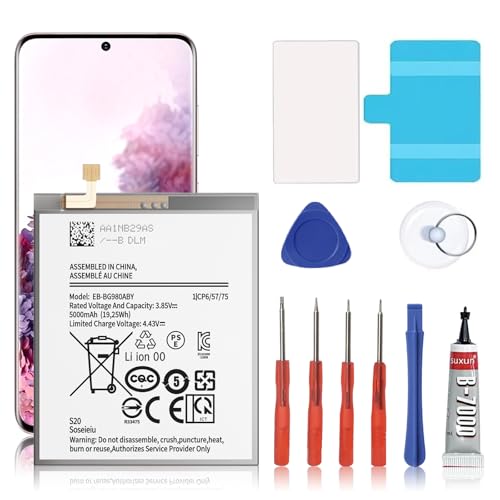
🎋【Compatible Model】EB-BG980ABY Replacement Battery for Samsung Galaxy S20 SM-G980 SM-G980F[Note: Not for Galaxy S20 FE or S20 Ultra other Phone Models]

RUI XI compatible For Samsung Galaxy S20/S20 Plus/S20 Ultra/S20 FE LCD Display Touch Screen Digitizer Full Assembly Replacement battery EB-BG980ABY EB-BG985ABY EB-BG988ABY EB-BG781ABY+Free Tools
Additional Tips
- Use the Battery Widget: Another way to monitor battery life is by adding the Battery widget to your home screen. Press and hold an empty area on your home screen, tap “Widgets,” then find and select the Battery widget. This provides a quick view of your battery status at a glance.
- Check Battery Usage: To manage battery life effectively, check your battery usage. In Settings, tap “Battery and device care,” then “Battery.” Here, you’ll see which apps use the most battery, allowing you to optimize battery performance.
Following these steps helps you stay informed about your battery status, ensuring your device is always ready when you need it.
Accessing Quick Settings
Quick Settings provides a convenient way to access important features on your Samsung S20, including battery percentage. You can easily check and modify these settings to enhance your device’s usability.
Recommended Products

[PLS CONFIRM DEVICE MODEL]-- The repair kit contains the instruction to guide you step by step installation, and we have professional engineers to answer all your questions about the repair process. Please verify your old battery part number and model before purchasing this replacement battery. Compatible with Samsung Galaxy S20 Ultra SM-G988, G988V, G988A, G988T, G988P, G988R4, G988U, G988U1, EB-BG988ABY. ★NOT FOR Samsung Galaxy S20, S20+, Note 20 Ultra, S20 FE, Note 20★

Perfect Match: Only fits Galaxy S20 5G. Please check your model carefully.
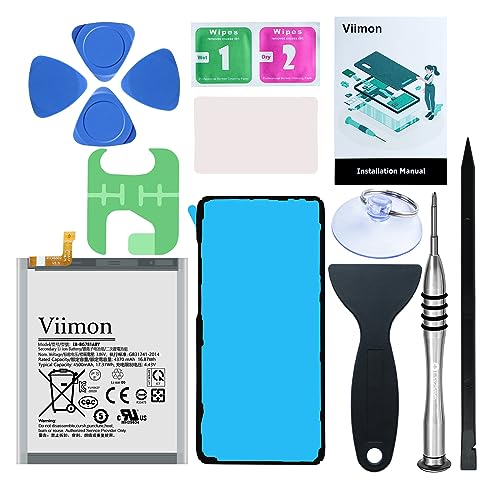
【Compatible Model】It is compatible with Samsung Galaxy S20 FE, A52 and A52S 5G, Model: S20 FE 5G SM-G781B G781U G781W SM-A526 A526B/DS A5260 A526W. Not for S20 and S20+ Plus. Please double identify and check your phone model matches before purchasing the battery.
Enabling Battery Percentage
- Swipe down from the top of your screen to open Quick Settings.
- Look for the battery icon.
- Long-press the battery icon until a menu appears.
- Toggle on the option for “Show battery percentage.”
This action ensures that your battery percentage displays next to the battery icon at all times.
Customizing Quick Settings Layout
- Open Quick Settings by swiping down from the top of your screen.
- Tap on the three-dot menu in the upper right corner.
- Select “Edit buttons” from the dropdown menu.
- Drag the battery icon to your preferred location within the Quick Settings panel.
By customizing your Quick Settings layout, you gain quick access to your battery percentage and other essential tools, enhancing your overall experience.
Using Settings Menu
You can easily show battery percentage on your Samsung S20 through the Settings menu. Follow these steps to get started.
Navigating To Battery Settings
- Open Settings: Swipe down from the top of your screen and tap the gear icon.
- Select Notifications: Scroll down and choose “Notifications.”
- Access Status Bar: Locate the “Status Bar” option and tap on it.
Activating Battery Percentage Display
- Enable Battery Percentage: Find the option that says “Show battery percentage.” Toggle it on.
- Verify On Screen: Exit the settings. Check the top right corner of your screen to see if the battery percentage appears next to the battery icon.
These steps help you keep track of your battery level. You won’t have to guess how much power your device has left.
Third-Party Apps
Third-party apps can enhance how you monitor your battery percentage on a Samsung S20. These applications offer additional features that might be useful for managing your device’s power consumption more effectively.
Recommended Products
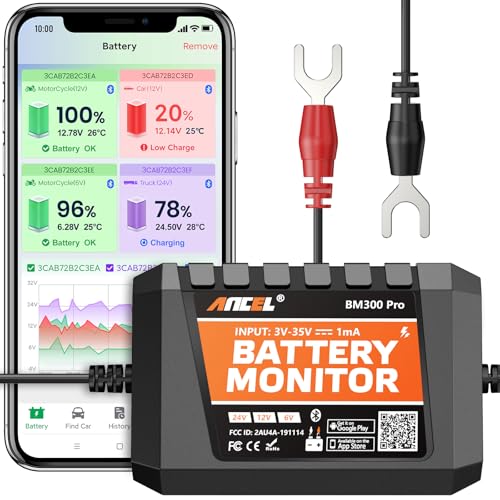
6V, 12V & 24V MONITORING - View voltage, estimated state of charge and temperature through the ANCEL BM300 Pro app. On supported 12V and 24V vehicle systems, review cranking and charging voltage tests. For 6V systems, use voltage, SOC and temperature monitoring; cranking and charging tests are not supported.

🔋High Value Battery Tester: BM200 is your go-to solution for 12V lead-acid and lithium battery. Equipped with advanced features like voltage & cranking & charging system test, abnormal alarm and real-time trip records.This battery monitor ensures your car battery is always in optimal condition. Whether it's for your car, motorcycle, truck, RV or boat, this 12V battery tester has got you covered. Get it, and forget winter breakdown worries.

Displays Battery Percentage in status bar
Recommended Apps For Battery Monitoring
- AccuBattery
AccuBattery provides detailed battery health insights. It tracks your charging habits and estimates battery life.
- GSam Battery Monitor
GSam offers in-depth statistics and charts about battery usage. It lets you identify which apps consume the most power.
- Battery Guru
Battery Guru optimizes battery life with smart charging tips. It includes features like charge alerts and battery-saving modes.
- Power Battery
Power Battery helps you monitor battery status and improve longevity. It analyzes your usage patterns and suggests optimizations.
How To Use These Apps
- Download and Install
Access the Google Play Store, search for the app, and tap ‘Install.’
- Open the App
Launch the app from your app drawer.
- Set Up the App
Follow the initial setup prompts. Grant necessary permissions to monitor battery usage effectively.
- Navigate the Interface
Explore the app’s features. Look for the battery percentage display option, and any additional settings that might enhance your experience.
- Monitor Regularly
Check the app daily or weekly for updates on battery health and usage statistics. Adjust your habits based on the insights provided.
Using these third-party apps enables you to gain deeper insights into your device’s battery performance and extend its lifespan effectively.
Conclusion
Now that you know how to show the battery percentage on your Samsung S20 you can stay on top of your device’s power status. Keeping an eye on your battery level helps you avoid those frustrating moments when your phone unexpectedly shuts down.
With the simple steps outlined you can easily customize your settings and even explore third-party apps for deeper insights into your battery health.
By taking these small steps you’ll enhance your phone usage and enjoy a more reliable experience. So go ahead and make those adjustments today to keep your Samsung S20 running smoothly!
Frequently Asked Questions
How do I show the battery percentage on my Samsung S20?
To display the battery percentage on your Samsung S20, go to Settings, select Notifications, tap on Status Bar, and enable the Show battery percentage option. This will allow you to see the battery level at all times for better management of your device’s power.
Can I view the battery percentage in Quick Settings?
Yes, you can view the battery percentage in Quick Settings. Swipe down from the top of the screen, long-press the battery icon, and toggle on the Show battery percentage option. This allows for quick access to your battery status without going through the Settings menu.
What are some tips for monitoring battery usage on the Samsung S20?
To optimize your Samsung S20’s battery life, use the Battery widget for a quick battery status view, check your battery usage in Settings for insights on which apps drain power, and consider third-party apps like AccuBattery or GSam Battery Monitor for detailed performance tracking.
What third-party apps can help with battery management?
Recommended third-party apps for battery management on the Samsung S20 include AccuBattery, GSam Battery Monitor, Battery Guru, and Power Battery. These apps provide insights into battery health, usage statistics, and optimization suggestions to help you extend battery life effectively.
How can I customize my Quick Settings layout?
To customize your Quick Settings layout on the Samsung S20, swipe down from the top of the screen, tap on the three-dot menu, and select “Edit.” You can then rearrange icons and buttons, including placing the battery icon in your preferred location for easier access to battery information.
