

Key Takeaways
- Background Apps: Close or restrict background apps to prevent unnecessary power consumption, which significantly impacts battery life.
- Adjust Display Settings: Lower screen brightness or activate adaptive brightness to conserve energy, along with reducing screen timeout duration.
- Connectivity Management: Disable Wi-Fi, Bluetooth, and location services when not in use to limit battery drain from connectivity features.
- Software Updates: Keep your device’s software up to date to benefit from efficiency improvements that can enhance battery performance.
- Monitor Battery Health: Regularly check battery health in settings to identify potential issues and ensure optimal performance.
- Use Power Saving Tips: Implement strategies such as activating Battery Saver mode and using lighter versions of apps to extend usage time.
Ever find yourself staring at your Samsung S23 Ultra, wondering why the battery seems to drain faster than you can charge it? You’re not alone. Many users experience this frustrating issue, especially when they rely on their phones for everything from work to entertainment.
Understanding Battery Drain Issues
Many Samsung S23 Ultra users face battery drain issues. Understanding the causes can help you take effective steps to mitigate these problems.
Common Causes of Battery Drain
- Background Apps: Apps running in the background consume power. Social media apps, email clients, and navigation tools are frequent offenders.
- High Display Brightness: Keeping your screen brightness high uses more battery. Reducing brightness helps conserve energy.
- Connectivity Features: Features like Wi-Fi, Bluetooth, and GPS drain battery life. Turning off unused connections can lead to longer battery performance.
- Outdated Software: Running outdated software may result in bugs that affect battery life. Regular updates often include efficiency improvements.
- Battery Health: Aging batteries lose their ability to hold a charge. Over time, all lithium-ion batteries degrade, impacting overall performance.
Factors Specific to Samsung S23 Ultra
- High-Resolution Display: The S23 Ultra’s large, high-resolution screen requires more power, especially during gaming or video playback.
- Power-Hungry Features: Features like 120Hz refresh rate and advanced camera settings can quickly drain the battery. Adjusting these settings can prolong use.
- Performance Modes: Using high-performance modes for gaming or heavy apps can lead to quicker battery drain. Consider switching to battery-saving modes during regular use.
- Software Customizations: Samsung’s One UI includes several features that impact battery life, such as Always-On Display and Edge Panels. Tuning these settings can improve longevity.
- Charging Cycles: Frequent partial charging can affect battery lifespan. Allowing the battery to fully discharge occasionally may help maintain health.
Taking these factors into account can help you manage your Samsung S23 Ultra’s battery life more effectively.
Analyzing App Usage
Your Samsung S23 Ultra’s battery performance often ties back to how you use apps. Monitoring app activity can pinpoint culprits that drain battery life.
Background App Activity
Background apps continually run even when not in use. These apps can consume resources, causing quicker battery drain. To check background activity:
- Navigate to Settings.
- Select Battery and Device Care.
- Tap Battery, then select Usage.
- Look for apps operating in the background.
Limiting background activity for certain apps can enhance battery life. You can restrict background usage in the app settings by toggling off “Allow background data usage.”
Battery-Intensive Apps
Some apps significantly impact battery performance. Games, streaming services, and navigation apps often demand more power. To identify these apps:
- Open Settings.
- Choose Battery and Device Care.
- Tap Battery, then select Usage to view detailed app consumption.
Consider alternatives or limit use of these apps when possible. For example, play games in airplane mode or reduce video quality during streaming sessions. Using lighter versions of apps, like Facebook Lite or Messenger Lite, can also help save power.
Device Settings Impact
Device settings significantly affect battery life on your Samsung S23 Ultra. Adjusting these settings can lead to noticeable improvements in overall battery performance.
Recommended Products
![ITMBET [5800mAh] Galaxy S23 Ultra Battery, 𝗨𝗽𝗴𝗿𝗮𝗱𝗲𝗱 EB-BS918ABY Replacement Battery for S23 Ultra SM-S918U SM-S918U1 SM-S918B with Repair Tool Kits](https://m.media-amazon.com/images/I/413u8eALCsL._SL500_.jpg)
🔋 Premium Quality: Experience a new level of performance with our upgraded 5800mAh 3.85V battery replacement. This high-quality battery will restore your phone’s battery life to like-new condition, ensuring you stay connected longer

150% Extra Battery Life:Built with a 10000mAh high-capacity battery, for Galaxy S23 Ultra battery case extends your phone’s power by up to 150%. Perfect for travel, work, and heavy daily use without battery anxiety.

Compatible Phone Model: This battery kit is specifically designed for Samsung Galaxy S23 Ultra(with model SM-S918 series), NOT work for Galaxy S23 or S23 Plus, please double confirm your phone model before purchasing
Display Settings
Display settings play a crucial role in battery consumption. High brightness and always-on display features can drain your battery quickly.
- Reduce Brightness: Lower your screen brightness manually or enable adaptive brightness to automatically adjust based on your surroundings.
- Screen Timeout: Set a shorter screen timeout duration. Choose 30 seconds or 1 minute to limit display usage when you’re not actively using the device.
- Dark Mode: Activate dark mode wherever possible. It consumes less power on AMOLED screens, like that of the S23 Ultra.
Connectivity Settings
Connectivity settings also impact battery life. Features like Wi-Fi, Bluetooth, and mobile data can drain your battery if not managed properly.
- Turn Off Wi-Fi and Bluetooth: Disable Wi-Fi and Bluetooth when not in use. Leaving these on keeps your phone searching for connections, which consumes battery.
- Limit Location Services: Set location services to “Battery Saver” mode instead of “High Accuracy.” This uses less power by limiting GPS usage.
- Airplane Mode: Use Airplane Mode in low-signal areas. This prevents your phone from constantly searching for a connection, preserving battery life.
Adjusting your settings in these areas can lead to significant power savings, helping you get more from your Samsung S23 Ultra’s battery.
Battery Health and Maintenance
Maintaining strong battery health is vital for optimal performance on your Samsung S23 Ultra. Understanding battery health and implementing best practices can extend battery life significantly.
Recommended Products
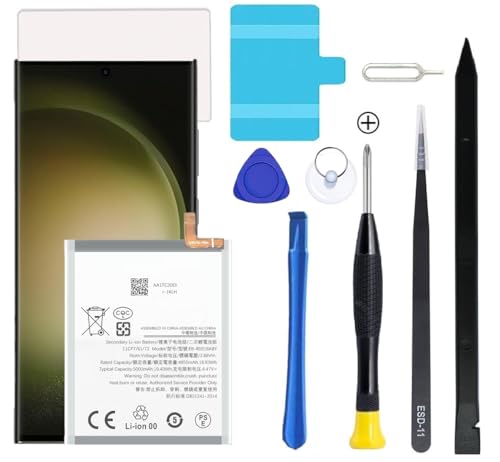
Compatible Models: This S23 Ultra Battery For Samsung Galaxy S23 Ultra Only, Model: SM-S918B SM-S918U SM-S918U1/DS S23 Ultra EB-BS918ABY [Note: Not for Samsung Galaxy S23 , S23 Plus or other Galaxy model.]

Compatibility: This replacement battery is compatible with Galaxy S23 Plus, ensuring a precise fit and reliable performance tailored to your device.

🎋【Compatible Model】EB-BS918ABY Replacement Battery for Samsung Galaxy S23 Ultra SM-S918U/S918U1/S918B[Note: Not for Galaxy S23 other Phone Models]
Checking Battery Health
You can check the battery health of your Samsung S23 Ultra through your device settings. Follow these steps:
- Open Settings: Tap the gear icon in your app drawer or swipe down the notification shade and select the gear.
- Select Battery and Device Care: Scroll until you see this option.
- Access Battery Usage: Tap on Battery, then choose the “Battery Usage” section to see detailed statistics about your battery’s performance.
- Look for Charge Cycles: Here, you can check if the battery is nearing its limit based on the number of charging cycles. If the health shows diminished capacity, it may be time to consider a replacement.
Regularly checking battery health helps you identify potential issues early and take steps to address them, ensuring your device runs at its best.
Tips for Extending Battery Life
Implement a few straightforward strategies to extend your Samsung S23 Ultra’s battery life:
- Adjust Screen Brightness: Dim the screen or enable adaptive brightness to reduce power consumption.
- Limit Background Apps: Close unnecessary apps running in the background or adjust settings to prevent them from consuming battery.
- Use Battery Saver Mode: Activate Battery Saver mode in the settings to restrict background data and limit performance during low power situations.
- Turn Off Connectivity Features: Disable Wi-Fi, Bluetooth, and location services when not in use to conserve energy.
- Manage App Permissions: Restrict apps from running in the background or consuming location data if they’re not needed.
Following these tips helps maintain battery health and can lead to significantly longer usage times throughout your day.
Conclusion
Managing your Samsung S23 Ultra’s battery life doesn’t have to be a hassle. By keeping an eye on your app usage and adjusting your settings, you can make a big difference. Simple changes like lowering your screen brightness or turning off unused connectivity features can help you get more out of each charge.
Don’t forget to regularly check your battery health too. Staying proactive about these tips will not only enhance your phone’s performance but also ensure you stay connected throughout your day. With a little effort, you can enjoy your S23 Ultra without constantly worrying about battery drain.
Frequently Asked Questions
What causes rapid battery drain in the Samsung S23 Ultra?
Rapid battery drain in the Samsung S23 Ultra can be caused by several factors, including background apps running continuously, high display brightness, connectivity features like Wi-Fi and Bluetooth, outdated software, and overall battery health. Additionally, power-hungry features and high-resolution displays also contribute to battery drain.
How can I check which apps are draining my battery?
To identify apps that drain your battery, go to Settings > Battery & Device Care > Battery > Battery Usage. Here, you can see a list of apps sorted by their battery consumption. This helps pinpoint background apps that may be consuming more power than necessary.
What settings can I adjust to improve battery life?
To enhance battery life on your Samsung S23 Ultra, consider adjusting display settings by reducing brightness and setting a shorter screen timeout. Additionally, activate Dark Mode, turn off Wi-Fi and Bluetooth when not in use, limit location services, and use Airplane Mode in low-signal areas.
How can I maintain battery health on my Samsung S23 Ultra?
Maintain battery health by regularly checking it in Settings > Battery & Device Care > Battery > Battery Health. Limit charge cycles, avoid extreme temperatures, and practice good charging habits, such as not letting the battery drop too low or charge too high consistently.
What is Battery Saver mode, and how does it help?
Battery Saver mode is a feature that optimizes device performance by reducing background processes, limiting app activity, and lowering screen brightness. This mode helps to extend battery life when you need your Samsung S23 Ultra to last longer between charges.
Can using certain apps affect my battery life?
Yes, battery-intensive apps like games and streaming services can significantly impact your Samsung S23 Ultra’s battery life. Limiting their usage or opting for lighter app versions can help conserve power and improve overall battery performance.
