

Key Takeaways
- Understanding Factors: Key elements such as screen brightness, app activity, network connectivity, and location services significantly affect battery life on the Galaxy S21 Ultra.
- Practical Tips: Implementing basic adjustments like enabling Power Saving Mode, managing app background activity, and using Dark Mode can effectively extend battery life.
- Monitor Usage: Regularly check battery usage in settings to identify power-hungry apps and adjust their activity accordingly for optimal battery management.
- Advanced Techniques: Utilize advanced features like Battery Saver Mode and disable unnecessary functionalities (Bluetooth, location services) to further minimize battery consumption.
- Battery-Saving Apps: Incorporate recommended apps, such as Greenify and AccuBattery, to enhance battery performance through better power management and usage insights.
- User Control: Small, consistent changes in device settings and habits can lead to significant improvements in battery longevity, ensuring your Galaxy S21 Ultra stays charged throughout the day.
Are you tired of your Samsung Galaxy S21 Ultra running out of battery when you need it most? You’re not alone. Many users face the frustration of managing battery life, especially with all the powerful features packed into this device.
Imagine being out and about, only to see that dreaded low battery warning pop up. It can feel like a race against time. Fortunately, you can take simple steps to extend your battery life and keep your phone running longer. This article will share practical tips and tricks to help you save battery on your Galaxy S21 Ultra, ensuring you stay connected when it matters most.
Understanding Battery Life on Samsung Galaxy S21 Ultra
Battery life on the Samsung Galaxy S21 Ultra depends on various factors, including usage patterns and settings. Knowing how these elements interact helps you manage your device’s power efficiently.
Key Factors Affecting Battery Life
- Screen Brightness: Higher brightness levels consume more power. Reducing brightness saves battery.
- App Activity: Background apps drain battery. Close unused apps regularly to conserve power.
- Network Connectivity: Weak signal strength increases battery consumption. Turn off mobile data or Wi-Fi when not in use.
- Location Services: GPS and location tracking require power. Disable location services for apps that don’t need them.
Battery Specifications
The Galaxy S21 Ultra features a 5000 mAh battery, which provides ample power for daily tasks. However, intensive activities like gaming or video streaming can deplete it quickly.
| Feature | Specification |
|---|---|
| Battery Capacity | 5000 mAh |
| Estimated Video Playback | Up to 22 hours |
| Wireless Charging Support | Yes, 25W wired, 15W wireless |
| Power Saving Mode | Yes |
Tips for Maximizing Battery Life
- Enable Power Saving Mode: Activate this mode in settings to limit app activity and background processes.
- Limit Background Data: Restrict apps from using mobile data in the background to save battery.
- Turn Off Always-On Display: Unless necessary, disabling this feature can extend battery life significantly.
- Use Dark Mode: AMOLED screens save power by using less energy for displaying darker colors.
Monitoring Battery Usage
You can check battery usage in settings. This section shows which apps use the most power. By identifying high-consumption apps, you can adjust settings or limit their usage.
Understanding these aspects of battery life equips you to make smarter choices and prolong your Samsung Galaxy S21 Ultra’s power.
Essential Tips for Saving Battery
Saving battery on your Samsung Galaxy S21 Ultra is essential for getting through the day. Here are some practical steps to extend your battery life effectively.
Recommended Products

🎋【Compatible Model】EB-BG998ABY Replacement Battery for Samsung Galaxy S21 Ultra 5G SM-G998B/DS SM-G998U[Note: Not for Galaxy S21 FE or S21 other Phone Models]
![[6000mAh] Galaxy S21 Ultra Battery, EB-BG998ABY Battery with Repair Kit | Compatible S21 Ultra 5G SM-G998B/DS SM-G998U, CE/UL/RoHS, Overcharge Protected, Original size, 0 Cycle](https://m.media-amazon.com/images/I/511+XGoDThL._SL500_.jpg)
⚡ Premium Quality: Experience a new level of performance with our upgraded 6000mAh 3.85V battery replacement. This high-quality battery will restore your phone’s battery life to like-new condition, ensuring you stay connected longer.
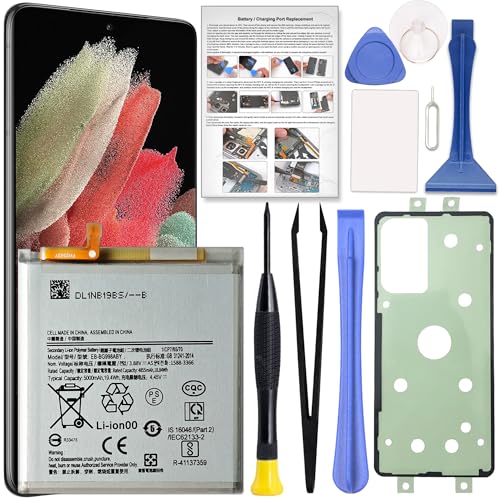
Perfect Fit for Galaxy S21 Ultra: Designed for Samsung Galaxy S21 Ultra SM-G998U, SM-G998U1, SM-G998B and SM-G998W models. Please double check your phone model before placing an order to ensure compatibility.
Adjusting Screen Brightness
Adjusting the screen brightness plays a crucial role in battery conservation.
- Set brightness manually: Reduce the brightness to a comfortable level instead of relying on automatic adjustments.
- Use adaptive brightness: Enable adaptive brightness in settings so the screen adjusts based on your surroundings.
- Reduce screen timeout: Decrease the screen timeout period to 15 or 30 seconds, which turns off the display when not in use.
Managing App Usage
Managing app usage can significantly impact your battery life.
- Limit background activity: Restrict background data for apps that you don’t frequently use. Go to Settings > Apps, select an app, and disable background data.
- Uninstall unused apps: Regularly review and uninstall apps that you rarely open to prevent them from draining battery resources.
- Close unused apps: Use the recent apps button to close apps that you’re not using. This helps keep CPU usage low.
- Check battery usage: Monitor app-specific battery usage in Settings > Battery and device care > Battery usage. Identify and manage apps consuming the most power.
These adjustments not only help you save battery but also improve your device’s overall performance.
Advanced Battery Saving Techniques
Explore advanced techniques to extend battery life on your Samsung Galaxy S21 Ultra. These strategies enhance power management and help maximize the efficiency of your device.
Recommended Products

【Brand New High Quality】OEM Back glass replacement battery door for Samsung Galaxy S21 Ultra. 100% perfect fit replacement. Tested one by one by professional technicist before shipping. This replacement back glass will repair your cracked, damaged, scratched phone. Restore the device back to new.

Compatible Phone Model: This battery kit is specifically designed for Samsung Galaxy S21 Ultra (with model SM-G998 series), NOT work for Galaxy S21 or S21 Plus, please double confirm your phone model before purchasing

Charging and protecting, 2 in 1 function. Built-in short-circuit and overcharge protection. Plugged-in: Charge the phone and battery case simultaneously while plugged in. The charging will be stopped after fully charged. This battery case is only compatible with Galaxy S21 Ultra. It's NOT compatible with Galaxy S21 or Galaxy S21+.
Using Battery Saver Mode
Activate Battery Saver Mode to prolong battery life effectively. This mode reduces background activity and limits performance. To enable it, follow these steps:
- Open Settings.
- Tap on Battery and device care.
- Select Battery.
- Tap on Power saving mode or Battery saver.
- Toggle it on and customize settings, such as limiting GPU performance or adjusting screen resolution.
Battery Saver Mode provides instant improvements, especially during critical times when you need extra hours from your device.
Disabling Unnecessary Features
Disabling unnecessary features also conserves energy. Turn off options that you don’t use frequently or that drain battery life. Consider these steps:
- Bluetooth: If you’re not connected to a device, disable Bluetooth in the Quick Settings menu.
- Location Services: Limit GPS by going to Settings > Location and selecting App permissions; set apps to “While using” instead of “Always.”
- Wi-Fi and Mobile Data: Turn off Wi-Fi or mobile data when not in use. This prevents the phone from scanning for networks, which consumes battery.
- Always-On Display: Disable this feature by navigating to Settings > Lock screen > Always On Display and toggle it off.
By managing these settings, you significantly reduce power consumption.
Apps That Help Extend Battery Life
Certain apps can significantly improve battery life on your Samsung Galaxy S21 Ultra. Here’s a list of effective tools to help you manage your device’s power consumption.
1. Greenify
Greenify hibernates background apps that you don’t use frequently. It reduces battery drain without interrupting your daily tasks. You configure which apps to hibernate, allowing more battery life during active use.
2. AccuBattery
AccuBattery tracks your battery health and usage patterns. It provides detailed insights on how long apps consume battery. By understanding which apps drain power, you can make smarter choices about usage.
3. GSam Battery Monitor
GSam Battery Monitor offers a comprehensive overview of your battery consumption. It displays statistics on app usage and wake locks. Customizable alerts notify you when your phone’s battery approaches a low level.
4. Battery Saver
Battery Saver modes can optimize power settings automatically. When enabled, it limits background data, reduces screen brightness, and disables location services. You can customize its settings based on specific situations, like traveling or times spent at work.
5. F-Droid
F-Droid is an alternative app store with many battery-saving apps. It offers open-source options that provide reliable power management tools. Exploring this platform can lead to discovering unique apps that enhance battery longevity.
6. Tasker
Tasker automates various tasks on your device to save battery. You can create rules that turn off Wi-Fi or Bluetooth when you’re not home. This proactive approach ensures you minimize unnecessary power usage.
7. Power Clean
Power Clean frees up storage space and clears background processes. A lean device runs more efficiently and consumes less power. Use this app regularly to maintain optimal performance and battery life.
8. Dark Mode Apps
Apps that support Dark Mode can save battery on AMOLED screens, such as the Galaxy S21 Ultra. Dark pixels use less power, especially in low-light conditions. Activating this mode across various apps conserves energy.
By integrating these apps into your routine, you can enhance the battery performance of your Samsung Galaxy S21 Ultra, ensuring it stays powered up throughout your busy day.
Conclusion
By implementing these simple tips and tricks you can significantly extend the battery life of your Samsung Galaxy S21 Ultra. It’s all about making small adjustments to your settings and habits. Whether it’s turning on Power Saving Mode or managing your app usage more efficiently, every little change counts.
Don’t forget to explore the recommended apps that can help you monitor and optimize your battery performance. With a little effort you can keep your phone running longer throughout the day and stay connected when it matters most. Enjoy your device and make the most of its incredible features without the constant worry of a dying battery.
Frequently Asked Questions
What factors affect the battery life of the Samsung Galaxy S21 Ultra?
Battery life on the Galaxy S21 Ultra is influenced by screen brightness, app activity, network connectivity, and location services. Intensive tasks like gaming and video streaming can drain the 5000 mAh battery quickly.
How can I extend the battery life on my Galaxy S21 Ultra?
To extend battery life, you can enable Power Saving Mode, limit background data, adjust screen brightness, turn off the Always-On Display, and use Dark Mode. Monitoring battery usage in settings can also help identify high-consumption apps.
What is Power Saving Mode, and how do I enable it?
Power Saving Mode reduces background activity and limits performance to conserve battery life. To enable it, go to Settings > Battery and Device Care > Battery > Power Saving Mode and toggle it on or customize the settings for your needs.
How can screen brightness affect battery life?
High screen brightness can significantly drain battery life on the Galaxy S21 Ultra. By manually adjusting brightness to a comfortable level or enabling adaptive brightness, you can conserve power while still enjoying a clear display.
Are there specific apps that help with battery life?
Yes, apps like Greenify, AccuBattery, and GSam Battery Monitor can help improve battery life. These apps manage background activities, track battery health, and provide detailed usage statistics, helping you optimize battery performance.
