

Key Takeaways
- Common Causes: The main reasons for a Lenovo laptop battery not charging include faulty chargers, battery health issues, and internal hardware problems.
- Basic Troubleshooting: Always check the power source and inspect the charger and cable for damage before proceeding with more complex solutions.
- Driver Updates: Updating battery drivers via Device Manager can sometimes resolve charging issues by ensuring the system recognizes the hardware correctly.
- Advanced Solutions: Resetting power settings and performing battery calibration can help rectify misconfigurations and improve charge accuracy.
- Replacement Options: If all else fails, consider replacing the battery with a compatible model from trusted sources, ensuring you follow proper installation procedures.
- Seek Professional Help: When basic and advanced fixes don’t work, look for signs of hardware failure and consider contacting professional services, especially if your laptop is under warranty.
Is your Lenovo laptop battery refusing to charge? You’re not alone. Many users face this frustrating issue at some point, and it can feel like a roadblock to getting things done. Whether you’re working on an important project or just trying to binge-watch your favorite series, a dead battery can really throw a wrench in your plans.
Common Causes of Lenovo Laptop Battery Not Charging
Several factors can lead to your Lenovo laptop battery not charging. Understanding these causes helps you troubleshoot effectively.
Faulty Charger or Cable
A damaged charger or cable often prevents proper charging. Inspect the charger for frayed wires or any signs of wear. If the connector doesn’t fit securely in the laptop port, replace the charger. Try using another compatible charger to see if that resolves the issue.
Battery Health Issues
Battery age significantly impacts charging capability. Over time, Lithium-ion batteries lose capacity, displaying lower charge percentages. Check the battery health via Lenovo Vantage or similar software. If the health status shows deterioration, consider replacing the battery.
Hardware Problems
Internal hardware issues can prevent charging. A malfunctioning charging port or motherboard can disrupt the power supply. Inspect the charging port for dirt or debris. If problems persist, consider contacting technical support for professional diagnosis and repair.
Troubleshooting Steps
To resolve the battery charging issue on your Lenovo laptop, follow these troubleshooting steps for a clear approach.
Recommended Products
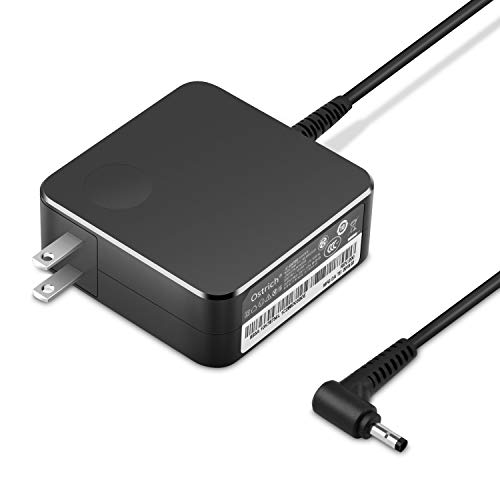
POWER SPECS Output Max: 20V 3.25A 65W/20V 2.25A 45W Input Volt Range: 110-240V/50/60Hz (For Worldwide Use) Compatible with Lenovo Charger Laptop AC Adapter Power Cord

Output:20V-3.25A / 15V-3A / 9V-2A / 5V-2A, 65W USB Type C

【Power Product Type】 : Max 65W 45W (compatible) AC Input: 100 - 240V 50 - 60Hz, Output: DC 5V/3A, 9V/3A, 12V/3A, 15V/3A, 20V/2.25A, 20V/3.25A. Connector size: USB Type-C
Check the Power Source
Ensure you’re using a working power outlet. Plug in another device to confirm the outlet supplies power. If you’re using a power strip, test with a different one or connect directly to the wall to rule out any issues.
Inspect the Charger and Cable
Examine your charger and cable for any visible damage. Look for frayed wires or bent connectors. Make sure the charger is properly plugged into both the laptop and the wall outlet. If possible, test the charger with another compatible Lenovo laptop to determine if it’s functioning correctly.
Update Battery Drivers
Access the Device Manager on your laptop by right-clicking the Start button and selecting it. Expand the “Batteries” category, right-click each item, and choose “Update driver.” Allow your laptop to search automatically for updates. Restart your laptop afterward to apply any changes.
Advanced Solutions
If basic troubleshooting hasn’t resolved your Lenovo laptop battery charging issue, consider these advanced solutions.
Recommended Products

Specification: Battery type:Li-ion Voltage:10.8V Capacity:72Wh Cells:6cell. Rrecharge cycles:500; The battery is durable and has overcurrent protection, anti-overcharge, anti-overdischarge and temperature control functions.

Specifications: Battery Model: 01AV423 SB10K97580, Voltage: 11.4V Capacity: 24Wh ; Cells: 2-cell; Color: Black ,Condition :New,Packages includes: 1x 01AV423 Battery,2 x Screwdrivers,1x Instruction for Lenovo t480 Battery

♣Battery type: Li-ion; Capacity: 2600mAh Voltage: 14.8V;Cells: 4-cell. The battery is durable and has overcurrent protection, anti-overcharge, anti-overdischarge and temperature control functions.
Reset Your Laptop Power Settings
Resetting your power settings can help clear any misconfigurations. Here’s how to do it:
- Open Control Panel: Search for it in the Start menu.
- Select Power Options: Click on “Power Options.”
- Change Plan Settings: Choose your current plan and click “Change plan settings.”
- Restore Defaults: Click “Restore default settings for this plan.”
This step can reset any incorrect options that may affect charging.
Perform a Battery Calibration
Calibrating your battery helps the system read the battery’s charge accurately. Follow these steps:
- Charge Fully: Plug in your laptop and fully charge the battery to 100%.
- Disconnect Power: Once fully charged, unplug the charger.
- Use Laptop: Allow the laptop to run on battery until it shuts down.
- Let it Rest: Leave the laptop off for at least five hours.
- Recharge: Plug it back in and let it charge uninterrupted to 100%.
This process can recalibrate the battery gauge.
Replace the Battery
If your battery still doesn’t charge, a replacement might be necessary. To do this:
- Identify Battery Model: Look up your Lenovo laptop model to find the correct battery.
- Purchase a Replacement: Buy a compatible replacement battery from trusted retailers or Lenovo’s website.
- Remove the Old Battery: Turn off the laptop, disconnect the charger, and remove the back panel (consult the manual for specific instructions).
- Install New Battery: Insert the new battery securely in place.
- Reassemble and Charge: Put the back panel on, reconnect the charger, and let it fully charge.
Replacing the battery can restore functionality if the current one is degraded.
When to Seek Professional Help
Sometimes troubleshooting at home isn’t enough to fix your Lenovo laptop battery charging issue. If basic and advanced solutions don’t resolve the problem, consider seeking professional assistance.
Recommended Products

For Lenovo V14-ADA 82C6 / V14-IIL 82C4 / V14-IWL 81YB / V14 G2-ALC 82KC / V14 G2-ITL 82KA 82NM / V14 G2 IJL 82QX / V14 G3 ABA 82TU 82UN / V14 G3 IAP 82TS 82UL / V14 G4 AMN 82YT / V14 G4 IRU 83A0 / L340-15IWL 81LG / L340-15IWL Touch 81LH

For Lenovo Ideapad 330-15ICH 81FK/ 330-17ICH 81FL/ L340-15IRH 81LK/ L340-17IRH 81LL/ Creator 5-15IMH05 82D4/ Gaming 3-15IMH05 81Y4/ Gaming 3-15ARH05 82EY

[Perfect Compatibility & Fit] Specifically designed for Lenovo ThinkPad T480S, T490, T490S, T590, X280, X390, and X1 Carbon 6th Gen. This USB Type-C charging port ensures a precise hardware match for your laptop’s motherboard, restoring power connectivity without compatibility issues.
Signs of Hardware Failure
Watch for specific indicators that suggest hardware failure. These include:
- Inconsistent Charging: Charger connects, but battery level fluctuates or remains static.
- Physical Damage: Cracks, bent pins, or burnt components around the charging port.
- Overheating: Laptop gets abnormally hot during charging, which can signal internal issues.
- Error Messages: Notifications about the battery not being detected or related warnings.
If you notice multiple signs, professional help can provide a thorough diagnosis and appropriate repairs.
Warranty Considerations
Review your warranty status before seeking professional help. Here’s what to keep in mind:
- Check Coverage: Confirm if your Lenovo laptop is still under warranty. Refer to the original purchase documentation.
- Authorized Service Centers: Use Lenovo’s authorized centers for repairs to avoid voiding the warranty.
- Cost vs. Benefit: Assess whether the repair costs may exceed the value of your laptop, especially if it’s an older model.
Utilizing warranty services often provides access to quality repairs without hefty expenses. Reach out to Lenovo support for more details on your options.
Conclusion
Dealing with a Lenovo laptop battery that won’t charge can be frustrating but you’re not alone in this. By following the troubleshooting steps and considering the advanced solutions, you can often get your laptop back to normal without too much hassle.
Remember to keep an eye on your battery’s health and don’t hesitate to seek professional help if needed. Whether it’s a simple fix or a more complex issue, staying proactive will help you enjoy your laptop to the fullest. Keep your tech running smoothly and stay connected to what matters most.
Frequently Asked Questions
Why is my Lenovo laptop battery not charging?
Your Lenovo laptop battery may not charge due to several factors, such as a faulty charger or cable, battery health issues, or internal hardware problems like a malfunctioning charging port. It’s essential to inspect your power source and connections to identify the root cause.
How can I troubleshoot my Lenovo battery charging issue?
Start by checking the power source to ensure it works. Next, examine the charger and cable for damage and ensure they’re securely connected. Additionally, update the battery drivers through Device Manager and restart your laptop to apply changes.
What are advanced solutions for Lenovo battery charging problems?
If basic troubleshooting fails, you can reset power settings, perform battery calibration, or replace the battery if it’s degraded. To replace the battery, identify the correct model, purchase a compatible one, and follow specific installation steps.
When should I seek professional help for my laptop battery issue?
Consult a technician if you’ve tried basic and advanced solutions without success. Signs that indicate the need for professional help include inconsistent charging, physical damage, overheating, and error messages related to the charging system.
How can I avoid voiding my warranty when seeking repairs?
To avoid voiding your warranty, always use authorized service centers for repairs. Check your warranty status before seeking help to ensure you get quality repairs without significant expenses, particularly for older laptop models.
