

Key Takeaways
- Recognize Battery Issues: Common symptoms of battery problems include rapid drain, unexpected shutdowns, overheating, charging issues, and inconsistent battery percentage readings.
- Reset for Performance: Resetting your Android phone battery can recalibrate the battery indicator and resolve performance issues, enhancing overall device longevity.
- Follow the Reset Steps: Charge your phone to 100%, deplete it completely, recharge to 100%, power cycle the device, and monitor performance afterward for effective results.
- Use Battery Management Tips: Adjust screen brightness, enable Battery Saver mode, limit background apps, and regularly update apps to maximize battery life.
- Monitor Battery Health: Utilize apps like AccuBattery and GSam Battery Monitor to track your battery’s performance and identify power-hungry applications.
- Know When to Seek Help: Persistent overheating, unusual shutdowns, swollen batteries, and charging issues may require professional assistance to ensure safety and proper functioning.
Ever noticed your Android phone’s battery draining faster than usual? You’re not alone. Many people find themselves frustrated when their device can’t keep up with their daily needs. It’s annoying when your phone dies during a call or while scrolling through social media.
Understanding Phone Battery Issues
Phone battery issues can disrupt daily life significantly. Recognizing symptoms early can help you take action before problems escalate.
Common Symptoms of Battery Problems
- Rapid Drain: Your phone loses charge much faster than usual, often dropping from 100% to 20% in a few hours.
- Unexpected Shutdowns: The device turns off suddenly even when the battery display shows remaining power.
- Overheating: The phone feels excessively hot during charging or usage, which can indicate age-related wear or malfunction.
- Charging Issues: The phone fails to charge, or it takes longer than usual to reach a full charge, potentially due to faulty cables or ports.
- Inconsistent Battery Percentage: The battery percentage fluctuates wildly, jumping from high to low numbers without consistent use.
Importance of Resetting Your Phone Battery
Resetting the battery can restore normal function and improve performance. This process can recalibrate the battery indicator, providing an accurate reading of charge levels. Additionally, resetting helps clear software glitches affecting battery management.
By resetting, you’re not just solving immediate issues but enhancing overall phone longevity. A well-functioning battery allows for optimal phone performance, ensuring your device meets daily demands without interruption.
How to Reset Phone Battery Android
Resetting your Android phone battery can help resolve issues with battery performance. Follow the steps below to recalibrate your battery effectively.
Recommended Products

Note: There are only chargers and no batteries in the package. Please tear off the protective film on the product screen before use

New upgrade - Live Energy Display: This stylus pen has a live energy display function, which can display four levels of power. Through the battery indicator, you can know the battery status of the iphone pencil stylus in real time, so as to effectively protect your work process and charge the stylus when the battery is about to run out

New upgrade - Live Energy Display: This stylus pen has a live energy display function, which can display four levels of power. Through the battery indicator, you can know the battery status of the iphone pencil stylus in real time, so as to effectively protect your work process and charge the stylus when the battery is about to run out
Step-by-Step Guide
- Charge Your Phone: Plug your phone into a charger. Ensure it charges to 100% without interruption.
- Use Until Empty: Use your phone until it completely shuts down due to battery depletion. This may take some time depending on usage.
- Charge to 100% Again: Once the phone shuts down, recharge it continuously to 100% without interruption.
- Power Cycle: After it reaches 100%, restart your phone by turning it off and then back on. This helps clear minor software hiccups.
- Use Normally: After restarting, use your device normally. Monitor battery performance over the next few days.
Tips for a Successful Reset
- Avoid Interruption: Don’t unplug your phone during charging cycles. Consistency helps achieve accurate calibration.
- Stay Away from Fast Charging: Use a standard charger instead of fast charging. Rapid charging can sometimes throw off the calibration process.
- Monitor Battery App Usage: Check battery usage in settings. Identify apps draining your battery and limit their background activity or uninstall if unnecessary.
- Update Software: Ensure your phone’s software is up to date. Manufacturers release updates that often include battery performance improvements.
- Keep Track of Performance: Note how long your battery lasts after resetting. This can help you assess whether the reset was effective.
Following these steps can enhance your battery’s longevity and performance, making your daily usage more reliable.
Alternative Solutions for Battery Management
You can enhance your Android phone’s battery performance beyond resetting the battery. Various techniques and tools help in managing battery life effectively.
Recommended Products

Power Saver and Optimizer

Customizable Neon Colors – Personalize your clock with vibrant neon hues.

64GB Storage, 800+ Hours: Built-in memory holds an entire semester of lectures. No microSD needed. Low-battery auto-save prevents data loss.
Battery Saving Techniques
- Adjust Screen Brightness: Lowering your screen brightness significantly reduces battery consumption. Use adaptive brightness settings for optimal performance.
- Use Battery Saver Mode: Enable Battery Saver mode to limit background activities and notifications, extending usage time between charges.
- Limit Background Apps: Close unnecessary apps running in the background. Check your settings to identify which apps consume the most battery.
- Turn Off Location Services: Disable GPS when not in use. Limiting location tracking saves power, especially for GPS-heavy apps.
- Reduce Connectivity Usage: Turn off Wi-Fi, Bluetooth, and mobile data when not needed. Each connection drains battery life.
- Update Apps Regularly: Keep your apps updated. Developers often enhance battery performance in updates, so install them when available.
Apps for Monitoring Battery Health
Several apps will help you keep track of your battery’s health and performance. Here’s a shortlist:
- AccuBattery: Monitors battery health, capacity, and charging speed. It provides insights into your battery’s lifespan and optimal charging routines.
- GSam Battery Monitor: Offers detailed stats on battery usage by app. Use it to identify power-hungry applications.
- Battery Guru: Tracks battery wear and provides actionable suggestions to extend battery life based on your usage patterns.
- Greenify: Helps manage background processes. It hibernates unneeded apps to conserve battery power, promoting longer usage times.
Using these techniques and apps, you can ensure your Android phone’s battery performs optimally, prolonging your device’s usability throughout the day.
When to Seek Professional Help
Watch for signs that indicate professional assistance may be necessary. Battery problems can sometimes stem from deeper issues that require expertise to resolve.
Recommended Products

BAOBIAN BT183342/BT283342 2.4V 400mAh Ni-Mh - Type: AAA*2, Replace of original Battery BT183342 BT283342 BT166342 BT266342 BT162342 BT262342 2SN-AAA40H-S-X2
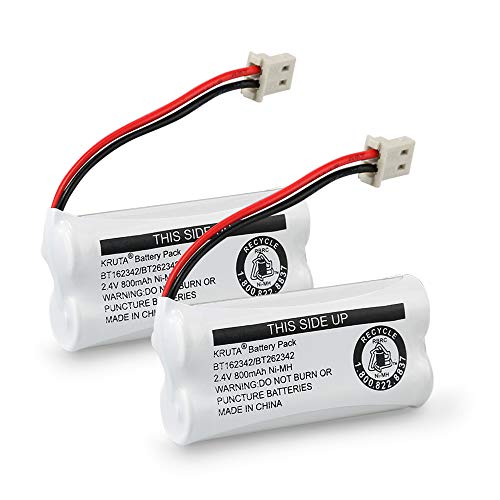
Voltage: 2.4V - Capacity: 800mAh - Type: AAA*2 . Connector Type:5264; Jack: Round. - (Tips: This battery model not suit for all cordless phone model, please kindly read our listing in details and confirm your old battery model, then select correct battery model.)

Fit for PS4 controller, DualShock 4, PS4 Slim/Pro, and Xbox One controllers (for Xbox Elite Wireless Controller models 1537, 1697, 1708, 1698). Fit for Kindle Gen 2-10 (2009-2019), Kindle Paperwhite Gen 5-10 (2012-2018), Kindle Oasis, Voyage, DX, Touch. Fit for Amazon Kindle Tablet Fire 7 (2017/2019), Fire HD 8 (2015/2017/2018), Fire HD 10 (2015/2017)
Signs You Need a Technician
- Persistent Overheating: If your phone frequently gets hotter than normal, seek help. Excessive heat can indicate battery failure or hardware issues.
- Unusual Shutdowns: Experiencing random shutdowns, even with a charged battery, suggests a problem. It’s best to consult a technician.
- Swollen Battery: If the back of your phone bulges, that’s a clear warning sign. A swollen battery poses safety risks and needs immediate attention.
- Charging Issues: If your phone fails to charge or recognizes the charger inconsistently, this could point to a deeper issue, requiring professional diagnosis.
- Software Malfunctions: If software updates and resets don’t improve performance, a technician may need to inspect the hardware.
DIY Troubleshooting vs Professional Repair
Consider DIY methods for minor issues, such as recalibrating the battery. Simple fixes may include altering settings or uninstalling problematic apps. However, some cases call for professional intervention.
- DIY Troubleshooting:
- Battery Calibration: Reset the battery by following the recommended steps. This often resolves minor performance issues.
- App Management: Uninstall or disable apps that drain battery life. This can improve overall performance without major repairs.
- Professional Repair:
- Complex Issues: If DIY tips don’t solve the problem, it’s time for expert help. A technician can thoroughly assess battery health and replace faulty components.
- Warranty Considerations: If your device is under warranty, professional assistance might be necessary to avoid voiding coverage.
Deciding between DIY and professional help depends on the issue’s severity. Assess the symptoms and choose the best path for a functioning battery.
Conclusion
Taking the time to reset your Android phone battery can make a world of difference in your daily experience. By following the steps outlined and incorporating some battery-saving techniques, you can enjoy a more reliable device that keeps up with your busy lifestyle.
Remember to keep an eye on your battery’s performance and make adjustments as needed. If issues persist or worsen, don’t hesitate to reach out for professional help. Your phone deserves the best care to keep it functioning smoothly and efficiently. Happy charging!
Frequently Asked Questions
What causes Android phone battery drain?
Battery drain can be caused by various factors, including high screen brightness, multiple background apps, outdated software, or heavy usage, such as gaming and streaming. Additionally, issues like overheating and charging inconsistencies can contribute to rapid battery depletion.
How can I reset my Android phone battery?
To reset your Android phone battery, charge it to 100%, use it until it completely shuts down, then recharge it to 100% again. Afterward, power cycle the device and use it normally, monitoring its performance to ensure improvements.
What are the signs of battery issues on an Android phone?
Common signs of battery issues include rapid battery drain, unexpected shutdowns, overheating, charging problems, and inconsistent battery percentage readings. Noticing these symptoms early can help address issues before they worsen.
What are some battery-saving techniques for Android phones?
To save battery life, adjust screen brightness, enable Battery Saver mode, limit background apps, turn off location services, and reduce connectivity usage. Regularly updating apps also helps improve battery performance.
When should I seek professional help for battery issues?
Seek professional help if you notice persistent overheating, unusual shutdowns, a swollen battery, or charging inconsistencies. If basic troubleshooting methods don’t resolve the problem, it might be time to consult a technician.
Which apps can help monitor battery health on Android?
Apps like AccuBattery, GSam Battery Monitor, Battery Guru, and Greenify are excellent for monitoring battery health. They provide insights into battery performance and offer tips for extending battery life.
