

Key Takeaways
- Battery Types: Different Lenovo ThinkPad models use various types of batteries (mostly lithium-ion); refer to the user manual for specific details on your model.
- Removable vs. Non-Removable: Some ThinkPad batteries are easily removable for replacement, while others require professional help, impacting maintenance time.
- Safety Precautions: Always power off the laptop, unplug it, and ground yourself before attempting to remove the battery to prevent electrical hazards.
- Tools Required: Utilize a Philips head screwdriver, plastic pry tool, anti-static wrist strap, and clean cloth for an efficient battery removal process.
- Troubleshooting: If the battery doesn’t release, check the latches, ensure the laptop is powered off, and inspect for any obstructions that could hinder removal.
- Replacement Options: When replacing the battery, choose between OEM batteries, reputable third-party options, or professional services, and remember to recycle the old battery responsibly.
Have you ever found yourself needing to replace your Lenovo ThinkPad battery but weren’t sure where to start? You’re not alone; many people face this challenge at some point. Whether it’s for an upgrade or troubleshooting, knowing how to safely remove your laptop battery can save you time and frustration.
Overview of Lenovo ThinkPad Laptop Batteries
Lenovo ThinkPad laptops use various types of batteries depending on the model. Most commonly, you find lithium-ion batteries, known for their durability and long lifespan. These batteries provide power for several hours of usage and recharge quickly.
Battery types vary by model, so it’s important to identify the correct one for your Lenovo ThinkPad. Models like the T-series, X-series, and L-series all use specific batteries designed for optimal performance with their hardware. To check your battery specifications, refer to the laptop’s user manual or the Lenovo support website.
You might notice that some batteries are removable, while others are not. Removable batteries allow easy access for replacement or maintenance. Non-removable batteries often require professional assistance for replacement, which might prolong downtime. Always keep this in mind when managing your laptop’s power supply.
Regular maintenance extends battery life. Keep the battery charged between 20%-80% for optimal health, and avoid exposing it to extreme temperatures. If the battery shows signs of swelling, leakage, or rapid discharge, consider replacing it promptly for safety.
For troubleshooting purposes, note that occasionally, a simple reset can resolve battery performance issues. Removing and reinserting a removable battery can help clear temporary glitches. Refer to your laptop’s model for specific instructions.
Recommended Products

Specification: Battery type:Li-ion Voltage:10.8V Capacity:72Wh Cells:6cell. Rrecharge cycles:500; The battery is durable and has overcurrent protection, anti-overcharge, anti-overdischarge and temperature control functions.

Specifications: Battery Model: 01AV423 SB10K97580, Voltage: 11.4V Capacity: 24Wh ; Cells: 2-cell; Color: Black ,Condition :New,Packages includes: 1x 01AV423 Battery,2 x Screwdrivers,1x Instruction for Lenovo t480 Battery

Specification: 61 Battery; type:Li-ion; Voltage:11.4V; Capacity: 24Wh; Cells:3cell; Recharge cycles:500; The battery is durable and has overcurrent protection, anti-overcharge, anti-overdischarge and temperature control functions.
Preparing to Remove the Battery
Before removing the battery from your Lenovo ThinkPad laptop, taking a few essential steps ensures a smooth and safe process.
Safety Precautions
- Power Off the Laptop: Shut down your laptop completely, not just closing the lid. This prevents any complications during battery removal.
- Unplug the Charger: Disconnect any power adapter from the laptop. This reduces the risk of electric shock.
- Ground Yourself: Use an anti-static wrist strap or touch a metal surface to discharge static electricity. This protects your laptop’s internal components.
- Avoid Water and Chemicals: Work in a dry location and keep liquids and cleaning agents away from the laptop.
Tools Required
You’ll need the following tools for the process:
- Screwdriver: A Philips head screwdriver is typically required for securing screws.
- Plastic Pry Tool: This tool helps prevent damage to the laptop casing when prying it open.
- Anti-Static Wrist Strap: To avoid static discharge that could harm the laptop’s internal parts.
- Clean Cloth: Use a cloth to clean the workspace and avoid dust getting inside your laptop.
Having these tools ready makes the battery removal process efficient and hassle-free.
Step-by-Step Guide to Remove the Battery
Follow these steps to safely remove the battery from your Lenovo ThinkPad laptop.
Recommended Products
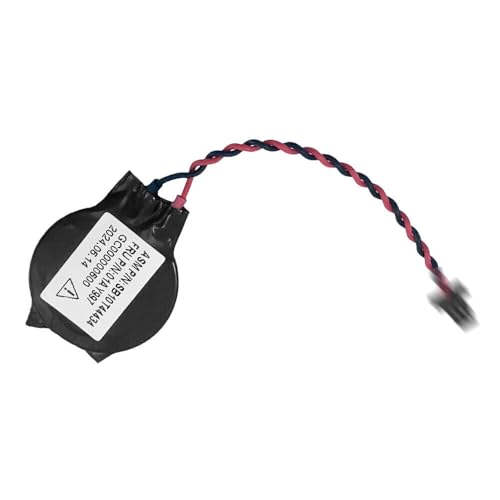
ZAHARA Replacement For Lenovo ThinkPad T490S 20NX 20NY 01AY996 01AY997 5B10S34084 5B10S34085 100% Brand new and high quality. Please check both the model and picture before...
Power Down the Laptop
Ensure the laptop’s powered off completely. Close all applications, shut down the operating system, and disconnect the power adapter. This prevents any electrical issues. Wait a minute to let the internal components cool down.
Locate the Battery Release Latches
Find the battery release latches on the bottom side of the laptop. These latches often look like small sliding switches. Familiarize yourself with their positions, as they can vary by model. Some ThinkPads may have a single latch, while others might feature two.
Remove the Battery from the Laptop
Slide the battery release latches to the unlocked position. Gently pull the battery out of the compartment, being cautious not to force it. Grip the edges of the battery, avoiding contact with any circuitry. Place the battery on a clean, dry surface to prevent damage. If your model includes additional screws, use the Philips head screwdriver to remove them before lifting the battery out.
By following these steps carefully, you’ll ensure a smooth battery removal process.
Troubleshooting Common Issues
Removing a Lenovo ThinkPad battery may lead to some common issues. Addressing these issues promptly ensures a smoother process for you.
Recommended Products

♣Specification: Battery type:Li-ion Voltage:10.8V Capacity: 5200mAh Cell: 6 Cells recharge cycle: 500; The battery is durable and has overcurrent protection, anti-overcharge, anti-overdischarge and temperature control functions.

【Specifications】 Model: 01AV421; Battery Type: Lithium polymer; Voltage: 11.46V; Capacity: 24Wh; Cells: 3 cells; Color: Black with One Free Screwdrivers for easy installation.
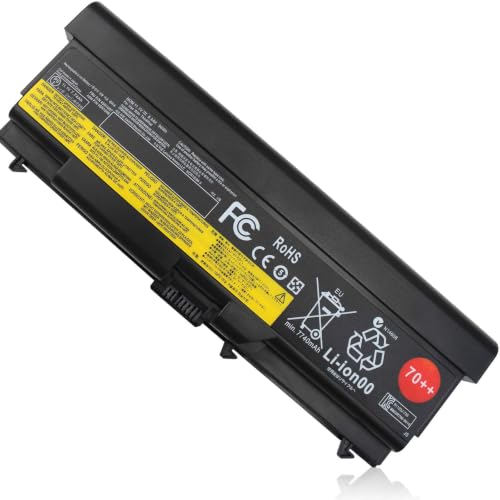
COMPATIBLE LAPTOP MODEL: Replacement battery for Lenovo ThinkPad L410 / L412 / L420 / L421 / L430 / L510 / L512 / L520 / L530 / T410 / T410I / T420 / T420I / T430 / T430I / T510 / T510I / T520 / T520I / T530 / T530I / W510 / W520 / W530 / W530I / SL410 / SL410k / SL510 / SL510K / SL530 / Edge 14" / Edge 15" / E40 / E50 / E420 / E425 / E520 / E525 / Edge 0578-47B Series laptop
Battery Doesn’t Release
If the battery doesn’t release, check these steps:
- Verify the Battery Release Mechanism: Locate the latches. Ensure you’re pushing or sliding them in the correct direction.
- Inspect for Obstructions: Look for debris or dust around the battery area. Clean it gently to eliminate any blockages.
- Confirm Power-Off State: Make sure your laptop is completely powered off. Sometimes, a device in sleep mode can prevent battery removal.
- Try a Different Angle: If the battery feels stuck, change your approach. Gently wiggle the battery while applying pressure to the release latches.
Should these steps fail, consider consulting the Lenovo user manual or support website for model-specific instructions.
Battery Replacement Options
When it comes to replacing the battery, you have a few solid choices:
- OEM Replacement: Opt for a Lenovo Original Equipment Manufacturer (OEM) battery. They offer compatibility and reliability.
- Third-Party Batteries: Consider reputable third-party brands if original options are unavailable. Always check reviews and warranty details.
- Professional Service: If handling batteries feels cumbersome, reach out to a local repair shop. Experts can help replace your battery safely.
- Battery Recycling: Remember to recycle your old battery. Look for local electronic recycling programs to dispose of it responsibly.
Evaluate which option fits your needs and budget, ensuring your Lenovo ThinkPad runs efficiently.
Conclusion
Removing the battery from your Lenovo ThinkPad doesn’t have to be a daunting task. With the right tools and a little preparation you can tackle it with confidence. Remember to follow the steps carefully and take your time to avoid any mishaps.
Once you’ve successfully removed the battery you can easily replace it or troubleshoot any issues. Keeping your laptop in top shape is all about regular maintenance and knowing how to handle these tasks.
Don’t forget to recycle your old battery responsibly. With these tips in hand you’re well on your way to ensuring your ThinkPad continues to serve you well for years to come. Happy computing!
Frequently Asked Questions
How do I know if my Lenovo ThinkPad battery needs replacing?
If your ThinkPad shows a rapid battery drain, fails to charge, or the laptop shuts down unexpectedly, it may be time for a replacement. You can also check battery health in the system settings or use Lenovo’s diagnostic tools.
What types of batteries are used in Lenovo ThinkPad laptops?
Lenovo ThinkPads primarily use lithium-ion batteries known for their durability and fast charging. However, the specific type may vary based on the model, such as T-series, X-series, and L-series. Always refer to your user manual for accurate specifications.
Is it easy to replace a Lenovo ThinkPad battery?
The ease of replacement depends on the model. Removable batteries are generally straightforward to change, while non-removable batteries may require professional assistance. Always consult your user manual for guidance on your specific model.
What tools do I need to remove a Lenovo ThinkPad battery?
You’ll need a Philips head screwdriver, a plastic pry tool, an anti-static wrist strap, and a clean cloth for removing the battery. These tools will help ensure a safe and efficient process.
How can I safely remove the battery from my Lenovo ThinkPad?
To safely remove the battery, power off the laptop completely, unplug the charger, ground yourself to prevent static buildup, and avoid liquids. Follow the step-by-step guide provided in your user manual for detailed instructions.
What should I do if the battery won’t release?
If the battery won’t release, check for any latches that may not be fully disengaged. Gently wiggle the battery while pulling to help it release. If it still doesn’t budge, consult the manual or consider seeking professional help.
How do I extend the life of my Lenovo ThinkPad battery?
To extend battery life, keep the charge between 20%-80%, avoid extreme temperatures, and perform regular maintenance checks. These practices can help improve overall battery health and performance over time.
What should I do with my old Lenovo ThinkPad battery?
It’s essential to recycle old batteries responsibly. Many electronic retailers and recycling centers accept batteries for proper disposal. Check local regulations and programs to ensure safe and environmentally-friendly recycling.
