Close Menu
Battery Spotlight
    Battery Spotlight
    • Home
    • Phone Batteries
    • Laptop Batteries
    • Car Batteries
      • Golf Cart Batteries
    • Battery Info
      • Battery Chargers
      • Battery Life
      • Battery Maintenance
      • Marine Batteries
      • Rechargeable Batteries
      • Solar Batteries
    • About Us
      • Contact
    Battery Spotlight
    Navigation: Home » Phone Batteries » Android Batteries » How to Check Samsung Phone Battery Capacity Left and Maximize Your Device’s Performance
    Android Batteries

    How to Check Samsung Phone Battery Capacity Left and Maximize Your Device’s Performance

    Leo HudsonBy Leo HudsonMay 13, 20257 Mins Read
    Share Facebook Twitter Pinterest LinkedIn Tumblr Email WhatsApp Copy Link
    Share
    Facebook Twitter LinkedIn Pinterest Email Copy Link

    Key Takeaways

    • Understanding Battery Capacity: Battery capacity, measured in mAh, indicates how much energy your Samsung phone can store, impacting its usage time.
    • How to Check Battery Stats: Access battery information through the Settings app, where you can view battery percentage, usage details, and enable battery percentage display for clearer insights.
    • Importance of Monitoring Battery Health: Regular checks provide insights into battery performance and help assess the overall health, guiding users on when to consider battery replacement.
    • Utilizing Apps for Measurement: Use the Samsung Members app or third-party applications like AccuBattery for in-depth monitoring of battery capacity and health.
    • Best Practices for Battery Maintenance: Follow charging best practices, manage background apps, and keep software updated to extend your phone’s battery lifespan and optimize performance.

    Ever wondered how much battery life your Samsung phone has left? You’re not alone. Many people find themselves guessing how long their device will last, especially when they’re on the go.

    Table of Contents

    Toggle
    • Key Takeaways
    • Understanding Battery Capacity
    • Why Battery Capacity Matters
    • Checking Battery Capacity on Samsung Phones
    • Monitoring Battery Health
    • Importance of Checking Battery Capacity
    • Health of Your Device
    • Performance Optimization
    • Methods to Check Samsung Phone Battery Capacity Left
    • Using Built-In Settings
    • Utilizing Samsung Members App
    • Third-Party Apps
    • Tips for Maintaining Battery Health
    • Charging Best Practices
    • Avoiding Common Issues
    • Conclusion
    • Frequently Asked Questions
    • What is battery capacity in Samsung phones?
    • How can I check the battery capacity on my Samsung phone?
    • Why is monitoring battery health important?
    • What are some tips to maintain battery health?
    • How can I estimate my phone's remaining usage time?

    Understanding Battery Capacity

    Battery capacity indicates how much energy your Samsung phone’s battery can hold, measured in milliampere-hours (mAh). A larger mAh rating means your battery can store more energy, leading to longer usage times.

    Recommended Products

    HamnaKhu [2600mAh] for Galaxy S3 Battery,【New Upgrade】 Version Li-ion Battery Replacement for Galaxy S3 EB-L1G6LLU, Verizon I535, Sprint L710, AT&T I747, R530, LTE I9305, T999
    HamnaKhu [2600mAh] for Galaxy S3 Battery,【New Upgrade】 Version Li-ion Battery Replacement for Galaxy S3 EB-L1G6LLU, Verizon I535, Sprint L710, AT&T I747, R530, LTE I9305, T999

    ✍>>Compatible Models:This Battery Model is EB-L1G6LLA/LZ/LU, Compatible with Galaxy S3 I9300,I9305 LTE, I535 (Verizon),T999 (Tmobile),I747 (AT&T),L710 (Sprint),[ Not Compatible with S3 Mini /S3 Slim ].Please confirm your phone model before placing an order

    VIEW LATEST PRICE

    As an affiliate, we earn on qualifying purchases.

    DDONG for Samsung Galaxy S SGH-T959V Replacement Battery EB575152LU EB575152YZ EB575152LA
    DDONG for Samsung Galaxy S SGH-T959V Replacement Battery EB575152LU EB575152YZ EB575152LA

    The battery is manufactured and tested under strict quality control standards before sent out

    VIEW LATEST PRICE

    As an affiliate, we earn on qualifying purchases.

    DDONG Replacement Battery EB-BG530BBE EB-BG530CBU J3 Prime J327 J337 for MetroPCS Samsung Galaxy J2 Pure SM-J260T1 /SM-G530 Battery EB-BG530BBC
    DDONG Replacement Battery EB-BG530BBE EB-BG530CBU J3 Prime J327 J337 for MetroPCS Samsung Galaxy J2 Pure SM-J260T1 /SM-G530 Battery EB-BG530BBC

    The battery is manufactured and tested under strict quality control standards before sent out

    VIEW LATEST PRICE

    As an affiliate, we earn on qualifying purchases.

    Why Battery Capacity Matters

    Recognizing battery capacity helps you gauge how much usage time remains. Knowing the capacity allows you to plan your day effectively. For example, if your phone’s battery capacity is 3,000 mAh and it’s currently at 25%, you have about 750 mAh left, leading to roughly 2 hours of usage depending on your phone habits.

    SEE ALSO  How Do I Fix Google Pixel Battery Life with These Essential Tips for Better Performance

    Checking Battery Capacity on Samsung Phones

    To check battery capacity, follow these simple steps:

    1. Open Settings: Tap on the Settings app on your home screen.
    2. Select Battery and Device Care: Scroll down and choose “Battery” from the options.
    3. View Battery Usage: Here, you can see battery percentage and usage details.
    4. Enable Battery Percentage: Enabling “Show battery percentage” gives a clearer view of how much energy is left.

    Monitoring Battery Health

    Regularly monitoring battery health helps improve performance. Samsung phones include a built-in “Battery Health” feature. Checking this can inform you how well the battery holds charge. Follow these steps:

    1. Access Settings: Go to the Settings app.
    2. Battery and Device Care: Select it.
    3. Diagnostics: Tap on “Battery” to enter the diagnostics section.
    4. Battery Health: Review the battery health status.

    Tracking these details ensures that you manage your phone’s energy efficiently, allowing you to extend its life between charges.

    Importance of Checking Battery Capacity

    Checking battery capacity plays a crucial role in maximizing your Samsung phone’s performance. Understanding how much battery you have left directly impacts your daily tasks.

    Health of Your Device

    Monitoring battery capacity helps assess the overall health of your phone. If your battery shows a significant drop in capacity over time, it may indicate wear and tear. For instance, a battery that retains only 60% of its original capacity after a year signifies it’s aging faster than expected. Regular checks allow you to decide when to replace your battery, maintaining optimal device health.

    Performance Optimization

    Knowing your battery capacity aids in performance optimization. With precise battery information, you can plan your app usage effectively. For example, if you notice your battery dropping quickly while using resource-intensive apps, you can limit their use during critical times. Additionally, adjusting settings like screen brightness and background app activity based on battery levels can extend your phone’s usability throughout the day.

    Methods to Check Samsung Phone Battery Capacity Left

    Knowing your Samsung phone’s battery capacity left helps you manage daily usage effectively. Here are several methods to check this information easily.

    Recommended Products

    MOVFST Replacement Battery for Samsung Galaxy S10E,5150mAh High Capacity Battery Fit for Samsung Galaxy S10E Model SM-G970 G970F/DS G970U G970W with Repair Tool Kits,EB-BG970ABU
    MOVFST Replacement Battery for Samsung Galaxy S10E,5150mAh High Capacity Battery Fit for Samsung Galaxy S10E Model SM-G970 G970F/DS G970U G970W with Repair Tool Kits,EB-BG970ABU

    HIGH CAPACITY --- This replacement battery for Samsung Galaxy S10E is 5150mAh high capacity, with more power than original battery.You can use your phone for a longer time!

    VIEW LATEST PRICE

    As an affiliate, we earn on qualifying purchases.

    Kastar Battery (X2) & Slim USB Charger for Samsung BP-70A, BP70A, EA-BP70A and ES65 ES67 ES70 ES71 ES73 ES74 PL80 PL81 PL100 PL101 SL50 SL600 SL605 SL630 ST60 ST61 ST70 ST71 TL105 TL110 TL205
    Kastar Battery (X2) & Slim USB Charger for Samsung BP-70A, BP70A, EA-BP70A and ES65 ES67 ES70 ES71 ES73 ES74 PL80 PL81 PL100 PL101 SL50 SL600 SL605 SL630 ST60 ST61 ST70 ST71 TL105 TL110 TL205

    Kastar 2-pack high-capacity BP-70A batteries with slim USB charger. Compatible with Samsung BP-70A / BP70A / EA-BP70A cameras (full model list in description). Each battery: 3.7 V, 1400 mAh, 5.2 Wh; approx. 1.0 oz. (39.4 × 31 × 5.8 mm / 1.55 × 1.22 × 0.23 in). Includes 2 batteries + 1 USB charger + 1 battery case.

    VIEW LATEST PRICE

    As an affiliate, we earn on qualifying purchases.

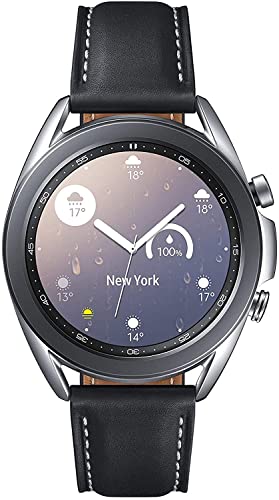
    Samsung Galaxy Watch 3 (41mm, GPS, Bluetooth) Smart Watch with Advanced Health monitoring, Fitness Tracking , and Long lasting Battery - Mystic Silver (US Version)- (Renewed)
    Samsung Galaxy Watch 3 (41mm, GPS, Bluetooth) Smart Watch with Advanced Health monitoring, Fitness Tracking , and Long lasting Battery - Mystic Silver (US Version)- (Renewed)

    STYLE YOU CAN COUNT ON: Galaxy Watch3 combines style—two sizes, two finishes, three colors and, 50,000 plus¹ watch faces-with military-grade durability² and water resistance³.

    SEE ALSO  How Much Is It to Replace a Samsung Battery: A Complete Cost Guide and Replacement Options
    VIEW LATEST PRICE

    As an affiliate, we earn on qualifying purchases.

    Using Built-In Settings

    1. Open Settings: Swipe down from the top of your screen, then tap the gear icon.
    2. Select Battery and Device Care: Tap on “Battery” to view battery information.
    3. Access Battery Usage: Here, you’ll see battery percentage, the usage by apps, and estimated remaining time based on current usage patterns.

    This feature provides a clear overview of how your battery is performing and helps you identify apps consuming too much power.

    Utilizing Samsung Members App

    1. Download Samsung Members: Install the app from the Google Play Store if you haven’t already.
    2. Launch the App: Open Samsung Members and tap on the “Get Help” tab.
    3. Select Battery Diagnostics: Tap on “Battery” to view detailed battery health and capacity information.

    The Samsung Members app gives insights into battery performance and suggests tips to extend battery life, helping you stay informed about your device.

    Third-Party Apps

    1. Explore Battery Monitor Apps: Download a third-party app like AccuBattery or GSam Battery Monitor from the Google Play Store.
    2. Follow Setup Instructions: Open the app and allow necessary permissions to access battery data.
    3. Check Battery Stats: View detailed stats, including charge cycles, discharge rates, and remaining capacity.

    These apps offer comprehensive insights and features for monitoring battery health, making it easy to track your device’s energy status over time.

    By staying on top of your Samsung phone’s battery capacity, you can ensure efficient use and reduce the frequency of charging throughout the day.

    Tips for Maintaining Battery Health

    Maintaining battery health ensures your Samsung phone performs at its best over time. Follow these tips to prolong your battery’s lifespan.

    Recommended Products

    Type C Charger Fast Charging, 2 Pack USB C Android Phone Wall Charger Block & 6ft Charge Cable Cord, for Samsung Galaxy S8 / S9 / S10 Plus Active S10e, S20 / S21 Ultra Plus, Note 8 9 10, Pixel 3 etc
    Type C Charger Fast Charging, 2 Pack USB C Android Phone Wall Charger Block & 6ft Charge Cable Cord, for Samsung Galaxy S8 / S9 / S10 Plus Active S10e, S20 / S21 Ultra Plus, Note 8 9 10, Pixel 3 etc

    Safeguard Protection - USB c Android chargers comes with premium built-in safeguards and intelligent IC identification technology to prevent against short circuit, over-current, over-voltage, over-heating and over-charging. It can intelligently recognize the battery type and status, will automatically stop charging when fully charged for a safety charging and long lifespan

    VIEW LATEST PRICE

    As an affiliate, we earn on qualifying purchases.

    2Pack Multi Charging Cable Cord for Travel Essentials,Apple Watch Charger,iPhone Charger,[3-in-2] Type C/L Cable Portable Designed for iWatch,iPhone 17-8,Galaxy S26-21,Xbox Series X&S,iPad-4FT
    2Pack Multi Charging Cable Cord for Travel Essentials,Apple Watch Charger,iPhone Charger,[3-in-2] Type C/L Cable Portable Designed for iWatch,iPhone 17-8,Galaxy S26-21,Xbox Series X&S,iPad-4FT

    【Advanced Safe & Stable Charging】Experience enhanced safety and fast,delivering efficient power output to your devices.This certified multi charger cable supports USB Type C cable charging and USB lightning cable compatibility, delivering rapid power to iPhone cable, USB C cable pack, and for Apple Watch and Xbox Series X & S .(3A+ adapter recommended for best results). Please Note: *Charging speed depends on your device's capabilities, battery status, and the power adapter used.If your device does not charge or charges intermittently, it may be due to poor contact caused by a thick phone case. Try removing the case for a more reliable charging experience.

    SEE ALSO  Why Does Google Maps Drain Battery and How to Save Your Phone's Power Efficiently
    VIEW LATEST PRICE

    As an affiliate, we earn on qualifying purchases.

    Type C Charger, 2Pack 25W PD USBC Wall Charger Super Fast Charging Block & 6ft Android Phone Cable Cord for Samsung Galaxy S26 S25 S24 S23 S22 S21 S20 (Plus/Ultra)/Note 20 10 9 8/ S10 S9 S8 Galaxy Tab
    Type C Charger, 2Pack 25W PD USBC Wall Charger Super Fast Charging Block & 6ft Android Phone Cable Cord for Samsung Galaxy S26 S25 S24 S23 S22 S21 S20 (Plus/Ultra)/Note 20 10 9 8/ S10 S9 S8 Galaxy Tab

    【Safeguard Protection】USB C Android chargers comes with premium built-in safeguards and intelligent IC identification technology to prevent against short circuit, over-current, over-voltage, over-heating and over-charging. It can intelligently recognize the battery type and status, will automatically stop charging when fully charged for a safety charging and long lifespan.

    VIEW LATEST PRICE

    As an affiliate, we earn on qualifying purchases.

    Charging Best Practices

    • Use the Original Charger: Always use the charger that came with your phone. Third-party chargers may not provide the right voltage, potentially harming your battery.
    • Avoid Overnight Charging: Avoid leaving your phone plugged in overnight. Constantly charging can lead to overcharging and reduce battery life.
    • Charge Between 20%-80%: Keeping your battery between 20% and 80% fosters longevity. Frequent full discharges and charges can wear down your battery faster.
    • Use Fast Charging Sparingly: Fast charging is convenient, but using it too often can generate excess heat, which may damage your battery in the long run.

    Avoiding Common Issues

    • Limit Background Apps: Close apps that run in the background. They use battery power, impacting overall health.
    • Manage Location Services: Turn off location services when not needed. GPS drains battery quickly, so adjust settings to access only when required.
    • Reduce Screen Brightness: Lower screen brightness or enable adaptive brightness. A brighter screen consumes more power.
    • Keep Software Updated: Regular updates often include fixes for battery drain. Ensure your phone’s software is up-to-date to benefit from these improvements.

    Following these tips keeps your Samsung phone battery healthy, optimizing performance and extending its lifespan.

    Conclusion

    Keeping an eye on your Samsung phone’s battery capacity can make a big difference in how you use your device. By regularly checking your battery health and following some simple tips, you can ensure your phone stays powered up and ready for whatever you need throughout the day.

    With just a few adjustments to your habits and settings, you can extend your battery life and enhance your overall experience. So go ahead and take charge of your phone’s performance. You’ll be glad you did!

    Frequently Asked Questions

    What is battery capacity in Samsung phones?

    Battery capacity, measured in milliampere-hours (mAh), indicates how much energy the battery can store. A higher mAh rating means more power is available, allowing for longer usage times throughout the day.

    How can I check the battery capacity on my Samsung phone?

    To check your Samsung phone’s battery capacity, go to the Settings app, select “Battery,” and enable battery percentage. This will give you a clearer view of your remaining battery life.

    Why is monitoring battery health important?

    Monitoring battery health is essential to assess your battery’s performance and identify any wear and tear. This can help you understand its longevity and when it may need to be replaced.

    What are some tips to maintain battery health?

    To maintain battery health, use the original charger, avoid overnight charging, keep battery levels between 20% and 80%, limit background apps, and reduce screen brightness. Regular software updates also help optimize battery performance.

    How can I estimate my phone’s remaining usage time?

    Estimating your phone’s remaining usage time involves checking the battery capacity (mAh), current battery percentage, and adjusting your app usage accordingly. This helps you plan your day better and avoid unexpected shutdowns.

    Share. Facebook Twitter Pinterest LinkedIn Tumblr Email WhatsApp Copy Link
    Leo-Hudson
    Leo Hudson

      Technical writer with 3+ years of experience. Bachelor of Arts in Environmental Studies from UC Santa Cruz. Passionate about sustainability and providing clear, concise how-to guides for common battery problems.

      Related Posts

      Android Batteries

      How to Replace Battery in Samsung Phone: A Step-by-Step Guide for Easy Replacement

      October 25, 2025
      Android Batteries

      How to Remove Battery from Samsung Smart TV Remote: A Step-by-Step Guide for Easy Replacement

      October 25, 2025
      Android Batteries

      How to Check Your Battery Health on Samsung: Simple Methods to Extend Your Phone’s Lifespan

      October 25, 2025
      Android Batteries

      How Much Is a Battery for a Samsung Galaxy S6: Pricing and Replacement Options Explained

      October 25, 2025
      Android Batteries

      How to Remove Battery from Samsung Galaxy S7: A Step-by-Step Guide for Easy DIY Fixes

      October 25, 2025
      Android Batteries

      Why is My Battery Going Down While Charging Android – Effective Solutions to Fix the Issue

      October 25, 2025
      Add A Comment
      Leave A Reply Cancel Reply

      Search
      Affiliate Disclaimer

      As an Amazon Associate I earn from qualifying purchases.

      Latest Articles

      How to Replace Battery in Samsung Phone: A Step-by-Step Guide for Easy Replacement

      Android Batteries

      How to Remove Battery from Samsung Smart TV Remote: A Step-by-Step Guide for Easy Replacement

      Android Batteries

      How to Check Your Battery Health on Samsung: Simple Methods to Extend Your Phone’s Lifespan

      Android Batteries

      How Much Is a Battery for a Samsung Galaxy S6: Pricing and Replacement Options Explained

      Android Batteries

      How to Remove Battery from Samsung Galaxy S7: A Step-by-Step Guide for Easy DIY Fixes

      Android Batteries

      Why is My Battery Going Down While Charging Android – Effective Solutions to Fix the Issue

      Android Batteries
      Battery Spotlight

      Battery Spotlight is a website dedicated to helping you solve common battery problems.

      Read more about us here

      Affiliate Disclaimer
      As an Amazon Associate I earn from qualifying purchases.

      Site Navigation
      • Above Mirror Bathroom Lighting
      • Android Batteries
      • Bathroom Pendant Lighting
      • Battery Chargers
      • Battery Life
      • Battery Maintenance
      • Car Batteries
      • Ceiling Lighting Ideas
      • Golf Cart Batteries
      • Japandi Lighting
      • Laptop Batteries
      • Marine Batteries
      • Mood Lighting Living Room
      • Phone Batteries
      • Rechargeable Batteries
      • Reviews
      • Solar Batteries
      • Uncategorized
      • Vaulted Ceiling Lighting
      Latest Articles

      How to Replace Battery in Samsung Phone: A Step-by-Step Guide for Easy Replacement

      How to Remove Battery from Samsung Smart TV Remote: A Step-by-Step Guide for Easy Replacement

      How to Check Your Battery Health on Samsung: Simple Methods to Extend Your Phone’s Lifespan

      How Much Is a Battery for a Samsung Galaxy S6: Pricing and Replacement Options Explained

      How to Remove Battery from Samsung Galaxy S7: A Step-by-Step Guide for Easy DIY Fixes

      • Home
      • About
      • Contact
      • Privacy Policy
      • Editorial Policy
      • Disclaimer
      • Terms and Conditions
      • Affiliate Disclosure
      © 2026 Battery Spotlight

      Type above and press Enter to search. Press Esc to cancel.