

Key Takeaways
- Power Off Before Removal: Always ensure your Samsung device is completely powered off to prevent electrical issues during battery removal.
- Use Proper Tools: Utilize a small Phillips screwdriver, plastic pry tool, tweezers, gloves, and a soft cloth for safe and effective battery removal.
- Inspect for Damage: Check the battery and connectors for any signs of damage or wear before proceeding, as a damaged battery can pose safety risks.
- Follow Steps Carefully: Adhere to the step-by-step guide, from removing the battery cover to disconnecting and lifting out the battery, to avoid damaging your device.
- Consult the Manual: If needed, refer to your device’s specific user manual for tailored instructions and features related to battery removal.
- Proper Disposal: Dispose of old batteries following local regulations to ensure environmental safety and compliance.
Have you ever found yourself with a Samsung phone that just won’t turn on? Sometimes, all it takes is a simple battery removal to get things back on track. Whether you’re troubleshooting a problem or replacing an old battery, knowing how to safely remove it can save you time and frustration.
How to Remove Battery from Samsung Devices
Removing the battery from your Samsung device can seem challenging, but following these steps makes the process straightforward.
Step-by-Step Guide
- Power Off Your Device
Turn off your Samsung device completely before beginning the battery removal process. This helps prevent any potential damage.
- Locate the Battery Cover
Identify the battery cover. On many Samsung models, a small notch makes it easier to pry open.
- Remove the Battery Cover
Use your fingers or a plastic opening tool to lift the battery cover off gently. Be cautious not to use excessive force to avoid breaking the cover.
- Disconnect the Battery
Find the battery connector. In some models, you might need to pull a tab or press a latch. Do this carefully to avoid damaging the connector.
- Take Out the Battery
Once the battery is disconnected, lift it out of the compartment. If the battery feels stuck, gently rock it back and forth to free it.
- Replace or Dispose of the Battery
If you’re replacing the battery, simply insert the new one in the same orientation as the old one. If you’re disposing of it, always follow local regulations for battery disposal or recycling.
Additional Tips
- Check for Damage
Inspect the battery and connectors for any signs of damage or wear. Replacing a damaged battery is crucial for your device’s safety.
- Use Proper Tools
Utilizing a plastic opening tool minimizes the risk of scratching or damaging your device. These tools are often available in repair kits.
- Consult Your Model’s Manual
For specific instructions tailored to your device model, refer to the manufacturer’s manual. Different models might have unique features.
Following these steps ensures a safe battery removal process from your Samsung device.
Tools Needed for Battery Removal
Having the right tools makes battery removal from your Samsung device quick and easy. Here’s a list of essential tools and safety lessons to ensure a smooth operation.
Recommended Products
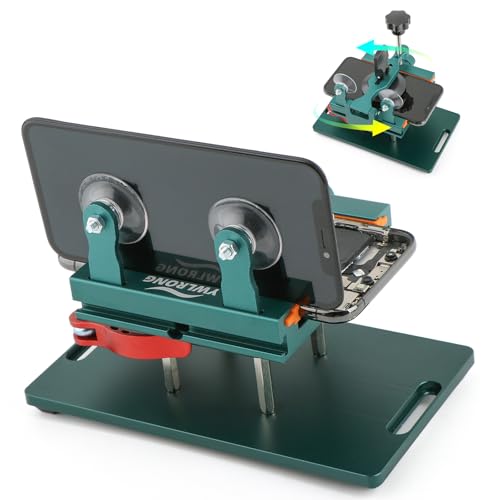
Compatible Model: Please check the product video to confirm how to use. The fixing clamp of phone screen removal tools, which compatible with iPhone 12, for iPhone 12 Pro, for iPhone 12 Pro Max, for iPhone 11, for iPhone 11 Pro, for iPhone 11 Pro Max, for iPhone 13/13 Pro/13 Pro Max, for iPhone 14,for iPhone 8, 8 Plus, SE, X, XS, XS MAX for Samsung S21/S21 Ultra/S21 Plus/S21,/S20 Plus/Samsung S20 Ultra. etc.

HIGH QUALITY: Thin flexible steel blade easily slips between the tightest gaps and corners.

✔ Compatible With: Samsung Galaxy S7 S8 S8 Plus S9 S9 Plus S10,S10 Plus,S20,S20+,S20 Ultra ,S21,S21 Plus,S21 Ultra,Galaxy S22,S22 Plus,S22 Ultra,S23,S23 Ultra,Galaxy S24 Ultra,Galaxy S25 S25 Ultra,S25 Edge,Note8, Note 9,Note 10,Note 10 Plus,Note 20,Note 20 Ultra,Galaxy Z Flip 2 3 4 5 ,Galaxy Z Fold 2 3 4 5 6 7 Galaxy Tab S7 S8 S9 S10 S11Series and other Samsung Galaxy Models
Recommended Tools
- Screwdriver: Use a small Phillips head screwdriver to remove screws securing the battery cover.
- Plastic Pry Tool: This tool helps gently pry the battery cover without scratching the device’s surface.
- Tweezers: Tweezers assist in disconnecting the battery connector and handling small parts.
- Gloves: Wear gloves to avoid static electricity and protect the battery from damage.
- Soft Cloth: Keep a soft cloth nearby to rest your phone on or wipe it clean.
Safety Precautions
- Power Off: Always turn off your device to prevent any electrical issues.
- Static-Free Environment: Work in a static-free area to avoid damaging sensitive components.
- Battery Inspection: Check for any swelling or damage before removing the battery. If present, handle it with care.
- Proper Disposal: Follow local guidelines for battery disposal to keep your environment safe.
- Manual Reference: Consult the device’s manual for specific instructions relevant to your model.
Step-by-Step Guide
Follow these steps to safely remove the battery from your Samsung device.
Powering Off the Device
First, power off your device completely. Hold down the power button until the shutdown menu appears. Tap “Power Off” and wait for the screen to go dark. This prevents accidental damage during the removal process.
Accessing the Battery Compartment
Next, locate the battery compartment. If your Samsung device has a removable back cover, find the small notch or seam on the edge. Use a plastic pry tool to gently lift off the back cover. If your device doesn’t have a removable back, consult the manual for specific opening instructions.
Removing the Battery
Once you access the battery compartment, look for the battery itself. Locate the connector and gently disconnect it by lifting it straight up. Grasp the edges of the battery and pull it out carefully. Avoid using excessive force to prevent damaging any components.
Taking these steps ensures a smooth battery removal process, keeping your device safe.
Troubleshooting Common Issues
You might encounter a few issues when removing the battery from your Samsung device. Here are common problems and solutions to help you.
Difficulty Opening the Device
If you’re struggling to open the device, check these tips:
- Identify the notch: Look for a designated notch or seam on the back cover. Ensuring you’re in the right spot helps.
- Use a plastic pry tool: Insert the tool gently into the seam. If the cover doesn’t budge, apply slight pressure without forcing it.
- Multiple attempts: Sometimes, it takes a few tries. Rotate the device and approach from different angles until the cover loosens.
Battery Not Coming Out
If the battery isn’t easily coming out, take these steps:
- Check for clips: Some Samsung models have clips holding the battery in place. Ensure you’ve released all clips before trying to remove it.
- Use tweezers: If the battery edge is exposed, use tweezers to grip it firmly. Avoid excessive force as this can cause damage.
- Inspect for adhesive: Older batteries might have adhesive seals. If present, gently wiggle the battery to break the seal.
These troubleshooting tips help resolve common removal issues you might face with your Samsung device.
Conclusion
Removing the battery from your Samsung device doesn’t have to be a daunting task. With the right tools and a little patience you can tackle this process with confidence. Remember to follow the steps carefully and prioritize safety to avoid any mishaps.
Once you’ve successfully removed the battery you can troubleshoot issues or replace it with ease. Don’t hesitate to refer back to your device’s manual for any model-specific guidance.
Taking these simple steps can save you time and frustration while keeping your device in top shape. Happy battery removing!
Frequently Asked Questions
Why won’t my Samsung phone turn on?
If your Samsung phone won’t turn on, it may be due to a drained battery or a software issue. A quick fix might be to remove and reinsert the battery, provided your device has a removable battery. If problems persist, consider trying a hard reset or contacting customer support.
How do I safely remove the battery from my Samsung phone?
To safely remove the battery, first power off your device. Next, locate the battery cover, use a plastic pry tool to lift it off, and carefully disconnect the battery from the device. Avoid using excessive force to prevent damage.
What tools do I need for battery removal?
You’ll need a small Phillips head screwdriver, a plastic pry tool, tweezers, gloves, and a soft cloth. These tools will help you safely open your device and remove the battery without damaging any components.
What safety precautions should I take while removing the battery?
Ensure your device is powered off, work in a static-free environment, and inspect the battery for any visible damage. Always follow proper disposal guidelines for old batteries to reduce environmental impact.
What if I’m having trouble removing the battery?
If you’re struggling to remove the battery, make sure you’re using a plastic pry tool to open the device carefully. Check for clips that may be holding it in. If needed, use tweezers and try different angles to avoid damaging components.
Should I consult my device’s manual for battery removal?
Yes, it’s highly recommended to consult your device’s manual for model-specific instructions. This will ensure that you follow the correct procedure for your particular Samsung device and avoid potential damage.
