

Key Takeaways
- Understanding Battery Health: Knowing your Samsung phone’s battery health is essential for optimizing performance and longevity.
- Check Using Settings: You can find basic battery status information by navigating to Settings > Device Care > Battery on your device.
- Samsung Members App: For detailed insights, download the Samsung Members app and use the diagnostics feature to assess battery performance.
- Utilize Third-Party Apps: Apps like AccuBattery and GSam Battery Monitor offer advanced monitoring tools to track battery usage and health over time.
- Recognize Signs of Wear: Be aware of symptoms like rapid drain, unexpected shutdowns, and overheating, which indicate declining battery health.
- Maintenance Tips: To extend battery life, avoid overcharging, keep the phone in moderate temperatures, and use Battery Saver mode when necessary.
Ever wondered how long your Samsung phone’s battery will last? You’re not alone. Many users face battery issues as their devices age, and it can be frustrating to deal with unexpected shutdowns or slow performance. Knowing your battery health can help you make informed decisions about usage and charging habits.
In this article, you’ll learn simple steps to check your Samsung battery health. By understanding its condition, you can extend its life and improve your overall experience. Whether you’re a tech whiz or just looking for a quick fix, this guide will provide the insights you need to keep your phone running smoothly.
Understanding Battery Health
Understanding battery health is crucial for maximizing your Samsung device’s performance. Battery health refers to the condition of your battery and its ability to hold a charge over time.
You can check your battery health through several methods:
Recommended Products
![SAMSUNG Galaxy Ring, AI Smart Ring, Size First w/Sizing Kit, No App Subscription, Fitness Monitor, Sleep Tracker, Up to 7-Day Battery, Size 10, Titanium Gold [US Version, 1Yr Manufacturer Warranty]](https://m.media-amazon.com/images/I/41R1PkmCQxL._SL500_.jpg)
SIZE BEFORE YOU BUY: Galaxy Ring sizes differ from standard ring sizes; Purchase the Samsung Galaxy Ring Sizing Kit on Amazon first, and receive a credit towards your future Samsung Galaxy Ring purchase (terms and conditions apply)
SIZE BEFORE YOU BUY: Galaxy Ring sizes differ from standard ring sizes; Purchase the Samsung Galaxy Ring Sizing Kit on Amazon first, and receive a credit towards your future Samsung Galaxy Ring purchase (terms and conditions apply)
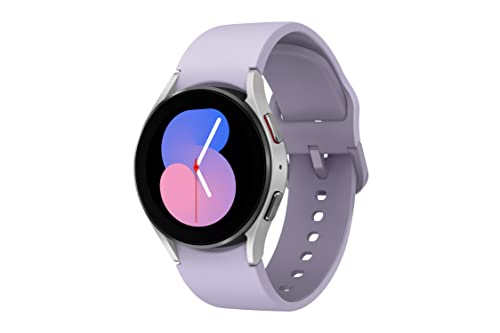
LEAVE YOUR PHONE BEHIND: All you need is your Galaxy Watch5 with LTE Connectivity; You can make or take calls, track workouts, send texts and pull up a playlist anywhere, anytime, without your phone or Wi-Fi
Built-in Settings
- Open Settings: Navigate to your device’s settings menu.
- Go to Device Care: Select “Device care,” then tap “Battery.”
- View More Options: Look for “Battery usage” or “More battery settings.” This area may show your battery’s current status.
Using Samsung Members App
- Download or Open Samsung Members: If you don’t have it installed, you can find it in the Google Play Store.
- Access the Diagnostics: Within the app, tap on “Get Help” and select “Battery.”
- Check Battery Health: The app provides an overview of your battery’s performance and health status.
Third-Party Apps
Consider using third-party apps like AccuBattery or GSam Battery Monitor. These apps provide in-depth analysis and show battery capacity, charge cycles, and estimated lifespan.
Recognizing Signs of Battery Wear
You might notice several signs that indicate declining battery health:
- Rapid Drain: Battery percentage drops quickly.
- Unexpected Shutdowns: Device shuts off even with remaining charge.
- Overheating: Device heats up during regular use or charging.
Practical Tips for Maintenance
- Avoid Overcharging: Unplug your device once it reaches 100% to prevent stress on the battery.
- Limit Extreme Temperatures: Keep your device in environments between 32°F and 95°F (0°C to 35°C).
- Use Battery Saver Mode: Activate this feature to extend battery life when needed.
Monitoring and understanding your Samsung battery health can significantly improve your device’s longevity and performance. Regular checks and smart usage habits ensure you’ll get the most out of your battery.
Methods to View Samsung Battery Health
You can check the battery health of your Samsung device through various methods. Each method provides useful insights into the battery’s performance and condition.
Using Device Settings
- Navigate to Settings on your phone.
- Scroll down and tap on Battery and Device Care.
- Select Battery, then tap on Battery Usage.
- Here, you’ll find information about your battery usage over time, along with any apps consuming excessive power.
This method gives you general statistics about your battery’s performance without deep details about its health.
Using Samsung Members App
- Download and open the Samsung Members app from the Galaxy Store if it’s not already installed.
- Tap on Get Help at the bottom.
- Select Diagnostics.
- Choose Battery to view detailed information about your battery’s performance and health status.
The Samsung Members app provides a comprehensive overview, including any issues that might affect battery longevity, helping you make informed decisions for usage.
Third-Party Apps for Battery Health
Using third-party apps can provide deeper insights into your Samsung battery health. These apps often include helpful features for monitoring and managing battery performance more effectively.
Recommended Products

Wirecutter Top Pick: Recognized five times by The New York Times Wirecutter—including 2026—for its accuracy, consistency, and ease of use. This smart blood pressure monitor measures systolic and diastolic pressure, tracks pulse rate, and includes irregular heartbeat detection for convenient at-home monitoring.

Power Saver and Optimizer

Recommended Applications
- AccuBattery
AccuBattery measures battery usage and charge cycles. It provides detailed statistics regarding battery health, including charge-discharge rates and remaining capacity.
- GSam Battery Monitor
GSam offers extensive stats on battery usage. You can view information such as which apps drain your battery the most, how long apps run, and overall battery life estimates.
- BatteryGuru
BatteryGuru monitors charging habits. It offers tips to improve battery life while tracking battery charge cycles and temperature, ensuring you maintain optimal battery health.
How to Use Them
- Download the App
Visit the Google Play Store and search for your chosen app (e.g., AccuBattery, GSam Battery Monitor). Click “Install” to download.
- Open the App
After installation, open the app. Follow any setup prompts, which often include granting necessary permissions to access battery data.
- Explore the Features
Familiarize yourself with the app’s interface. Check the dashboard for an overview of battery health, statistics, and recommendations.
- Review Regularly
Regularly check your battery stats. Monitoring usage trends helps identify issues early and ensures you take action to extend battery life.
By utilizing these apps, you enhance your understanding of battery health and implement better practices for maintaining your Samsung device.
Interpreting Battery Health Statistics
Understanding battery health statistics is essential for assessing your Samsung phone’s performance. Here are some key indicators to help you interpret the data.
Battery Capacity
Battery capacity typically shows as a percentage. A higher percentage reflects better health. For instance, a battery with 80% capacity holds less charge than a new one, which usually peaks at 100%. Therefore, a reading below 80% suggests noticeable wear, requiring attention.
Charging Cycles
Charging cycles indicate how many full charges your battery has gone through. Most lithium-ion batteries, like those in Samsung devices, last between 300 to 500 cycles before performance noticeably declines. If your usage records show you’re nearing this limit, consider replacing the battery for optimal performance.
Temperature Readings
Temperature statistics can reveal how external conditions affect battery health. Operating in extreme heat or cold can degrade battery performance. Ideally, your device should function between 32°F and 95°F (0°C to 35°C). Fluctuations beyond this can lead to unpredictable behavior, including accelerated capacity loss.
Battery Usage Trends
Battery usage trends outline how apps are drawing power. By checking which apps drain the most energy, you can identify potential issues with your device. For example, if a specific app consistently uses over 20% of your battery, consider limiting its usage or finding alternatives.
Voltage Levels
Voltage levels indicate the electrical efficiency of your battery. A healthy battery usually maintains a voltage between 3.6V and 4.2V when charging. Deviation from this range may hint at potential issues. Regularly monitor voltage readings to catch problems early.
Replacement Recommendations
When your battery health statistics signal significant wear, it’s time to consider replacement. Look for alerts in your Samsung Members app or check the battery settings for any advisories. Timely replacement enhances device longevity and ensures you get the most out of your phone’s capabilities.
By familiarizing yourself with these essential battery health statistics, you can make informed decisions to maintain your Samsung device efficiently. Regularly reviewing this data can prevent unexpected performance drops and extend the life of your battery.
Conclusion
Keeping an eye on your Samsung battery health can make a world of difference in your device’s performance. By regularly checking your battery status and understanding the key indicators, you can take proactive steps to extend its lifespan.
Whether you choose to use the built-in settings the Samsung Members app or a third-party app, staying informed helps you avoid frustrating issues down the line. Remember to practice good charging habits and monitor app usage to keep your battery in top shape.
With a little attention and care, you can enjoy a smoother experience with your Samsung device for years to come.
Frequently Asked Questions
How can I check my Samsung phone’s battery health?
You can check your Samsung phone’s battery health by going to Settings > Battery and Device Care. From there, you can view battery usage statistics. Additionally, the Samsung Members app provides a more detailed overview, including diagnostics for battery performance. Third-party apps like AccuBattery and GSam Battery Monitor can also offer deeper insights into your battery health.
What are the signs of battery wear in Samsung phones?
Signs of battery wear include rapid battery drain, unexpected shutdowns, and overheating. If your phone frequently turns off even when there’s charge left or if it gets hot while charging, it might indicate battery wear and necessitate checking your battery health.
What should I do to extend my Samsung phone’s battery life?
To extend your battery life, avoid overcharging your device, keep it in moderate temperatures, and use battery saver mode when needed. Regularly monitoring battery usage can also help identify and limit power-hungry applications, thus preserving battery longevity.
When should I consider replacing my Samsung phone’s battery?
Consider replacing your battery if its capacity falls below 80%, if you frequently experience unexpected shutdowns, or if your phone overheats during regular use. These are key indicators that your battery may no longer perform efficiently and could benefit from a replacement.
Are third-party apps reliable for monitoring Samsung battery health?
Yes, third-party apps like AccuBattery, GSam Battery Monitor, and BatteryGuru are reliable for monitoring battery health. They provide valuable insights such as charging cycles, usage trends, and temperature readings, helping you keep track of your battery’s condition effectively.
