

Key Takeaways
- Understanding the difference between removable and non-removable batteries is crucial for effective management and maintenance of Motorola Android phones.
- Removing the battery can help resolve performance issues, freezes, and overheating by rebooting the device and clearing temporary data.
- Proper tools and safety gear, such as screwdrivers, prying tools, and safety glasses, are essential for safely removing the battery.
- Always power down your device before starting the battery removal process and follow steps carefully to avoid damaging components.
- Regular battery maintenance, including adjusting settings and monitoring usage, can significantly extend battery life and performance.
- Recognizing signs of battery failure, such as rapid drainage and overheating, is important for timely replacement and optimal device use.
Have you ever found yourself struggling with a sluggish Motorola Android phone? Sometimes, a simple battery removal can do wonders to refresh its performance. Whether you’re troubleshooting issues or just need to replace an old battery, knowing how to safely remove it is essential.
Understanding Motorola Android Phones
Motorola Android phones are popular for their user-friendly interface and reliable performance. Knowing how to manage the battery is essential for maintaining optimal functionality.
Types of Batteries Used
Motorola Android phones typically use two types of batteries: removable and non-removable lithium-ion batteries.
- Removable Batteries: These batteries allow easy access for replacement or troubleshooting. Models like the Moto G series often have removable batteries.
- Non-Removable Batteries: These batteries, common in the Moto Z series, require special tools for removal. They offer better design and build quality but make battery replacement more challenging.
Importance of Battery Removal
Removing the battery can resolve several issues, such as sluggish performance, device overheating, and software glitches.
- Refresh Performance: Disconnecting the battery cuts off power, often rebooting the system and erasing temporary data that can slow down your phone.
- Troubleshooting: If your phone freezes or experiences unresponsive behavior, removing the battery can provide a simple reset.
- Replacement: If the battery shows signs of swelling, reduced performance, or fails to hold a charge, removing it for replacement is crucial for safety and optimal device use.
Tools Required for Battery Removal
Removing the battery from your Motorola Android phone requires specific tools for a safe and effective process. Here’s what you need.
Recommended Products

HIGH QUALITY: Thin flexible steel blade easily slips between the tightest gaps and corners.

Professional Tools: Showpin's 3-in-1 iopener includes LCD and double-headed screen opening tool plus a cleaning cloth. Suitable for mobile phones, iPads, and other mobile devices, facilitating the easy removal or replacement of the LCD screen and battery.

🌈【Wide Application & Universal】: This 22 in 1 opening pry tools set is designed for assemble or disassemble all your electric devices. Suitable for iPhone 14 13 12 11 Pro Max / XS / XR / X / 8 Plus / 7 Plus / 7 / 8 / 6S / 6S Plus, iPad, iPod, android phone, laptop, tablet, smartwatch, Macbook, computer, LCD screen, battery, camera, game consoles, speaker and more. Whether you're a professional or a amateur, this set can repair anything you need.
Recommended Tools
- Screwdriver Set: Use a small Phillips or Torx screwdriver to remove screws on the back cover.
- Plastic Pry Tools: Employ plastic prying tools to separate the phone’s casing without damaging it.
- Tweezers: Utilize tweezers for precision when handling small components or connectors.
- Suction Cup Tool: A suction cup can help lift the back cover without scratching the surface.
- Anti-Static Wrist Strap: Wear an anti-static strap to prevent damage from static electricity.
Safety Gear
- Safety Glasses: Protect your eyes from debris while disassembling the phone.
- Gloves: Use gloves to avoid fingerprints and reduce the risk of electric shock from exposed components.
- Workspace Mat: Set up a clean, anti-static mat to keep your tools organized and your phone safe from scratches.
- Lighting: Ensure good lighting in your workspace for better visibility of small parts.
Gathering the right tools and safety gear will streamline the battery removal process while protecting your device and yourself.
Step-by-Step Guide to Removing the Battery
Removing the battery from your Motorola Android phone requires careful steps. Follow this guide to ensure a smooth process.
Recommended Products
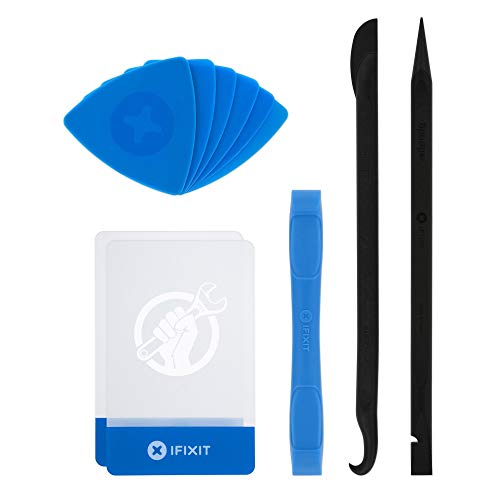
EFFECTIVE: Open your tech device and safely remove components with ease. Essential for DIY repairs like displays, batteries, motherboards, headphone jacks, joysticks, and more.
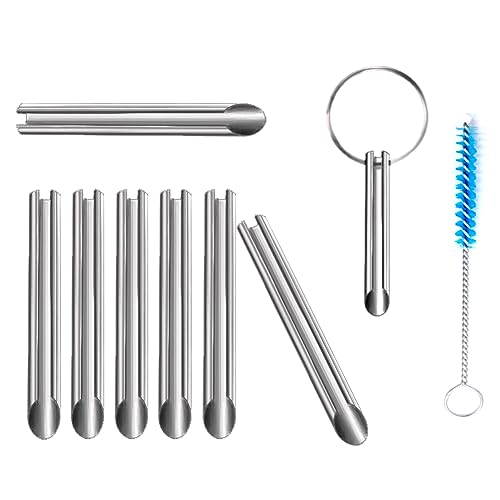
🛠️Applicable To :all models of mobile phones, pads and computers headphone jack, built to easily remove broken 3.5mm headphone plugs from jacks.

Upgraded 18 in 1 Professional Repair Toolkit Screwdriver Set For Mobile Devices, Tablets, Computers, laptops, Repair, battery Change, Cleaning, Upgrading etc.
Powering Down the Device
- Press and hold the power button until the power options appear on the screen.
- Tap “Power off” to fully shut down your device. Ensure the device is completely off, as this prevents any electrical issues during removal.
Accessing the Battery Compartment
- Locate the battery cover. For removable batteries, this is often on the back of the phone. For non-removable batteries, you might need to remove the back panel with a pry tool.
- Use a plastic pry tool to gently lift the battery cover if applicable. Insert the tool at the seam and work your way around to release the clips.
- Expose the battery. Once the cover is off, identify the battery. It should be easy to see in removable models.
Safely Removing the Battery
- Check for screws or clips. Some models may have screws securing the battery. Use a screwdriver to remove these, if necessary.
- Grip the battery firmly. If it’s a removable battery, carefully pull it from the slot. If it’s non-removable, use tweezers to disconnect any connectors first.
- Tilt and lift. Gently tilt the battery upward and lift it out. Avoid forcing it, as this could damage the phone.
Ensure you’re in a well-lit area while following these steps. Always wear safety gear to protect against accidental slips or falls.
Tips for Battery Maintenance
Good battery maintenance helps ensure the longevity and performance of your Motorola Android phone. Follow these practical tips to extend your battery life and know when to consider a replacement.
Extending Battery Life
- Adjust Screen Brightness: Lower the screen brightness or enable adaptive brightness to save energy. This simple adjustment can significantly impact battery usage.
- Manage Background Apps: Close apps running in the background. Check your settings for apps that consume excessive power and limit their activity.
- Turn Off Unused Features: Disable Bluetooth, GPS, and Wi-Fi when not in use. Each feature adds to battery drain.
- Use Battery Saver Mode: Activate battery saver mode when your phone’s battery is low. This reduces performance and conserves power.
- Keep Software Updated: Install the latest software updates. Updates often include optimizations that improve battery efficiency.
When to Replace Your Battery
- Frequent Shutdowns: If your phone often shuts down unexpectedly, even with sufficient charge, it’s time to consider a new battery.
- Rapid Battery Drain: If your battery drains quickly, even with moderate use, it might be degrading. Check for signs of swelling, which indicates a need for replacement.
- Overheating Issues: Consistent overheating can be a sign of a failing battery. Replace it to avoid potential damage to your device.
- Charging Problems: Struggling to charge or getting false warning notifications about battery levels often indicates battery failure.
By implementing these maintenance tips and keeping an eye on battery performance, you can enhance the lifespan of your Motorola Android phone’s battery.
Conclusion
Removing the battery from your Motorola Android phone can be a simple yet effective way to tackle performance issues. By following the steps outlined in this guide you can refresh your device and ensure it runs smoothly. Remember to prioritize safety by using the right tools and gear.
Taking care of your battery is just as important as knowing how to remove it. With proper maintenance and awareness of signs that indicate it’s time for a replacement you can significantly extend your phone’s lifespan. Keep your device in top shape and enjoy the reliable performance that Motorola is known for. Happy troubleshooting!
Frequently Asked Questions
How can I improve the performance of my Motorola Android phone?
To enhance the performance of your Motorola Android phone, consider removing the battery to refresh the device. Additionally, manage background apps, adjust screen brightness, and keep your software updated. Using battery saver mode can also help in optimizing performance.
What types of batteries are used in Motorola Android phones?
Motorola Android phones generally use two types of batteries: removable and non-removable lithium-ion batteries. Removable batteries, found in models like the Moto G series, are easy to access and replace, while non-removable batteries, common in the Moto Z series, require special tools for removal but offer better design.
Why is battery removal important for troubleshooting?
Removing the battery is essential for troubleshooting issues like sluggish performance, device overheating, and software glitches. Disconnecting the battery helps refresh the device, aids in resolving issues, and allows for safe battery replacement when necessary.
What tools do I need to remove the battery from my Motorola phone?
To safely remove the battery from your Motorola phone, you will need a screwdriver set, plastic pry tools, tweezers, a suction cup tool, and an anti-static wrist strap. It’s also recommended to have safety glasses, gloves, and a well-lit workspace.
How do I safely remove the battery from my Motorola phone?
To remove the battery safely, start by powering down your device. Use a plastic pry tool to access the battery compartment, checking for screws or clips. Gently grip and lift the battery out, ensuring you work in a well-lit area while wearing safety gear throughout the process.
What are the signs that indicate I need to replace my phone battery?
Signs that indicate you may need to replace your Motorola phone battery include frequent shutdowns, rapid battery drain, overheating, and charging problems. If you notice any of these issues, it may be time to consider a battery replacement.
How can I maintain my Motorola phone battery?
To maintain your Motorola phone battery, adjust screen brightness, manage background apps, and turn off unused features. Utilizing battery saver mode and keeping your software updated can also help extend battery life and improve overall performance.
