

Key Takeaways
- Understand Your Model: Different Lenovo ThinkPad models have varying battery types, including internal, removable, and extended life batteries, impacting the removal process.
- Preparation is Key: Gather essential tools like a Phillips screwdriver and a plastic spudger, and ensure your workspace is clean and safe before starting.
- Follow Safety Precautions: Always power down the laptop, unplug it, and ground yourself to prevent static damage when removing the battery.
- Step-by-Step Removal: Carefully disconnect the power source, access the battery compartment, and gently remove the battery according to model-specific instructions.
- Troubleshoot Common Issues: If you encounter difficulties during removal, check latch mechanisms and connection points for debris or corrosion to ensure proper functionality after reinstallation.
Have you ever found yourself in a situation where your Lenovo ThinkPad won’t power on, and you suspect the battery might be the culprit? It’s a common issue that can be frustrating, especially when you rely on your laptop for work or school.
Overview of Lenovo ThinkPad Models
Lenovo ThinkPad laptops are known for their reliability and performance, catering to various needs. Understanding the types and features of their batteries enhances your ability to troubleshoot power issues effectively.
Common Features of ThinkPad Batteries
ThinkPad batteries share several features that ensure performance and safety.
- Smart Battery Technology: These batteries come with sensors that monitor charge cycles and health status, enhancing lifespan.
- Quick Charge Capability: Many models support rapid charging, allowing you to gain significant power in a short time.
- Integrated Battery Design: Some models offer a built-in battery design for sleekness, while others feature removable batteries for easy replacement.
Battery Types in Different Models
Different ThinkPad models use various battery types:
- Internal Lithium-Ion Batteries: Common in laptops like the ThinkPad X1 Carbon, these batteries are built-in and non-removable, requiring specialized knowledge for replacement.
- Removable Lithium-Ion Batteries: Found in models such as the ThinkPad T series, these batteries allow for straightforward removal and replacement, ideal for quick fixes.
- Extended Life Batteries: Available for several models, these batteries offer increased capacity, suitable for users needing longer run times without charging.
Understanding these variations helps you choose the right battery for your specific ThinkPad model and troubleshoot power issues more effectively.
Preparation Steps
Before removing the battery from your Lenovo ThinkPad, follow these preparation steps to ensure a smooth process.
Recommended Products

【Specifications】Model: 00UR891 Voltage: 15.28V Capacity: 32Wh/2095mAh Battery type: Li-ion.Also comes with installation tools

【Specifications】Model: 01AV418. Type: Li-ion. Voltage: 14.6V. Capacity: 41Wh 2810mAh. Up to 1000 recharge cycles over the life of the battery
Gathering Necessary Tools
Gather the following tools for an efficient battery removal:
- Phillips screwdriver: Use this for securing screws in various models.
- Plastic spudger or opening tool: This helps in safely prying open casing.
- Microfiber cloth: Keep this handy to wipe any dust or debris.
Collecting these tools before starting simplifies the task.
Safety Precautions
Take these safety precautions to protect yourself and your laptop:
- Power down your laptop: Ensure the device is completely off.
- Unplug the laptop: Disconnect the power adapter from the port.
- Ground yourself: Touch a metal object to discharge static electricity, preventing damage to internal components.
- Keep a clear workspace: Ensure your work area is clean and well-lit to avoid losing small parts.
Following these precautions helps prevent accidents and ensures a safe environment for working on your laptop.
Step-by-Step Instructions
Follow these steps to safely remove the battery from your Lenovo ThinkPad.
Recommended Products

Specification: 61 Battery; type:Li-ion; Voltage:11.4V; Capacity: 24Wh; Cells:3cell; Recharge cycles:500; The battery is durable and has overcurrent protection, anti-overcharge, anti-overdischarge and temperature control functions.

【Specifications】Model: L17C4P71 Voltage: 15.36V Capacity: 54Wh/3520mAh Battery type: Li-ion. Also comes with installation tools
Powering Down the Laptop
Ensure the laptop’s power is off. Press the power button and hold it until the screen goes dark. Wait for a few seconds to confirm it’s fully powered down.
Disconnecting from Power Source
Unplug the power adapter from the laptop. Ensure that it’s disconnected from the outlet as well. This prevents any accidental power surges during the battery removal process.
Accessing the Battery Compartment
Locate the battery compartment on your Lenovo ThinkPad. For many models, this is on the underside. Depending on your model, you may need to slide a latch or undo screws using a Phillips screwdriver. If using a screwdriver, keep track of screws to avoid losing them.
Removing the Battery
Lift the battery out gently from its compartment. Some batteries come out easily, while others might require you to press a release button before lifting. Handle the battery carefully, avoiding any scratches or bumps. Place the battery on a non-static surface for safety.
By following these steps, you ensure a smooth and safe battery removal process.
Troubleshooting Common Issues
Removing a battery from your Lenovo ThinkPad can lead to some common issues. Knowing how to troubleshoot these problems helps in successfully managing your laptop’s power.
Recommended Products
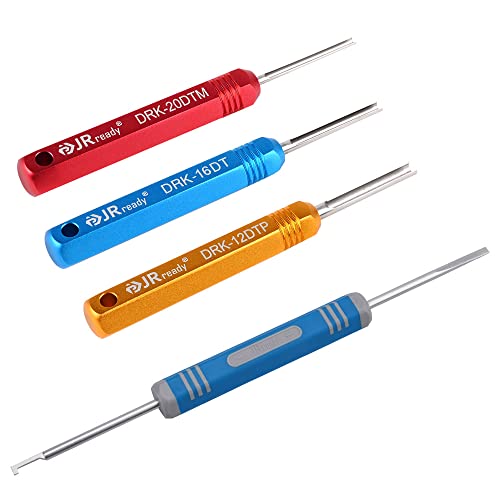
Pin Removal Tool: DRK-20DTM for size 20 contacts, max wire outer diameter 2.1mm; DRK-16DT for size 16 contacts, max wire outer diameter 2.9mm; DRK-12DTP for size 12 contacts, max wire outer diameter 3.7mm

JRDDS-D310PRO-01:For TE LEAVYSEAL 2.8 series MQS 2.8 series male&female terminals; Timer ConnectorSystem 2.8 series male&female terminals; AMP MCP 2.8 series male&female terminals;TE 2.8 JPT series male&female terminals.
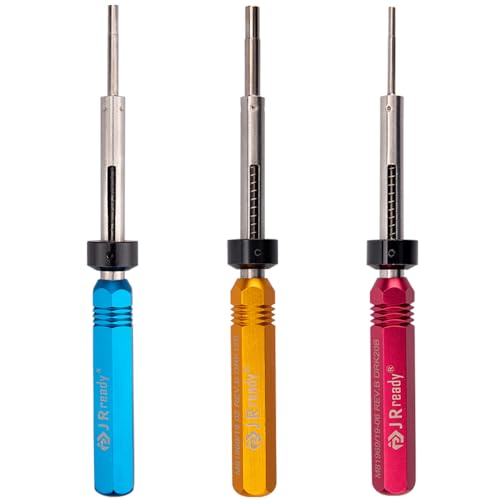
Designed for removing contacts in MIL-DTL-26482 MIL-DTL-26500 MIL-DTL-26518 AS50151(AS34001- AS34121) AS81703 series electronic connectors
Difficulty in Battery Removal
If you’re struggling to remove the battery, check the latch mechanism. Many ThinkPad models feature a sliding latch or multiple screws. Ensure you’re using the correct tools to avoid damaging components. If the battery doesn’t budge, wiggle it gently while pulling. This movement sometimes loosens any friction holding it in place. Avoid using force, as this may break the battery or the casing.
Inspecting the Battery Connection
Once you’ve successfully removed the battery, examine the connection points. Look for signs of corrosion, dirt, or debris that might prevent a proper connection. Clean these areas using a microfiber cloth, ensuring you don’t use liquids that could damage the electronics. If you notice any physical damage to the battery terminals, consider replacing the battery. Testing the functionality with a new battery resolves further power issues you might face.
Conclusion
Removing the battery from your Lenovo ThinkPad can be a straightforward process if you follow the right steps. By taking the necessary precautions and using the appropriate tools you can ensure a safe and effective battery removal experience.
Whether you’re troubleshooting power issues or simply replacing an old battery you’ll feel more confident in managing your device. Remember to handle everything with care and keep your workspace tidy. With these tips in mind you’re well on your way to keeping your ThinkPad running smoothly. Happy tinkering!
Frequently Asked Questions
What should I do if my Lenovo ThinkPad won’t power on?
Make sure to check if the laptop is charged and the power adapter is functioning. If there’s no response, the battery might need to be removed and inspected for issues. Follow battery removal procedures carefully to ensure safety.
How do I safely remove the battery from a Lenovo ThinkPad?
First, power down the laptop and disconnect it from the power source. Gather the necessary tools, like a Phillips screwdriver and a plastic spudger. Locate the battery compartment, release any latches or screws, and gently lift out the battery while handling it carefully.
What tools do I need to remove a Lenovo ThinkPad battery?
You’ll need a Phillips screwdriver, a plastic spudger or opening tool, and a microfiber cloth. These tools will help you open the battery compartment and safely detach the battery.
How can I troubleshoot battery issues on a Lenovo ThinkPad?
Check the battery connection points for dust or corrosion and clean them with a microfiber cloth. If the battery has visible damage, consider replacing it. Testing with a new battery can also help determine if the issue lies with the battery itself.
What types of batteries are used in Lenovo ThinkPad laptops?
Lenovo ThinkPads primarily use internal lithium-ion batteries, removable lithium-ion batteries, and extended life batteries. The choice depends on the specific model and its features, such as smart battery technology and quick charge capability.
