

Key Takeaways
- Battery Types: Asus laptops typically feature removable and non-removable batteries, each requiring different removal methods.
- Preparation: Gather necessary tools like a screwdriver, plastic pry tool, and wear an anti-static wrist strap to ensure safety during battery removal.
- Safety First: Power off the laptop completely, disconnect all devices, and inspect the battery for any visible damage before proceeding with the removal.
- Step-by-Step Process: Follow a clear sequence: power down, locate the battery release mechanism, and carefully remove the battery without forcing it.
- Troubleshooting: If issues arise, check for proper release mechanism engagement and battery alignment, and perform a hard reset if necessary.
Have you ever found yourself needing to remove the battery from your Asus laptop but weren’t sure how to go about it? Maybe your laptop’s acting up and you think a quick battery pull might help, or perhaps you just want to replace an old battery with a new one.
Understanding Your Asus Laptop Battery
Understanding your Asus laptop battery is essential for effective maintenance and troubleshooting. Different models come equipped with varying battery types, each serving specific purposes.
Types of Asus Laptop Batteries
Asus laptops typically use two battery types: removable and non-removable.
- Removable Batteries: These batteries can be easily taken out and replaced. You can usually identify them by a latch or toggle switch on the bottom of the laptop.
- Non-Removable Batteries: These batteries are integrated into the laptop’s chassis. You must unscrew the laptop casing to access them, which requires caution and proper tools.
Importance of Battery Removal
Removing the battery can resolve several issues.
- Troubleshooting: If your laptop struggles to turn on or shows signs of power cycling, removing the battery can help reset the hardware.
- Replacement: Aging batteries lose capacity. You can easily replace a removable battery without professional help. For non-removable batteries, follow specific disassembly guidelines.
- Safety: In cases of overheating or swelling, immediate battery removal minimizes risk.
Understanding these aspects of your Asus laptop battery enables effective management and better performance.
Preparing for Battery Removal
Before removing the battery from your Asus laptop, gather the necessary tools and ensure a safe environment for the process.
Recommended Products

Protect PC from Static Electricity: Eliminate static electricity from human body in 0.1s to protect your PC from static damage. The working principle of removing static electricity: Static electricity needs to be removed with a link wire with a resistance value of 1 MΩ to 1000 MΩ

ESD Safety Tools: The purpose of the 1 megohm resistor is for safety: Anti static wristband can continuously discharge the static electricity from the human body through the built-in 1 MΩ resistor to the ground, protecting your electronic components from accidental electrostatic discharge (ESD) damage during repairs. Made of 7 pure copper foil wires, which can eliminate static electricity within 0.1s, achieving a balance of charge between the hand and electronic devices
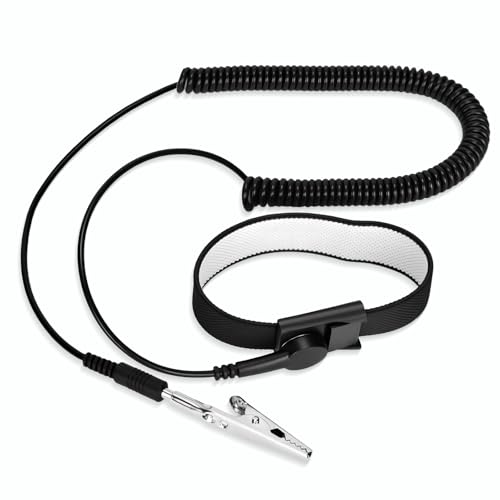
[ESD-Safe Design] The FRXIE anti static bracelet features a built-in ~1 MΩ resistor to safely discharge body static, helping protect electronics from ESD damage while supporting personal safety. This durable ESD strap is an essential anti static wrist strap for PC building, electronics repair, treadmill static protection, professional lab ESD tasks, and other static-sensitive tasks.
Tools You Will Need
- Screwdriver: A small Phillips screwdriver is essential for removing screws.
- Plastic Pry Tool: Use this tool to open the laptop casing without causing damage.
- Anti-Static Wrist Strap: Wearing one prevents static electricity from damaging the internal components.
- Microfiber Cloth: This helps keep surfaces clean and free from dust.
Collect these items to streamline the battery removal process.
Safety Precautions
- Power Off the Laptop: Ensure the laptop is completely powered down. Don’t just close the lid.
- Unplug all Devices: Disconnect any external peripherals like mice, keyboards, or USB drives.
- Remove Power Adapter: Unplug the charger to eliminate any electric current.
- Ground Yourself: Touch a grounded metal object or wear an anti-static wrist strap to reduce static buildup.
- Inspect the Battery: Check for any swelling, leaks, or other visible damage. If you notice these issues, handle the battery carefully.
Following these precautions ensures a safe and effective battery removal process.
Step-by-Step Guide to Remove the Battery
Follow these steps to safely remove the battery from your Asus laptop.
Recommended Products
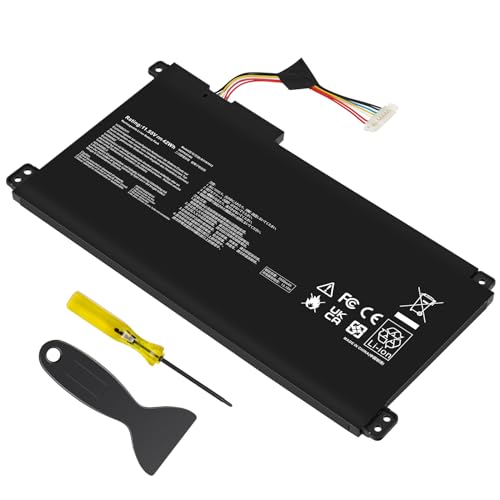
【Capacity】42Wh/3550MAH Cell: 3-Cell Voltage: 11.55V Battery type: Li-ion

Specifications: 6 Cell, Li-ion battery, Rated at 11.1V(10.8V Compatible) 5200mAh

Specifications:Model:B31N1637; Voltage:11.52V;Capacity:42Wh;Cell:3Cells;100% brand new from manufacture. Grade A cells ensure fast charges and low power consumption.
Powering Down Your Laptop
Power down your laptop completely. Ensure no lights indicate it’s on. Unplug any connected devices and remove the power adapter. This precaution prevents accidental startups and shuts down all processes.
Locating the Battery Release Mechanism
Locate the battery release mechanism. This mechanism varies by model. Look for a sliding latch or a button on the underside of the laptop. If in doubt, refer to the user manual for your specific model.
Removing the Battery
- Slide or press the release mechanism to unlock the battery.
- Gently pull the battery away from the laptop.
- If your laptop uses screws, use a Phillips screwdriver to remove them before attempting to remove the battery.
Store the battery in a safe place after removal.
Troubleshooting Common Issues
Removing the battery from your Asus laptop may lead to unexpected challenges. Here are common issues and solutions to consider.
Recommended Products

Compatible Models: A31-K53 / A32-K53 battery for Asus A53, K53, K54, K84, K93, N53, A43, A45, A83, A84, K43, P43, P43S, P53, X43, X44, X54, X84, and X84H series.

【Customer First】24 x 7 email support. We specialize in providing quality power products. (Note: Amazon return windows will close after one month, If you have any problem with battery, please Contact us - in “YOUR ORDER” options click the “contact seller”.)

Battery Model : B31N1912 Voltage: 11.55V Capacity: 42Wh Li-ion polymer Battery
Battery Not Detaching
If the battery won’t detach, check the following:
- Release Mechanism: Ensure you’ve located the correct release mechanism. Models vary, and sometimes it hides beneath a panel or requires a button press.
- Proper Lock Position: Confirm that the battery’s lock is entirely in the unlocked position. Sometimes, it appears stuck due to a misalignment.
- Screws or Clips: Look for any screws or clips securing the battery. If present, remove them using a Phillips screwdriver before trying again.
Laptop Not Powering On After Removal
If your laptop fails to power on after removing and reinserting the battery:
- Reinsert the Battery: Make sure the battery is seated correctly in its bay. Slight misalignment might prevent power connection.
- Power Adapter Connection: Connect the power adapter to your laptop. Your battery might need a moment to recharge before you can turn it on.
- Check for Damage: Inspect the battery for signs of damage, swelling, or corrosion. If present, consider replacing it as a damaged battery can prevent proper operation.
- Perform a Reset: Disconnect all peripherals and unplug the power adapter. Press and hold the power button for 15 seconds to perform a hard reset. Afterward, reconnect your power source and try to power on again.
Conclusion
Removing the battery from your Asus laptop can seem daunting but with the right tools and steps it’s a manageable task. Whether you’re troubleshooting issues or replacing an aging battery understanding the type of battery your laptop has is essential.
Make sure to follow safety precautions to protect both you and your device. After successfully removing the battery store it safely until you’re ready to install a new one or troubleshoot further.
With a little patience and care you can keep your laptop running smoothly and efficiently. Happy tinkering!
Frequently Asked Questions
What types of batteries do Asus laptops have?
Asus laptops typically come with two types of batteries: removable and non-removable. Removable batteries can be easily taken out and replaced without disassembling the laptop. Non-removable batteries require more effort, as the laptop casing must be opened for access.
Why would I need to remove the battery from my Asus laptop?
Removing the battery may be necessary for troubleshooting power issues, replacing an aging battery, or ensuring safety in cases of overheating or swelling. It helps in diagnosing problems and maintaining the laptop’s performance.
What tools do I need to remove an Asus laptop battery?
To remove an Asus laptop battery, you generally need a small Phillips screwdriver, a plastic pry tool, an anti-static wrist strap, and a microfiber cloth. These tools will help ensure a safe and efficient battery removal process.
What safety precautions should I take before removing the battery?
Before removing the battery, ensure the laptop is completely powered off and unplugged. Ground yourself to prevent static buildup, inspect the battery for visible damage, and remove all connected devices to ensure safety during the process.
How do I remove the battery from my Asus laptop?
To remove the battery, power down the laptop, locate the battery release mechanism, and unlock it. If screws are present, remove them first. Gently pull the battery away from the laptop once it’s unlocked, and store it safely after removal.
What should I do if the battery won’t detach?
If the battery won’t detach, check the release mechanism, ensure the lock is correctly positioned, and look for any screws or clips that may be preventing removal. Refer to the laptop’s user manual for specific instructions based on your model.
What if my laptop doesn’t power on after reinserting the battery?
If your laptop doesn’t power on after reinserting the battery, check that it’s properly seated, reconnect the power adapter, and look for any signs of damage. Performing a hard reset might also resolve the issue, so try powering down completely and restarting.
