

Key Takeaways
- Understand Battery Drain Causes: Recognize that factors like screen brightness, background apps, and location services contribute to battery drain on Samsung devices.
- Optimize Device Settings: Lower screen brightness, limit background data, and toggle location services off when not in use to conserve battery life.
- Utilize Built-In Features: Activate Battery Saver and Adaptive Battery modes to prioritize energy efficiency and extend usage time.
- Manage Apps & Notifications: Close unused apps, uninstall unnecessary ones, and limit notifications to reduce power consumption.
- Follow Best Charging Practices: Keep your battery charged between 20% and 80%, use the original charger, and avoid extreme temperatures for optimal performance.
- Regularly Monitor Battery Health: Update software, clear cached data, and run device maintenance checks to keep your battery in good condition.
Ever noticed your Samsung phone dying just when you need it most? You’re not alone. Many users struggle with battery drain, especially when they’re on the go or trying to make it through a busy day.
Understanding Battery Drain Issues
Samsung phone users often face significant battery drain, especially when busy or mobile. Understanding the factors contributing to this issue helps you make informed decisions for better battery management.
Common Causes of Battery Drain
- Screen Brightness: High brightness levels increase power consumption. Reducing brightness can extend battery life.
- Background Apps: Applications running in the background consume resources. Closing unused apps can conserve energy.
- Location Services: GPS and location tracking features drain battery quickly. Turning these off when not needed reduces strain.
- Notifications: Frequent notifications can keep your screen awake and drain battery. Limiting notifications can help manage power usage.
- Connectivity Features: Bluetooth, Wi-Fi, and mobile data use power. Disabling them when you don’t need them can save battery life.
Importance of Managing Battery Life
Effective battery management enhances your device’s performance and lifespan. It ensures you stay connected throughout the day, avoiding unexpected shutdowns. Proactive measures include regularly monitoring battery usage, optimizing settings, and utilizing battery-saving modes. By addressing battery drain, you maintain a smooth user experience and extend the overall battery life of your Samsung phone.
Tips to Reduce Battery Drain on Samsung Devices
Effective battery management enhances device performance and keeps you connected longer. Follow these practical tips to reduce battery drain on your Samsung device.
Recommended Products

Massive 20,000mAh capacity delivers extended power for smartphones, tablets, and USB-C devices, ideal for travel, commuting, and backup charging without worrying about battery drain throughout the day

Portable Charger with 2 Built-in Cables >>>: PB-08 battery pack has 1* iOS cable, 1* Type-C cable, 3* Charging ports(USB-A, Type-C, Micro), which supports charging almost all smart devices on the market. Widely compatible with iPhone 18/17/16/15/14/13/12 series, iPad series, Samsung S23,S22,S21,S20 series, Google series and other smart cell phones, tablets or electronic devices. No need to carry multiple cables during your trip anymore! (Adapter/ Wall Charger are not included) (Airline-friendly)

Portable Charger with 2 Built-in Cables >>>: PB-08 battery pack has 1* iOS cable, 1* Type-C cable, 3* Charging ports(USB-A, Type-C, Micro), which supports charging almost all smart devices on the market. Widely compatible with iPhone 18/17/16/15/14/13/12 series, iPad series, Samsung S23,S22,S21,S20 series, Google series and other smart cell phones, tablets or electronic devices. No need to carry multiple cables during your trip anymore! (Adapter/ Wall Charger are not included) (Airline-friendly)
Optimizing Settings
- Lower Screen Brightness: Adjust the brightness to a comfortable level. A setting around 50% can significantly reduce battery usage.
- Use Adaptive Brightness: Enable the adaptive brightness feature to automatically adjust screen brightness based on your environment.
- Limit Background Data: Restrict the usage of background data for apps like social media and email to conserve battery life.
- Turn Off Location Services: Disable GPS when not needed. Access the Quick Settings panel and toggle off the location icon.
- Switch to Dark Mode: Use dark mode, which saves battery, especially on AMOLED screens.
Managing Apps and Background Processes
- Close Unused Apps: Regularly close apps running in the background. Tap the recent apps button and swipe away the ones you don’t use.
- Uninstall or Disable Unused Apps: Remove apps you rarely use. Long-press the app icon and select “Uninstall” or “Disable.”
- Limit App Notifications: Turn off notifications for non-essential apps to reduce wake-ups. Go to Settings, then Notifications, and customize.
- Check Battery Usage: Regularly monitor which apps drain your battery. Navigate to Settings, then Battery, and view the battery usage per app.
- Enable Power Saving Mode: Activate power-saving modes to limit performance and reduce screen brightness. Just access Settings and select Battery.
Implementing these strategies helps you maintain a longer-lasting battery throughout your day.
Utilizing Built-In Samsung Features
Samsung devices offer several built-in features that can significantly reduce battery drain. Utilizing these tools helps extend your phone’s lifespan and keeps you connected.
Recommended Products

Kastar 2-pack high-capacity BP-70A batteries with slim USB charger. Compatible with Samsung BP-70A / BP70A / EA-BP70A cameras (full model list in description). Each battery: 3.7 V, 1400 mAh, 5.2 Wh; approx. 1.0 oz. (39.4 × 31 × 5.8 mm / 1.55 × 1.22 × 0.23 in). Includes 2 batteries + 1 USB charger + 1 battery case.
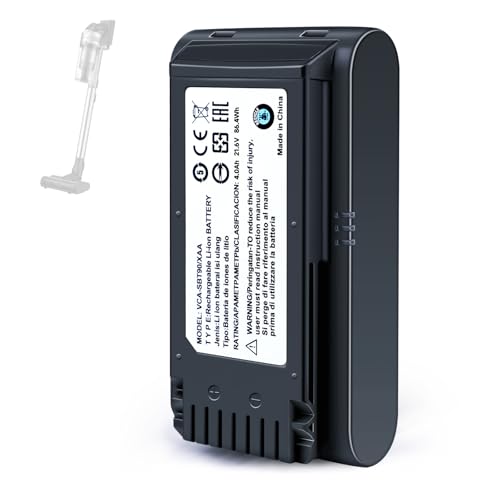
【Specifications】 Model:VCA-SBT90 ;Battery Type: Li_ion, Voltage:21.6V Capacity: 4000mAh ; Color: Gray and black

SLB-10A Li-ion Battery for Samsung EX2F HZ15W SL202 SL420 SL620 SL820 WB150F WB250F WB350F WB750 WB800F WB850F WB1100F
Battery Saver Mode
Battery Saver Mode is a straightforward option that minimizes power consumption. When enabled, it restricts background processes, reduces screen brightness, and limits app activity. You can activate Battery Saver Mode by following these steps:
- Open Settings.
- Tap on Battery and device care.
- Select Battery.
- Toggle on Power saving mode.
You’ll notice your device performs optimally while conserving energy. You can also customize the settings to suit your preferences.
Adaptive Battery Options
Adaptive Battery learns your usage patterns and optimizes battery life accordingly. It prioritizes battery power for the apps you use most often, extending life by reducing power for less frequently used apps. To enable Adaptive Battery:
- Go to Settings.
- Tap on Battery and device care.
- Select Battery.
- Find and turn on Adaptive Battery.
With Adaptive Battery, your phone adapts over time, providing a tailored experience that balances performance and longevity. This feature helps you maintain battery health effortlessly.
Best Practices for Battery Maintenance
Maintaining your Samsung device’s battery is crucial for optimal performance and longevity. Implement these practices to enhance your battery life.
Recommended Products

USB cable length:5ft,compact to carry anytime, anywhere;Combines high-speed data transfer and charging in one cable, compatible with Samsung Camera Charger.enabling video/RAW photo transmission to computers for professional editing, while delivering battery charge. (if your camera model support charging by USB cable)

Compatibility - BP-70A Li-ion Battery for Samsung DV150F, ES65, ES70, ES80, MV800, PL120, PL170, PL20, PL200, PL80, SL50, SL600, SL605, SL630, ST65, ST66, ST76, ST80, ST90, ST95, ST100, ST150F, ST700, TL105, TL110, TL205, WB30F, WB35F, WB50FCameras

【Why Choose This Magnetic Power Bank?】It packs an upgraded 10000mAh capacity, 20W fast charging, and a tiny body all in one. Unlike bulky chargers, it won't block your iPhone's rear camera. The strong magnetic grip holds your phone firmly – no slipping, no wobble. The smart LED display shows exact remaining battery percentage in real-time – so you're never caught off guard. Works with iPhone 18/17/16/15/14/13/12 series, giving you 1.8~2.5 full charges. When used with a magnetic phone case, it also supports fast wireless charging for Samsung Galaxy S26/S25/S25 Ultra, Huawei Mate 70/Pura 80 Pro and most Android phones, no need to remove the case.
Charging Habits
- Charge Regularly: Keep your device charged between 20% and 80% for optimal battery health. Avoid letting it drop to 0%.
- Use Original Charger: Always use the charger and cable that came with your device. Third-party chargers may not provide the right voltage.
- Avoid Overcharging: Unplug your phone once it reaches 100% to prevent overheating and battery wear.
- Charge at Room Temperature: Extreme temperatures affect charging efficiency. Charge your device in a cool, ventilated area.
- Enable Airplane Mode: Use this mode during overnight charging. It reduces background activity, allowing for a quicker and safer charge.
Software Updates and Device Health
- Update Regularly: Keep your software updated. Manufacturers release updates that often include battery optimizations and security enhancements.
- Monitor Battery Usage: Check which apps drain your battery through settings. Limit usage for apps that consume excessive power.
- Clear Cached Data: Regularly clear app caches to improve performance and reduce battery drain. Access this in your device settings.
- Factory Reset Sparingly: If you experience significant battery issues, consider a factory reset. This can eliminate unnecessary background processes.
- Run Device Maintenance: Use the built-in device maintenance feature to optimize battery, storage, and memory. Access this option in settings for a quick health check.
Incorporating these best practices into your routine ensures improved battery longevity and a better overall experience with your Samsung device.
Conclusion
Taking control of your Samsung device’s battery life can make a world of difference. By following the tips and strategies outlined, you can enjoy a longer-lasting battery that keeps up with your busy lifestyle.
Remember to regularly check your settings and make adjustments as needed. Embrace features like Battery Saver Mode and Adaptive Battery to tailor your device’s performance to your habits.
With a little proactive management, you’ll stay connected throughout the day without constantly worrying about your battery running low. Enjoy your device and the freedom that comes with a well-maintained battery!
Frequently Asked Questions
What causes battery drain on Samsung phones?
Battery drain on Samsung phones is commonly caused by high screen brightness, background apps running, location services being active, frequent notifications, and constant connectivity features like Bluetooth and Wi-Fi. Understanding these causes can help users manage their device’s battery life effectively.
How can I reduce battery drain on my Samsung device?
To reduce battery drain, lower your screen brightness, use adaptive brightness, limit background data, turn off location services, and consider switching to dark mode. These strategies can significantly extend your device’s battery life throughout the day.
What is Battery Saver Mode on Samsung phones?
Battery Saver Mode on Samsung devices minimizes power consumption by limiting background processes and reducing screen brightness. You can activate this feature in your device settings to help maintain battery life during busy days.
What is Adaptive Battery, and how does it work?
Adaptive Battery is a feature that learns your app usage patterns and optimizes battery life by prioritizing power for frequently used apps. Enabling this feature helps balance performance and longevity on your Samsung device.
What are the best charging practices for battery health?
To maintain battery health, charge your device between 20% and 80%, use the original charger, avoid overcharging, and charge it at room temperature. Enabling Airplane Mode during overnight charging can also reduce background activity and improve battery longevity.
How can I monitor battery usage on my Samsung phone?
You can monitor battery usage by navigating to the Battery section in Device Care within your settings. This feature provides insights into which apps consume the most power, helping you make informed decisions to improve battery life.
Are software updates important for battery performance?
Yes, regular software updates can enhance battery performance and extend your device’s battery life. Updates often include optimizations and fixes that can reduce battery drain, so it’s best to keep your software up to date.
What role does clearing cached data play in battery maintenance?
Clearing cached data can help your Samsung device run more smoothly and efficiently, potentially reducing battery drain. It frees up storage space and improves overall performance, contributing to better battery health in the long run.
