

Key Takeaways
- Essential Tools: Gather a screwdriver set, plastic pry tools, tweezers, and an anti-static wrist strap to safely open your Lenovo battery.
- Safety Precautions: Always power off the device, unplug the charger, and work on a non-conductive surface to prevent electrical issues.
- Step-by-Step Process: Follow a clear sequence: power down, remove the back cover, and disconnect the battery connector for efficient access.
- Common Issues: Be aware of challenges like hidden screws or damaged connectors that can complicate battery removal or affect performance.
- Maintenance Tips: Maintain optimal battery health by avoiding full discharges, storing at 50% charge, and using the correct charger.
- Charging Best Practices: Prevent battery damage by avoiding overnight charging, ensuring proper airflow, and using battery saver modes during use.
Have you ever found yourself struggling with a sluggish Lenovo laptop battery? You’re not alone. Many users face the same issue, whether it’s for a quick replacement or a simple cleaning. Knowing how to open your Lenovo battery can save you time and money, and it’s easier than you might think.
Tools Required
To open your Lenovo battery safely and effectively, gather a few essential tools. These tools improve your efficiency and ensure a smooth process.
Recommended Products
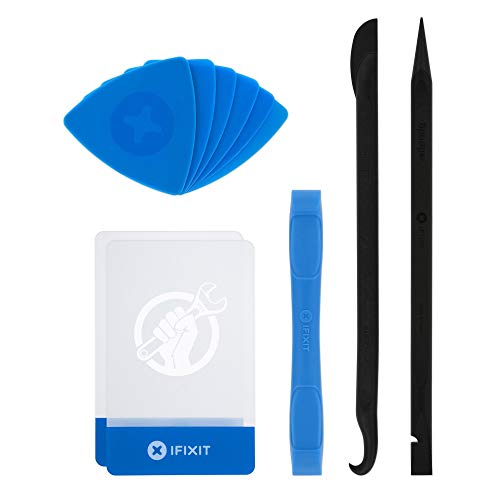
EFFECTIVE: Open your tech device and safely remove components with ease. Essential for DIY repairs like displays, batteries, motherboards, headphone jacks, joysticks, and more.
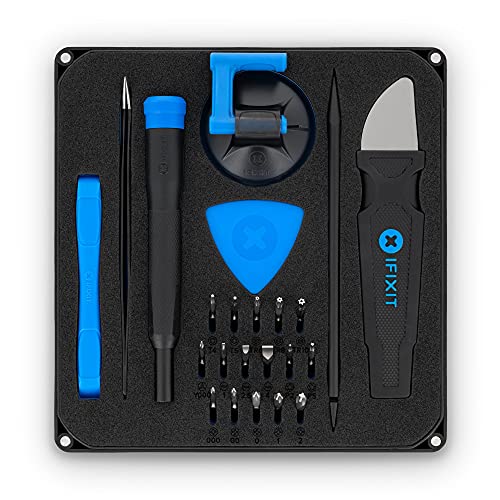
COMPLETE: This set contains a variety of tools - Besides various opening tools, it includes 16 precision bits (4 mm) and a precision screwdriver with a magnetic bit socket, knurled grip, and swivel top for easy operation.

Opening Pry Tool 8 Piece Kit for smart phone disassembly and repair
Recommended Tools
- Screwdriver Set: Use a Phillips screwdriver to remove screws on the battery compartment. A precision screwdriver set might include various sizes to match your specific model.
- Plastic Pry Tools: These tools help you gently detach the battery casing without damaging it. They’re ideal for easing open tabs and preventing scratches.
- Tweezers: Tweezers assist in handling small screws and components. They provide extra grip and precision when manipulating delicate parts.
- Anti-static Wrist Strap: Wearing this prevents static electricity from damaging internal components. It’s especially useful if you plan to work on your laptop for an extended time.
Safety Precautions
- Power Off the Device: Always shut down your laptop completely before starting to disassemble the battery. This prevents accidental power-ups or electrical shorts.
- Unplug the Charger: Ensure the charger is disconnected to avoid electrical shock or damage during the process.
- Work on a Non-conductive Surface: Use a wooden or plastic table for the task. This minimizes the risk of static electricity buildup.
- Avoid Using Metal Tools Incorrectly: Never use metal tools to pry open the battery or compartments. They can scratch surfaces or cause short circuits.
- Keep Small Parts Organized: Use a small container to store screws and components you remove. This prevents loss and makes reassembly easier.
Step-by-Step Guide
Follow these steps to open your Lenovo battery safely and efficiently. Each section provides clear instructions to ensure a smooth process.
Powering Down the Device
- Shut down your laptop completely. Click the Start menu and select “Shut down.”
- Unplug the charger. Disconnect the power adapter from the laptop to prevent any electrical shock.
- Wait for a moment. Give it a few seconds after shutting down to ensure all components fully power down.
Removing the Back Cover
- Position your laptop. Flip your Lenovo laptop upside down on a clean, non-conductive surface.
- Locate the screws. Identify the screws securing the back cover. Typically, there are 5-10 screws depending on your model.
- Use a Phillips screwdriver. Carefully unscrew each screw and set them aside in an organized manner.
- Pry open the back cover. With plastic pry tools, gently pop open the back cover. Start at one corner and work your way around.
Disconnecting the Battery
- Find the battery connector. Locate the battery’s connection to the motherboard. It’s usually a flat cable that requires extra care.
- Use tweezers for precision. Gently pull the connector out of its socket using tweezers. Ensure you do this slowly to avoid damaging the cable or the connector.
- Remove the battery. Lift the battery carefully out of its compartment once disconnected.
By following these steps, you can access your Lenovo battery efficiently. Ensure to keep all parts organized for easy reassembly later.
Common Issues
Many users face challenges when accessing their Lenovo laptop batteries. Recognizing these common issues can simplify the process and ensure better maintenance.
Battery Not Detaching
When the battery doesn’t detach easily, check for hidden screws. Some models have screws that may not be immediately visible. If you encounter resistance, ensure you’ve removed all screws and gently wiggle the battery. Avoid using excessive force, as this can damage internal components. If necessary, refer to your specific model’s manual for guidance on battery removal.
Damaged Connectors
Damaged connectors can severely affect battery performance. Inspect the battery connector for signs of wear or breakage. If you spot damage, avoid reconnecting the battery to prevent further issues. In such cases, consider replacing the connector or the entire battery. Purchase connectors or batteries from authorized retailers to ensure compatibility and safety.
Maintenance Tips
Maintaining your Lenovo battery helps ensure optimal performance and longevity. Follow these guidelines to keep your battery in great shape.
Maintaining Battery Health
- Avoid full discharges: Keeping your battery between 20% and 80% helps maintain its lifespan. Fully draining or charging it can lead to wear.
- Store properly: If you plan to store your laptop for an extended period, charge the battery to around 50%. Extreme temperatures can harm the battery.
- Check for updates: Keep your system updated. Lenovo frequently releases updates that improve battery management and performance.
- Observe usage patterns: Regularly check battery health statistics in your operating system. Tools like Lenovo Vantage can provide insights and alerts on battery performance issues.
Charging Best Practices
- Use the right charger: Always use the charger designed for your Lenovo device. Non-certified chargers can cause damage.
- Avoid overnight charging: Charging overnight can lead to heat buildup. If possible, unplug your device once fully charged to prevent overheating.
- Charge with care: Position your laptop on a hard, flat surface while charging. This enhances airflow and prevents overheating.
- Enable battery saver mode: Engage battery saver settings to limit background processes and reduce power consumption during charging sessions.
By following these tips, you can extend the life of your Lenovo battery and maintain its performance effectively.
Conclusion
Now that you know how to open your Lenovo battery you can tackle any battery-related issues with confidence. Remember to take your time and follow the steps carefully to avoid any mishaps. Keeping your battery in good shape is crucial for your laptop’s performance and longevity.
Don’t forget the maintenance tips to help your battery last longer. By being proactive you can save yourself time and money in the long run. Enjoy your newfound skills and keep your Lenovo running smoothly for years to come!
Frequently Asked Questions
How can I safely open my Lenovo laptop battery?
To safely open your Lenovo laptop battery, first power down the device and unplug the charger. Gather tools like a Phillips screwdriver, plastic pry tools, and tweezers. Remove the back cover by unscrewing screws and using pry tools to pop it open. Finally, carefully disconnect the battery using tweezers.
What tools do I need to access my Lenovo battery?
You will need a Phillips screwdriver, plastic pry tools, tweezers, and an anti-static wrist strap for safety. These tools will help you open the laptop, remove the battery, and handle components safely.
What should I do if my battery won’t detach easily?
If your battery doesn’t detach easily, check for hidden screws that may be holding it in place. Avoid using excessive force, as this can damage internal components.
How can I maintain my Lenovo laptop battery’s performance?
To maintain battery performance, avoid full discharges, store the battery properly, and regularly check for system updates. Additionally, charge using the correct charger and enable battery saver mode when needed.
What should I check if my battery connector is damaged?
If you notice damage to the battery connector, refrain from reconnecting it. Inspect it for signs of wear and consider replacing the connector or the entire battery. Always source replacements from authorized retailers for compatibility and safety.
Can I charge my Lenovo laptop overnight?
It’s best to avoid charging your Lenovo laptop overnight. Instead, charge it during the day and unplug it once fully charged to prevent overheating and prolong battery life.
What are some best practices for charging my Lenovo battery?
Some best practices include using the correct charger, avoiding overnight charging, ensuring the laptop is on a hard surface for airflow, and enabling battery saver mode to extend battery longevity.
How do I properly store my Lenovo battery?
Store your Lenovo battery in a cool, dry place when not in use. Keep it at around 50% charge and avoid full discharges to help maintain its lifespan.
