

Key Takeaways
- Understand Battery Charging Limits: Keeping your Lenovo laptop’s battery charge between 20% and 80% can significantly extend its lifespan and performance.
- Utilize Lenovo Vantage: The Lenovo Vantage software allows you to set charging limits and monitor battery health, providing a user-friendly way to manage your battery settings.
- Avoid Overcharging: Charging to 100% consistently can degrade battery health; consider limiting the charge to around 80% to mitigate this risk.
- Adjust Built-in Battery Settings: Use the built-in battery settings to optimize charging levels and schedule your charging based on daily routines for better battery management.
- Emphasize Best Charging Practices: Charge your battery within the optimal range, avoid letting it discharge to 0%, and unplug once reaching your set limit to maintain health.
- Stay Updated: Regularly update Lenovo Vantage and your operating system to benefit from the latest performance enhancements and battery management features.
Are you tired of your Lenovo laptop’s battery draining too quickly or overcharging? You’re not alone. Many users face the challenge of keeping their devices running smoothly while extending battery life.
Understanding Battery Charging
Understanding battery charging is essential for maximizing your Lenovo laptop’s lifespan and performance. Knowing how to manage charging limits can significantly affect battery health.
Importance of Battery Health
Battery health impacts performance and longevity. Keeping your battery in good shape ensures your laptop operates efficiently. Healthy batteries contribute to longer usage times and quicker recharge cycles. For instance, lithium-ion batteries, commonly used in Lenovo laptops, thrive within a 20%-80% charge range. Regularly charging within these limits can extend overall battery life.
Risks of Overcharging
Overcharging poses risks to battery performance. Although most Lenovo laptops include built-in protections against overcharging, consistently charging to 100% can still degrade the battery over time. This degradation leads to faster battery drain and reduced efficiency. If you habitually leave your laptop plugged in, consider using tools that limit the maximum charge level. Setting a cap at around 80% can significantly mitigate the effects of overcharging, helping preserve battery health over the long term.
Features of Lenovo Battery Management
Lenovo laptops offer several features to help you manage battery performance and extend its lifespan effectively.
Recommended Products

➤ [ Battery Information ]:3 Cell , Voltage &Capacity : 11.4V 24Wh 2110mAh or 11.46V 24Wh 2095mAh

【Customer Service】Rest assured with 30 days Refund and 12 months Warranty; Note: Amazon return windows will close after one month, don’t worry about it, you can click on seller store on right corner “ask a question” and contact seller directly.

【Specifications】Model: L16C2PB2. Type: Li-ion. Voltage: 7.6V. Capacity: 30Wh 4030mAh. Up to 1000 recharge cycles over the life of the battery
Lenovo Vantage Software
Lenovo Vantage software provides an intuitive interface for managing your battery settings. This tool allows you to check battery health and customize charging parameters. By activating the “Battery Charge Limit” feature, you can restrict charging to a specified percentage, like 80%. Monitoring battery metrics through the software gives you insights into your usage patterns, enabling you to adjust settings according to your needs.
Built-in Battery Settings
Built-in battery settings enhance your control over how your Lenovo laptop charges. These settings include options for optimizing charging levels and scheduling charging times. You can set preferences for when charging starts or stops to align with your daily routine. Utilizing these built-in tools can help you avoid overcharging, preserving battery health and longevity. Adjusting these settings ensures you maintain your battery within the optimal charging range.
How to Limit Battery Charge Lenovo
Limiting the battery charge on your Lenovo device helps maintain battery health and longevity. Follow these steps to set charging limits effectively.
Recommended Products

【Specifications】 Replacement for Lenovo t460 battery, Type: Li-ion;Our 45N1112 Battery Replacement for thinkpad t460 battery, Voltage: 11.4V; Capacity: 24Wh 2060mAh; Cells:4 cells; Color: Black;Condition: New; Battery lasts: 3-6 hours, Packages includes: 1x 45N1113 battery,2 x Free Screwdrivers,1x Instruction for Laptop battery

Model: 01AV448 // Voltage: 11.1V // Capacity: 45Wh 4120mAh // Color: Black // Type: Plug & Play Li-ion Battery.
Step-by-Step Guide
- Open Lenovo Vantage: Launch the Lenovo Vantage application. If not installed, download it from the Microsoft Store.
- Navigate to the Device section: Click on the “Device” tab located on the left panel.
- Select Power: Find the “Power” option in the Device section.
- Access Battery Charge Limit: Look for the “Battery Charge Limit” feature; this allows you to set the maximum charging percentage.
- Set your preferred limit: Adjust the slider to set your preferred maximum charge level, typically around 80%.
- Save your settings: Click “Apply” or “Save” to enforce your new charging limit.
Adjusting Charging Thresholds
You can adjust the charging thresholds through built-in battery settings. Here’s how:
- Open Settings: Go to your system settings by clicking the Start menu and selecting “Settings.”
- Navigate to System: Click on “System,” then select “Power & sleep.”
- Additional Power Settings: Select “Additional power settings” on the right side.
- Choose your plan: Click on “Change plan settings” for the selected power plan.
- Change advanced power settings: Navigate to “Change advanced power settings.”
- Adjust battery settings: Look for “Battery” and expand the options to modify settings such as “Critical battery action” and “Low battery level.”
Implement these steps to manage your Lenovo laptop’s battery charging. Regularly adjusting these settings promotes a healthier battery life.
Tips for Maintaining Battery Life
To enhance your Lenovo laptop’s battery life, follow these practical strategies.
Recommended Products
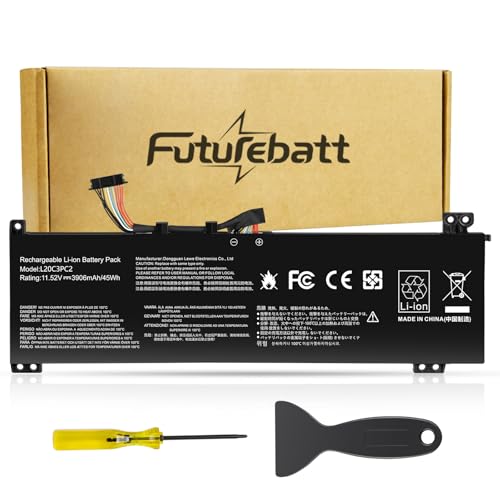
Specifications:Model:L20C3PC2; Voltage:11.52V;Capacity:45Wh;100% brand new from manufacture. Grade A cells ensure fast charges and low power consumption.

【Customer First】24 x 7 email support. For assistance with the L18M3P71 battery, please visit our product detail page OR please contact us by email at any time, (Note: Amazon return windows will be closed after one month. After that, you can click on seller store name on right corner, you can see "Ask a question" on the page and contact directly for any problem.).
Best Charging Practices
- Charge between 20%-80%: Aim to keep your battery within this range to prolong lifespan.
- Avoid full discharges: Letting your battery drop to 0% can harm its health. Charge when it reaches around 20%.
- Use Lenovo Vantage: Take advantage of the software to set the battery charge limit, preventing overcharging.
- Unplug after reaching limits: Once your battery hits 80%, disconnect the charger to avoid wear.
- Don’t leave it plugged in constantly: Keeping your laptop connected for extended periods can degrade battery quality.
Regular Software Updates
- Update Lenovo Vantage regularly: Ensure you’re using the latest version of Lenovo Vantage for optimal battery management features.
- Install Windows updates: Keep your operating system current to benefit from performance improvements and battery efficiency enhancements.
- Optimize settings: Use update options to adjust battery performance settings, ensuring your laptop runs efficiently.
- Reboot after updates: Restarting your laptop after updating helps apply changes and optimize performance.
- Check for driver updates: Regularly look for updates to battery-related drivers for improved functionality.
Implementing these strategies can lead to a healthier battery and extended lifespan for your Lenovo laptop.
Conclusion
Taking control of your Lenovo laptop’s battery charging can make a big difference in its longevity and performance. By setting your charging limit to around 80% and following the tips shared, you can not only prevent overcharging but also maintain optimal battery health.
Utilizing tools like Lenovo Vantage makes it easy to customize your settings and keep track of your battery’s condition. Remember to check for updates regularly and adjust your charging habits to fit your lifestyle.
With a little attention and care, you’ll be well on your way to enjoying a longer-lasting battery life for your Lenovo device.
Frequently Asked Questions
What causes rapid battery drainage in Lenovo laptops?
Rapid battery drainage in Lenovo laptops can be caused by several factors, including high-performance settings, background applications consuming power, and poor battery health. Regular usage patterns and constant charging habits also impact battery longevity, making it essential for users to monitor battery health and optimize settings.
How can I avoid overcharging my Lenovo laptop?
To avoid overcharging, set your laptop to charge only up to 80% using the Lenovo Vantage software. This helps to extend battery life by preventing degradation caused by consistently reaching full charge. Additionally, unplug the charger once it hits this limit to further preserve battery health.
What is the ideal charging range for Lenovo laptop batteries?
The ideal charging range for lithium-ion batteries is between 20% and 80%. Keeping your battery within this range helps maintain health, enhances performance, and prolongs its lifespan. Avoid letting it drop below 20% or continuously charging it to 100%.
How does Lenovo Vantage help with battery management?
Lenovo Vantage is a user-friendly application that assists in monitoring battery health and customizing charging parameters. It features the “Battery Charge Limit” option to restrict charging to a desired percentage, alongside settings for optimizing charging schedules based on user routines.
What steps should I follow to limit my laptop’s battery charge?
To limit your laptop’s battery charge, open Lenovo Vantage, navigate to the Device section, select Power, and set the Battery Charge Limit to your preferred maximum level, ideally around 80%. This step helps manage battery health effectively.
Are there any tips for maintaining a Lenovo laptop’s battery life?
Yes, to maintain battery life, charge between 20%-80%, avoid complete discharges, and unplug when it reaches 80%. It’s also advisable to periodically check for software updates and reboot after installation to optimize battery performance.
