

Key Takeaways
- Understanding Battery Health: Battery health is crucial for maintaining performance and extending your Asus laptop’s lifespan. Key indicators include cycle count, capacity, and charging patterns.
- Signs of Poor Battery Health: Rapid discharge, overheating, error messages, and physical changes such as swelling are critical indicators that your battery may require attention.
- Methods for Assessment: Use Windows built-in tools like powercfg /batteryreport, access battery settings, or utilize third-party apps like BatteryInfoView and HWMonitor for detailed monitoring.
- Importance of Regular Checks: Frequent assessments help prolong battery life, enhance performance, save money on repairs, and ensure user safety by avoiding overheating risks.
- Tips for Maintenance: Implement practices such as using the correct charger, optimizing usage patterns, managing temperature, and running regular health checks to maintain optimal battery condition.
- Analyzing Battery Reports: Reviewing data from battery reports can reveal degradation signs, allowing for early intervention and continued laptop functionality.
Is your Asus laptop struggling to hold a charge? You’re not alone. Many users face battery issues, and it can be frustrating when your device doesn’t perform as it should. Knowing how to check your battery health can help you identify problems before they become major headaches.
Understanding Battery Health
Understanding battery health helps you maintain optimal performance and extend your Asus laptop’s lifespan. Battery health refers to the condition and longevity of your laptop’s battery. Knowing this information allows you to identify any issues early on.
Key Indicators of Battery Health
- Cycle Count: Represents the number of charge cycles your battery has gone through. A standard laptop battery lasts between 300 to 500 cycles.
- Capacity: Compares the current battery capacity to its original capacity. A significant drop indicates wear and tear.
- Charging Patterns: Observing how your battery charges can indicate health. Frequent sudden drops in percentage suggest issues.
Signs of Poor Battery Health
- Rapid Drain: If your laptop discharges quickly, it signals potential battery degradation.
- Overheating: Excessive heat during use indicates strain on the battery and can shorten its lifespan.
- Error Messages: Regular notifications about battery issues from your operating system should not be ignored.
How to Assess Battery Health
- Windows Settings:
- Open “Settings.”
- Click on “System,” then “Battery.”
- Review usage statistics and battery status.
- Third-Party Tools:
- Use applications like BatteryInfoView or HWMonitor for detailed statistics.
- These tools often provide cycle count, capacity, and health status.
- Battery Report Command:
- Open Command Prompt as an administrator.
- Type
powercfg /batteryreportand press Enter. - Access the generated report in your file explorer for comprehensive details.
By regularly checking these aspects, you can maintain your battery health and ensure your Asus laptop runs smoothly.
Importance of Checking Battery Health
Checking your Asus laptop’s battery health is crucial for optimal performance and longevity. Regularly assessing battery health helps you identify potential issues early, ensuring a smooth computing experience.
Benefits of Regular Checks
- Prolongs Lifespan: Regular checks help maintain battery performance, reducing the risk of premature failure.
- Improves Performance: Healthy batteries deliver consistent power, enhancing your laptop’s responsiveness and usability.
- Saves Money: Identifying issues early can reduce repair costs or prevent the need for a new battery sooner than necessary.
- Informs Usage Patterns: Understanding your battery’s condition allows you to adjust usage habits for better efficiency.
- Enhances Safety: Monitoring battery health reduces the risk of overheating and potential hazards, keeping you safe while using your device.
Signs of Battery Issues
- Rapid Drain: If your laptop discharges quickly even with light use, this could indicate poor battery health.
- Overheating: Excess heat during charging or use may signal problems with the battery.
- Charging Problems: Inability to charge fully or consistently can reflect underlying battery issues.
- Error Messages: Receiving alerts about battery health or performance can suggest it’s time to investigate further.
- Physical Changes: Any swelling or distortion in the battery’s casing requires immediate attention, as it poses safety risks.
Methods to Check Battery Health on Asus Laptop
Checking battery health on your Asus laptop involves using built-in tools and third-party software. These methods provide insights into your battery’s performance and help you identify potential issues.
Using Windows Built-In Tools
- Check Battery Status: Right-click the battery icon in the taskbar, then select “Power Options.” Here, you can view your battery’s charge level and estimate its remaining time.
- Generate a Battery Report:
- Open Command Prompt as an administrator.
- Type
powercfg /batteryreportand hit Enter. - Find the report at
C:\Users\[Your Username]\battery-report.html. - Open the report in a web browser to see detailed information such as cycle count and capacity over time.
- Battery Settings: Go to Settings > System > Battery. This section displays battery usage by app, allowing you to identify which applications drain your battery the most.
Utilizing Third-Party Software
- BatteryInfoView:
- Download and install BatteryInfoView.
- Launch the program to view real-time stats, including capacity and health.
- This tool also provides details on charge cycles and status.
- HWMonitor:
- Install HWMonitor from CPUID.
- Open the application to monitor battery voltage, temperature, and wear level.
- Use this data to identify any alarming trends in battery behavior.
- BatteryCare:
- Download BatteryCare for a user-friendly interface.
- It tracks charge cycles and shows notifications for optimal charging and discharging practices.
- Historical data helps you observe changes in battery health over time.
Using these methods ensures you stay informed about your laptop’s battery health, helping to extend its lifespan and maintain performance.
Analyzing Battery Health Reports
Analyzing battery health reports provides valuable insights into your Asus laptop’s performance. These reports reveal key metrics that indicate the overall condition of your battery.
Generating a Battery Report
- Open Command Prompt: Press
Windows key + R, typecmd, and hitEnter. - Type the Command: Enter the command
powercfg /batteryreportand pressEnter. - Locate the Report: The report saves as an HTML file. Look for the path displayed in the Command Prompt.
Key Metrics in the Report
- Design Capacity: This shows the original capacity of your battery.
- Full Charge Capacity: This indicates the current maximum capacity. A significant drop from the design capacity signals degradation.
- Cycle Count: This tracks the number of charge cycles completed. Higher cycles often correlate with reduced battery health.
- Battery Usage: This section details your laptop’s usage patterns, helping you identify potential overuse or inefficiency.
Interpreting Battery Health Data
- Capacity Comparison: Compare design capacity and full charge capacity. If full charge capacity drops below 80% of the design capacity, consider replacing the battery.
- Cycle Count Significance: A cycle count above 300 might indicate the battery is nearing its end. For maximum lifespan, aim to keep your cycle count below 500.
Monitoring Changes Over Time
Check the battery report every few months. Regular comparisons highlight any rapid declines in battery health. This proactive approach allows for early intervention, extending your laptop’s usability.
Utilizing Third-Party Tools
Consider using third-party applications like BatteryInfoView or HWMonitor. These tools provide additional details about your battery’s health and performance, such as temperature and charge cycles. Using these tools alongside your system’s battery report can give a comprehensive view of battery performance.
By effectively analyzing battery health reports, you can ensure your Asus laptop runs smoothly and maintains its longevity.
Tips for Maintaining Battery Health
Maintaining battery health enhances performance and extends your Asus laptop’s lifespan. Follow these tips to keep your battery in optimal condition.
Recommended Products
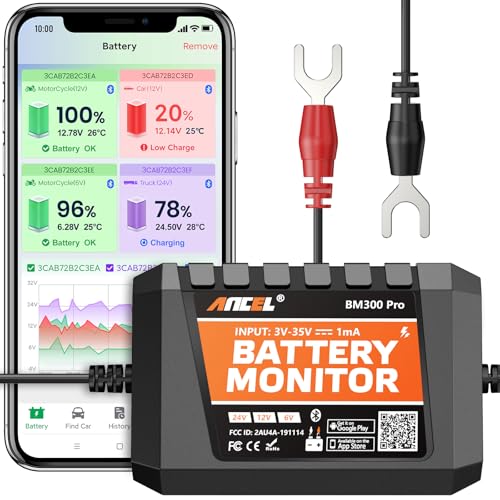
6V, 12V & 24V MONITORING - View voltage, estimated state of charge and temperature through the ANCEL BM300 Pro app. On supported 12V and 24V vehicle systems, review cranking and charging voltage tests. For 6V systems, use voltage, SOC and temperature monitoring; cranking and charging tests are not supported.

18.5-inch Large Screen, Lightweight: Equipped with an 18.5-inch 1080p FHD IPS large screen, the VisionOwl portable gaming monitor was designed to create a larger viewing experience. Weighing only 2.7 Lb, 0.24-inch in minimum thickness, and 0.55-inch in maximum thickness, the VisionOwl portable monitor can also be easily carried for travel, work, or relocation

2026-10800mAh Powerful Battery: Use a portable productivity redefining battery monitor to break free from the constraints of power sockets. Our integrated 10800mAh battery can provide 6-8 hours of continuous operation. In addition to maintaining the display screen, it can also serve as an emergency power source to charge laptops or smartphones during mid mission periods
Charge Wisely
- Use the Right Charger: Always use the original charger or a compatible one. Mismatched voltage can damage your battery.
- Avoid Overcharging: Disconnect when your battery reaches 100%. Continuous charging can degrade battery life over time.
Monitor Usage Patterns
- Check Power Settings: Adjust settings for optimal performance. Use power-saving modes when running on battery.
- Limit Resource-Heavy Applications: Close unnecessary apps to reduce battery drain. Applications like gaming or video-editing software consume significant power.
Temperature Management
- Keep It Cool: Avoid overheating by placing your laptop on hard surfaces. Fabrics may cause heat build-up.
- Store in a Moderate Environment: Avoid extreme temperatures. Store your laptop where temperatures range between 32°F to 95°F (0°C to 35°C).
Regular Maintenance
- Run Battery Health Checks: Utilize built-in tools or third-party software to monitor battery health. Checking at least once a month helps identify problems early.
- Update Drivers: Keep battery-related drivers up to date. Manufacturers often release updates to improve performance.
Optimize Battery Cycle
- Practice Full Discharges: Periodically allow your battery to discharge completely and then recharge fully. This helps recalibrate the battery gauge.
- Avoid Frequent Short Charges: Charging for short periods can lead to degradation. Ensure you charge it fully to maintain health.
Remove Unused Devices
- Disconnect Peripherals: Disconnect devices when not in use. External devices like USB drives drain battery power even while idle.
Maintaining battery health involves consistent practices, monitoring, and timely actions. Implement these strategies to enhance your laptop’s performance and battery longevity.
Conclusion
Taking the time to check your Asus laptop’s battery health can make a world of difference. By keeping an eye on key metrics and recognizing signs of potential issues, you can maintain your laptop’s performance and extend its lifespan. Regular checks not only help you avoid costly repairs but also ensure you’re getting the most out of your device.
Implementing simple maintenance tips will further enhance your battery’s health and efficiency. So go ahead and give your battery the attention it deserves. You’ll be glad you did when your laptop runs smoothly for years to come.
Frequently Asked Questions
What are common battery issues faced by Asus laptop users?
Asus laptop users often encounter problems like rapid battery drain, overheating, and charging failures. These issues can lead to frustration and hinder productivity. Identifying battery health early on can prevent these problems from worsening.
How can I check the battery health on my Asus laptop?
You can check your Asus laptop’s battery health by using Windows settings, generating a battery report through Command Prompt, or utilizing third-party tools like BatteryInfoView or HWMonitor. These methods provide insights into battery capacity, cycle count, and charging behavior.
What are the signs of poor battery health?
Signs of poor battery health include rapid drainage, frequent overheating, charging issues, error messages from the system, and physical swelling of the battery casing. Noticing these symptoms early can help you take necessary action.
Why is it important to regularly check battery health?
Regularly checking battery health can prolong the battery’s lifespan, improve laptop performance, save repair costs, and enhance safety. It also helps users understand usage patterns for better energy efficiency and avoids unexpected shutdowns.
How do I analyze battery health reports?
To analyze battery health reports, generate a report via Command Prompt. Look for key metrics like design capacity, full charge capacity, and cycle count. A significant difference between design and full charge capacities may indicate a need for replacement.
What tips can help maintain my Asus laptop’s battery health?
To maintain your battery health, use the original charger, avoid overcharging, manage temperature, adjust power settings, limit heavy applications, run regular health checks, and keep drivers updated. These actions can enhance performance and extend the laptop’s lifespan.
