Close Menu
Battery Spotlight
    Battery Spotlight
    • Home
    • Phone Batteries
    • Laptop Batteries
    • Car Batteries
      • Golf Cart Batteries
    • Battery Info
      • Battery Chargers
      • Battery Life
      • Battery Maintenance
      • Marine Batteries
      • Rechargeable Batteries
      • Solar Batteries
    • About Us
      • Contact
    Battery Spotlight
    Navigation: Home » Phone Batteries » Android Batteries » How to Know My Samsung Battery Health and Extend Its Lifespan Effectively
    Android Batteries

    How to Know My Samsung Battery Health and Extend Its Lifespan Effectively

    Leo HudsonBy Leo HudsonJune 11, 20258 Mins Read
    Share Facebook Twitter Pinterest LinkedIn Tumblr Email WhatsApp Copy Link
    Share
    Facebook Twitter LinkedIn Pinterest Email Copy Link

    Key Takeaways

    • Understanding Battery Health: Samsung batteries naturally lose capacity over time; monitoring battery health helps identify performance declines.
    • Check Battery Status: Use the Samsung Members app or device settings to check battery health and diagnose issues.
    • Charge Cycles Matter: A typical Samsung battery lasts between 300 to 500 charge cycles; track your cycles to assess longevity.
    • Signs of Failure: Look for rapid discharging, overheating, and unexpected shutdowns as indicators of a failing battery.
    • Optimize Battery Care: Avoid extreme temperatures, limit background app refresh, and use battery-saving modes to prolong battery life.
    • Maintaining Battery Health: Regular software updates, smart charging habits, and calibration can significantly enhance your battery’s lifespan and performance.

    Ever wondered why your Samsung phone seems to lose power faster than it used to? You’re not alone. Many people face this frustrating issue as their devices age, making it hard to know if the battery is the culprit. Understanding your battery’s health can save you from unexpected shutdowns and help you get the most out of your phone.

    Table of Contents

    Toggle
    • Key Takeaways
    • Understanding Samsung Battery Health
    • Check Battery Health with Samsung Members App
    • Access Battery Usage from Settings
    • Monitor Battery Charge Cycles
    • Recognize Signs of a Failing Battery
    • Optimize Battery Health
    • Importance of Battery Health
    • Longevity of Your Device
    • Performance Impact
    • How to Check My Samsung Battery Health
    • Using Samsung Members App
    • Through Device Settings
    • Third-Party Apps
    • Tips for Maintaining Battery Health
    • Charging Habits
    • Software Updates
    • Battery Calibration
    • Conclusion
    • Frequently Asked Questions
    • How can I check my Samsung phone's battery health?
    • What are common signs of a failing Samsung battery?
    • How often should I monitor my battery health?
    • What charging habits can improve battery health?
    • Does battery health affect device performance?

    In this article, you’ll learn simple ways to check your Samsung battery health. You’ll discover how to interpret the information and what steps you can take to extend your battery’s life. By the end, you’ll be equipped with the knowledge to keep your device running smoothly and efficiently.

    Understanding Samsung Battery Health

    Understanding the health of your Samsung battery enhances your device experience. Samsung batteries lose capacity over time due to usage patterns, charging habits, and temperature. Monitoring battery health helps you identify declines in performance and take action to maintain your device.

    Recommended Products

    Soseieiu Galaxy J3 Battery,(2026 New Upgraded) 2600mAh Replacement Battery for Samsung J3 J327A J327P J320A/F/P/V EB-BG530BBC EB-BG530BBE/Galaxy On5/Galaxy Grand Prime SM-G550F
    Soseieiu Galaxy J3 Battery,(2026 New Upgraded) 2600mAh Replacement Battery for Samsung J3 J327A J327P J320A/F/P/V EB-BG530BBC EB-BG530BBE/Galaxy On5/Galaxy Grand Prime SM-G550F

    🌠【Compatible Battery Model】: This a Updated Galaxy J3 Replacement Battery Compatible with Samsung Galaxy J3 (2016) J320V J320A J320F J320P EB-BG530BBE /J3 Prime, Emerge, Star, Orbit, Eclipse, On5, Mission, Luna Pro, Achieve Battery

    VIEW LATEST PRICE

    As an affiliate, we earn on qualifying purchases.

    DDONG 4300mAh Upgraded Replacement Battery for Samsung Galaxy J2 Prime SM-G532M/DS, J3 J320A J320V Battery EB-BG530BBE EB-BG530BBC
    DDONG 4300mAh Upgraded Replacement Battery for Samsung Galaxy J2 Prime SM-G532M/DS, J3 J320A J320V Battery EB-BG530BBE EB-BG530BBC

    The battery is manufactured and tested under strict quality control standards before sent out

    VIEW LATEST PRICE

    As an affiliate, we earn on qualifying purchases.

    LEOM EB595675LA Replacement Battery for Samsung Galaxy Note 2-3100mAh - Compatible with AT&T T-Mobile Verizon Sprint Models SGH-i317, SGH-T889, SCH-i605, SPH-R950, SPH-L900
    LEOM EB595675LA Replacement Battery for Samsung Galaxy Note 2-3100mAh - Compatible with AT&T T-Mobile Verizon Sprint Models SGH-i317, SGH-T889, SCH-i605, SPH-R950, SPH-L900

    · 【Perfect Compatibility】This is a premium replacement battery specifically designed for Samsung Galaxy Note 2. Ensures a perfect fit and flawless performance for models: SGH-i317 (AT&T), SGH-T889 (T-Mobile), SCH-i605 (Verizon), SPH-R950 (Sprint), SPH-L900 (Sprint). Check your old battery's model number EB595675LA to confirm.

    VIEW LATEST PRICE
    SEE ALSO  Can I Buy a New Battery for My Samsung Tablet to Restore Performance and Longevity

    As an affiliate, we earn on qualifying purchases.

    Check Battery Health with Samsung Members App

    1. Download the Samsung Members app from the Galaxy Store or Google Play Store.
    2. Open the app and navigate to the “Support” or “Get Help” section.
    3. Select “Interactive Checks.” Here, you’ll find options related to battery diagnostics.
    4. Choose “Battery Status.” The app will run a diagnostic test and provide details on battery health.

    Access Battery Usage from Settings

    1. Open the Settings app.
    2. Scroll down to “Battery and device care.”
    3. Tap on “Battery.” You’ll see information on battery usage and remaining charge.
    4. Check “Usage since last full charge.” This section shows which apps consume the most power.

    Monitor Battery Charge Cycles

    Battery charge cycles track how many times your battery has gone from 0% to 100%. Understanding cycles provides insight into battery longevity.

    • 1 cycle equals discharging the battery by 100%, regardless of whether that occurs all at once or over multiple days.
    • A typical Samsung battery lasts around 300 to 500 cycles. Beyond this range, performance declines.

    Recognize Signs of a Failing Battery

    Watch for these signs that indicate potential battery issues:

    • Rapid discharging: Your battery drains significantly faster than usual.
    • Overheating: The device feels unusually hot during use or charging.
    • Unexpected shutdowns: The phone turns off even when the battery indicates charge remains.

    Optimize Battery Health

    1. Avoid extreme temperatures. Keep your device in environments between 32°F (0°C) and 95°F (35°C).
    2. Limit background app refresh. Disable apps from refreshing in the background, which saves battery life.
    3. Use battery-saving modes. Enable battery saver settings to extend battery life when needed.
    4. Regularly charge your phone. Maintaining a charge between 20% and 80% is ideal.

    Keeping track of these factors helps you maintain your Samsung battery health. Use the tools available to assess and monitor its condition regularly.

    Importance of Battery Health

    Understanding battery health is crucial. A well-maintained battery enhances your Samsung device’s longevity and performance.

    Longevity of Your Device

    A healthy battery extends the lifespan of your device. Lithium-ion batteries typically last between two to three years or around 300 to 500 charge cycles. Each cycle affects battery capacity, so monitoring health ensures you replace it before major decline. Regular checks can indicate whether your battery is running close to its limit, helping you avoid premature replacements or costly repairs.

    Performance Impact

    Battery health directly affects your device’s performance. Degraded batteries can cause sluggishness, unexpected shutdowns, or longer charging times. For example, if your device shuts down at 20%, it likely indicates a health issue. You can make adjustments to optimize performance, such as clearing unused apps and enabling battery-saving features. Regularly checking your battery health also helps you anticipate issues, allowing for timely solutions before they escalate.

    How to Check My Samsung Battery Health

    Checking your Samsung battery health is straightforward. You can use built-in tools or third-party apps to determine the battery’s condition and performance.

    Recommended Products
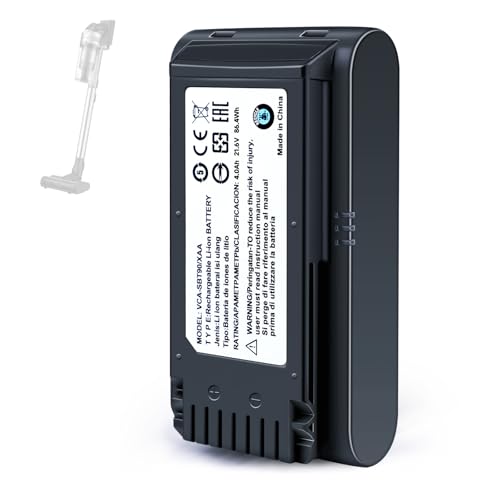
    YCFSERMYO Replacement 4000mAh Battery for Samsung Jet 60, Jet 70 75 75+, Jet 90 90+ Series Cordless Stick Vacuum Cleaner Battery, Replacement for Model-VCA-SBTA60 VCA-SBT90 VCA-SBT90EB
    YCFSERMYO Replacement 4000mAh Battery for Samsung Jet 60, Jet 70 75 75+, Jet 90 90+ Series Cordless Stick Vacuum Cleaner Battery, Replacement for Model-VCA-SBTA60 VCA-SBT90 VCA-SBT90EB

    PERFECT COMPATIBILITY: Compatible with Samsung Battery for Samsung Jet 60 , Jet 70 75 75+, Jet 90 90+ Series Cordless Stick Vacuum Cleaner. Replacement for VCA-SBTA60 VCA-SBT90 VCA-SBT90EB VS15A6031R7/AA VS15A6032R7/AA VS15A6031N5/AA VS15T7032P4/AA VS20T7536P5/AA VS20T7536T5/AA VS20T7511T5/AA VS20T7512N7/AA VS20T7551R5/AA VS20R9046T3/AA VS20R9046P3/AA VS20R9049S3/EU VS20R9042S2/EU VS20T7532T1/

    SEE ALSO  Why Is My Asus Laptop Battery Not Charging: Common Causes and Easy Fixes
    VIEW LATEST PRICE

    As an affiliate, we earn on qualifying purchases.

    Gemho 4.0Ah Replacement Battery for Samsung Jet 60 65, Jet 70 75 75+, Jet 90 90+ Series Stick Vacuum Cleaner-Lithium Ion VCA-SBTA60 VCA-SBT90 VCA-SBT90EB Compatible Battery
    Gemho 4.0Ah Replacement Battery for Samsung Jet 60 65, Jet 70 75 75+, Jet 90 90+ Series Stick Vacuum Cleaner-Lithium Ion VCA-SBTA60 VCA-SBT90 VCA-SBT90EB Compatible Battery

    Compatibility: This battery is a VCA-SBTA60 VCA-SBT90 VCA-SBT90EB compatible replacement battery for Samsung Jet 60 Jet 65 Jet 70 Jet 75 Jet 90 Complete Stick Vacuum, ensuring a perfect fit and easy installation.

    VIEW LATEST PRICE

    As an affiliate, we earn on qualifying purchases.

    Remate 4000mAh Replacement Battery for Samsung Jet 60 65 Jet 70 75 75+ Jet 90 90+ Series Cordless Stick Vacuum Cleaner Battery, Replacement for Model-VCA-SBTA60 VCA-SBT90 VCA-SBT90EB
    Remate 4000mAh Replacement Battery for Samsung Jet 60 65 Jet 70 75 75+ Jet 90 90+ Series Cordless Stick Vacuum Cleaner Battery, Replacement for Model-VCA-SBTA60 VCA-SBT90 VCA-SBT90EB

    【Compatible with Multiple Models】Compatible with Samsung Battery for Samsung Jet 60 65, Jet 70 75 75+, Jet 90 90+ Series Cordless Stick Vacuum Cleaner. Replacement for VCA-SBTA60 VCA-SBT90 VCA-SBT90EB VS15A6031R7/AA VS15A6032R7/AA VS15A6031N5/AA VS15T7032P4/AA VS20T7536P5/AA VS20T7536T5/AA VS20T7511T5/AA VS20T7512N7/AA VS20T7551R5/AA VS20R9046T3/AA VS20R9046P3/AA VS20R9049S3/EU VS20R9042S2/EU VS20T7532T1/

    VIEW LATEST PRICE

    As an affiliate, we earn on qualifying purchases.

    Using Samsung Members App

    1. Open the Samsung Members app: Launch the app on your device. If you haven’t installed it, download it from the Google Play Store.
    2. Access Diagnostics: Tap on the “Get Help” or “Support” tab. Look for the option labeled “Battery.”
    3. Run the Diagnostics: Select “Battery” to view detailed information. This includes battery capacity, performance, and charge cycles.
    4. Evaluate the Results: The app provides a health status indicator. A green status means your battery is healthy, while yellow or red suggests issues.

    Through Device Settings

    1. Go to Settings: Explore your phone’s “Settings” menu.
    2. Select Battery and Device Care: Scroll down and tap on “Battery and Device Care.”
    3. Choose Battery: Click on “Battery” for options to view battery usage, status, and power management features.
    4. Check Battery Usage: Review which apps consume the most battery power and adjust settings to optimize performance.

    Third-Party Apps

    1. Download a Battery Health App: Search for battery health apps, such as AccuBattery or GSam Battery Monitor, in the Google Play Store.
    2. Install and Open the App: Follow the prompts to install the app. Open it after installation.
    3. Review Battery Data: Explore the app interface for insights on battery health, charge cycles, and performance metrics.
    4. Utilize Recommendations: Many apps provide tips for extending battery life and improving overall efficiency.

    By utilizing these methods, you can routinely check your Samsung battery health to maintain optimal performance and prolong your device’s longevity.

    Tips for Maintaining Battery Health

    Maintaining your Samsung battery’s health extends its lifespan and enhances device performance. Follow these practical tips for optimal results.

    Recommended Products

    Samsung Galaxy Magnetic Wireless 5,000mAh Battery Pack, Cordless or Wired Super Fast Charging, Built-in Magnets, Sturdy Kickstand
    Samsung Galaxy Magnetic Wireless 5,000mAh Battery Pack, Cordless or Wired Super Fast Charging, Built-in Magnets, Sturdy Kickstand

    POWER ANYWHERE YOU WANT IT: Charge up any of your devices with the Galaxy Magnetic Wireless Battery Pack. Whether you want to plug in to the USB-C port or use the built-in magnetic wireless charger, the 5,000mAh battery is waiting to power you up throughout the whole day.

    VIEW LATEST PRICE

    As an affiliate, we earn on qualifying purchases.

    S26 S25 S24 S23 S22 Fast Charger for Samsung Phone,25W USB C Charger Android Chargers Type C Charger Fast Charging Block 10Ft USB C Cable Cord for Samsung Galaxy S26/S25/S24/S23/S22/S21/S20/Plus/Ultra
    S26 S25 S24 S23 S22 Fast Charger for Samsung Phone,25W USB C Charger Android Chargers Type C Charger Fast Charging Block 10Ft USB C Cable Cord for Samsung Galaxy S26/S25/S24/S23/S22/S21/S20/Plus/Ultra

    【Safety Super Fast Charger Type C】25W PD 3.0 Technology provides Max 25W output power for all Samsung Galaxy S25/S25 Ultra/S25+/S24/S24 Ultra/S24 Plus/S23/S23 Ultra/S23 Plus/S22/S22 Ultra/S22+/S21/S21+/S21 Ultra/S20/S20+/S20 Ultra,this Samsung fast charger type c kit fast charge your battery from zero up to 100% in about 60 min,5 times as fast as Standard Charger Block,10 times as fast as PC USB port and saves you time

    SEE ALSO  How to Save Battery in Android Phone: Best Tips and Tricks for Longer Life
    VIEW LATEST PRICE

    As an affiliate, we earn on qualifying purchases.

    INIU Portable Charger, Ultra Mini 10000mAh 45W Fast Charging with Detachable Cable, Flight-Safe Travel USB C Power Bank External Phone Battery Pack for Xiaomi iPhone 17 16 Samsung S26 Google iPad etc
    INIU Portable Charger, Ultra Mini 10000mAh 45W Fast Charging with Detachable Cable, Flight-Safe Travel USB C Power Bank External Phone Battery Pack for Xiaomi iPhone 17 16 Samsung S26 Google iPad etc

    [MINI SIZE. ULTRA PORTABLE CHARGER]: Roughly the size of an AirPods Pro case, this smallest power bank packs 10,000mAh of long lasting power into a tiny, nano footprint. Easily slide this ultra slim, credit card size charger into your skinny jeans, a pocket, or a small purse for a night out at a concert or Disney—giving students, women, and men maximum high capacity backup power with zero bulk.

    VIEW LATEST PRICE

    As an affiliate, we earn on qualifying purchases.

    Charging Habits

    • Avoid Overnight Charging: Disconnect your device once fully charged to prevent it from staying at 100% for too long.
    • Use the Right Charger: Always use an original charger compatible with your Samsung device for safe and efficient charging.
    • Charge Between 20% and 80%: Keeping the battery within this range reduces stress and prolongs overall health.
    • Avoid Extreme Temperatures: Both heat and cold can harm your battery. Store and use your phone in moderate temperatures.

    Software Updates

    • Keep Your Software Updated: Regular updates include bug fixes and performance improvements that help optimize battery usage.
    • Enable Battery Optimizations: Access settings to activate battery-saving features. These can limit background activity and save energy.
    • Review App Permissions: Disable unnecessary permissions for apps that drain battery life. Check which apps use the most battery in settings and adjust accordingly.

    Battery Calibration

    • Perform Calibration Regularly: Let your battery drain to 0% and charge it back to 100% without interruptions approximately once a month to recalibrate.
    • Use Built-in Calibration Tools: Some Samsung devices offer calibration tools in settings. Utilize these tools to keep your battery functioning properly.
    • Monitor Charge Cycles: Keep track of your battery’s charge cycles. Aim for full cycles (0% to 100%) less often to maintain battery health.

    By implementing these tips, you can effectively extend your Samsung battery’s lifespan and enjoy reliable device performance.

    Conclusion

    Taking care of your Samsung battery is key to keeping your device running smoothly. By regularly checking your battery health and understanding its performance, you can make informed decisions to extend its lifespan.

    Remember to adopt good charging habits and stay aware of any signs that your battery might be struggling. With a little attention and the right practices, you’ll enjoy a reliable phone experience for longer.

    So keep an eye on that battery health and enjoy all the great features your Samsung device has to offer!

    Frequently Asked Questions

    How can I check my Samsung phone’s battery health?

    You can check your Samsung phone’s battery health using the Samsung Members app or by navigating to Settings > Battery and device care. These tools will provide you with essential information about your battery’s condition and performance.

    What are common signs of a failing Samsung battery?

    Common signs of a failing battery include rapid discharging, overheating, unexpected shutdowns, and longer charging times. If you notice these issues, it might be time to assess your battery health.

    How often should I monitor my battery health?

    It’s a good idea to check your battery health every few months, especially if you notice any performance issues. Regular monitoring can help you identify problems early and extend your battery’s lifespan.

    What charging habits can improve battery health?

    To improve battery health, aim to keep your battery charged between 20% and 80%. Avoid overnight charging, use the appropriate charger, and unplug once fully charged to prevent overcharging.

    Does battery health affect device performance?

    Yes, battery health directly impacts device performance. A degraded battery can cause sluggishness, unexpected shutdowns, and longer charging times, ultimately affecting your overall user experience.

    Share. Facebook Twitter Pinterest LinkedIn Tumblr Email WhatsApp Copy Link
    Leo-Hudson
    Leo Hudson

      Technical writer with 3+ years of experience. Bachelor of Arts in Environmental Studies from UC Santa Cruz. Passionate about sustainability and providing clear, concise how-to guides for common battery problems.

      Related Posts

      Android Batteries

      How to Replace Battery in Samsung Phone: A Step-by-Step Guide for Easy Replacement

      October 25, 2025
      Android Batteries

      How to Remove Battery from Samsung Smart TV Remote: A Step-by-Step Guide for Easy Replacement

      October 25, 2025
      Android Batteries

      How to Check Your Battery Health on Samsung: Simple Methods to Extend Your Phone’s Lifespan

      October 25, 2025
      Android Batteries

      How Much Is a Battery for a Samsung Galaxy S6: Pricing and Replacement Options Explained

      October 25, 2025
      Android Batteries

      How to Remove Battery from Samsung Galaxy S7: A Step-by-Step Guide for Easy DIY Fixes

      October 25, 2025
      Android Batteries

      Why is My Battery Going Down While Charging Android – Effective Solutions to Fix the Issue

      October 25, 2025
      Add A Comment
      Leave A Reply Cancel Reply

      Search
      Affiliate Disclaimer

      As an Amazon Associate I earn from qualifying purchases.

      Latest Articles

      How to Replace Battery in Samsung Phone: A Step-by-Step Guide for Easy Replacement

      Android Batteries

      How to Remove Battery from Samsung Smart TV Remote: A Step-by-Step Guide for Easy Replacement

      Android Batteries

      How to Check Your Battery Health on Samsung: Simple Methods to Extend Your Phone’s Lifespan

      Android Batteries

      How Much Is a Battery for a Samsung Galaxy S6: Pricing and Replacement Options Explained

      Android Batteries

      How to Remove Battery from Samsung Galaxy S7: A Step-by-Step Guide for Easy DIY Fixes

      Android Batteries

      Why is My Battery Going Down While Charging Android – Effective Solutions to Fix the Issue

      Android Batteries
      Battery Spotlight

      Battery Spotlight is a website dedicated to helping you solve common battery problems.

      Read more about us here

      Affiliate Disclaimer
      As an Amazon Associate I earn from qualifying purchases.

      Site Navigation
      • Above Mirror Bathroom Lighting
      • Android Batteries
      • Bathroom Pendant Lighting
      • Battery Chargers
      • Battery Life
      • Battery Maintenance
      • Car Batteries
      • Ceiling Lighting Ideas
      • Golf Cart Batteries
      • Japandi Lighting
      • Laptop Batteries
      • Marine Batteries
      • Mood Lighting Living Room
      • Phone Batteries
      • Rechargeable Batteries
      • Reviews
      • Solar Batteries
      • Uncategorized
      • Vaulted Ceiling Lighting
      Latest Articles

      How to Replace Battery in Samsung Phone: A Step-by-Step Guide for Easy Replacement

      How to Remove Battery from Samsung Smart TV Remote: A Step-by-Step Guide for Easy Replacement

      How to Check Your Battery Health on Samsung: Simple Methods to Extend Your Phone’s Lifespan

      How Much Is a Battery for a Samsung Galaxy S6: Pricing and Replacement Options Explained

      How to Remove Battery from Samsung Galaxy S7: A Step-by-Step Guide for Easy DIY Fixes

      • Home
      • About
      • Contact
      • Privacy Policy
      • Editorial Policy
      • Disclaimer
      • Terms and Conditions
      • Affiliate Disclosure
      © 2026 Battery Spotlight

      Type above and press Enter to search. Press Esc to cancel.