

Key Takeaways
- Identify Common Issues: Understand that battery charging problems often stem from battery health, power adapter issues, or charging port damage.
- Regular Maintenance: Keep your ASUS laptop’s battery health in check; consider replacement if the health percentage drops below 80%.
- Inspect Hardware: Examine the power adapter, charging cable, and charging port for any physical damage or debris that could impact connectivity.
- Update Software: Regularly update your BIOS and drivers to prevent compatibility issues affecting battery performance.
- Adjust Power Settings: Optimize power management settings to enhance battery charging efficiency and overall laptop performance.
- Seek Professional Help When Necessary: If troubleshooting fails, consult a technician for persistent issues, physical damage, overheating, or error messages related to battery performance.
Ever found yourself in the middle of an important task only to realize your ASUS laptop battery isn’t charging? You’re not alone. This frustrating issue can pop up unexpectedly, leaving you wondering what went wrong.
In this article, you’ll discover the common reasons your laptop battery might not be charging and how to troubleshoot the problem. Whether it’s a simple fix or a more complex issue, understanding the root cause can save you time and stress. Let’s get your laptop back to full power so you can keep working without interruptions.
Common Reasons For Battery Charging Issues
Battery charging problems can stem from several key factors. Identifying these factors can lead to a quicker resolution.
Battery Health and Age
Battery health affects charging capabilities. If your laptop’s battery is old, its ability to hold a charge diminishes. ASUS batteries typically last 2-3 years, depending on usage. Check your battery’s health status through system diagnostics. If the health percentage is below 80%, consider replacing the battery for optimal performance.
Power Adapter Problems
Power adapter issues frequently cause charging troubles. Inspect your adapter for physical damage, such as frayed cables or bent plugs. Ensure that the adapter connections fit securely into both the laptop and the wall outlet. You can test the adapter with another compatible ASUS laptop to confirm if it’s functioning properly. Using an incompatible or faulty adapter can prevent charging.
Charging Port Damage
Charging port damage can disrupt the charging process. Examine the port for debris, dust, or bending. A blocked or damaged port can interfere with the connection. If you notice anything unusual, use a can of compressed air to clean the port gently. If significant damage is present, a professional repair is recommended, as internal components may need replacement.
Troubleshooting Steps
Follow these steps to identify and resolve charging issues with your ASUS laptop battery.
Recommended Products

This charger is designed for devices with power requirements up to 65W(45W 33W included). It is not fit for TUF Gaming A14 A15 17 F15 F17 A16. Not fit for ROG Strix G15 G16 G17 G18. Not fit for ROG Zephyrus G14 G15 M15 G16 S15 S17. Not fit for Vivobook Pro 15 15X 16X. Not compatible with Zenbook Pro 14 Duo 15 16X OLED. Not fit for ROG Flow X16 X13 Z13, ProArt StudioBook 15 16 17, ProArt P16 PX13. Not fit for Chromebook CX1 CX3 CR11 Flip CX5 CX9 and other models more than 65W

Industry-leading security: Rigorously tested to ensure premium quality and a reliable safety system.The adapter has multiple protection mechanisms such as overheating, short circuit, and overload. The adapter has good durability and ensures long-term stable charging. The products you choose represent your insistence on safety, quality and self-respect.

Certified security --- This charger for ASUS Chromebook laptops meets nationally recognized standards for high-level electronic safety.his charger provides protection against safety mechanisms such as overheating, overload, and short circuits. Choosing this charger is a smart choice for the safety of yourself and your family
Check Power Outlet
- Verify the power outlet’s functionality. Plug another device into the outlet to ensure it works.
- Confirm that the outlet provides consistent power. If it doesn’t, select a different outlet.
- Use a power strip or surge protector for added protection, ensuring it’s functioning well.
Inspect the Charging Cable
- Examine the charging cable for frays or unusual bends. Any visible damage can affect charging performance.
- Ensure the connectors are securely plugged into both the laptop and power outlet.
- Test the cable with another compatible ASUS laptop. If the other laptop charges, the cable may be fine.
Perform a Battery Reset
- Shut down your laptop completely.
- Disconnect the power adapter and remove the battery if it’s removable.
- Press and hold the power button for about 15 seconds to drain residual power.
- Reconnect the battery and power adapter, then turn on your laptop.
By following these steps, you can efficiently troubleshoot and potentially resolve the battery charging issues you’re experiencing.
Software and Settings Factors
Software and settings issues can also prevent your ASUS laptop battery from charging. Addressing these factors helps in diagnosing and fixing the problem quickly.
Recommended Products
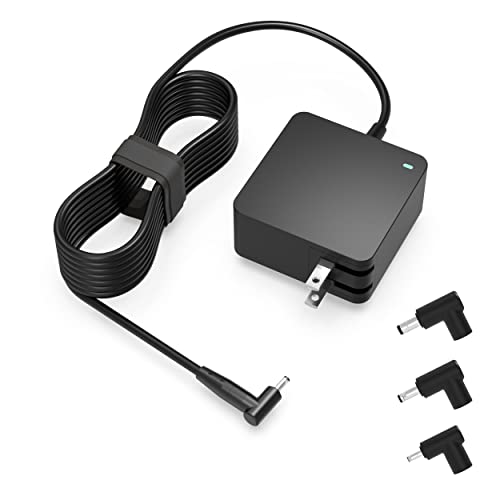
Exceptional compatibility--- Fit for Asus laptop 65W and under (incl. 45W and 33W) with round power connector. Fit for Vivobook 11 17 Flip 14 15, S14 S15 S13, fit for Zenbook UX, fit for Chromebook Flip, fit for Transformer, fit for Eeebook, fit for Imaginebook, fit for Expertbook series. A real 'One for All' solution that aims to make your life easier

Output: 20V/12A 240W; Input: 100-240V 50-60Hz 3.5A; Connector Size: Rectangle Conn(as shown in the picture).

Input: AC 100-240v, 50-60Hz Output: 19V 2.37A 45W, Connector Size:4.0*1.35 mm Not Compatible with:5.5*2.5 and 3.0*1.0. Charger compatible with asus f515ja f515ea m515ua f512da Vivobook Go L510KA-ES04 L510MA-DS04 L210KA-ES04 E210MA-DB02 E410KA L410MA-AH02 F415EA-AS31 512JA-AS34 L410MA-DB02 X515E
BIOS and Driver Updates
Outdated BIOS or drivers can interfere with battery performance. Keep your systems updated to ensure optimal functionality.
- Access BIOS: Restart your laptop and press the appropriate key (usually F2 or Del) during startup.
- Check Version: Once in BIOS, note the current version. Visit the ASUS support site for the latest version.
- Update Drivers: Navigate to Device Manager via the Control Panel. Under ‘Batteries’, right-click on ‘Microsoft ACPI-Compliant Control Method Battery’ and select ‘Update Driver’. Follow the prompts to complete the process.
Performing these updates can resolve compatibility issues affecting battery charging.
Power Settings Configuration
Improper power settings can hinder battery charging. Adjusting these settings optimizes power management for better performance.
- Open Control Panel: Type ‘Control Panel’ in the Windows search bar and select it.
- Select Power Options: Click on ‘Hardware and Sound’, then ‘Power Options’.
- Change Plan Settings: Choose your plan and select ‘Change plan settings’. Ensure that settings like ‘Put the computer to sleep’ are configured correctly.
- Restore Defaults: If unsure, consider restoring default settings by clicking ‘Change advanced power settings’ and selecting ‘Restore default settings for this plan’.
These steps help ensure that your laptop utilizes power management effectively, supporting battery health and charging capability.
When To Seek Professional Help
If troubleshooting doesn’t resolve your ASUS laptop battery charging issue, it’s time to consider professional help. Here are signs indicating it’s wise to consult an expert:
- Physical Damage: If you spot cracks, frayed wires, or bent connectors on your power adapter or charging port, seeking professional repair becomes essential. Continuing to use damaged components can cause further issues.
- Batteries Overheating: If your laptop battery feels excessively hot during charging, stop using it and connect with a technician. This could indicate a serious problem that may lead to safety hazards.
- Persistent Charging Issues: If the battery remains unresponsive despite multiple troubleshooting attempts, a professional assessment may pinpoint underlying hardware faults that are difficult to diagnose independently.
- Frequent Shutdowns: If your laptop shuts down unexpectedly while the battery indicates a charge, consulting an expert can provide a thorough evaluation of battery health and system integrity.
- Battery Swelling: If the battery shows signs of swelling or bulging, stop using the device immediately. Swollen batteries pose safety risks, and professional intervention is necessary for safe removal and replacement.
- Error Messages: If you encounter system error messages related to battery performance, it’s prudent to reach out to a professional. They can interpret technical codes and evaluate your laptop’s condition accurately.
Ensure that you keep the warranty information accessible as some repairs may be covered. Addressing battery problems early through professional guidance can prevent more extensive damage and protect your device’s functionality.
Conclusion
Dealing with a laptop battery that won’t charge can be a hassle but knowing the potential causes helps you tackle the issue more effectively. By following the troubleshooting steps outlined, you can often pinpoint the problem whether it’s related to the battery itself or external factors like your power adapter or charging port.
If you’ve tried everything and the battery still won’t charge it might be time to reach out for professional help. Remember to keep an eye on your laptop’s health and maintenance to avoid future headaches. With a little care and attention your ASUS laptop can keep running smoothly and efficiently.
Frequently Asked Questions
Why is my ASUS laptop battery not charging?
The laptop battery may not be charging due to several reasons, including battery age, power adapter issues, or damage to the charging port. Checking the battery health, adapter condition, and charging port for debris or damage is essential to identify the cause.
How can I check my ASUS laptop battery’s health?
You can check your ASUS laptop battery’s health by using the built-in system diagnostics. Access the battery settings in the Control Panel or through a third-party application to view battery status, capacity, and overall health metrics.
What should I do if my power adapter is damaged?
If your power adapter shows visible signs of damage, such as frayed cables or bent connectors, it’s best to replace it. Always ensure that you use a compatible adapter to avoid further issues with your laptop’s battery.
Can software updates affect my laptop battery charging?
Yes, outdated BIOS and drivers can hinder battery charging performance. Keeping your software updated ensures optimal functionality and may resolve charging issues. Regularly check for updates via the Device Manager and manufacturer’s website.
How do I perform a battery reset on my ASUS laptop?
To reset your ASUS laptop battery, shut down the device, disconnect the power adapter, and if possible, remove the battery. Press and hold the power button for about 15 seconds to drain residual power, then reconnect everything and power on the laptop.
When should I seek professional help for my ASUS laptop?
Seek professional help if you notice physical damage to the power adapter or charging port, experience overheating batteries, or encounter persistent charging problems. Additional signs include frequent unexpected shutdowns or battery swelling, which require immediate attention.
How long does an ASUS laptop battery typically last?
Most ASUS laptop batteries last between 2 to 3 years, depending on usage and maintenance. If your battery isn’t holding a charge or shows significant wear, it might need replacement. Regularly monitor battery health to ensure proper functionality.
