

Key Takeaways
- Identify Remote Type: Samsung remotes come in three main types—Standard, Smart, and Universal—each with specific battery requirements and features.
- Battery Specifications: Most Samsung remotes use two AA or AAA batteries. Always check the battery compartment for the correct type before replacing.
- Simple Installation Steps: Follow a straightforward process: open the battery compartment, insert the batteries correctly, and secure the cover.
- Troubleshooting Tips: If the remote doesn’t work, check for proper battery orientation, replace old batteries, and ensure there are no obstructions between the remote and TV.
- Regular Maintenance: Clean the battery compartment periodically to prevent debris buildup and ensure optimal contact for the batteries.
Have you ever settled in for a cozy night of binge-watching only to find your Samsung remote is dead? You’re not alone! It’s a frustrating moment that can throw off your entire evening. Thankfully, replacing the batteries is a quick fix that anyone can manage.
Overview Of Samsung Remotes
Samsung remotes serve as the primary control device for your TV and other Samsung electronics. These remotes come in various styles and designs, tailored for specific devices. Understanding your remote can help streamline your viewing experience.
Types of Samsung Remotes
- Standard Remotes: These remotes feature basic functions such as power, volume, and channel control. They work well with most Samsung TVs.
- Smart Remotes: Smart remotes provide advanced features like voice command and touchpad navigation, enhancing user interaction with smart TVs.
- Universal Remotes: Universal remotes allow control of multiple devices, not limited to Samsung products. They offer versatility for users with various home entertainment systems.
Common Features
- Power Button: Turns the TV or device on and off.
- Volume Control: Adjusts sound levels.
- Channel Buttons: Navigate through available channels.
- Directional Pad: Moves through menus and settings.
- Home Button: Returns to the main menu of the device.
Battery Requirements
Most Samsung remotes use two AA or AAA batteries. Confirm the battery type in your remote’s user manual, ensuring proper replacement when needed.
Troubleshooting Battery Issues
If your remote doesn’t respond, check the batteries first. Replace old or depleted batteries with fresh ones. If issues persist, ensure the remote is within range and free from obstructions.
Understanding these aspects of your Samsung remote sets the stage for effective battery installation and overall device management, ensuring you’re ready for your next viewing session.
Types Of Samsung Remotes
Samsung offers various remote types to enhance your viewing experience. Understanding these types helps streamline the battery installation process.
Standard Remotes
Standard remotes control basic functions such as power, volume, and channel navigation. They typically feature individual buttons that respond directly to your commands. Most standard remotes use two AA batteries or two AAA batteries, depending on the model. Always check the battery compartment for the required type.
Smart Remotes
Smart remotes provide advanced control for smart TVs and devices. These remotes often include features like voice command and touchpad controls. They connect seamlessly to Wi-Fi and can manage multiple devices. Many smart remotes require two AAA batteries, but some models may vary. Verify the battery needs by inspecting the battery compartment.
Tools And Materials Needed
Installing batteries in your Samsung remote requires minimal tools and specific battery types. Gathering these materials before starting makes the process smooth.
Recommended Products
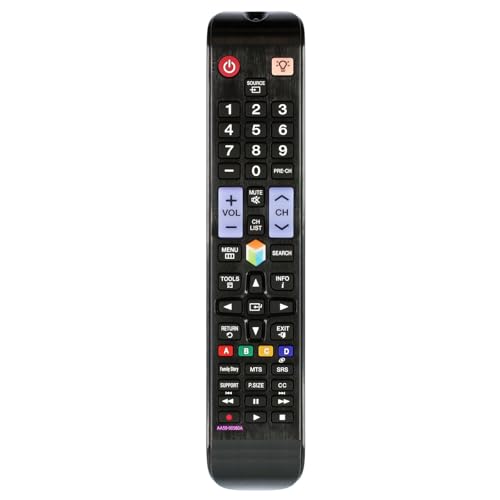
New Replaced Remote.

The replacement remote control compatible with samsung tv models: UN55EH6001F, UN55EH6001FXZA, AH01, CH02, UN55EH6001FXZATH03, UN55ES6003F, UN55ES6003FXZA, UN55ES6003FXZATS01, UN60EH6003F, UN60EH6003FXZA, UN60ES6003F, UN60ES6003FXZA, UN60ES6003FXZAHH01,LH32HDBPLGA, UN32EH4003FXZA, UN39EH5003FXZA, UN60EH6003FXZAHH01, H32B, H40B, H46B, LH32HDBPLGA/ZA, LH40HDBPLGA/ZA, LH46HDBPLGA/ZA, PN64E533D2F, PN64E533D2FXZA, UN32EH4003, UN32EH4003F, UN32EH4003FXZACH02, UN32EH4003FXZAEH01, UN32EH4003V, UN32EH4003VXZA, UN32EH4003VXZADH01, UN39EH5003, UN39EH5003F, UN39EH5003FXZACD01, UN39EH5003FXZAMD02, UN40ES6003F

New AA81-00243A Replaced Service Remote Control Applicable for Samsung TV
Battery Type
Samsung remotes typically use AA or AAA batteries. Standard models usually require two AA batteries, while smart remotes often need two AAA batteries. Always check the battery compartment of your remote for the exact requirements. Using the correct battery type ensures your remote functions properly.
Required Tools
- Batteries: Acquire fresh AA or AAA batteries based on your remote’s specifications.
- Screwdriver (optional): Some remote models may have a cover that requires a small screwdriver for access. Check the design before proceeding.
- Cleaning Cloth: Use a soft cloth to clean any dirt or debris in the battery compartment before installing new batteries.
These tools and materials are all you need for a hassle-free battery installation experience.
Step-By-Step Guide On How To Install Batteries In Samsung Remote
Replacing the batteries in your Samsung remote is a straightforward task. Follow these simple steps to ensure your remote is operational for your next viewing session.
Recommended Products
Specifications: Li-ion battery, Rated at 11.1V(10.8V Compatible) 5200mAh

new replaced remote; No need to set up;

New Replacement Remote Control AA59-00785A Applicable for SAMSUNG TV LT24D310NHL/ZA LT24D310NHLZA PN43F4500 PN43F4500AFXZA PN43F4550 PN43F4550AF PN43F4550AFXZA PN51F4500 PN51F4500AFXZA PN51F4550AF PN51F4550AFXZA PN51F5300 PN51F5300AFXZA PN51F5300BF PN51F5300BFXZA PN51F5350 PN51F5350AF PN51F5350AFXZA PN60F5300 PN60F5300AFX PN60F5300AFXZA PN60F5300BF PN60F5300BFXZA PN60F5350
Opening The Battery Compartment
- Locate the Battery Cover: Flip your remote over and find the battery cover on the back. It is usually a smooth rectangular area.
- Open the Cover: Slide or press the tab, depending on your remote model. Some remotes require a little pressure while others might need a gentle pull.
- Inspect for Debris: After removing the cover, look for any dirt or debris inside the compartment. Clean it with a soft cloth if needed.
Inserting The Batteries
- Identify Battery Type: Check the battery compartment for markings that indicate the battery type required. Most Samsung remotes use either AA or AAA batteries.
- Insert the Batteries:
- Make sure the positive (+) and negative (-) ends of the batteries align with the markings inside the compartment.
- Insert one battery, followed by the second, ensuring both fit snugly.
- Double-Check Orientation: Confirm that both batteries are positioned correctly before proceeding. Incorrect alignment can lead to power issues.
Closing The Battery Compartment
- Align the Cover: Place the battery cover over the compartment, ensuring it fits evenly.
- Secure the Cover: Slide the cover back into place until it clicks or press the tab until it locks. Ensure it’s secure and flush against the remote.
- Test the Remote: Point the remote at your device and press a button to verify functionality. If it doesn’t work, double-check the battery installation.
Troubleshooting Common Issues
Addressing common issues with your Samsung remote can help restore functionality quickly.
Recommended Products

【Wide Compatibility】 This premium voice remote is designed for All 2019–2026 Samsung TVs that support voice control. It is a perfect replacement for All 2019–2026 Samsung voice remotes. If your Samsung TV does not support voice control, that feature on this remote may not work.

【Package lncluded】 Pack of 2 remote. Two-pack remote control can solve your home backup remote control needs. Infrared remote no pairing or programming needed. Just Insert 2 Pcs*AAA batteries to get it work(Batteries and manual are not included)

【Universal Remote for Samsung TVs】Compatible with Samsung Crystal UHD, Neo QLED, QLED, OLED, Curved, Frame Smart TV Models — A replacement remote for all original Samsung TV remotes (Note: The Disney+ button on this remote may not function with TV models manufactured before 2022.)
Remote Not Working
If your remote’s not working, first check the battery installation. Ensure polarities match the markings inside the battery compartment. If installed correctly, test the remote by pointing it directly at the TV while pressing buttons. If there’s still no response, replace the batteries with a fresh set. Weak or dead batteries might not provide enough power for operation. Additionally, check for obstructions between the remote and the TV sensor. Finally, ensure you’re within range; typical effective distances are around 15-30 feet.
Battery Displacement
Battery displacement can occur during installation. If batteries seem loose or move around, recheck how they’re positioned. Ensure that the batteries fit snugly in their slots without any gaps. If there’s still movement, inspect the battery compartment for any debris or damage that might prevent a secure fit. If everything looks good but the batteries still don’t stay in place, consider using a piece of tape as a temporary fix, ensuring it’s secure but not blocking the battery contacts.
Conclusion
Getting your Samsung remote back in action is easier than you might think. With just a few simple steps you can replace those dead batteries and get right back to enjoying your favorite shows.
Remember to always check the battery type and ensure they’re installed correctly. If you run into any issues don’t hesitate to troubleshoot or even secure those batteries if they’re a bit loose.
Now that you know how to handle battery installation you can tackle any remote-related hiccup with confidence. So grab those fresh batteries and get ready for a seamless viewing experience!
Frequently Asked Questions
What should I do if my Samsung remote is not working?
If your Samsung remote isn’t working, first check the battery installation to ensure they are inserted correctly and are the right type. Test the remote’s response after replacing the batteries. Additionally, inspect the battery compartment for debris or damage that might affect functionality.
How do I know which batteries my Samsung remote needs?
Samsung remotes typically require either AA or AAA batteries. Standard remotes generally use two AA batteries, while smart remotes usually need two AAA batteries. Always check the battery compartment for the correct type before purchasing replacements.
What tools do I need to change the batteries in a Samsung remote?
To change batteries in most Samsung remotes, you primarily need new AA or AAA batteries. Depending on the remote model, you may also need a small screwdriver to open the battery compartment. A cleaning cloth is helpful for clearing any debris.
How can I prevent battery displacement in my remote?
To prevent battery displacement, ensure batteries fit snugly within the compartment and are properly aligned according to the polarity markings. If you notice loose batteries, you can use a small piece of tape to secure them temporarily while being careful not to block the contacts.
What types of Samsung remotes are available?
Samsung remotes come in various types, including standard, smart, and universal remotes. Standard remotes manage basic functions, smart remotes control smart TVs with advanced features like voice commands, and universal remotes are designed to operate multiple devices. Each type enhances user experience differently.
