

Ever found yourself jamming to your favorite tunes only to realize your Beats Solo 3 headphones are about to die? It’s frustrating when you’re in the groove and suddenly need to check your battery. Knowing how to quickly check the battery level can save you from those awkward moments and keep the music flowing.
Key Takeaways
- Battery Life: Beats Solo 3 headphones offer up to 40 hours of playback with a quick recharge capability of 3 hours from just a 5-minute charge.
- Battery Status Indicators: Check the battery level using LED lights; green means fully charged, while orange indicates a low battery.
- Device-Specific Methods: You can view the battery status via the Control Center on iOS, the Bluetooth menu on Mac, or through Bluetooth settings on Android devices.
- Beats App: Download the Beats app for an accurate battery percentage and enhanced settings management.
- Troubleshooting Tips: Common battery issues include rapid drain and charging problems; resetting, using different cables, and updating firmware can help.
- Battery Maintenance: To prolong battery life, avoid extreme temperatures, charge regularly, and clean charging ports, while keeping software updated.
Overview of Beats Solo 3 Battery Life
Beats Solo 3 headphones feature impressive battery life, providing up to 40 hours of listening time on a full charge. That means you can enjoy days of music without worrying about frequent recharging. Quick charging capabilities add convenience. With just a 5-minute charge, you gain up to 3 hours of playback.
Knowing the status of your battery is essential for uninterrupted listening. Your Beats Solo 3 uses LED lights to indicate battery level. When the headphones are on, look for the LED near the power button. A solid green light means you’re fully charged, while an orange light indicates lower battery levels.
To check the battery status on your paired device, follow these steps:
- iOS Device: Open the Control Center by swiping down from the top-right corner. Look for the battery widget that shows your Beats Solo 3 alongside the battery percentage.
- Mac: Click on the Bluetooth icon in the menu bar. Hover over your Beats Solo 3, and the battery status will appear next to the device name.
- Android Device: Open Bluetooth settings. Tap on your Beats Solo 3, and the battery percentage will be displayed.
Keeping track of your battery life ensures you’re always prepared, making your listening experience seamless.
Methods to Check Battery Level
You can easily check the battery level of your Beats Solo 3 headphones using various methods. Each method ensures that you stay informed about your battery status for uninterrupted listening.
Using the Beats App
You can download the Beats app from the App Store or Google Play Store. Open the app, then pair your Beats Solo 3 headphones. The app displays the current battery percentage on the home screen. This method provides an accurate reading and allows you to manage other settings as well.
Using iOS Devices
You have the option to check the battery level through your iOS device. Once your Beats Solo 3 are connected, open the Control Center by swiping down from the upper-right corner of the screen. The battery life icon will appear alongside your headphones’ name. Tapping on this icon shows the percentage of battery remaining.
Using Android Devices
For Android users, checking the battery level of your Beats Solo 3 headphones is also straightforward. Connect your headphones and go to the Bluetooth settings. Locate your Beats Solo 3 in the list of connected devices. Tap on it to reveal information, including the battery percentage. Some Android devices may also display battery status in the status bar when connected via Bluetooth.
Troubleshooting Battery Issues
Battery issues can interrupt your listening experience with Beats Solo 3 headphones. Identifying and resolving these problems quickly ensures you stay connected to your music.
Recommended Products

The battery is manufactured and tested under strict quality control standards before sent out
![KOOAQQ AEC353535 Battery, 680mAh [2026 Upgraded] High Capacity Li-Polymer Battery Replacement for Beats Solo 2, Solo 3 Wireless Headphones AEC353535 with Professional Tool Kits](https://m.media-amazon.com/images/I/41FaeH-sN+L._SL500_.jpg)
🎶【Compatible Model】: This AEC353535 Replacement Battery Suitable for all Beats Solo 2, Solo 3 Wireless Headphones Battery.
Common Battery Problems
- Rapid Drain: Battery drains faster than expected, often occurring after extended use.
- Inconsistent Performance: Difficulty in maintaining a stable connection may indicate battery issues.
- Charging Problems: Headphones won’t charge or show erratic charging behavior.
- Power On Issues: Unable to turn on the headphones, even when plugged in for charging.
- Reset Your Headphones: To reboot the system, hold down the power button and volume down button for 10 seconds.
- Check Charging Cable: Use a different charging cable to rule out problems with the original.
- Clean Charging Port: Inspect and clean the charging port gently to remove debris.
- Update Firmware: Ensure your headphones have the latest firmware by checking through the Beats app.
- Monitor Battery Life: Regularly check your battery status using the methods outlined earlier to catch battery issues early.
Tips for Maintaining Battery Health
Recommended Products

Professional charging cable for Beats by Dr Dre series. Note: only compatible with the "micro" headset and speaker charging jack.

【Compatibility】Beats Solo 3 Studio 2 3 Powerbeats 2 3 Wireless Headphones, Pill 2.0 Wireless Bluetooth Speaker More, etc.
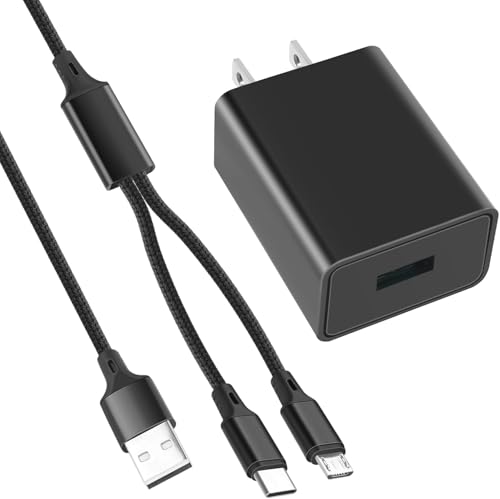
Multi-function and Universal :10W USB Power Adapter, 6.6FT(2Meters)Nylon Braided Cable ,with built-in Micro-USB, USB-C 2IN1 connectors, two ways to use, to solve your charging troubles. Note :the two tips are separated to get a micro-usb cable.
Avoid Extreme Temperatures
Keep your Beats Solo 3 headphones away from extreme heat and cold. High temperatures can damage your battery, while freezing conditions can reduce performance.
Charge Regularly
Charge your headphones when the battery level dips below 20%. Regular charging helps maintain battery health and prevents deep discharges that can harm capacity.
Use Official Chargers
Utilize official charging cables and adapters. Using third-party products can lead to improper charging, which affects battery lifespan.
Turn Off When Not in Use
Turn off your headphones when not in use. This saves battery power and extends the time between charges, allowing for more extended listening periods.
Update Firmware
Check for firmware updates periodically. Updates often include optimizations that can improve battery performance and overall functionality.
Clean Charging Ports
Keep charging ports clean and free of debris. Regularly inspect and gently clean the ports to ensure a good connection when charging.
Monitor Usage
Be aware of how often you use features like noise cancellation and transparency mode, as these can drain battery life. Consider reducing usage for longer listening times.
Enable Power-Saving Mode
Activate power-saving features when available. This can automatically adjust settings to maximize battery life when you need it most.
Store Properly
Store your headphones in a cool, dry place when not in use. Proper storage conditions help preserve battery health over time.
Conclusion
Keeping track of your Beats Solo 3 battery life can make all the difference in enjoying your favorite tunes without interruptions. By using the various methods mentioned you can easily check your battery status and stay informed.
Don’t forget the importance of maintaining your battery health too. Simple practices like avoiding extreme temperatures and using official chargers can help extend your headphones’ lifespan.
With a little care and attention you’ll be able to enjoy your music for longer while avoiding those frustrating low-battery moments. Happy listening!
Frequently Asked Questions
How do I check the battery level of my Beats Solo 3 headphones?
You can check your Beats Solo 3 battery level in several ways. Use the LED indicators on the headphones, check in the paired devices, or use the Beats app, which displays the battery percentage once connected. For iOS, access the Control Center. Android users can find the battery level in the Bluetooth settings.
How long does the battery last on the Beats Solo 3 headphones?
The Beats Solo 3 headphones offer an impressive battery life of up to 40 hours on a full charge, allowing for extensive listening without frequent recharging.
How do I troubleshoot battery issues with my Beats Solo 3 headphones?
If you face battery issues like rapid drain or charging problems, try resetting your headphones, checking the charging cable and port, updating firmware, and monitoring your battery life regularly.
What are some tips for maximizing battery health?
To maintain battery health, avoid extreme temperatures, charge when the battery is below 20%, use official chargers, turn off headphones when not in use, and keep the charging port clean. Regular updates and proper storage also help.
Can I use my Beats Solo 3 headphones while they are charging?
Yes, you can use your Beats Solo 3 headphones while they are charging. However, it’s recommended to not do this frequently, as it may affect long-term battery health.
