

Key Takeaways
- Understanding Battery Health: Battery health affects your Lenovo laptop’s performance and lifespan; key indicators include cycle count, capacity, and voltage.
- Checking Battery Health: Use Windows Settings, Command Prompt, or Lenovo Vantage to assess your battery health effectively.
- Interpreting Results: Focus on metrics such as cycle count, design capacity vs. full charge capacity, and wear level to assess battery condition.
- Good Battery Health Percentage: A health percentage above 80% indicates good performance; below 50% may require battery replacement.
- Maintenance Tips: Optimize charging habits, avoid extreme temperatures, update software regularly, and disconnect external devices to prolong battery life.
- Regular Monitoring: Check battery health frequently to stay informed and address any potential issues proactively.
Ever wondered why your Lenovo laptop isn’t holding a charge like it used to? You’re not alone. Many users face battery issues as their devices age, leading to frustrating moments when you need your laptop the most.
Understanding Battery Health
Battery health refers to the overall condition of your Lenovo laptop’s battery. It affects performance, charge capacity, and lifespan. Understanding this health helps you manage battery issues effectively.
Key Indicators of Battery Health
- Cycle Count: This number shows how many times your battery underwent a full charge and discharge. Higher cycle counts usually indicate more wear.
- Capacity: This measures the current maximum charge your battery can hold, usually expressed as a percentage of its original capacity. A significant drop suggests deterioration.
- Voltage: This indicates the electrical potential. An abnormal voltage can point to battery issues.
Checking Battery Health on Your Lenovo Device
- Using Windows Settings:
- Open Settings.
- Navigate to System > Battery.
- Check the battery usage and performance stats.
- Applying Command Prompt:
- Click the Windows icon and type “cmd.”
- Right-click Command Prompt and select “Run as administrator.”
- Type
powercfg /batteryreportand press Enter. - Find the report in the specified file path, typically in the “Users” folder.
- Utilizing Lenovo Vantage:
- Download and install Lenovo Vantage from the Microsoft Store.
- Launch the app and go to the “Power” section.
- Review health indicators and recommended actions.
Practical Tips for Maintaining Battery Health
- Avoid Extreme Temperatures: Keep your laptop away from excessive heat and cold. Ideal operating temperatures range from 50°F to 95°F (10°C to 35°C).
- Optimize Charging Habits: Charge between 20% and 80%. Full discharges can reduce battery lifespan.
- Update Software Regularly: Keep your operating system and drivers updated. These updates often include performance improvements for battery management.
Anticipating Common Battery Questions
- What should I do if my battery health is low? Consider replacing the battery or seeking professional assistance.
- How often should I check my battery health? Regular checks every few months can help track changes and prevent major issues.
Methods to Check Lenovo Battery Health
You can assess your Lenovo laptop’s battery health through several efficient methods. Each method offers insights into the battery’s condition, helping you maintain optimal performance.
Using Lenovo Vantage
- Download Lenovo Vantage: If not already installed, download it from the Microsoft Store.
- Open the Application: Launch Lenovo Vantage on your device.
- Navigate to Device Settings: Click on the “Device” tab located on the left sidebar.
- Select Power: Click on “Power” to view battery health information.
- Check Battery Status: Review details like cycle count and estimated battery life. This section provides an overall health score.
Using Windows Settings
- Open Settings: Click on the Start menu, then select Settings (the gear icon).
- Go to System: Select the “System” option.
- Choose Battery: Click on “Battery” from the left sidebar.
- Battery Usage by App: Scroll down to view how different applications affect battery life.
- Advanced Battery Settings: Access any available options to gain additional insights, like battery saver settings and notifications.
Using Command Prompt
- Open Command Prompt: Type “cmd” in the Windows search bar and select Run as administrator.
- Generate Battery Report: Input the command
powercfg /batteryreportand press Enter. This command creates a detailed report. - Locate the Report: Find the report saved in a specified directory, usually C:\Users\YourUsername\battery-report.html.
- Review the Report: Open the HTML file in a browser. You’ll see an overview of battery health, usage statistics, and capacity.
By using these methods, you can effectively monitor your Lenovo laptop’s battery health, ensuring it performs at its best.
Interpreting Battery Health Results
Understanding your Lenovo battery health results can guide effective maintenance and usage. Focus on key metrics and percentages to assess your battery’s condition accurately.
Recommended Products

ENHANCED VISUAL EXPERIENCE: Immerse yourself in vibrant FHD resolution with the Lenovo L15 Monitor that boasts stunning clarity and detail


Key Metrics to Consider
- Cycle Count: The number of complete charge cycles your battery has gone through. A higher cycle count indicates more wear, often correlating with reduced battery performance.
- Design Capacity vs. Full Charge Capacity: Design capacity represents the battery’s original capacity, whereas full charge capacity shows its current maximum. A significant difference highlights capacity degradation.
- Voltage: Check the voltage reading. Normal voltage levels indicate proper functioning, while consistently high or low values might suggest issues.
- Estimated Time Until Fully Charged: This number gives insight into charging speed. Increased charging time could signal declining health.
- Wear Level: This percentage reflects the battery’s health. A wear level above 20% suggests noticeable degradation.
What Is a Good Battery Health Percentage?
A battery health percentage above 80% typically indicates good performance. Most Lenovo laptops remain functional and efficient with percentages in this range. If your battery health drops below 80%, consider evaluating charging habits and implementing maintenance strategies. Percentages below 50% signal significant wear and may require battery replacement to ensure optimal device performance. Always aim for consistent monitoring to avoid unexpected issues.
Tips for Improving Battery Health
- Avoid Extreme Temperatures
Keep your Lenovo laptop between 50°F and 95°F. Extreme heat can lead to faster battery wear, while cold temperatures may cause it to discharge rapidly.
- Optimize Charging Habits
Charge your battery between 20% and 80%. Avoid letting it drain all the way to 0% or charging it to 100% regularly. This practice helps extend battery lifespan.
- Utilize Battery Saver Mode
Activate battery saver mode when your device is low on power. This feature minimizes background activity and extends usage time.
- Disconnect External Devices
Unplug peripherals like USB devices and external drives when not in use. These can draw power even when you’re not actively using them.
- Update Software Regularly
Maintain the latest drivers and operating system updates. Updates often include optimizations that improve battery performance.
- Adjust Screen Brightness
Lower screen brightness to a comfortable level. A brighter screen consumes more power, draining your battery faster.
- Manage Background Applications
Close unnecessary apps running in the background. Apps that constantly perform tasks can lead to increased battery drain.
- Check Battery Health Frequently
Regularly monitor your battery health using tools like Lenovo Vantage. This helps you stay informed about your battery’s condition and take action if necessary.
- Consider Battery Replacement
If your battery health falls below 50%, consider replacing it. A new battery can significantly enhance your laptop’s performance and usability.
- Use Hibernation Instead of Sleep
Choose hibernation over sleep mode when you won’t use your laptop for a while. Hibernation saves your session without using battery power.
Recommended Products
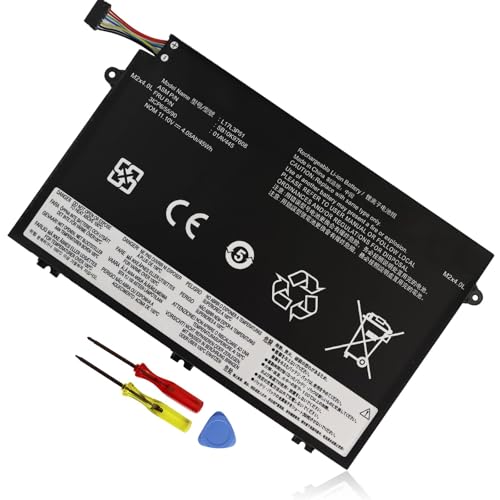
REPLACE BATTERY PART : 01AV445 01AV446 01AV447 01AV448 L17L3P51 L17M3P51 L17M3P52 L17C3P51 SB10K97606 SB10K97607 SB10K97608 SB10K97609 5B10W13887 5B10W13888 5B10W13889 5B10W13890

【Specifications】Battery Voltage: 15.36V. Capacity: 45Wh. Cells: 6-Cells. Battery life: Up to 500 recharge cycles over the life of the battery.

♣Battery type: Li-ion; Capacity: 2600mAh Voltage: 14.8V;Cells: 4-cell. The battery is durable and has overcurrent protection, anti-overcharge, anti-overdischarge and temperature control functions.
Conclusion
Checking your Lenovo battery health is a simple yet essential task that can help you maintain your laptop’s performance. By staying informed about your battery’s condition you can avoid unexpected shutdowns and extend its lifespan.
Remember to use the tools available like Lenovo Vantage and Windows Settings to get a clear picture of your battery’s status. Regular monitoring will empower you to take proactive steps in maintaining your battery health.
With a few smart practices you can keep your laptop running smoothly and enjoy a reliable experience for years to come. So keep an eye on those metrics and make battery care a part of your routine!
Frequently Asked Questions
What does battery health mean for Lenovo laptops?
Battery health refers to the overall condition of your Lenovo laptop’s battery. It impacts how well the battery performs, its capacity to hold a charge, and its lifespan. Understanding battery health helps you maintain optimal performance and avoid sudden failures.
How can I check the battery health on my Lenovo laptop?
You can check battery health using Lenovo Vantage, Windows Settings, or Command Prompt. Lenovo Vantage provides detailed statistics about cycle count and estimated battery life. In Windows Settings, you can explore battery usage and advanced settings, while Command Prompt generates a comprehensive battery report for review.
What are the key indicators of battery health?
Key indicators of battery health include cycle count, capacity, and voltage. Cycle count tracks the number of complete charge cycles, while capacity reflects the current charge storage ability compared to the design capacity. Voltage helps assess the battery’s electrical performance.
How often should I check my laptop’s battery health?
It’s advisable to check your laptop’s battery health regularly, at least once every few months. Frequent monitoring helps you identify potential issues early, allowing you to take necessary action and maintain optimal performance.
What should I do if my Lenovo laptop battery health is low?
If your battery health is low (below 50%), consider replacing the battery for better performance. Additionally, implement battery maintenance practices like adjusting charging habits and keeping the laptop within recommended temperature ranges to prolong its lifespan.
