

Key Takeaways
- Common Causes of Battery Drain: Background apps, high screen brightness, and active location services are primary culprits leading to quicker battery depletion on Samsung Galaxy devices.
- Practical Tips for Extension: Adjust your screen brightness, enable battery saver mode, and manage location settings to significantly reduce battery usage.
- App Management: Regularly close background apps, uninstall unused applications, and restrict background data to conserve battery life effectively.
- Monitoring and Maintenance: Utilize the battery usage statistics feature to identify power-hungry apps and consider replacing your battery if experiencing rapid drain, frequent shutdowns, or overheating.
- Usage Habits: Limiting the use of widgets and live wallpapers can also contribute to longer battery life on your device.
Ever find yourself reaching for your Samsung Galaxy, only to discover the battery’s already drained? You’re not alone. Many users face this frustrating issue, wondering why their phones seem to lose power at lightning speed.
In this article, we’ll explore some common reasons behind your phone’s rapid battery drain. You’ll gain insights into settings you can tweak and habits you can change to help extend your battery life. By the end, you’ll have practical tips to keep your device running longer, so you can stay connected without constantly worrying about charging.
Understanding Battery Drain Issues
Samsung Galaxy phones face various battery drain issues that affect their performance. Understanding these factors can help you mitigate the problem.
Common Causes of Battery Drain
- Background Apps: Many apps run in the background. They consume battery power while updating information or receiving notifications.
- Screen Brightness: High screen brightness settings significantly increase battery usage. Lowering brightness can extend battery life.
- Location Services: GPS and location-based services drain battery quickly. Turning off these services when not needed helps conserve power.
- Connectivity Features: Widgets for Wi-Fi, Bluetooth, and mobile data can continuously search for connections. Disable them when not in use.
- Outdated Software: An outdated operating system can cause compatibility issues that lead to battery drain. Regular updates optimize performance.
Practical Tips for Reducing Battery Drain
- Limit Background Data: Restrict background data usage for apps to save battery life.
- Adjust Display Settings: Set the display to auto-brightness or adjust it manually based on the environment.
- Manage Location Access: Change your location settings to “Battery Saving” mode or turn it off when not essential.
- Optimize Battery Usage: Use the device’s built-in battery optimization features found in settings. This helps regulate app activity.
- Reduce Widget Usage: Use fewer home screen widgets. Each widget consumes battery power for updates.
Monitoring Battery Health
- Battery Usage Statistics: Check the battery usage section in settings. It provides insights into which apps consume the most battery.
- Battery Saver Mode: Activate Battery Saver Mode when the battery level gets low. This feature limits background activity and reduces performance to save power.
Understanding these elements and making simple adjustments can significantly enhance your Samsung Galaxy’s battery life, letting you stay connected longer without frequent recharging.
Common Reasons for Fast Battery Drain
Samsung Galaxy devices may lose battery life quickly due to several common factors. Understanding these reasons can help you manage your battery usage more effectively.
Recommended Products
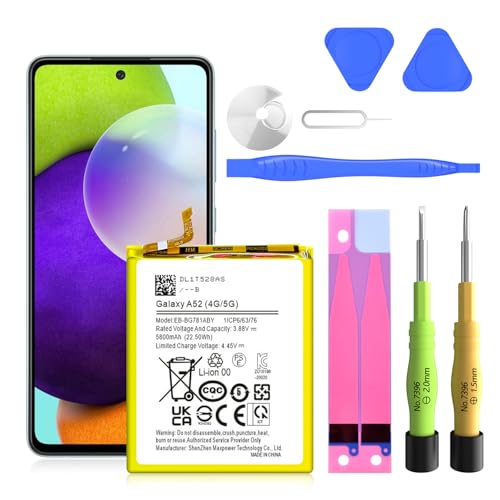
✅SHENMZ Galaxy A52 Battery Replacement ONLY Work For Model Samsung Galaxy A52/A52S (4G/5G) SM-A526 SM-A526B/DS SM-A5260 EB-BG781ABY. Note: Galaxy A52 Battery ,NOT for Other Samsung Model. Please Confirm Your Phone Model From Phone Back Cover to Avoid Wrong Order.[Not for Galaxy other Phone Models.]

Background Apps and Services
Background apps consume battery by running processes even when you’re not using them. Apps like social media, music streaming, and messaging often remain active. To reduce battery drain, regularly check your app settings and stop unnecessary applications from running in the background. You can access this through Settings > Apps to see which apps are active and manage their background activity.
Screen Brightness and Duration
Screen brightness significantly impacts battery life. Higher brightness settings use more power, especially if your screen stays on for long periods. To save battery, consider lowering the brightness through Settings > Display or enabling adaptive brightness, which automatically adjusts based on your environment. Reducing the screen timeout duration also helps; set it to 30 seconds or 1 minute under the same display settings.
Location Services and GPS
Location services can drain your battery quickly, particularly when GPS is in use. Everyday apps like maps and social media often require location access. To minimize battery usage, limit location access to crucial apps only. Navigate to Settings > Location and review which apps have access. You can toggle location services for specific apps or set it to use location only while you’re using the app.
Tips to Improve Battery Life
You can enhance your Samsung Galaxy’s battery life by adjusting settings and managing apps effectively.
Adjusting Settings
- Lower Screen Brightness: Setting your brightness to automatic or reducing it manually saves battery. Aim for around 50% brightness for daily use.
- Reduce Screen Timeout: Change your screen timeout to 30 seconds or 1 minute. This limits the time the display stays on when not in use.
- Limit Location Services: Choose “While Using the App” instead of “Always” for apps that require location access. This cuts GPS drain.
- Turn Off Connectivity Features: Disable Bluetooth, Wi-Fi, and Mobile Data when not needed. Use Airplane Mode during flights or in areas with no signal.
- Activate Battery Saver Mode: Enable this mode in settings when your battery percentage is low. It reduces background activity and adjusts performance.
Managing Apps
- Close Background Apps: Regularly check your recent apps and close those you don’t actively use. This prevents unnecessary battery use.
- Uninstall Unused Apps: Keep only apps you actively use. Uninstall those hogging resources without providing value.
- Check App Battery Usage: Navigate to Settings > Battery > Battery Usage to identify power-hungry apps. Consider alternatives or limit their usage.
- Restrict Background Data: Go to Settings > Connections > Data Usage, and restrict background data for less important apps. This reduces their activity when not in use.
- Limit Widgets and Live Wallpapers: Minimize the number of widgets on your home screen. Use static wallpapers instead of live ones to save battery.
Implementing these tips helps improve your Samsung Galaxy’s battery life, keeping you connected longer without frequent charging.
When to Consider Battery Replacement
You might want to replace your Samsung Galaxy’s battery if you’re experiencing significant performance issues. Here are key indicators to look for:
- Rapid Battery Drain: If your battery loses charge quickly, even with minimal usage, consider replacement.
- Frequent Shutdowns: Sudden shutdowns, particularly when there’s an adequate charge left, signal potential battery failure.
- Overheating: Excessive heat during charging or normal use can indicate battery trouble. If your phone gets unusually hot, replacement could be necessary.
- Swelling: Physical signs such as swelling or bulging of the battery indicate a serious issue that requires immediate attention.
- Age of the Battery: Batteries typically last 1-3 years. If yours is approaching this age and shows performance degradation, a replacement may be warranted.
If you notice any of these signs, it’s wise to consult with a professional or visit a Samsung service center for assessment. Replacing the battery can rejuvenate your device and extend its lifespan.
Recommended Products

✾Compatible Models: This Battery Suitable for all Galaxy S5 variants.Compatible with SM-G900 Series, SM-G900A, SM-G900P, SM-G900V, SM-G900T, SM-G900F, SM-G900H, SM-G900R4, SM-G900TR, SM-G900W8, SM-G900BVB, i9600, EB-BG900BBC EB-BG900BBU EB-BG900BBE/ for Samsung Galaxy S5 Active SM-G870.

COMPATIBILITY: The battery model is EB-BR880ABY, it is only compatible with Samsung Galaxy Watch 4 (40 mm), SM-R860 SM-R865 series and Galaxy Watch 4 Classic (42mm) SM-R880 SM-R885, please carefully confirm the model of your smartwatch before purchase.
![SHENMZ Galaxy S4 Battery,[Upgraded] 4800mAh Li-Polymer EB-B600BE Replacement Battery for Samsung Galaxy S4 EB-B600BE,AT&T I337,Verizon I545,Sprint L720,T-Mobile M919,R970,I9500,I9505](https://m.media-amazon.com/images/I/41u6ukbbdkL._SL500_.jpg)
❤【HIGH QUALITY,TRUSTWORTHY PREMIUM BATTERY】:This Galaxy S4 replacement battery uses Grade A+ rated battery cells with CE and ROHS certification,ensure last over 1200 charge cycles. Multiple-protection for safer operation for both user and devices,build-in microchip to prevent over-charging,over-discharging and over-heating.
Conclusion
Dealing with rapid battery drain on your Samsung Galaxy can be frustrating but you’re not alone in this. By making a few adjustments to your settings and being mindful of your app usage, you can significantly improve your battery life.
Remember to keep an eye on background apps and adjust your screen brightness. Limiting location services and turning off connectivity features when they’re not in use can also help. If you’re still struggling with battery issues even after trying these tips, it might be time to consider a battery replacement.
With a little effort, you can keep your Galaxy charged longer and enjoy your device without constantly worrying about the battery.
Frequently Asked Questions
What causes rapid battery drain in Samsung Galaxy phones?
Rapid battery drain can be caused by multiple factors, including background apps running processes, high screen brightness, active location services, and outdated software. Identifying these issues can help manage battery life effectively.
How can I reduce battery usage from background apps?
To reduce battery usage from background apps, regularly check app settings to close unnecessary applications. You can also uninstall apps you don’t use or restrict background data for less important apps to conserve battery life.
What screen settings should I adjust to save battery?
To save battery, lower your screen brightness to around 50% and reduce the screen timeout duration to 30 seconds or 1 minute. These adjustments significantly impact battery longevity while using your Samsung Galaxy phone.
How do location services affect battery life?
Location services, particularly GPS, can quickly drain your battery. To minimize this impact, limit location access to essential apps and set location services to “While Using the App” instead of allowing background access.
What is Battery Saver Mode, and when should I use it?
Battery Saver Mode is a feature that reduces background activity and limits app performance to extend battery life. It’s recommended to activate this mode during low battery situations to help keep your device running longer.
When should I consider replacing my Galaxy phone battery?
Consider replacing your battery if you experience rapid battery drain, frequent shutdowns, overheating, or visible swelling. These signs often indicate that the battery is aging and failing, and professional assessment is advised.
