

Key Takeaways
- Access Battery Status Easily: Check your Samsung phone’s battery status by navigating to Settings > Battery and Device Care > Battery for detailed information on usage and health.
- Understand Key Metrics: Familiarize yourself with important battery metrics, including remaining charge, usage patterns, and overall battery health to manage power consumption effectively.
- Utilize Battery Saver Mode: Activate Power Saving Mode to extend battery life during critical times, adjusting settings like brightness and background activity to conserve power.
- Regular Health Checks: Make it a routine to review battery health indicators such as capacity, charging cycles, and usage patterns to ensure optimal performance and longevity of your device.
- Address Common Issues: Troubleshoot problems like rapid battery drain, overheating, and inaccurate battery percentage by exploring settings, uninstalling power-hungry apps, and ensuring software is up to date.
- Monitor in Real-Time: Leverage Samsung’s built-in device care feature for continuous battery monitoring and optimization to enhance performance and prevent unexpected shutdowns.
Ever found yourself wondering why your Samsung phone dies unexpectedly? You’re not alone. Many people face the frustration of a dwindling battery without any warning. Knowing how to check your battery status can save you from those inconvenient surprises and help you manage your device better.
Overview of Samsung Battery Status
You can easily check your Samsung device’s battery status to understand its health and performance. Here’s how to access this vital information.
Accessing Settings
- Open Settings: Swipe down from the top of your screen, then tap the gear icon.
- Select Battery and Device Care: Scroll to find this option in your settings menu.
- Choose Battery: Tap on the Battery option to view detailed battery information.
Understanding Battery Metrics
Within the Battery section, you’ll see several key metrics:
- Remaining Charge: This shows how much battery life is left, displayed as a percentage.
- Usage Pattern: You’ll find a breakdown of apps and features consuming battery power.
- Battery Health: This indicates the overall condition of your battery, helping you determine if it requires replacement.
Utilizing Battery Saver
Activate Battery Saver mode to conserve energy. Follow these steps:
- Return to the Battery menu: In your settings.
- Select Power Saving Mode: Toggle this option to enable it. You’ll see options to adjust settings, like reducing screen brightness or limiting background activity.
Checking Battery Health and Usage
To gain more insights:
- Tap on “More Battery Settings” within the Battery section.
- Check App Usage: See which apps drain the most battery. Tap on an app for details like “Last Full Charge” and “Screen On Time.”
Real-time Battery Monitoring
Consider using Samsung’s built-in device care feature for ongoing battery monitoring:
- Go back to Battery and Device Care.
- Select Optimize Now: This function checks performance and identifies any issues affecting your battery.
Regularly checking your battery status can extend your device’s lifespan and improve overall performance.
Methods to Check Battery Status
You can check your Samsung device’s battery status easily using built-in options. Here are two effective methods:
Using Device Settings
- Open Settings: Start by tapping the gear icon on your home screen or app drawer.
- Select Battery and Device Care: Scroll down and find the “Battery and Device Care” option, then tap it.
- Tap on Battery: You’ll see a “Battery” option in this menu. Select it to view your battery’s current charge level along with usage statistics.
- Review Battery Usage: Scroll down to see which apps consume the most power. This information helps you manage app behavior and conserve battery life.
Using Samsung Members App
- Download Samsung Members: If you haven’t yet, download the Samsung Members app from the Galaxy Store or Google Play Store.
- Open the App: Launch the Samsung Members app on your device.
- Access Diagnostics: Tap on the “Get help” tab at the bottom, then select “Battery status” from the diagnostics options.
- Check Battery Health: Review the battery health status and other relevant information to assess your battery’s performance over time.
These methods provide a straightforward way to monitor battery status, ensuring efficient device usage and optimized performance.
Understanding Battery Health
Battery health represents the overall condition of your Samsung device’s battery. Regularly checking this status aids in maintaining optimal performance and extending battery lifespan.
Recommended Products
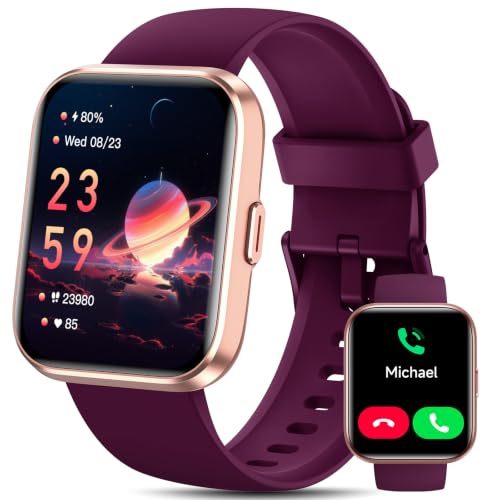
【24H Health Monitor & Sleep Analysis】ENOMIR smart watches for women equipped with advanced sensors for all day health monitoring such as heart rate, stress, sleep monitoring and generate a sleep analysis report (Deep/Light Sleep/Wake), helping you develop a healthier lifestyle with professional data-driven guidance. The thoughtful stress monitoring function, which helps you better relieve stress and relax yourself in a fast-paced and stressful society!

【Call Receiving/Dialing & Alexa Built-in】Directly use this smart watch with text and call to make and answer calls through the built-in microphone. Stay connected to SMS and app notifications (Facebook, WhatsApp, Instagram, etc.). With Amazon Alexa on your wrist, you can control music, check the weather, and set alarms hands-free just by speaking to your watch. (Message reply is not supported).

Key Indicators of Battery Health
- Battery Capacity: Measures the remaining charge as a percentage. A lower capacity indicates deterioration.
- Charging Cycles: Tracks how many times your battery has been fully charged and discharged. More cycles typically lead to reduced life.
- Temperature: Keeps an eye on temperature readings. Extreme heat can shorten battery life significantly.
- Battery Usage: Shows how apps and services drain power. Monitoring this helps identify the main culprits behind quick depletion.
Importance of Monitoring Battery Status
Monitoring battery status allows you to enjoy seamless device performance. Recognizing patterns in usage can help you adjust settings and habits to improve battery life. Regular check-ups prevent unexpected shutdowns, ensuring you remain connected when it matters most.
Troubleshooting Common Battery Issues
Checking for battery issues can help you maintain your Samsung device’s performance. Here’s how to identify and address common battery problems.
Recommended Products

10 Precision Tools in One Kit :This phone cleaning kit packs 10 ultra-slim nylon brushes plus integrated hook tips that sweep & lift lint, dust and even pet hair fromUSB-C and 3.5 mm ports,Soft material prevents phone scratches
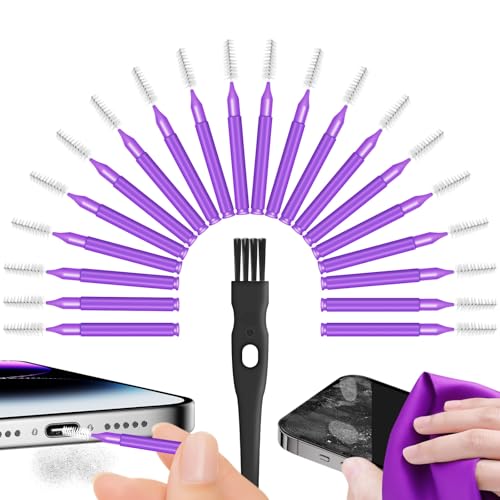
Complete 22-in-1 Port Cleaning Solution - Say goodbye to "Charging Paused" or "Accessory Not Supported" errors. This 22-in-1 phone charging port cleaning kit includes 20 professional charger port cleaning brushes, a precision detail brush, and a microfiber cleaning cloth. It is the ultimate cell phone port cleaner designed to restore your device's connectivity in seconds by removing stubborn pocket lint and debris

USB C Dust Covers: Designed for smartphones/earbuds/tablets/laptop devices with USB C charging port, compatible with iPhone 18/17/16/16 Plus/16 Pro/16 Pro max/16e, iPhone 15/15 Pro/15 Plus/15 Pro Max, for Samsung Galaxy S25/S25+/S25 Ultra/S24/S24+/S24 Ultra/S23/S23+/S23 Ultra/S22/S22+/S22 Ultra/S21 FE/S21/S21+/S21 Ultra/S20 FE/S20 Ultra/S20 Plus/S20, Pixel 9/8/7/6/5, Macbook, Laptop and more.
1. Unresponsive Battery
- If your device doesn’t charge or stay charged, inspect the charging cable and adapter for damage.
- Clean the charging port with a dry, soft brush or a toothpick to remove any debris.
- Try a different charging cable or outlet to rule out faults with the charger.
2. Rapid Battery Drain
- Access Settings > Battery and Device Care > Battery. Review battery usage stats to see which apps consume the most power.
- Disable or uninstall any power-hungry apps that aren’t essential. You can also limit background activity for specific apps.
- Activate Battery Saver mode to extend battery life during high usage times.
3. Overheating
- If your device feels hot during charging or use, remove any cases that can trap heat.
- Close unused apps running in the background through Settings > Apps.
- Avoid using your device in extreme temperatures, which can negatively impact battery health.
4. Inaccurate Battery Percentage
- Restart your device to refresh the battery stats, which may resolve discrepancies in the charge level.
- Calibrate the battery by allowing it to drain fully and then charging it back to 100% without interruptions.
5. Software Updates
- Ensure your device runs the latest software version for optimal battery performance. Navigate to Settings > Software update to check and install updates.
- Updates often include fixes for battery management issues.
6. Using Power Saving Features
- Implement features like Power Save Mode or Adaptive Battery. Go to Settings > Battery and Device Care > Battery to enable these features.
- Use Device Care for recommendations to optimize battery usage based on your habits.
By addressing these common issues, you can enhance your Samsung device’s battery performance and lifespan.
Conclusion
Keeping an eye on your Samsung’s battery status is key to a smooth experience. By regularly checking the battery health and usage patterns you can prevent those frustrating moments when your phone unexpectedly shuts down.
Utilizing the Device Settings and Samsung Members app makes it easy to stay informed about your battery’s condition. Remember to take advantage of Battery Saver mode and monitor app usage to maximize your device’s performance.
With a little attention to your battery, you can enjoy longer-lasting power and keep your device running at its best. Stay connected and make the most of your Samsung experience!
Frequently Asked Questions
How can I check the battery status on my Samsung phone?
To check the battery status on your Samsung phone, go to Settings > Battery and Device Care. Here, you’ll find detailed information about your battery health, usage patterns, and remaining charge. This allows you to monitor your device’s performance effectively.
What is Battery Saver mode, and how do I activate it?
Battery Saver mode helps extend your device’s battery life by limiting background activities and reducing overall power consumption. To activate it, go to Settings > Battery and Device Care, then select Battery and toggle on Power Saving Mode.
What factors indicate my battery health?
Battery health is determined by several factors, including battery capacity, charging cycles, temperature, and app usage. Regularly monitoring these indicators helps you maintain optimal device performance and extend your battery’s lifespan.
How do I check which apps drain the most battery?
To identify battery-draining apps, go to Settings > Battery and Device Care, then choose Battery and select Usage Data. This section displays a list of apps and their battery consumption, allowing you to manage them effectively.
What troubleshooting steps should I take for rapid battery drain?
For rapid battery drain, try the following steps: check for unresponsive apps, inspect charging equipment, manage app usage, enable power-saving features, and ensure your software is updated. These actions can help improve battery efficiency and longevity.
Can the Samsung Members app help with battery issues?
Yes, the Samsung Members app can be used to check battery health and performance over time. It provides insights into your device’s battery status and can help you recognize and manage battery-related issues effectively.
