

Key Takeaways
- Identify Battery Drain Causes: Common issues include high screen brightness, location services, background apps, and outdated software, which can significantly impact battery life.
- Optimize Screen Settings: Adjust brightness manually or enable Adaptive brightness, set a shorter display timeout, and reduce settings when indoors to conserve battery.
- Manage Background Activity: Limit active background apps, force stop unnecessary ones, and restrict background data to minimize power consumption.
- Utilize Battery Saver Features: Activate Battery Saver Mode and Adaptive Battery to optimize performance by limiting background activity and prioritizing frequently used apps.
- Smart Charging Practices: Use official chargers, avoid overnight charging, charge in short bursts, and enable Adaptive Charging to improve battery health and longevity.
- Control Location Services: Disable location services when not in use, choose Battery-saving mode for location tracking, and restrict location access for specific apps to prevent unnecessary drain.
Are you tired of your Google Pixel running out of battery when you need it most? You’re not alone. Many users face the frustration of watching their battery percentage drop faster than expected, especially during busy days or while traveling.
Understanding Battery Drain On Google Pixel
Battery drain on your Google Pixel can occur for several reasons. Identifying the causes helps you manage battery life more effectively.
Common Causes of Battery Drain
- Screen Brightness: High brightness settings consume more energy. Lowering it can extend battery life.
- Location Services: Constant GPS use drains battery. Disable location services when not needed.
- Background Apps: Apps running in the background can deplete your battery. Regularly check which apps are active.
- Push Notifications: Frequent notifications from apps lead to increased power use. Adjust notification settings to reduce interruptions.
- Outdated Software: Older software may not run efficiently. Keeping your device updated optimizes performance and battery usage.
How Usage Affects Battery Life
- Video Streaming: Streaming video consumes significant power. Limiting streaming time can help preserve battery.
- Gaming: Resource-intensive games lead to rapid battery depletion. Opt for less demanding games when battery life is a concern.
- Social Media: Frequent checking and refreshing social media apps can drain your battery. Consider reducing activity or using web versions.
- Connectivity: Leaving Wi-Fi, Bluetooth, or mobile data on when not in use can draw battery. Turn off connectivity features when they’re not needed.
- Widgets: Widgets on your home screen can use battery for constant updates. Remove unnecessary widgets to save power.
Tips For Saving Battery On Google Pixel
You can extend your Google Pixel’s battery life by implementing some practical strategies. Here are effective methods to optimize your device’s performance.
Recommended Products

【1. Brand New 0 Cycle – Not a Pulled Battery】 100% new cells, 0 charge cycles. Absolutely not a pulled or used battery. Capacity is 4614mAh, matching original specifications, ensuring reliable daily battery life.

✅【4575mAh High-Capacity Replacement】Restore your Google Pixel 8 battery life with a 4575mAh lithium-polymer cell. Matches OEM model GS35E specification with 3.89V voltage and 17.79Wh watt-hour for stable, reliable power output.

【Why Don't Sell Increased Capacity Battery 】- Because most of the so-called upgraded batteries on the market are exaggerated, the actual use time does not increase much, but the price is expensive. Our battery capacity and voltage is 100% same as your original Pixel 6 battery, it is a real 4614mAh can be perfectly compatible with the motherboard of your phone, and will not damage the hardware and reduce the service life of phone, true to providing long-lasting battery life.
Adjusting Screen Brightness
Adjust your screen’s brightness to reduce battery consumption.
- Set to Adaptive: Enable Adaptive brightness in your display settings. This feature adjusts brightness based on your surroundings.
- Lower Brightness Manually: Use the quick settings menu to decrease brightness when indoors or in low-light environments.
- Reduce Display Timeout: Set your screen timeout to 30 seconds or 1 minute. This minimizes the time your display stays active without use.
Managing Background Apps
Limit the number of apps running in the background to save battery life.
- Review Background Activity: Open your device’s settings, navigate to Apps, and check which apps consume the most battery.
- Force Stop Unnecessary Apps: Close apps you don’t use often. This prevents them from using power in the background.
- Disable Background Data: Restrict background data for specific apps in the Data usage settings to avoid unnecessary battery drain.
By taking these steps, you can manage your Google Pixel’s battery usage effectively.
Advanced Settings To Extend Battery Life
Boosting your Google Pixel’s battery life involves utilizing advanced settings. Explore these features to help maximize your battery performance.
Recommended Products

Perfect Compatibility: Specially designed for Pixel 7. Note: This battery is not compatible with Pixel 7 Pro or Pixel 7A. Please double-check your device model before purchasing.
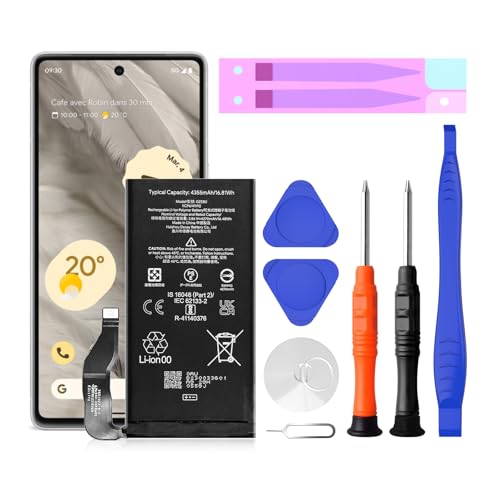
【Pixel 7 battery replacement 】quality battery replacement for Google Pixel 7 perfect fit your phone. It is safer than so-called upgraded high-capacity batteries. No potential risks during use. Multiple protection features to prevent overcharging and prevent overheating. Built-in microchip to ensure safe battery charging and improve battery life. NOTE: Please fully charge and discharge your new battery 3 to 5 cycles to release all capacity of the new battery.

Designed exclusively for Pixel 7A variants: GWKK3, GHL1X, G0DZQ, G82U8. Double-check your device's model (found under Settings > About Phone) to ensure perfect fitment.
Battery Saver Mode
Activate Battery Saver Mode when your battery percentage drops. This feature limits background processes, reduces visual effects, and restricts app activity until charging resumes.
To enable Battery Saver Mode:
- Open Settings.
- Select Battery.
- Tap Battery Saver.
- Toggle the switch to On.
Battery Saver Mode adjusts automatically in emergencies, but you can set a custom percentage to trigger it earlier.
Adaptive Battery Features
Adaptive Battery learns your usage patterns over time, optimizing power consumption. It prioritizes power for frequently used apps and limits resources for apps you rarely use.
To enable Adaptive Battery:
- Open Settings.
- Select Battery.
- Tap Adaptive Battery and toggle it On.
This feature helps your Google Pixel use energy more efficiently, extending battery life between charges. Benefit from reduced battery drain without sacrificing app functionality.
Best Practices For Everyday Use
Implementing smart habits can significantly extend your Google Pixel’s battery life. Focus on optimizing charging habits and managing location services.
Recommended Products

The Google 45W USB-C Power Charger delivers fast and efficient charging for your Pixel devices

SYNC & Portable Built-in 10000mAh , add extra 150% backup battery for Google Pixel 8a wherever you need it. Perfect for traveling, camping, business trip or other outdoor occasions. Thin and fit your hands well. Easy to carry.

Fast & Efficient Charging: Delivers 2.5W rapid charging to power your Google Pixel Watch 2 from 0% to 100% in just 60 minutes. Perfect for tight mornings or urgent top-ups.
Charging Habits
- Use Official Chargers: Stick to the charger that came with your Google Pixel for optimal charging efficiency. Third-party chargers may not provide the needed power level.
- Avoid Overnight Charging: Charging overnight can cause heat buildup, which harms battery longevity. Unplug once fully charged, or use a smart plug to limit charging duration.
- Charge in Short Bursts: Instead of waiting for the battery to drop to critical levels, charge your phone when it reaches around 20%. Frequent short charges help maintain battery health.
- Enable Adaptive Charging: This feature optimizes charging speeds based on your routine. Activate it in the Battery settings for improved battery management.
Location Services Management
- Disable Location When Not Needed: Turn off location services in the quick settings menu when not using navigation or location-based apps. This reduces battery drain from constant location tracking.
- Use Battery-Saving Location Mode: Set location services to “Battery saving” mode. This mode uses Wi-Fi and mobile networks to determine location instead of GPS, significantly conserving battery.
- Limit App Access to Location: Restrict location access for apps that don’t require constant tracking. Go to Settings > Location > App permissions, and adjust which apps can access your location.
- Consider Airplane Mode: When in an area with poor signal, turn on Airplane Mode. This prevents your device from constantly searching for a signal, saving battery in low-coverage areas.
Conclusion
Taking control of your Google Pixel’s battery life doesn’t have to be a daunting task. By making a few simple adjustments and being mindful of your usage habits, you can significantly extend your device’s longevity throughout the day.
Remember to tweak your settings and utilize features like Battery Saver Mode and Adaptive Battery. These tools are designed to help you get the most out of your phone’s power.
With a little effort and awareness, you’ll be able to enjoy your Pixel without the constant worry of running out of battery. So go ahead and implement these tips to keep your device powered up and ready for whatever comes your way.
Frequently Asked Questions
What causes rapid battery drain on Google Pixel devices?
Rapid battery drain in Google Pixel devices can occur due to high screen brightness, constant location services, background apps running, frequent push notifications, and outdated software. Usage patterns like gaming, video streaming, and leaving connectivity features on can also contribute significantly.
How can I extend my Google Pixel’s battery life?
To extend your Google Pixel’s battery life, you can lower screen brightness, reduce display timeout settings, manage background apps, and enable Battery Saver Mode. Additionally, using the Adaptive Battery feature can help prioritize frequently used apps while conserving power on less-used ones.
What is Battery Saver Mode, and how does it work?
Battery Saver Mode is a feature that reduces background processes and visual effects to prolong battery life when your device’s power is low. You can activate it via the Settings menu, and it helps conserve energy by limiting non-essential functions.
How does Adaptive Battery improve battery performance?
Adaptive Battery learns how you use your device and optimizes power consumption by prioritizing frequently used apps while limiting resources for those you seldom open. This can lead to a more efficient battery performance over time.
Are there specific charging habits I should follow?
Yes, to optimize charging habits, use the official charger, avoid overnight charging, and charge your device in short bursts. Enabling adaptive charging along with these practices can help prolong battery health.
How can I manage location services to save battery?
To save battery, disable location services when not in use, use the battery-saving location mode, limit app access to location, and consider enabling Airplane Mode in areas with poor signal to prevent unnecessary battery drain.
