

Key Takeaways
- Understanding Battery Health: Regularly checking your Samsung phone’s battery health is crucial for maximizing performance and preventing unexpected shutdowns.
- Signs of Deteriorating Battery: Look out for indicators such as rapid discharge, overheating, unexpected shutdowns, charging problems, and battery swelling to detect battery issues early.
- Methods to Check Battery Health: Utilize built-in settings, the Samsung Members app, or trusted third-party apps to assess your battery’s condition for optimal performance.
- Interpreting Battery Health Results: A battery health percentage over 80% indicates good performance, while lower percentages suggest decreased battery life and potential need for replacement.
- Tips to Maintain Battery Health: Implement best practices such as avoiding overnight charging, using the right charger, managing app usage, and keeping the battery charged between 20% and 80% to prolong lifespan.
Ever wondered why your Samsung phone isn’t holding a charge like it used to? You’re not alone. Many people face this frustrating issue, especially as their devices age. Knowing how to check your battery health can save you from unexpected shutdowns and help you decide if it’s time for a replacement.
Understanding Battery Health
Battery health significantly impacts your Samsung phone’s performance. Regularly checking it helps you identify when a battery replacement is necessary and can prevent unexpected shutdowns.
Importance of Battery Health
Understanding battery health ensures you maximize your device’s lifespan. A healthy battery provides optimal performance, enhancing your phone’s responsiveness and efficiency. It reduces the chances of issues like slow charging or rapid depletion, allowing you to use your phone without interruptions.
Signs of Deteriorating Battery
Identifying signs of battery deterioration can help you take action early. Look for the following indicators:
- Rapid Discharge: If your battery drains unusually fast, it signals potential problems.
- Overheating: A phone that consistently feels hot during charging or use likely has battery issues.
- Unexpected Shutdowns: If your device shuts off without warning, especially at a reasonable charge level, your battery might be failing.
- Charging Problems: Difficulty in charging or slow charging speeds can indicate battery wear.
- Swelling: Visible swelling of the battery can be a serious issue and requires immediate attention.
Monitoring these signs helps maintain your device’s functionality and ensures a better user experience.
Methods to Check Battery Health on Samsung
Checking the battery health on your Samsung device ensures optimal performance and longevity. Here are some practical methods to assess your battery’s condition.
Recommended Products

Sim Card Slot Count: single_sim; Display Type: AMOLED; Operating System: Android 13.0; Water Resistance Level: not_water_resistant


Using Built-In Settings
- Open Settings: Navigate to the Settings app on your Samsung phone.
- Select Device Care: Scroll down and tap on “Device care” or “Battery.”
- Battery Usage: Choose “Battery” and then “Battery usage” to view how much battery each app consumes.
- Status Information: Tap on the three dots in the top-right corner and select “Battery usage since last charge.” This section gives insight into your battery’s performance over time.
Utilizing Samsung Members App
- Download Samsung Members: If you haven’t already, download the Samsung Members app from the Galaxy Store or Google Play Store.
- Open the App: Launch the app and sign in with your Samsung account.
- Battery Diagnostics: Tap on “Get help,” then select “Interactive checks.” Choose “Battery” for a diagnostic report on your battery health.
- Interpret Results: View the results for any indications of battery issues and receive recommendations for improvement.
Third-Party Apps for Battery Health
- Choose an App: Select a trusted third-party app such as AccuBattery, GSam Battery Monitor, or Battery Guru.
- Install and Open: Download your chosen app from Google Play Store and install it.
- Allow Permissions: Grant necessary permissions for the app to access your battery data.
- Analyze Data: Use the app to check battery capacity, wear level, and charging habits. These apps provide detailed reports to help you understand your battery’s health better.
Each method provides a different perspective on your battery’s condition, making it easier to track performance and take action as needed.
Interpreting Battery Health Results
Understanding battery health results helps you take necessary actions for your Samsung device. You’ll get a clearer picture of your battery’s condition by interpreting these results accurately.
Recommended Products
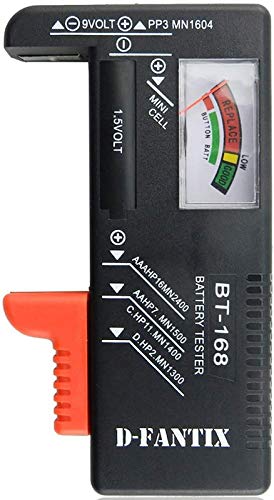
SMALL & PRACTICAL - Simple but effective battery tester checker for home (BT-168) , compact size and lightweight,easy to carry

Portable & Light: ABS material makes this battery tester volt checker is small and exquisite, you can put it in a pocket easily.
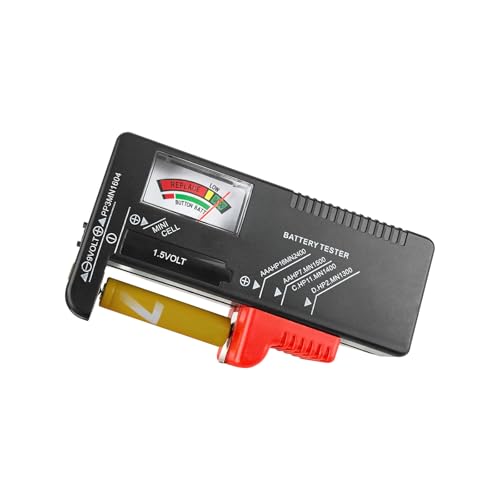
Easy to Read: Battery checker tester activated by the battery being checked, the pointer clearly show the current battery health status accurately. Replace/ Recharge-red,Low-yellow,Good-green.
What the Numbers Mean
Battery health metrics typically display as a percentage. A reading above 80% indicates healthier battery performance. As the percentage drops below this threshold, you may notice decreased performance and shorter battery life. For example, a battery at 70% might only last through half a day with minimal use, whereas one at 90% might last all day comfortably. Additionally, check the “Wear Level” indicator, which shows how much your battery has degraded. A low wear level means your battery still has a good life left.
Common Battery Health Issues
Several common issues can arise as your battery ages. Recognizing these signs can help you determine when a replacement is needed.
- Rapid Discharge: If your phone’s battery drains significantly faster than before, it may indicate wear or damage.
- Overheating: Consistent overheating during charging or use suggests potential internal problems that may compromise battery health.
- Unexpected Shutdowns: If your device shuts off even when the battery shows a charge, the battery may not be functioning correctly.
- Charging Problems: Difficulty in charging fully or slow charging times often point to battery degradation.
- Visible Swelling: Swelling is a physical sign of battery failure, prompting immediate attention to prevent hazards.
Monitor these indicators to maintain optimal performance and decide when to replace your battery effectively.
Tips to Maintain Battery Health
Maintaining your Samsung battery health ensures optimal device performance and longevity. Implement these strategies for better battery management.
Recommended Products

POWER ANYWHERE YOU WANT IT: Charge up any of your devices with the Galaxy Magnetic Wireless Battery Pack. Whether you want to plug in to the USB-C port or use the built-in magnetic wireless charger, the 5,000mAh battery is waiting to power you up throughout the whole day.

Ultra-Slim & Pocket-Ready Portable Charger: Designed for everyday carry, this compact power bank measures just 4.3 × 2.6 × 0.7 inches and weighs only 7 oz, making it easy to slip into a pocket or bag. Despite its slim profile, it packs a 10,000mAh high-capacity battery, delivering up to 1.8 full charges for iPhone 17. Ideal for commuting, work, and travel.

30W Fast Charging - iWALK magnetic power bank support 30W PD fast charging output & input, ensuring fast charging experience. This wireless portable charger charges 40% faster than other battery pack, reaching 60% on an iPhone 15 Pro in just 30 minutes
Charging Best Practices
- Charge regularly: Opt for partial charging over full cycles. Keeping the battery level between 20% and 80% extends lifespan.
- Avoid overnight charging: Disconnect from the charger once fully charged. Continuous charging can lead to overheating, damaging the battery.
- Use the right charger: Utilize the original charger or a certified one. A mismatched charger can harm battery efficiency.
- Disable fast charging: Fast charging generates more heat. If you encounter heating issues, consider turning off this feature in settings.
Managing App Usage
- Close unused apps: Background apps consume battery power. Close apps that you’re not actively using to save energy.
- Limit location services: GPS can drain the battery quickly. Use location services only when necessary and disable them in non-essential apps.
- Check app settings: Review battery usage for each app in Device Care. Consider uninstalling or disabling apps with high battery consumption.
- Update apps regularly: Developers often improve battery efficiency in updates. Regularly check for app updates to ensure optimal performance.
Conclusion
Checking your Samsung battery health is a simple yet essential step in keeping your device running smoothly. By staying aware of your battery’s status and recognizing the signs of wear, you can make informed decisions about maintenance and replacement.
Remember to utilize the built-in tools or trusted apps to monitor your battery’s performance. With a little attention and care, you can extend the life of your device and enjoy a better user experience. So keep an eye on that battery health and take action when needed. Happy charging!
Frequently Asked Questions
What are the signs my Samsung phone battery is deteriorating?
Deteriorating battery health can manifest as rapid discharge, overheating, unexpected shutdowns, charging issues, and visible swelling. If you notice any of these signs, it might be time to check your battery’s health or consider a replacement.
How can I check my Samsung phone’s battery health?
You can check your battery health by going to the Device Care section in settings. Review battery usage and status information. Additionally, the Samsung Members app provides further diagnostics and recommendations for battery management.
What should I do if my battery health is below 80%?
If your battery health is below 80%, you may experience reduced performance and shorter battery life. Consider getting your battery replaced to maintain optimal performance and prevent unexpected shutdowns.
Are third-party apps safe for checking battery health?
Yes, trusted third-party apps like AccuBattery and GSam Battery Monitor can safely analyze battery capacity, wear levels, and charging habits. These tools offer additional insights into managing your battery’s health.
How can I maintain my Samsung phone’s battery health?
To maintain battery health, keep the charge level between 20% and 80%, avoid overnight charging, and use certified chargers. Limiting app usage, closing unused apps, and regularly updating them can also help enhance battery longevity.
