

Key Takeaways
- Gather Essential Tools: Before removing the battery from a Lenovo IdeaPad, ensure you have a small Phillips screwdriver, a plastic pry tool, an antistatic wrist strap, a soft cloth, and tweezers ready for the task.
- Power Off and Disconnect: Always power down the device completely and disconnect all external devices before starting the battery removal process to prevent damage.
- Locate the Battery: Identify the battery’s location, which is typically found at the bottom of the laptop, and check for any latches or screws that may be securing it.
- Follow Removal Steps Carefully: Remove screws, unlock battery latches, and, if applicable, disconnect the battery connector gently using a plastic pry tool without touching sensitive components.
- Select the Right Replacement Battery: When replacing the battery, ensure that you choose a compatible model by checking the laptop’s specifications or the manufacturer’s recommendations.
- Inspect and Reconnect: Always inspect the old battery for damage before disposal, and ensure all components are properly reconnected after installing the new battery, followed by a safe power-on to check functionality.
Have you ever found yourself in a situation where your Lenovo IdeaPad won’t power on, and you suspect the battery might be the culprit? It’s a common issue, and knowing how to remove the battery can save you time and hassle.
Tools Needed To Remove The Battery
To remove the battery from a Lenovo IdeaPad, you’ll need a few specific tools. Having the right equipment ensures a smooth process and minimizes the risk of damaging your device. Here’s a list of essential tools for this task:
- Small Phillips screwdriver: A standard Phillips screwdriver is necessary to remove the screws holding the battery in place.
- Plastic pry tool: This helps safely detach the battery from the laptop without damaging the casing.
- Antistatic wrist strap: Wearing this reduces the risk of static electricity damaging your laptop’s internal components.
- Soft cloth: Use a soft cloth to rest your laptop on, protecting it from scratches.
- Tweezers: Helpful for handling small screws or connectors when removing the battery.
Ensure you’ve gathered these tools before starting the process. This preparation eliminates unnecessary delays and simplifies the battery removal procedure.
Recommended Products

【Specifications】Model: L14M2P21 / Type: Li-ion / Voltage: 7.4V / Capacity: 30Wh 4050mAh
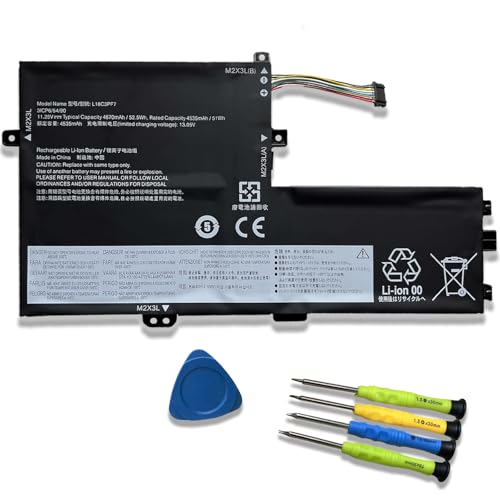
【Specifications】Model: L18C3PF7 // Battery type: Li-ion // Voltage: 11.25V // Capacity: 52.5Wh/4670mAh // 100% New from Manufacturer. Top circuit boards and smart chip

Specifications:Model:L15L3PB0; Voltage:11.4V;Capacity:52.5Wh;Cell:3Cells;100% brand new from manufacture. Grade A cells ensure fast charges and low power consumption.
Steps To Prepare For Battery Removal
Before starting the battery removal process, ensure you follow these steps to prepare your Lenovo IdeaPad.
Powering Down The Device
Power down your device completely to prevent damage. Hold down the power button for about five seconds until you see the screen go blank. Once the laptop is off, unplug the power adapter from both the laptop and the outlet. This ensures no power flows during the battery removal.
Disconnecting External Devices
Disconnect all external devices connected to your laptop. This includes USB drives, external monitors, and headphones. Removing these devices reduces the risk of accidental damage and simplifies the removal process. It’s best to keep the workspace clear, so you can work without distractions.
How Do You Remove The Battery From A Lenovo Ideapad
Removing the battery from a Lenovo IdeaPad can resolve various power issues. Follow these steps to ensure a smooth process.
Recommended Products

6 cell Li-ion battery, rated at 5200mAh and 11.1V The battery is durable and has overcurrent protection, anti-overcharge, anti-overdischarge and temperature control functions.

【Specifications】Model: L18C3PF6. Type: Li-ion. Voltage: 11.25V. Capacity: 36Wh. Up to 1000 recharge cycles over the life of the battery

【Specifications】Model: L18C4PF3 Voltage: 15.36V Capacity: 45Wh/2964mAh Battery type: Li-ion. Also comes with installation tools
Identifying The Battery Location
Identify the battery’s location on your Lenovo IdeaPad. Typically, the battery is at the bottom of the laptop. Look for a rectangular panel with battery icons or labels. Some models have removable batteries, while others contain internal ones.
- Place your IdeaPad upside down on a stable, soft surface.
- Locate battery latches or screws near the battery area.
- Check for a battery release button if your model has one.
Removing The Battery
Once you’ve identified the battery location, proceed with removal.
- Remove the screws securing the battery cover using the Phillips screwdriver.
- Slide the battery latches to the unlocked position if applicable.
- Lift the battery out gently if it’s removable. For non-removable batteries, proceed to unscrew the necessary components to access it.
- Disconnect the battery connector carefully using the plastic pry tool if needed.
- Avoid touching the circuitry; it safeguards the internal components.
Revisit each step if you encounter resistance during removal. Always follow manufacturer instructions specific to your model for the best outcomes.
Tips For Battery Replacement
- Choose the Right Replacement: Select a compatible battery model for your Lenovo IdeaPad. Check the laptop’s specifications or manufacturer website to find the recommended battery type.
- Work in a Clean Area: Clear your workspace of clutter to prevent losing small parts, like screws. A well-lit area facilitates better visibility when working on your device.
- Use Essential Tools: Keep your necessary tools, including a small Phillips screwdriver and plastic pry tool, within reach. This preparation speeds up the replacement process.
- Handle Components Carefully: When removing the battery, avoid touching any internal components or connectors. Static electricity can damage sensitive parts, so use an antistatic wrist strap if available.
- Follow a Step-by-Step Guide: Adhere strictly to your model’s manual for specific battery replacement instructions. Different models may have unique processes or required steps.
- Check for Damage: Inspect the old battery for any signs of wear, such as swelling or leaks. If any damage exists, dispose of the battery according to local regulations.
- Reconnect All Components: After installing the new battery, ensure you reconnect any components you may have temporarily removed. Verify that screws or latches are secured.
- Power On Safely: Once you’ve replaced the battery, plug in your laptop and power it on. Check that the device functions correctly before placing it back into regular use.
- Keep Spare Batteries: If you’re frequently replacing the battery, consider having an extra on hand. This practice minimizes downtime and ensures your device remains operational.
Recommended Products

Specifications :Model:L18C4PF3 ; Voltage:15.36V;Capacity:45Wh ;100% brand new from manufacture. Grade A product ensure fast charges and low power consumption.

♣Battery type: Li-ion; Capacity: 2600mAh Voltage: 14.8V;Cells: 4-cell. The battery is durable and has overcurrent protection, anti-overcharge, anti-overdischarge and temperature control functions.

【Specifications】Model: L17C4PB0 Voltage: 7.68V Capacity: 45Wh/5928mAh Battery type:. Also comes with installation tools.
Conclusion
Removing the battery from your Lenovo IdeaPad doesn’t have to be a daunting task. With the right tools and a little patience you can tackle this process with confidence. Remember to follow the steps carefully and always prioritize safety by disconnecting power sources and external devices.
Once you’ve successfully removed the battery you can inspect it for any issues or replace it with a new one. Keeping your laptop powered up and running smoothly is just a few simple steps away. Don’t forget to check for compatibility when purchasing a replacement battery. Happy tinkering and enjoy your refreshed device!
Frequently Asked Questions
What should I do if my Lenovo IdeaPad won’t power on?
If your Lenovo IdeaPad won’t power on, it may be due to a dead battery. Start by holding the power button for five seconds to fully shut down the device. Then, unplug the power adapter and check for any external devices that might cause interruptions, like USB drives or external monitors.
What tools do I need to remove the battery from my Lenovo IdeaPad?
To remove the battery, you’ll need a small Phillips screwdriver, a plastic pry tool, an antistatic wrist strap, a soft cloth, and tweezers. Having these tools prepared will ensure a smooth and safe removal process.
How can I identify the battery’s location in my Lenovo IdeaPad?
The battery is typically located at the bottom of your Lenovo IdeaPad. Look for any latches or screws that may cover it. You may also find a battery release button depending on your model.
How do I remove the battery safely?
To remove the battery, first, turn your laptop upside down. Unscrew the battery cover and slide the latches to unlock. Gently lift out the battery. For non-removable batteries, follow model-specific instructions to access and disconnect it carefully.
Can I replace my battery with any battery?
No, you should always choose a compatible replacement battery specific to your Lenovo IdeaPad model. Check your laptop’s specifications or the manufacturer’s website for the correct battery type.
What precautions should I take during battery replacement?
Ensure you work in a clean, well-lit space to avoid losing small parts. Wear an antistatic wrist strap to prevent static damage, and handle all components carefully. Follow the model-specific manual for accurate replacement instructions.
How can I check if my old battery is damaged?
Inspect the old battery for any signs of swelling, cracks, or corrosion. These issues indicate that it may need replacement. Always dispose of damaged batteries safely to avoid hazards.
What should I do after installing a new battery?
After replacing the battery, securely reconnect all components, replace the cover, and power on the device to check functionality. Make sure to store spare batteries on hand for quick replacements in the future.
