
Close Menu
Battery Spotlight
    Battery Spotlight
    • Home
    • Phone Batteries
    • Laptop Batteries
    • Car Batteries
      • Golf Cart Batteries
    • Battery Info
      • Battery Chargers
      • Battery Life
      • Battery Maintenance
      • Marine Batteries
      • Rechargeable Batteries
      • Solar Batteries
    • About Us
      • Contact
    Battery Spotlight
    Navigation: Home » Phone Batteries » Android Batteries » How to Turn on Battery Protection Samsung: Step-by-Step Guide for Extended Battery Life
    Android Batteries

    How to Turn on Battery Protection Samsung: Step-by-Step Guide for Extended Battery Life

    Leo HudsonBy Leo HudsonApril 16, 20257 Mins Read
    Share Facebook Twitter Pinterest LinkedIn Tumblr Email WhatsApp Copy Link
    Share
    Facebook Twitter LinkedIn Pinterest Email Copy Link

    Key Takeaways

    • Understanding Battery Protection: Battery protection features on Samsung devices help extend battery life by preventing overcharging and degradation.
    • Benefits of Activation: Enabling battery protection can prolong battery lifespan, optimize device performance, and enhance charging efficiency.
    • Myth-Busting: Common myths, such as the safety of overnight charging and the benefits of force-closing apps, can hinder effective battery management.
    • Activation Steps: To turn on battery protection, navigate to Settings > Battery and Device Care > Battery > More battery settings > Battery Protection.
    • Troubleshooting Issues: Common problems like slow charging or inconsistent activation can often be solved by checking settings, resetting the device, or updating software.
    • Additional Tips: Optimize app usage, adjust display settings, and consider using Dark mode to further enhance battery life on your Samsung device.

    Do you ever worry about your Samsung phone’s battery life? If you find yourself constantly charging your device or watching the battery percentage drop too quickly, you’re not alone. Many people face this issue, and it can be frustrating when you rely on your phone throughout the day.

    Table of Contents

    Toggle
    • Key Takeaways
    • Understanding Battery Protection Features
    • Benefits of Battery Protection
    • Common Myths About Battery Protection
    • Steps To Turn On Battery Protection
    • Accessing the Settings Menu
    • Locating Battery Protection Option
    • Troubleshooting Tips
    • Issues When Enabling Battery Protection
    • Solutions to Common Problems
    • Additional Battery Saving Tips
    • Optimizing App Usage
    • Adjusting Display Settings
    • Conclusion
    • Frequently Asked Questions
    • What are common battery life issues with Samsung phones?
    • How do battery protection features work on Samsung devices?
    • Is it safe to charge my Samsung phone overnight?
    • Does closing apps save battery on Samsung phones?
    • How can I activate battery protection features on my Samsung phone?
    • What should I do if battery protection isn't working properly?
    • What are some additional tips to extend battery life on Samsung devices?

    Understanding Battery Protection Features

    Battery protection features on Samsung devices help extend battery life and enhance performance. These features prevent overcharging and battery degradation, ensuring your phone remains reliable throughout the day.

    Recommended Products
    SAMSUNG 45W Wall Charger Power Adapter with Cable Included, Super Fast Charging for Galaxy Phones, Tablets and USB Type C Devices, Low Standby Power Consumption, EP-T4511XBEGUS, Black
    SAMSUNG 45W Wall Charger Power Adapter with Cable Included, Super Fast Charging for Galaxy Phones, Tablets and USB Type C Devices, Low Standby Power Consumption, EP-T4511XBEGUS, Black

    SUPERCHARGE YOUR DEVICES: The 45W Power Adapter is your companion for fast charging & high efficiency¹⁻²; Designed to seamlessly integrate with your Galaxy devices, this power adapter ensures your device stays powered wherever your day takes you

    VIEW LATEST PRICE

    As an affiliate, we earn on qualifying purchases.

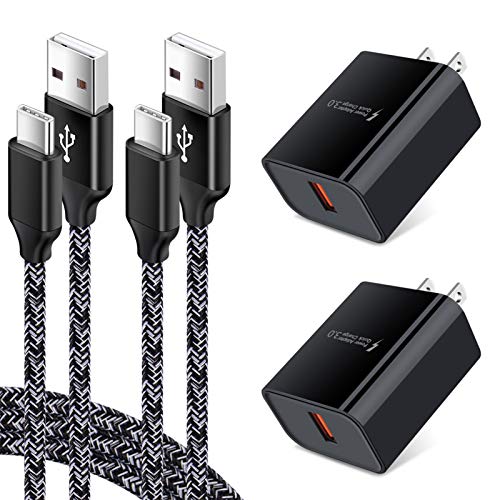
    Adaptive Fast Charger for Samsung Galaxy S26 S25 Ultra S25 FE S24 S23 S22 S22+ S22 Ultra S21 S20 FE S10 A16 A15 A56 A36 A21 A51 A11 Note 20, 18W Quick Charge Wall Charger Type C Fast Charging Cable
    Adaptive Fast Charger for Samsung Galaxy S26 S25 Ultra S25 FE S24 S23 S22 S22+ S22 Ultra S21 S20 FE S10 A16 A15 A56 A36 A21 A51 A11 Note 20, 18W Quick Charge Wall Charger Type C Fast Charging Cable

    【Quick Charge 3.0 Wall Charger】: 18W Adaptive Fast Charging Wall Charger charges up to 50% battery level in 30 minutes with 4 times faster than traditional charger. (★Note: Quick Charge 3.0 wall charger only supports fast charging for QC 3.0 enabled devices up to 18W/3A. It does not support Quick Charge for Non quick charge devices and work as a usual charger. The Charging speed may vary based on different phone device. )

    SEE ALSO  Can You Put a New Battery in a Samsung Phone: Step-by-Step Guide for Easy Replacement
    VIEW LATEST PRICE

    As an affiliate, we earn on qualifying purchases.

    Futurebatt 6Cell AA-PB9NC6B AA-PB9MC6B AA-PB9NC6W AA-PB9NS6B Laptop Battery fit Samsung R420 R430 R468 R470 R480 RV510 RV511 RC512 R519 R520 R530 R540 R580 R730 Q320 Q430 Np550P5c Np365e5c
    Futurebatt 6Cell AA-PB9NC6B AA-PB9MC6B AA-PB9NC6W AA-PB9NS6B Laptop Battery fit Samsung R420 R430 R468 R470 R480 RV510 RV511 RC512 R519 R520 R530 R540 R580 R730 Q320 Q430 Np550P5c Np365e5c

    Specifications: Li-ion battery, Rated at 11.1V(10.8V Compatible) 5200mAh

    VIEW LATEST PRICE

    As an affiliate, we earn on qualifying purchases.

    Benefits of Battery Protection

    1. Prolonged Lifespan: Utilizing battery protection features significantly extends your battery’s lifespan by minimizing harmful charging cycles.
    2. Optimized Performance: Improved performance occurs when your device manages power consumption effectively, reducing slowdowns and improving responsiveness.
    3. Increased Charging Efficiency: Features such as adaptive charging adjust the charging speed based on your usage, promoting faster charges without risking battery health.

    Common Myths About Battery Protection

    1. Myth: Keeping your phone plugged in overnight is safe. Reality: Continuous charging can lead to battery wear over time, despite protection features.
    2. Myth: Turning on battery protection limits battery life. Reality: Battery protection helps maintain optimal performance and capacity over the long term.
    3. Myth: Closing apps saves battery. Reality: Modern operating systems manage background apps efficiently, meaning that force-closing them often offers little benefit.

    Familiarizing yourself with these battery protection features and debunking these myths enhances your overall experience with your Samsung device.

    Steps To Turn On Battery Protection

    To enhance the longevity of your Samsung device’s battery, activating battery protection features is essential. Follow these straightforward steps to enable this setting.

    Recommended Products

    Mobik 64.64Wh EB-BT670ABA EB-BT670ABE Laptop Battery Compatible with Samsung Galaxy View 18.4" SM-T670 Series AA2HC15BS AA2GB07BS AA2GA26BS AA2GC05BS AA2GB07B AA1G907KS AA1GA02BS AA2GC16BS 11.34V
    Mobik 64.64Wh EB-BT670ABA EB-BT670ABE Laptop Battery Compatible with Samsung Galaxy View 18.4" SM-T670 Series AA2HC15BS AA2GB07BS AA2GA26BS AA2GC05BS AA2GB07B AA1G907KS AA1GA02BS AA2GC16BS 11.34V

    【Adhering To The Principle Of Customer First】We specialize in providing quality power products and quality customer service. Rest assured with 30 days Refund and 12 months Warranty; 24 x 7 email support. (Note: Amazon return windows will close after one month, If you have any problem with battery, please Contact us - in "YOUR ORDER" options click the "contact seller".)

    VIEW LATEST PRICE

    As an affiliate, we earn on qualifying purchases.

    SAMSUNG GALAXY S26 AND S26 PLUS USER GUIDE: The Complete Beginner to Advanced Manual to Master Galaxy AI, Camera, Settings, Hidden Features, & One UI 16 with Step by Step Instructions, Tips & Tricks
    SAMSUNG GALAXY S26 AND S26 PLUS USER GUIDE: The Complete Beginner to Advanced Manual to Master Galaxy AI, Camera, Settings, Hidden Features, & One UI 16 with Step by Step Instructions, Tips & Tricks
    VIEW LATEST PRICE

    As an affiliate, we earn on qualifying purchases.

    Soseieiu Galaxy S20 Plus Battery,5200mAh EB-BG985ABY Replacement Battery for Samsung Galaxy S20 Plus Model (SM-G985 SM-G985F S20+ 5G) with Adhesive Tape Tool Repair Kit
    Soseieiu Galaxy S20 Plus Battery,5200mAh EB-BG985ABY Replacement Battery for Samsung Galaxy S20 Plus Model (SM-G985 SM-G985F S20+ 5G) with Adhesive Tape Tool Repair Kit

    🎋【Compatible Model】EB-BG985ABY Replacement Battery for Samsung Galaxy S20 Plus Model (SM-G985 SM-G985F S20+ 5G)[Note: Not for Galaxy S20 FE,Galaxy S20 Ultra or other Phone Models]

    VIEW LATEST PRICE

    As an affiliate, we earn on qualifying purchases.

    SEE ALSO  How to Replace Samsung A32 Battery: A Step-by-Step Guide for a Smooth Replacement

    Accessing the Settings Menu

    1. Swipe down from the top of your screen to open the notification shade.
    2. Tap the gear icon to access the Settings menu.
    3. Scroll down and select “Battery and Device Care.” This section houses various battery management options.

    Locating Battery Protection Option

    1. In the Battery and Device Care menu, choose “Battery.”
    2. Look for the “More battery settings” option. This selection provides additional battery features.
    3. Tap on “Battery Protection.” Toggle the option on to activate it. You’ll often find settings like “Protect battery” that slow charging to 85% to preserve battery health.

    By following these steps, your Samsung phone can maintain optimal performance and extend battery lifespan.

    Troubleshooting Tips

    Battery protection features on Samsung devices enhance longevity, but sometimes issues arise. Here’s how to address them effectively.

    Recommended Products

    Futurebatt Battery for Samsung R439 R440 R470 R478 R522 R530 R538 R540 R580 R730 R780 Q318 Q430 RF510 RV510 RV511 AA-PB9NC6B AA-PB9NS6B Notebook PC
    Futurebatt Battery for Samsung R439 R440 R470 R478 R522 R530 R538 R540 R580 R730 R780 Q318 Q430 RF510 RV510 RV511 AA-PB9NC6B AA-PB9NS6B Notebook PC

    Specifications: 6 Cell, Li-ion battery, Rated at 11.1V(10.8V Compatible) 5200mAh

    VIEW LATEST PRICE

    As an affiliate, we earn on qualifying purchases.

    BM Premium Pack of 2 SLB-10A Batteries and Battery Charger for Samsung EX2F HZ15W SL202 SL420 SL620 SL820 WB150F WB250F WB350F WB750 WB800F WB850F WB1100F Digital Cameras
    BM Premium Pack of 2 SLB-10A Batteries and Battery Charger for Samsung EX2F HZ15W SL202 SL420 SL620 SL820 WB150F WB250F WB350F WB750 WB800F WB850F WB1100F Digital Cameras

    SLB-10A Li-ion Battery for Samsung EX2F HZ15W SL202 SL420 SL620 SL820 WB150F WB250F WB350F WB750 WB800F WB850F WB1100F
    VIEW LATEST PRICE

    As an affiliate, we earn on qualifying purchases.

    DDONG Replacement Battery EB-BG360CBU for Samsung Galaxy Core Prime G360 G360P G360T G360L G360V G360AZ G360M G360T1 Replacement Battery EB-BG360BBE EB-BG360CBC
    DDONG Replacement Battery EB-BG360CBU for Samsung Galaxy Core Prime G360 G360P G360T G360L G360V G360AZ G360M G360T1 Replacement Battery EB-BG360BBE EB-BG360CBC

    All the batteries have been inspected and tested before shipping out

    VIEW LATEST PRICE

    As an affiliate, we earn on qualifying purchases.

    Issues When Enabling Battery Protection

    • Slow Charging Speed: Charging may slow down unexpectedly. This occurs when the feature limits the charge to 85%.
    • Inconsistent Activation: Sometimes, battery protection may not activate as intended. Device glitches or settings conflicts can lead to this issue.
    • Notifications or Alerts: Alerts about charging may seem confusing. These notifications can signal decreased performance due to battery protection settings.

    Solutions to Common Problems

    • Check Settings: Navigate to Settings > Battery and Device Care > Battery Protection. Ensure the feature is toggled on.
    • Reset Device: If problems persist, try restarting your phone. A simple reset can resolve minor software glitches affecting battery settings.
    • Update Software: Keep your device updated. Go to Settings > Software Update and ensure your phone runs the latest version for optimal performance.
    • Clear Cache: Clear the cache of the Battery and Device Care app. Go to Settings > Apps > Battery and Device Care > Storage > Clear Cache.
    • Factory Reset: As a last resort, consider a factory reset. Before doing so, back up your data, then go to Settings > General Management > Reset > Factory Data Reset.

    These steps help troubleshoot common issues with battery protection on Samsung devices, ensuring you maintain optimal performance.

    SEE ALSO  How to Extend Battery Life on Samsung S22: Practical Tips for All-Day Performance

    Additional Battery Saving Tips

    Consider these additional strategies to further enhance your battery life on Samsung devices.

    Optimizing App Usage

    Limit background activity for apps that consume excessive battery. Unused apps running in the background can drain power. To manage this, follow these steps:

    1. Open Settings.
    2. Tap on Apps.
    3. Select an app from the list.
    4. Tap Battery and choose Background restriction.

    Close apps that you aren’t using. Double-tap the Recent Apps button, then swipe away any apps you want to close. Utilize Battery Usage in the Battery section of Device Care to identify which apps drain your battery the most. Uninstall or disable any apps you rarely use.

    Adjusting Display Settings

    Customize your display settings to reduce battery consumption. The screen often consumes the most power. Here are some tips:

    1. Lower screen brightness: Go to Settings, tap Display, and adjust Brightness.
    2. Set a shorter screen timeout: Navigate to Settings, select Display, then adjust the Screen timeout settings.
    3. Use Dark mode: Activate dark mode through Settings > Display and toggle on Dark mode for a less power-consuming experience.
    4. Turn off Always On Display: Go to Settings, tap Lock Screen, and toggle off Always On Display.

    By implementing these adjustments, you can effectively maximize your Samsung device’s battery life.

    Conclusion

    Taking control of your Samsung device’s battery life is easier than you think. By activating battery protection features and following the tips shared, you can ensure your phone stays powered up when you need it most.

    Remember that small changes in your usage habits can lead to significant improvements in performance and longevity. Embrace these features and strategies to keep your device running smoothly.

    With just a few simple steps, you’ll enjoy a better experience and peace of mind knowing your battery is well taken care of. Happy charging!

    Frequently Asked Questions

    What are common battery life issues with Samsung phones?

    Many Samsung phone users experience battery life issues, including rapid declines in battery percentage and frequent charging. These frustrations are common, especially for users who rely on their devices throughout the day.

    How do battery protection features work on Samsung devices?

    Battery protection features on Samsung devices help extend battery life by preventing overcharging and degradation. They optimize charging phases, slow down charging to around 85%, and ensure a longer lifespan and better performance.

    Is it safe to charge my Samsung phone overnight?

    Yes, charging your Samsung phone overnight is generally safe. Modern devices have built-in protections that prevent overcharging, making it viable for users to charge their phones while sleeping without significant risks.

    Does closing apps save battery on Samsung phones?

    Closing apps can save some battery, but it’s often a myth that it significantly impacts battery life. Many apps enter a standby mode, so keeping them open usually does not drain the battery as much as expected.

    How can I activate battery protection features on my Samsung phone?

    To activate battery protection, go to Settings > Battery and Device Care > Battery Protection. From there, toggle the feature to help maintain battery health and enhance longevity by managing charging levels.

    What should I do if battery protection isn’t working properly?

    If you’re experiencing issues with battery protection, check your settings to ensure it’s activated, reset your device, update software, clear app cache, or as a last resort, perform a factory reset to resolve the issue.

    What are some additional tips to extend battery life on Samsung devices?

    To extend battery life, limit background activity for certain apps, adjust display settings (like brightness and timeout), and enable dark mode. Utilizing the Battery Usage feature can also help identify apps that drain your battery.

    Share. Facebook Twitter Pinterest LinkedIn Tumblr Email WhatsApp Copy Link
    Leo-Hudson
    Leo Hudson

      Technical writer with 3+ years of experience. Bachelor of Arts in Environmental Studies from UC Santa Cruz. Passionate about sustainability and providing clear, concise how-to guides for common battery problems.

      Related Posts

      Android Batteries

      How to Replace Battery in Samsung Phone: A Step-by-Step Guide for Easy Replacement

      October 25, 2025
      Android Batteries

      How to Remove Battery from Samsung Smart TV Remote: A Step-by-Step Guide for Easy Replacement

      October 25, 2025
      Android Batteries

      How to Check Your Battery Health on Samsung: Simple Methods to Extend Your Phone’s Lifespan

      October 25, 2025
      Android Batteries

      How Much Is a Battery for a Samsung Galaxy S6: Pricing and Replacement Options Explained

      October 25, 2025
      Android Batteries

      How to Remove Battery from Samsung Galaxy S7: A Step-by-Step Guide for Easy DIY Fixes

      October 25, 2025
      Android Batteries

      Why is My Battery Going Down While Charging Android – Effective Solutions to Fix the Issue

      October 25, 2025
      Add A Comment
      Leave A Reply Cancel Reply

      Search
      Affiliate Disclaimer

      As an Amazon Associate I earn from qualifying purchases.

      Latest Articles

      How to Replace Battery in Samsung Phone: A Step-by-Step Guide for Easy Replacement

      Android Batteries

      How to Remove Battery from Samsung Smart TV Remote: A Step-by-Step Guide for Easy Replacement

      Android Batteries

      How to Check Your Battery Health on Samsung: Simple Methods to Extend Your Phone’s Lifespan

      Android Batteries

      How Much Is a Battery for a Samsung Galaxy S6: Pricing and Replacement Options Explained

      Android Batteries

      How to Remove Battery from Samsung Galaxy S7: A Step-by-Step Guide for Easy DIY Fixes

      Android Batteries

      Why is My Battery Going Down While Charging Android – Effective Solutions to Fix the Issue

      Android Batteries
      Battery Spotlight

      Battery Spotlight is a website dedicated to helping you solve common battery problems.

      Read more about us here

      Affiliate Disclaimer
      As an Amazon Associate I earn from qualifying purchases.

      Site Navigation
      • Above Mirror Bathroom Lighting
      • Android Batteries
      • Bathroom Pendant Lighting
      • Battery Chargers
      • Battery Life
      • Battery Maintenance
      • Car Batteries
      • Ceiling Lighting Ideas
      • Golf Cart Batteries
      • Japandi Lighting
      • Laptop Batteries
      • Marine Batteries
      • Mood Lighting Living Room
      • Phone Batteries
      • Rechargeable Batteries
      • Reviews
      • Solar Batteries
      • Uncategorized
      • Vaulted Ceiling Lighting
      Latest Articles

      How to Replace Battery in Samsung Phone: A Step-by-Step Guide for Easy Replacement

      How to Remove Battery from Samsung Smart TV Remote: A Step-by-Step Guide for Easy Replacement

      How to Check Your Battery Health on Samsung: Simple Methods to Extend Your Phone’s Lifespan

      How Much Is a Battery for a Samsung Galaxy S6: Pricing and Replacement Options Explained

      How to Remove Battery from Samsung Galaxy S7: A Step-by-Step Guide for Easy DIY Fixes

      • Home
      • About
      • Contact
      • Privacy Policy
      • Editorial Policy
      • Disclaimer
      • Terms and Conditions
      • Affiliate Disclosure
      © 2026 Battery Spotlight

      Type above and press Enter to search. Press Esc to cancel.