

Key Takeaways
- Identify Common Causes: Background app usage, high screen brightness, and outdated software are frequent culprits of rapid battery drain on the Samsung Galaxy S4.
- Adjust Settings for Efficiency: Lower screen brightness, turn off location services, and limit background data to significantly enhance battery performance.
- Manage Applications Wisely: Regularly close unused apps, uninstall rarely used applications, and disable auto-sync for non-essential accounts to reduce battery consumption.
- Utilize Battery Saver Mode: Activating battery saver mode helps to minimize background processes and extend battery life, especially during critical usage periods.
- Troubleshoot Effectively: Restart your device, monitor battery usage for unusual apps, and consider a factory reset if issues persist despite following other tips.
- Recognize When to Replace: Look for signs of battery failure, such as rapid discharge, overheating, and swelling, and explore reliable replacement options to restore battery life.
Is your Samsung Galaxy S4 battery draining faster than you can keep up with? You’re not alone. Many users face this frustrating issue, often wondering why their phone can’t seem to hold a charge like it used to.
Common Reasons For Battery Drain
Rapid battery drain on your Samsung Galaxy S4 can result from several factors. Identifying these common issues helps improve your phone’s performance and battery longevity.
Background Application Usage
Background apps significantly affect battery life. Apps that constantly run or refresh data drain power even when not in use. To manage this, check your recent apps and close those you aren’t using. Also, disable auto-sync for non-essential apps. For instance, if you have several social media apps running in the background, they could be draining your battery.
Screen Brightness and Settings
Screen brightness plays a vital role in battery consumption. High brightness settings use more power. Lower your screen brightness to the minimum needed for visibility. Enable adaptive brightness, which automatically adjusts brightness based on your environment. Consider reducing the screen timeout duration as well; a shorter timeout conserves battery when you’re not using your phone.
Software Updates and Bugs
Software glitches and outdated operating systems contribute to battery drain. Regular updates fix bugs that may impact battery performance. Check for updates in your phone’s settings and install them promptly. If you notice increased drain after an update, consider resetting your phone. This can eliminate lingering bugs from previous software versions and restore optimal battery performance.
Tips To Extend Battery Life
Saving battery life on your Samsung Galaxy S4 is essential for maximizing usage throughout the day. Here are practical tips to help you extend your phone’s battery life effectively.
Adjusting Settings
Adjusting your phone’s settings can significantly impact battery performance.
- Lower Screen Brightness: Dim your screen brightness to reduce power consumption. Set it lower in settings or enable adaptive brightness to adjust automatically based on ambient light.
- Turn Off Location Services: Disable GPS and location services when not in use. Access it through settings and toggle off location access for apps that don’t require it.
- Limit Background Data: Restrict apps from using data in the background. Navigate to settings, select data usage, and adjust restrictions for specific apps.
Managing Apps
Managing your apps can reduce battery drain from background activities.
- Close Unused Apps: Regularly close apps running in the background by tapping the recent apps button and swiping them away. This action stops them from using resources.
- Uninstall Unused Apps: Remove apps you rarely use. Go to settings, select applications, find the app, and choose uninstall.
- Disable Auto-Sync: Turn off auto-sync for apps that don’t require it. In settings, locate accounts and disable auto-sync for specific accounts.
Utilizing Battery Saver Mode
Using the battery saver mode can help extend your phone’s battery life during critical times.
- Activate Battery Saver: Enable battery saver mode in settings. This feature limits background processes and reduces performance to save power.
- Customize Battery Saver Settings: Adjust settings within battery saver to activate at a certain percentage. Consider setting it to engage at 15% to optimize battery usage when it’s critically low.
- Monitor Battery Usage: Regularly check battery usage statistics in settings to identify which apps consume the most power. Focus on optimizing or removing these apps.
Implementing these tips can greatly enhance your Galaxy S4’s battery life, allowing you to use your phone longer without frequent charging.
Troubleshooting Steps
Follow these troubleshooting steps to help resolve battery drain issues on your Samsung Galaxy S4.
Recommended Products
![SHENMZ Galaxy S4 Battery,[Upgraded] 4800mAh Li-Polymer EB-B600BE Replacement Battery for Samsung Galaxy S4 EB-B600BE,AT&T I337,Verizon I545,Sprint L720,T-Mobile M919,R970,I9500,I9505](https://m.media-amazon.com/images/I/41u6ukbbdkL._SL500_.jpg)
❤【HIGH QUALITY,TRUSTWORTHY PREMIUM BATTERY】:This Galaxy S4 replacement battery uses Grade A+ rated battery cells with CE and ROHS certification,ensure last over 1200 charge cycles. Multiple-protection for safer operation for both user and devices,build-in microchip to prevent over-charging,over-discharging and over-heating.
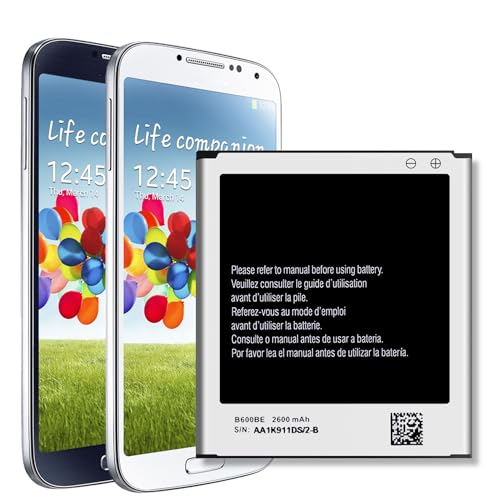
【Compatible Model】Compatible with Galaxy S4 Only, Model: S4 GT-I9500, GT-I9505,GT-I9506, GT-I9505G, SGH-I337 , SGH-M919, SCH-I545, EB-B600BE, SPH-L729T, SGH-I337M, SGH-M919V, SCH-R970X, SCH-R970C

Broad Compatibility: Designed for Samsung Galaxy S4 Mini using battery models B500AE, B500BE, and B500BU, compatible with GT-I9190, GT-I9192 (Duos), GT-I9195 (LTE)
Restarting Your Device
Restarting your device often fixes temporary glitches affecting battery life. To restart, press and hold the power button until the power menu appears. Tap “Restart” and confirm. This simple action can clear background apps and processes that drain battery power.
Checking for Faulty Apps
Identifying apps using excessive battery is crucial. Go to Settings > Battery to see which apps consume most power. If you notice any apps draining more battery than expected, consider uninstalling or disabling them. Use alternatives that offer similar functionality without the excessive drain. Regularly updating your apps also helps optimize performance and battery usage.
Factory Reset Consideration
If battery drain persists despite troubleshooting, consider a factory reset as a last resort. This action erases all data and resets settings, potentially resolving deeper software issues. Before performing a reset, back up important data by syncing with your Google account or using Samsung’s Smart Switch software. To factory reset, go to Settings > Backup and reset > Factory data reset. Follow the prompts, and once complete, set up your device as new. Remember to monitor battery life closely after the reset to determine if the issue is resolved.
When To Consider Replacement
If your Samsung Galaxy S4’s battery continues to drain quickly despite troubleshooting efforts, consider a replacement. Recognizing the signs of a failing battery can help you take action before the situation worsens.
Recommended Products

【Compatible Model】:This Battery Model is EB-BG973ABU,Compatible with Samsung Galaxy S10, SM-G973F, SM-G973U, SM-G973W, SM-G973U1, SM-G9730, SM-G973N, SM-G973X, SCV41, SM-G973C series. NOT work for Galaxy S10 Plus.Please confirm your phone model and your old battery part number before placing an order.

Proven Compatibility: Compatible with Samsung Galaxy Watch Watch 8┃Ultra 47mm (SM-L705U)┃Watch 7 40mm (SM-L300NZ)┃Watch 7 44mm (SM-L310NZ)┃Watch FE 40mm (SM-R861)┃Watch 6 40mm(SM-R930)┃Watch 6 44mm (SM-R940)┃Watch 6 Classic 43mm (SM-R950)┃Watch 6 Classic 47mm (SM-R960)┃Watch 5 Pro 45mm (SM-R920)┃Watch 5 40mm (SM-R900)┃Watch 5 44mm (SM-R910)┃Watch 4 40mm (SM-R860)┃Watch 4 44mm (SM-R870)┃Watch 4 Classic 42mm (SM-R880)┃Watch 4 Classic 46mm (SM-R890)┃Watch 3 41mm (SM-R850)┃Watch 3 45mm (SM-R840)┃Active 2 40mm (SM-R830)┃Active 2 44mm (SM-R820)┃Active 1 40mm (SM-R500). Not for Galaxy watch (released in 2018) and Gear S2/S3/S4

[PLS CONFIRM DEVICE MODEL] --- REAL 2800mAh, SAME AS ORIGINAL CAPACITY.★ Please verify your old battery part number and model before purchasing this replacement battery. Compatible with Samsung Galaxy S5 SM-G900 Series, SM-G900A, SM-G900P, SM-G900V, SM-G900T, SM-G900F, SM-G900H, SM-G900R4, SM-G900TR, SM-G900W8, SM-G900BVB, i9600, EB-BG900BBC EB-BG900BBU EB-BG900BBE/ for Samsung Galaxy S5 Active SM-G870.
Signs of a Failing Battery
- Rapid Discharge: If your battery drops from 100% to 20% within a few hours of minimal use, it signals a failing battery.
- Overheating: Frequent overheating during charging or regular use indicates potential battery damage.
- Unexpected Shutdowns: If your phone shuts down unexpectedly even with sufficient charge, the battery’s reliability is in question.
- Swelling: If the battery appears swollen or the back cover bulges, replace it immediately to prevent further damage.
- Old Age: If your battery is over two years old and these issues occur, it’s likely time for a replacement.
Options for Battery Replacement
- Authorized Service Centers: Visit a Samsung authorized service center. Technicians provide reliable service and use genuine parts.
- DIY Replacement Kits: Purchase DIY battery replacement kits online. These kits include all necessary tools and instructions, allowing you to replace the battery at home.
- Local Repair Shops: Seek out reputable local repair shops. Look for customer reviews to ensure quality service and parts.
- OEM Batteries: Consider using OEM (Original Equipment Manufacturer) batteries. These batteries ensure compatibility and performance similar to the original.
By recognizing signs of a failing battery and exploring replacement options, you can restore your Galaxy S4’s battery life effectively.
Conclusion
Dealing with a fast-draining battery on your Samsung Galaxy S4 can be frustrating. By taking a few simple steps like managing your apps and adjusting your settings you can make a big difference in your battery life. Regularly checking for software updates and being mindful of your usage habits will also help keep your phone running smoothly.
If you find that these tips aren’t enough and your battery issues persist it might be time to consider a replacement. Remember that recognizing the signs of a failing battery early on can save you a lot of hassle down the road. With a little effort you can enjoy longer usage times and get the most out of your device.
Frequently Asked Questions
Why is my Samsung Galaxy S4 battery draining quickly?
Rapid battery drain in the Galaxy S4 can be caused by various factors, including background application usage, screen brightness settings, and outdated software. Applications that run in the background or constantly refresh can consume significant battery power. Adjusting settings and managing your apps can improve battery life.
How can I improve my Galaxy S4 battery life?
To enhance battery life, consider lowering your screen brightness, turning off location services, and limiting background data usage. Closing unused apps, uninstalling infrequently used applications, and enabling battery saver mode can also significantly help. Regularly updating your software is essential for optimal performance.
What are the signs of a failing Galaxy S4 battery?
Signs of a failing battery include rapid discharge, overheating, unexpected shutdowns, swelling, and age. If you notice these issues despite trying troubleshooting tips, it may be time to consider a replacement to restore your device’s battery life.
When should I perform a factory reset on my Galaxy S4?
A factory reset should be considered if you’ve tried all troubleshooting steps and still experience significant battery drain. Before proceeding, back up your important data. After resetting, monitor your battery performance to see if the issue has been resolved.
How do I check battery usage on my Galaxy S4?
To check battery usage, navigate to Settings > Battery. Here, you can view which applications and processes are consuming the most power. Identifying battery-hungry apps can help you manage or uninstall them to extend your device’s battery life.
