

Key Takeaways
- Background Apps Management: Close or limit background activities of apps to reduce unnecessary battery consumption by adjusting settings in Device care.
- Optimize Location Services: Use “Battery saving” mode for location services and disable GPS for non-essential apps to extend battery life.
- Screen Brightness Control: Lower your screen brightness and enable Adaptive brightness or dark mode to decrease power usage, particularly on OLED displays.
- Utilize Power Saving Mode: Activate Power Saving Mode in your settings to minimize background activity and prolong battery life.
- Regular Battery Calibration: Conduct a battery calibration every few months to maintain optimal battery health and performance.
- Keep Software Updated: Regularly update your device software to benefit from optimizations and fixes that improve battery performance.
Is your new Samsung phone’s battery draining faster than you expected? You’re not alone. Many users find themselves puzzled when their shiny new device seems to lose power at an alarming rate. It’s frustrating, especially when you rely on your phone for everything from staying connected to capturing those special moments.
Common Reasons for Battery Drain
Several factors contribute to fast battery drain on your new Samsung device. Understanding these aspects can help you identify and address the issues.
Background App Activity
Background apps often lead to significant battery drain. Apps running in the background consume power even when you’re not actively using them. To reduce this, check for apps that frequently refresh or update. You can turn off background activity for non-essential apps by going to Settings > Device care > Battery > Background usage limits. Consider closing apps completely after use to minimize their impact.
Location Services and GPS Usage
Location services play a crucial role in battery consumption. GPS tracking is necessary for navigation apps, but keeping location services active all the time can quickly deplete your battery. To manage this, adjust your location settings by going to Settings > Location, and switch to “Battery saving” mode when possible. You can also disable location access for specific apps that don’t require it to further preserve battery life.
Screen Brightness and Settings
Screen brightness significantly affects battery drain. A bright screen consumes more power, especially during extended use. To manage this, lower the brightness by navigating to Settings > Display > Brightness. Consider enabling Adaptive brightness to automatically adjust screen brightness based on your environment. Additionally, using dark mode can reduce power consumption on OLED displays, extending your battery life.
Device Settings to Check
Checking your device settings can significantly enhance battery life on your new Samsung phone. Here are two essential areas to focus on.
Recommended Products

POWER ANYWHERE YOU WANT IT: Charge up any of your devices with the Galaxy Magnetic Wireless Battery Pack. Whether you want to plug in to the USB-C port or use the built-in magnetic wireless charger, the 5,000mAh battery is waiting to power you up throughout the whole day.

Charging comfort on the go with super-fast charging function up to 45W
Power Saving Mode
Activating Power Saving Mode can help prolong battery life. This feature minimizes background activity and reduces performance to conserve energy. You can turn it on by following these steps:
- Open the Settings app.
- Tap on Battery and Device Care.
- Select Battery.
- Choose Power Saving Mode and toggle it on.
This mode can automatically adjust settings based on your usage, reducing power consumption without compromising essential functions.
App Management
Managing apps is crucial for extending battery life. Many apps run in the background, consuming battery resources even when you’re not using them. Here’s how to manage them:
- Open the Settings app.
- Tap on Apps to see the list of installed applications.
- Review which apps use the most battery by tapping on Battery usage.
- Restrict background activity for non-essential apps by selecting the app and adjusting the Background Usage Limits.
Consider uninstalling or disabling apps that drain excess power. Turning off notifications for unused apps can also help, as they often wake your device unnecessarily.
Battery Health and Usage Patterns
Understanding battery health and usage patterns helps identify why your Samsung battery drains quickly. Regular monitoring can significantly improve your device’s performance.
Recommended Products
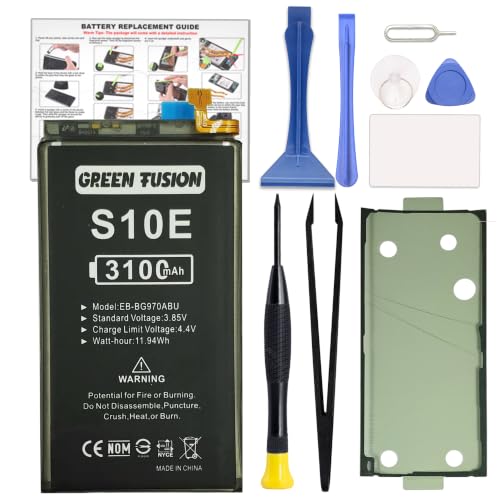
COMPATIBILITY: This battery only fits for Samsung Galaxy S10e, SM-G970F, SM-G970U, SM-G970W, SM-G9700, SM-G970U1, SM-G970N, SM-G970X. Please carefully confirm your phone model before purchase.

Compatible Phone Model: This battery kit is specifically designed for Galaxy S24 FE (with model SM-S721 series), please double confirm your phone model before purchasing

Detect various fast charging protocols: The tester supports Qualcomm QC2.0/3.0/4.0 Huawei FCP, SCP, Samsung, APPLE fast charging detection to meet the needs of various mobile phone users, and supports electrical signal monitoring during PD3.0/2.0 fast charging protocol, to meet various the needs of mobile phone users
Battery Calibration
Calibrating your battery can enhance performance and battery life. To calibrate your Samsung battery, follow these steps:
- Fully charge your phone to 100%.
- Use your device until it shuts down due to low battery.
- Leave it off for at least 6 hours.
- Charge it fully again without interruptions.
This process helps your phone correctly assess battery capacity. Regular calibration every few months can maintain optimal battery health.
Usage Tracking Features
Samsung devices come with built-in features that track battery usage. Access these features to get insight into what drains your battery. Here’s how:
- Go to Settings.
- Tap Battery and Device Care.
- Select Battery to view usage statistics.
Identify apps consuming excessive power. Some apps may run background processes even when you’re not using them. Consider limiting background activity for heavy-drain apps or uninstalling them altogether to improve battery longevity.
Troubleshooting Tips
To address your Samsung battery’s quick drain, follow these troubleshooting tips.
Recommended Products


WHY GALAXY WATCH ULTRA: Longest-lasting battery yet.¹* Advanced health and sleep tracking features.* Personalized Running Coach.* Durable titanium casing.* 10ATM Water Resistance.⁹* Dual-frequency GPS.* Personal AI assistant for hands free help.⁶*

Engineered with a durable titanium casing for rugged outdoor performance
Updates and Software Fixes
Keep your device’s software up to date. Samsung regularly releases updates that optimize battery performance. To check for updates, go to Settings > Software update > Download and install. Install any available updates.
Resetting app preferences can also help. Navigate to Settings > Apps, then tap on the three dots in the upper right corner and select Reset app preferences. This action restores default settings without deleting your apps.
Factory Reset Considerations
If issues persist, consider a factory reset as a last resort. This step erases all data and settings, restoring your phone to its original state. Before proceeding, back up your important data. To perform a factory reset, go to Settings > General management > Reset > Factory data reset. Follow the prompts to complete the process. Expect improvements in battery life, but remember this step deletes everything on your device, so ensure you’re ready for a fresh start.
Conclusion
If your new Samsung battery’s draining faster than you’d like it’s essential to take a closer look at your settings and usage habits. By managing background apps adjusting location services and tweaking your screen brightness you can make a significant difference in how long your battery lasts.
Don’t forget to utilize Power Saving Mode and keep an eye on battery usage statistics to identify any apps that might be hogging power. Regularly updating your software and considering a factory reset if necessary can also help restore your device’s performance. With a few adjustments you can enjoy your Samsung phone without constantly worrying about running out of battery.
Frequently Asked Questions
What causes rapid battery drain in Samsung phones?
Rapid battery drain in Samsung phones can be caused by factors like background app activity, high screen brightness, and active location services. Background apps may use power even when they aren’t in use, while GPS and bright screens further drain the battery.
How can I extend my Samsung phone’s battery life?
To extend your Samsung phone’s battery life, you can enable Power Saving Mode, adjust screen brightness, and manage app settings. Lowering brightness, using dark mode, and limiting background activity for non-essential apps can significantly help conserve energy.
How do I check battery usage on my Samsung phone?
You can check battery usage on your Samsung phone by going to Settings, then Battery and Device Care, and selecting Battery. This screen will show you the apps consuming the most power, helping you identify which ones to manage or limit.
What is battery calibration, and how can I do it?
Battery calibration helps improve your Samsung phone’s battery performance by resetting its software readings. To calibrate, drain the battery to 0%, then fully charge it to 100% without interruptions. This process enhances battery monitoring for optimal performance.
Should I update my phone’s software to improve battery life?
Yes, updating your phone’s software can improve battery life. Samsung regularly releases updates that include optimizations for battery performance. You can check for updates by going to Settings, selecting Software Update, and tapping Check for Updates.
