

Key Takeaways
- Common Issues: The primary reasons for a Lenovo battery not charging include power adapter problems, faulty charging ports, and degraded battery health.
- Troubleshooting Steps: To address charging issues, check the power source, inspect the charging cable for damage, and update drivers and BIOS.
- Battery Maintenance: Proper charging habits, regular hardware checks, and monitoring battery health can significantly enhance battery longevity and performance.
- Signs of Failure: Recognizing signs of battery failure, such as rapid discharge, overheating, and physical damage, is crucial for timely intervention.
- Warranty Awareness: Understand your warranty coverage to ensure proper support for battery repairs or replacements if needed.
Ever found yourself staring at your Lenovo laptop, frustrated because the battery just won’t charge? You’re not alone. Many users face this common issue, and it can be incredibly annoying, especially when you need your device for work or play.
Common Reasons For Lenovo Battery Not Charging
Several factors could cause your Lenovo battery not to charge. Understanding these common reasons helps identify the issue more quickly.
Recommended Products

For Lenovo V14-ADA 82C6 / V14-IIL 82C4 / V14-IWL 81YB / V14 G2-ALC 82KC / V14 G2-ITL 82KA 82NM / V14 G2 IJL 82QX / V14 G3 ABA 82TU 82UN / V14 G3 IAP 82TS 82UL / V14 G4 AMN 82YT / V14 G4 IRU 83A0 / L340-15IWL 81LG / L340-15IWL Touch 81LH

DC Jack cable for Lenovo C340-15IML C340-IWL/ C340-15ILL /710S Plus-13IKB/ S540-14IML /Yoga 520-14IKB 5C10N67714

[Perfect Compatibility for Lenovo ThinkPad] Specifically designed replacement USB Type-C charging port for Lenovo ThinkPad T480, T485, T580, A480, A485, L480, L580, and L590 series. This DC Power Jack ensures a precise fit and restores the original charging functionality of your laptop.
Power Adapter Issues
Ensure your power adapter is functioning correctly. Check for frayed wires or physical damage. Plug the adapter into a different outlet to rule out socket issues. Verify the power light on the adapter. A non-lit indicator suggests power delivery isn’t happening.
Faulty Charging Port
Inspect the charging port on your laptop. Dust or debris can obstruct the connection. Use a can of compressed air to clean it out. If the port feels loose or wobbly, it might indicate a hardware issue. Get it checked by a professional if it doesn’t hold the charger securely.
Battery Health Concerns
Consider the health of your battery. Over time, batteries degrade, leading to charging problems. Use Lenovo’s Vantage software to check battery status. If the software indicates a worn-out battery, replacing it might be necessary. A new battery can restore the charging functionality.
Troubleshooting Steps
If your Lenovo battery isn’t charging, follow these troubleshooting steps to identify and fix the issue.
Recommended Products
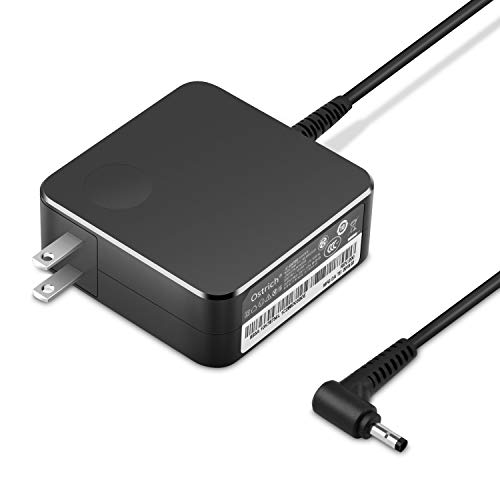
POWER SPECS Output Max: 20V 3.25A 65W/20V 2.25A 45W Input Volt Range: 110-240V/50/60Hz (For Worldwide Use) Compatible with Lenovo Charger Laptop AC Adapter Power Cord

Output:20V-3.25A / 15V-3A / 9V-2A / 5V-2A, 65W USB Type C

Safety assured — This power adapter meets nationally recognized electronic safety standards and is built with high-quality materials and workmanship to ensure reliable, durable, and safe performance.
Checking Power Source
Ensure the power outlet is functioning. Plug another device into the outlet to see if it works. If it does, check the voltage rating of the power adapter to ensure it matches your laptop requirements. If not, consider using a different outlet or a compatible adapter.
Inspecting the Charging Cable
Examine the charging cable for damage. Look for frayed wires, bent connectors, or any kinks. Inspect both ends of the cable, connecting it to the laptop and the power adapter. If damaged, replacing the cable may resolve the charging issue.
Updating Drivers and BIOS
Outdated drivers or BIOS software can affect battery performance. Open “Device Manager” and locate the “Batteries” section. Right-click on “Microsoft ACPI-Compliant Control Method Battery” and select “Update Driver.” For BIOS updates, visit the Lenovo support website, search for your laptop model, and download the latest BIOS version. Follow the instructions provided to ensure the update completes successfully.
Tips For Maintaining Lenovo Battery
Maintaining your Lenovo battery ensures optimal performance and longevity. Follow these guidelines to keep your battery in good condition.
Recommended Products

【Power Product Type】 : Max 65W 45W (compatible) AC Input: 100 - 240V 50 - 60Hz, Output: DC 5V/3A, 9V/3A, 12V/3A, 15V/3A, 20V/2.25A, 20V/3.25A. Connector size: USB Type-C

For exceptional quality, upright compatibility and reliability use this data transfer cable

【HBONY Specification】65W 45W TYPE-C USB-C Charger,Input: 100-240V~1.6A 50-60Hz Output: 5V-3A or 9V-3A or 15V-3A or 20V-3.25A Watts: 65W Compatible with 45W Type-c USB C Charger
Proper Charging Habits
- Charge between 20% and 80%: Charging your laptop when the battery is between 20% to 80% helps extend its lifespan.
- Avoid overnight charging: Disconnect the charger once fully charged to prevent overheating and battery wear.
- Use the correct power adapter: Always use the charger that came with your laptop or a Lenovo-approved replacement. Mismatched voltage can damage the battery.
- Do not let the battery drain completely: Regularly allowing the battery to drop to 0% can reduce its overall capacity.
Regular Hardware Checks
- Inspect the charging cable: Check for frayed wires or bent connectors that might impede charging. Replace any damaged cables promptly.
- Clean the charging port: Dust and debris can block connection points. Use a soft brush or compressed air to keep the charging port free of obstructions.
- Monitor battery health: Use Lenovo’s Vantage software to check your battery’s health regularly. If the software indicates a decline, consider replacing the battery.
- Update drivers and BIOS: Regularly check for driver or BIOS updates through Lenovo’s support website. Keep your system software current to ensure compatibility and efficiency.
When To Seek Professional Help
If your Lenovo laptop battery isn’t charging despite your troubleshooting efforts, it’s time to consider professional assistance. Certain signs may indicate a deeper issue, and understanding these can help you decide when to take the next step.
Signs Of Battery Failure
Watch for these key signs that indicate battery failure:
- Rapid Discharge: If your battery drains significantly faster than usual, it signals potential failure.
- Overheating: Excessive heat during charging can indicate internal damage.
- Physical Damage: Any swelling, cracking, or leakage from the battery requires immediate attention.
- Error Messages: Messages related to battery performance or health in the operating system can show deeper problems.
If you notice these signs, professional diagnostics might be necessary.
Warranty Considerations
Check your warranty status before proceeding with repairs. Here’s what to keep in mind:
- Warranty Coverage: Most Lenovo laptops come with a one-year warranty. If your device is still under warranty, you may qualify for free repairs or battery replacement.
- Documentation: Keep receipts and records of purchase, which can expedite warranty claims.
- Service Locations: Locate authorized service centers to ensure repairs meet manufacturer standards.
Reviewing your warranty options helps you make informed decisions about battery issues.
Conclusion
Dealing with a Lenovo battery that won’t charge can be frustrating but you have options to troubleshoot and resolve the issue. By checking your power adapter and charging port and assessing the battery’s health you can often pinpoint the problem.
Remember to practice good charging habits and keep your drivers and BIOS updated to maintain your battery’s performance. If you’ve tried everything and your battery still isn’t charging it might be time to seek professional help. Don’t hesitate to reach out to authorized service centers to get the assistance you need. Your Lenovo laptop deserves to run smoothly so you can get back to enjoying your work and leisure activities.
Frequently Asked Questions
Why won’t my Lenovo laptop battery charge?
A Lenovo laptop battery may not charge due to issues with the power adapter, faulty charging port, or battery health. Check the power adapter for damage and ensure the charging port is clean. You can assess battery health using Lenovo’s Vantage software.
How can I troubleshoot my Lenovo laptop battery charging problem?
To troubleshoot, ensure the outlet is working, inspect the power adapter and cable for damage, and update drivers and BIOS software. You can update the battery driver via “Device Manager” and check the Lenovo support website for BIOS updates.
What charging habits should I follow for my Lenovo laptop battery?
For optimal battery health, charge your laptop between 20% and 80%. Avoid overnight charging and using incorrect power adapters. Regularly monitor your battery’s health using Lenovo’s Vantage software to prolong its lifespan.
When should I seek professional help for my Lenovo battery?
Seek professional help if your battery shows signs of failure, such as rapid discharge, overheating, or physical damage. If troubleshooting fails, it may be time for diagnostic services. Remember to check your warranty for repair options.
How can I extend the lifespan of my Lenovo laptop battery?
Extend your battery’s lifespan by maintaining proper charging habits, keeping software and drivers updated, and regularly inspecting hardware for damage. Clean the charging port and monitor battery health using Lenovo’s Vantage software for best results.
