

Key Takeaways
- Understanding Battery Life: Familiarize yourself with common factors affecting your Google Pixel’s battery performance, including screen brightness, background apps, and location services.
- Manage Background Apps: Regularly check and optimize background app usage to prevent excessive battery drain, utilizing the “Battery Optimization” feature where applicable.
- Adjust Display Settings: Lower screen brightness, enable adaptive brightness, and switch to Dark mode to significantly extend battery life on OLED screens.
- Utilize Battery Saver Mode: Turn on Battery Saver mode to limit background activities and notifications, contributing to longer battery performance throughout the day.
- Regular App Maintenance: Keep apps updated, uninstall those not in use, and restrict background activity for less important apps to enhance overall battery efficiency.
- Seek Professional Help: If excessive battery drain persists despite optimizations, look for signs of hardware issues or take your device to a certified repair center for diagnostics.
Ever found yourself frantically searching for a charger because your Google Pixel’s battery is draining faster than you can keep up? You’re not alone. Many users face this frustrating issue, and it can feel like a mystery that needs solving.
Understanding Google Pixel Battery Life
Google Pixel devices are known for their efficient performance, but battery drain can still occur for various reasons. Understanding battery life provides insights into optimizing its usage.
Common Factors Affecting Battery Life
- Screen brightness: High brightness settings significantly drain battery. Lowering the brightness or enabling adaptive brightness helps save energy.
- Background apps: Apps running in the background consume power. Check your settings to manage which apps continue running.
- Location services: GPS usage can lead to rapid battery depletion. Turn off location services when not in use or set apps to use location only while in use.
- Connectivity features: Wi-Fi, Bluetooth, and mobile data draw energy. Disable these features when unnecessary to extend battery life.
- Software updates: Keeping your device up to date ensures optimal performance. Updates often include battery management improvements.
Checking Battery Usage
Reviewing battery usage provides valuable insights into which apps or services drain your battery the most.
- Go to Settings.
- Select Battery.
- Tap on Battery usage to view the percentage of battery consumed by each app.
This way, you can identify and manage power-hungry apps effectively.
Tips for Extending Battery Life
Implement these strategies to prolong your Pixel’s battery life:
- Enable Battery Saver: Activate the battery saver mode to limit background activity and notifications.
- Manage app permissions: Restrict background activity for less important apps. This can prevent them from draining your battery.
- Optimize settings: Use Dark mode to save battery on OLED screens and adjust your refresh rate if your device supports it.
- Charge wisely: Avoid letting the battery drop to 0%. Frequently charging your device between 20% and 80% helps maintain battery health.
These practical steps can enhance your Google Pixel’s battery life and reduce frustration from unexpected battery drain.
Common Causes of Battery Drain
Identifying common causes of battery drain can help you manage your Google Pixel’s power consumption effectively. Explore these factors that might be contributing to your device’s rapid battery depletion.
Background Apps
Background apps continue to run even when you’re not using them. They consume resources and drain your battery. To address this issue, regularly check your battery usage in the settings. Look for apps that use excessive power and consider closing or uninstalling them. Use the “Battery Optimization” feature to ensure only essential apps run in the background.
High Screen Brightness
High screen brightness impacts battery life significantly. If your screen brightness is set to maximum, it drains battery at a faster rate. Adjust your brightness settings to optimize battery usage. Use adaptive brightness to allow your device to automatically adjust based on surrounding light. Consider utilizing dark mode, especially if you have an OLED screen, as it can save battery life by using less power for displaying darker pixels.
Location Services
Location services track your position and provide navigational features. While useful, constant GPS usage can lead to battery drain. To minimize this, set location access to “While Using the App” instead of “Always.” Disable location services for apps that don’t need it and consider turning off features like Wi-Fi and Bluetooth when not in use. This helps reduce the amount of energy spent on locating your device.
Tips to Improve Battery Life
Improving battery life on your Google Pixel device can enhance your user experience. Here are some practical tips to help you maximize battery performance.
Recommended Products

【Why Don't Sell Increased Capacity Battery 】- Because most of the so-called upgraded batteries on the market are exaggerated, the actual use time does not increase much, but the price is expensive. Our battery capacity and voltage is 100% same as your original Pixel 6 battery, it is a real 4614mAh can be perfectly compatible with the motherboard of your phone, and will not damage the hardware and reduce the service life of phone, true to providing long-lasting battery life.

✅【4385mAh EXACT CAPACITY】 Precision-engineered replacement battery for Google Pixel 7a – matching the original 4385mAh capacity to restore your phone's battery life to peak performance. Enjoy all-day usage for 5G connectivity, 90Hz display, and everyday multitasking without hunting for a charger
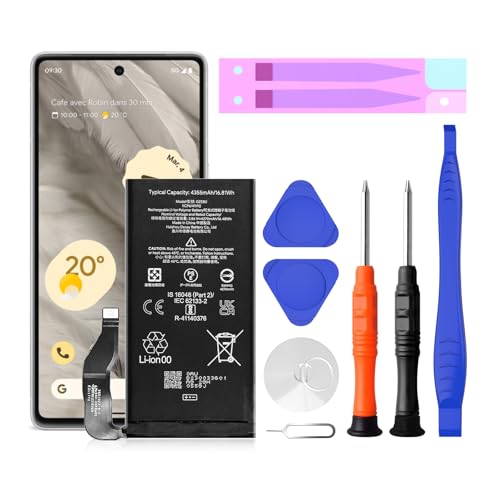
【Pixel 7 battery replacement 】quality battery replacement for Google Pixel 7 perfect fit your phone. It is safer than so-called upgraded high-capacity batteries. No potential risks during use. Multiple protection features to prevent overcharging and prevent overheating. Built-in microchip to ensure safe battery charging and improve battery life. NOTE: Please fully charge and discharge your new battery 3 to 5 cycles to release all capacity of the new battery.
Adjusting Settings
- Lower Screen Brightness: Reduce brightness settings manually to save energy. You can access brightness settings in the quick settings menu.
- Enable Adaptive Brightness: Allow your phone to adjust brightness automatically based on surrounding light. This feature can efficiently optimize screen brightness.
- Activate Battery Saver Mode: Turn on Battery Saver mode in settings. This mode limits background activity to preserve battery life.
- Limit Background Data: Restrict apps from using data when in the background. Go to Settings > Network & internet > Data usage to manage this.
- Switch to Dark Mode: If you’re using an OLED display, enabling Dark mode can save battery, as it consumes less power for darker pixels.
Managing Apps
- Identify Battery Drainers: Check Settings > Battery > Battery usage to find out which apps consume the most power. Uninstall or disable unnecessary apps.
- Restrict Background Activity: For apps that aren’t used frequently, limit background activity through their settings. This prevents them from draining battery when not in use.
- Update Apps Regularly: Ensure your apps are up to date. Developers often optimize apps to use less battery in new versions.
- Uninstall Unused Apps: Remove apps you rarely use. Each app takes up resources, even when inactive.
- Limit Widgets: Reduce the number of widgets on your home screen. Widgets can continuously use resources, impacting your battery life.
When to Seek Professional Help
If your Google Pixel’s battery drains excessively despite trying basic troubleshooting steps, seeking professional help becomes essential. Consider the following indicators:
- Overheating: If your device feels hot during regular use, it may signal deeper issues affecting battery health.
- Rapid Drainage: Battery percentage dropping significantly within a short time indicates potential hardware failure.
- Persistent Issues: If problems persist after factory resetting the device and ensuring all software is up-to-date, professional diagnostics may be required.
- Physical Damage: Any signs of damage, such as cracks or swelling, often necessitate immediate attention from experts.
- Charging Problems: If the phone fails to charge or experiences charging inconsistencies, an internal inspection might reveal defective components.
Finding a certified repair center or contacting Google support ensures thorough assessment and resolution of battery-related issues. Regular maintenance and prompt actions can significantly extend the lifespan of your device.
Recommended Products

✅【Compatible Model】This for Google Pixel 8 Pro Battery Compatible with for Google Pixel 8 Pro Model GUKD8 1/CP6/52/93 GC3VE PN:Google G949-00704-01 [NOTE: You can find your phone model on phone back over for reference.]
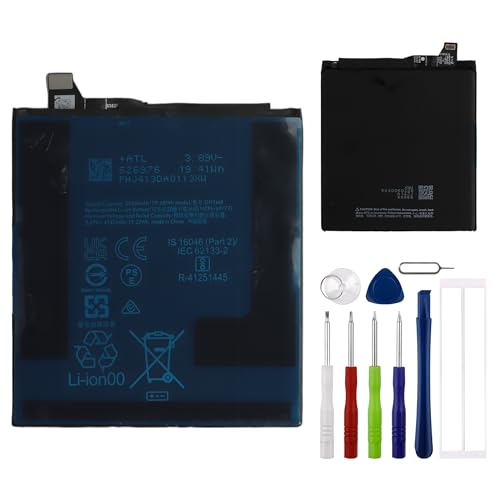
This battery is compatible with Google Pixel 9 Pro XL, to ensure that the battery you purchase is a perfect match for your device, be sure to check the model number of your device before ordering (you can check the model number of your device in the ‘Settings’ of your device).

Compatible with: Google Pixel 7 GVU6C, GQML3, GO3Z5; Battery Model: GZE8U; Please check your battery type before purchasing
Conclusion
Keeping your Google Pixel’s battery in good shape doesn’t have to be a struggle. By being mindful of your settings and managing apps effectively, you can make a real difference in how long your battery lasts. Remember to adjust your screen brightness and take advantage of features like battery saver mode to help stretch your battery life.
If you notice persistent issues despite trying these tips it might be time to get some professional help. Regular maintenance and a little attention can go a long way in ensuring your device stays powered up when you need it most. Enjoy your Pixel experience without the constant worry of a dying battery.
Frequently Asked Questions
What causes rapid battery drain on Google Pixel devices?
Rapid battery drain on Google Pixel devices can be caused by several factors, including high screen brightness, background apps running without use, and location services. Regularly checking battery usage can help identify which apps consume the most power and allow users to manage settings effectively to conserve battery life.
How can I improve my Google Pixel’s battery life?
To improve your Google Pixel’s battery life, consider lowering screen brightness, enabling adaptive brightness, and activating battery saver mode. Additionally, limit background data usage, restrict background activity of certain apps, and keep apps updated. Uninstalling unused apps and reducing the number of widgets can also help.
Should I keep location services on?
Keeping location services on can drain your battery. It’s advisable to limit GPS usage and adjust location access settings based on necessity. You can set location access to “While Using” for specific apps or disable it altogether for those not requiring constant location tracking.
How do I check which apps are draining my battery?
You can check battery usage by going to Settings > Battery > Battery Usage. This section shows you which apps consume the most power. By identifying power-hungry apps, you can decide to restrict their background activity or uninstall them if they are not essential.
When should I seek professional help for battery issues?
Seek professional help if you notice your Google Pixel device overheating, experiencing rapid battery drainage despite following tips, or if you encounter persistent issues after troubleshooting. Physical damage or inconsistencies in charging may also require expert attention. Consider finding a certified repair center or contacting Google support for assistance.
