

Key Takeaways
- Identify Common Causes: Background app activity, high screen brightness, and location services are primary contributors to battery drain on the Google Pixel 6a.
- Adjust Settings: Lower screen brightness, activate adaptive brightness, and reduce screen timeout settings to conserve power.
- Manage Background Activities: Regularly close unused apps and limit their background activity through the settings menu to minimize energy usage.
- Optimize Connectivity Features: Disable Wi-Fi, Bluetooth, and location services when not in use to extend battery life.
- Regularly Update Software: Ensure your device is running the latest software updates to maintain battery efficiency and overall performance.
- Monitor Battery Performance: Utilize built-in tools to track battery usage statistics and apply necessary adjustments to improve battery longevity.
Is your Google Pixel 6a battery draining faster than you’d like? You’re not alone. Many users find themselves frustrated when their phone seems to lose power at an alarming rate, leaving them scrambling for a charger throughout the day.
Understanding the reasons behind this issue can save you from constant battery anxiety. In this article, you’ll discover common culprits that might be draining your battery and practical tips to extend its life. By the end, you’ll have the tools to help keep your Pixel 6a powered up and ready to go when you need it most.
Overview of Google Pixel 6a Battery Issues
The Google Pixel 6a battery drain issue concerns many users. Factors contributing to this problem include app behavior, settings, and hardware performance.
Common Causes of Battery Drain
- Background Activity: Apps running in the background consume power. Regularly check which apps are using battery in your settings menu.
- Screen Brightness: High screen brightness settings contribute to faster battery depletion. Reducing screen brightness can extend battery life.
- Location Services: GPS and location services can drain battery significantly. Adjust your location settings to “Battery Saving” mode when not in use.
- Notifications and Syncing: Frequent notifications and real-time syncing of email or social media apps increase energy consumption. Optimize app settings to reduce unnecessary alerts.
- Outdated Software: Running outdated software might affect battery efficiency. Ensure your device has the latest updates installed.
Battery Usage Statistics
Here’s a quick glance at battery usage on your Pixel 6a:
| App/Feature | Battery Usage (%) |
|---|---|
| Screen | 30% |
| Location Services | 20% |
| Social Media Apps | 15% |
| Messaging Apps | 10% |
| Other | 25% |
Solutions to Improve Battery Life
- Limit Background Processes: Disable background activity for non-essential apps.
- Adjust Brightness Settings: Use adaptive brightness or lower brightness manually.
- Manage Location Access: Switch to “Battery Saving” for location services.
- Turn Off Unused Features: Disable features like Bluetooth or NFC when not needed.
- Update Software Regularly: Check for and install any updates to optimize performance.
By understanding these factors and implementing the tips above, you can effectively manage your Google Pixel 6a’s battery life.
Common Causes of Fast Battery Drain
Several factors contribute to rapid battery drain in the Google Pixel 6a. Understanding these can help you take steps to extend your device’s battery life.
Recommended Products
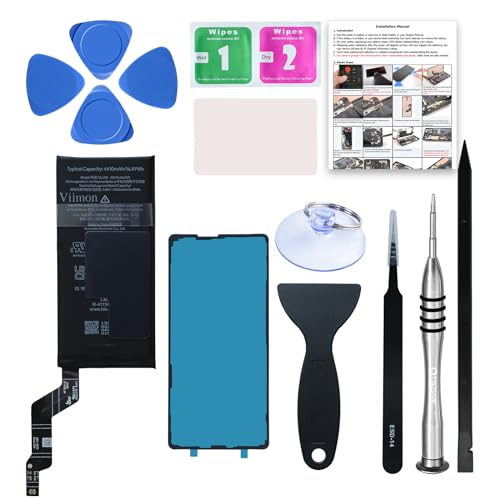
【OEM Battery Cells】 OEM quality battery replacement for Google Pixel 6a. It is safer than so-called upgraded high-capacity batteries. No potential risks during use. Multiple protection features to prevent overcharging and prevent overheating. Built-in microchip to ensure safe battery charging and improve battery life. NOTE: Please fully charge and discharge your new battery 3 to 5 cycles to release all capacity of the new battery.

Designed exclusively for Pixel 6A variants: GX7AS, GB62Z, G1AZG, GB17L. Double-check your device's model (found under Settings > About Phone) to ensure perfect fitment.

Compatible Phone Model: This battery kit is specifically designed for Pixel 6A, please double confirm your phone model before purchasing
Background App Usage
Background apps consume power even when they’re not in use. Many apps run processes that frequently update data or send notifications. Apps like social media, email, and messaging platforms often refresh content regularly. To minimize battery drain:
- Check Running Apps: Use the settings menu to see which apps are active in the background.
- Limit Background Activity: Go to settings, select “Battery,” then choose “Battery usage” to restrict background activity for specific apps.
- Close Unused Apps: Regularly close apps that you aren’t using.
Screen Brightness and Timeout Settings
Screen settings play a significant role in battery performance. High brightness levels and extended timeout periods drain battery life quickly. To adjust these settings:
- Lower Brightness: Access quick settings and reduce brightness to a comfortable level.
- Enable Adaptive Brightness: This feature adjusts brightness based on ambient light. Go to settings, select “Display,” then toggle “Adaptive brightness” on.
- Reduce Timeout Duration: Set your screen timeout to 30 seconds or 1 minute through the “Display” settings.
Connectivity Features and Their Impact
- Turn Off Wi-Fi and Bluetooth: Disable these features when not in use via the quick settings menu.
- Use Airplane Mode: Activate Airplane mode in low-signal areas to avoid constant searching for networks.
- Limit Location Services: Change location settings to “Use GPS, Wi-Fi, and mobile networks” only when necessary. Access this option under “Location” in settings.
Tips to Improve Battery Life
Improving your Pixel 6a’s battery life involves a few strategic adjustments. Implement the following tips to help maintain longer usage between charges.
Adjusting Settings for Efficiency
- Lower Screen Brightness: Set your screen brightness to a lower level or use the adaptive brightness feature, which automatically adjusts brightness based on your surroundings.
- Reduce Screen Timeout: Decrease the screen timeout duration to 30 seconds or less. This ensures the display turns off quickly when not in use.
- Limit Location Services: Change location settings to “Battery saving mode.” This option utilizes Wi-Fi and mobile networks rather than GPS, reducing battery consumption.
- Turn Off Unused Features: Disable Bluetooth, NFC, and Wi-Fi when not in use. Access these settings through the quick settings menu for easy toggling.
- Use Dark Mode: Enable dark mode to save battery life, especially on OLED screens like your Pixel 6a. This setting uses less power for darker pixels.
Managing Background Apps
- Close Unused Apps: Regularly check for and close apps running in the background. Swipe away or swipe them off from the recent apps menu.
- Limit Background Activity: Go to “Settings” > “Apps” and select apps that use unnecessary background data. Adjust each app’s settings to limit background activity.
- Uninstall Unused Apps: Identify apps that you rarely use and uninstall them. Reducing the number of installed apps conserves battery life.
- Adjust Sync Settings: Change app sync settings to manual instead of automatic. This prevents apps from constantly updating and consuming battery when not needed.
- Turn Off Push Notifications: Disable push notifications for non-essential apps to minimize constant background activity. This option can usually be found in app settings.
Monitoring Battery Performance
Monitoring battery performance helps identify usage patterns and key factors contributing to rapid battery drain. By understanding your device’s behavior, you can make informed adjustments for better battery life.
Recommended Products

[Compatible Models]: Our upgraded pixel 6A replacement battery is compatible with with HTC Google Pixel 6A Model GX7AS, GB62Z, G1AZG(Not compatible with Pixel 6 and Pixel 7/7A), please verify the part number and model of your old battery
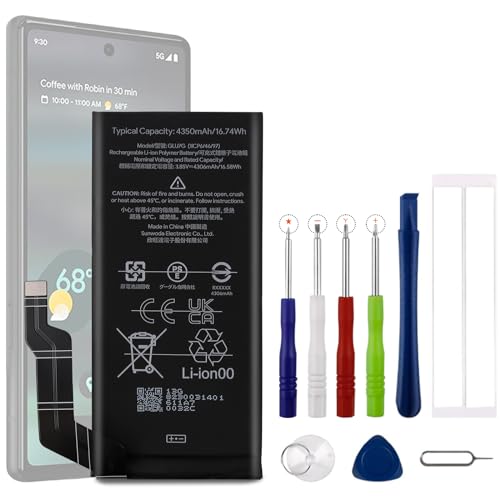
Compatible Model No.:For G-oogle Pixel 6a GVU6C,Capacity:4350mAh,Voltage: 3.85V. Make sure your device is suitable for this replacement battery before ordering.

【Why Don't Sell Increased Capacity Battery 】- Because most of the so-called upgraded batteries on the market are exaggerated, the actual use time does not increase much, but the price is expensive. Our battery capacity and voltage is 100% same as your original Pixel 6 battery, it is a real 4614mAh can be perfectly compatible with the motherboard of your phone, and will not damage the hardware and reduce the service life of phone, true to providing long-lasting battery life.
Using Built-In Tools and Apps
You can utilize your Google Pixel 6a’s built-in tools to monitor battery performance effectively.
- Battery Usage Statistics: Open Settings > Battery to view how much battery each app consumes. This helps pinpoint apps that may be draining the battery excessively.
- Battery Saver Mode: Enable Battery Saver by going to Settings > Battery > Battery Saver. This feature restricts background activity and limits performance to enhance battery life.
- Adaptive Battery: Turn on Adaptive Battery in Settings > Battery. This feature learns your usage habits and prioritizes power for frequently used apps.
- App Info: For any app consuming too much battery, tap on it in the battery usage list and choose App info to control settings. You can restrict background activity or uninstall the app if necessary.
- Screen Time Management: Track screen time in Settings > Digital Wellbeing & parental controls. Reducing screen time can also lead to improved battery longevity.
- Third-Party Apps: Consider downloading battery monitoring apps like GSam Battery Monitor or AccuBattery. These apps provide detailed statistics on battery usage and can help optimize performance further.
By leveraging these tools, you gain valuable insights into your Pixel 6a’s battery performance. Making adjustments based on this data directly improves battery life.
Conclusion
Dealing with battery drain on your Google Pixel 6a can be frustrating but you’re not alone. By understanding the factors that contribute to this issue and implementing the strategies shared, you can significantly improve your device’s battery life.
Take the time to monitor your app usage and adjust settings to suit your habits. Regular updates and mindful management of connectivity features can also make a big difference. With a little effort, you’ll keep your Pixel 6a charged and ready for whatever your day brings. Enjoy the peace of mind that comes with a well-managed battery!
Frequently Asked Questions
What causes battery drain in the Google Pixel 6a?
Battery drain in the Google Pixel 6a can be caused by several factors, including app behavior, high screen brightness, location services, excessive notifications, and outdated software. Understanding these elements can help in managing and extending the phone’s battery life effectively.
How can I extend the battery life of my Pixel 6a?
To extend your Pixel 6a’s battery life, limit background processes, adjust screen brightness, manage location access, and regularly update your software. Additionally, closing unused apps and turning off connectivity features like Wi-Fi and Bluetooth when not in use can also help conserve battery.
What apps drain battery the most on Pixel 6a?
Apps that frequently run in the background, access location services, or use high processing power typically drain the battery the fastest. Monitoring battery usage statistics in the Settings menu can help identify which apps are consuming the most power.
How do I use the Battery Saver mode on Pixel 6a?
To enable Battery Saver mode on your Pixel 6a, go to Settings > Battery > Battery Saver. You can turn it on manually or set it to activate automatically when your battery falls below a certain percentage. This mode limits background activity and helps conserve battery life.
Should I use adaptive brightness on my Pixel 6a?
Yes, using adaptive brightness on your Pixel 6a is recommended as it automatically adjusts the screen brightness based on your surroundings. This feature helps save battery by reducing brightness in darker environments and increasing it in brighter settings.
How can I monitor my battery performance?
You can monitor your battery performance by checking the Battery section in the Settings. It provides statistics on battery usage by app, remaining battery life, and options to enable Battery Saver and Adaptive Battery to optimize performance.
Can third-party apps help with battery management?
Yes, third-party battery monitoring apps can provide detailed insights into your battery’s performance and app usage. These apps can help identify power-hungry applications and suggest optimizations to prolong battery life.
