

Key Takeaways
- Identify Common Causes: Recognize that background apps, location services, and screen brightness are primary factors contributing to battery drain on Samsung phones.
- Manage Background Apps: Regularly check and restrict background app activity via the Battery settings to conserve power.
- Optimize Location Settings: Switch to “Battery Saving” mode for location services and disable GPS for non-essential apps to enhance battery life.
- Adjust Screen Settings: Utilize adaptive brightness features and set a shorter screen timeout to reduce battery consumption when the phone is inactive.
- Monitor Battery Health: Regularly review battery usage stats to identify power-hungry apps and consider limiting their background activity.
- Keep Software Updated: Ensure your phone’s software is updated to benefit from fixes and optimizations that improve battery performance.
Ever notice your Samsung phone’s battery draining faster than usual? You’re not alone. Many users find themselves puzzled by the sudden drop in battery life, especially when they haven’t changed their usage habits.
This article will help you understand the common culprits behind battery drain and offer practical solutions to extend your phone’s life. Whether it’s an app running in the background or a setting that needs tweaking, you’ll learn how to get your battery back on track. Let’s tackle this issue together so you can enjoy your device without constantly worrying about charging.
Common Causes of Battery Drain
Rapid battery drain on your Samsung phone often stems from several common factors. Identifying these causes helps you implement effective solutions to extend your battery life.
Background Apps and Processes
Background apps consistently use battery power, even when you’re not actively using your phone. Applications continuously running can drain resources. To check for and manage these apps:
- Access Settings: Go to the settings menu on your phone.
- Select Battery: Tap on “Battery” to access battery usage statistics.
- Review App Usage: Review the list of apps consuming battery power in the background.
- Force Stop Unused Apps: Force stop apps you don’t use regularly.
- Limit Background Data: Restrict background data for specific apps to reduce usage.
Location Services and GPS Usage
Location services significantly impact battery life, especially if GPS is continually active. Managing location settings can help save power. Here’s what to do:
- Open Settings: Go to your phone’s settings.
- Navigate to Location: Select “Location” or “Location Services.”
- Adjust Mode: Switch to “Battery Saving” mode instead of “High Accuracy,” which uses GPS.
- Disable When Not Needed: Turn off location services for specific apps that don’t require constant GPS use.
- Use Manual Location Services: Opt for manual activation of location services, enabling it only when necessary.
By understanding these common causes, you can take steps to optimize your Samsung phone’s battery performance.
Screen Brightness and Settings
Screen brightness significantly influences your Samsung phone’s battery consumption. Adjusting brightness settings can lead to extended battery life.
Recommended Products
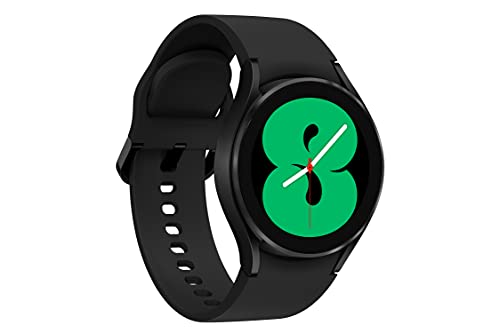
BODY COMPOSITION ANALYSIS: Galaxy Watch4 is the first smartwatch to off body composition data right on your wrist, On your own schedule, now you can get readings on body fat, skeletal muscle, body water, basal metabolic rate, and Body Mass Index.Supported Application:Heart Rate Monitor,Sleep Monitor,Fitness Tracker. Connectivity technology:LTE,Bluetooth,GPS. Wireless comm standard:Bluetooth
![SAMSUNG Galaxy FIT 3 [2024] 1.6" AMOLED Display | 14 Days Battery Life | 100+ Watchfaces | 100+ Exercise Modes | International Model - (Gray)](https://m.media-amazon.com/images/I/31JyN7HkB8L._SL500_.jpg)
Vibrant 1.6” AMOLED Display – Large, high-res screen with smooth touch for easy navigation
Adaptive Brightness Features
Adaptive brightness automatically adjusts your screen’s brightness based on your environment. If you’re in a bright place, it increases brightness to ensure readability. When you’re in a darker area, it lowers brightness to save battery. To enable this, go to Settings > Display > Adaptive Brightness. Turn it on for a smarter approach to screen brightness.
Screen Timeout Settings
Screen timeout refers to the duration your screen stays on without any activity. The longer the screen stays active, the more battery it drains. To modify this setting, navigate to Settings > Display > Screen Timeout. Set a shorter period, like 30 seconds or 1 minute. This small adjustment can make a big difference in battery life.
Battery Health and Management
Understanding battery health and management plays a crucial role in prolonging your Samsung phone’s battery life. You can improve battery performance by monitoring usage and adjusting specific settings.
Checking Battery Usage Stats
Checking battery usage stats offers insight into which apps consume the most power. To access battery usage stats, follow these steps:
- Go to Settings.
- Tap on Battery and Device Care.
- Select Battery.
- View the Battery Usage section.
You’ll see a list of apps with their respective battery usage percentages. Identify apps that consume significant energy, and consider limiting their background activity or uninstalling them if they aren’t essential.
Tips for Optimizing Battery Life
Optimizing battery life involves practical steps that you can easily implement. Consider the following tips:
- Activate Battery Saver: Enable Battery Saver mode to extend battery life during critical times.
- Limit Background Data: Restrict background data for non-essential apps in the data usage settings to reduce power consumption.
- Adjust Screen Brightness: Enable adaptive brightness to automatically adjust brightness based on surrounding light.
- Shorten Screen Timeout: Set a shorter screen timeout to minimize display time when the phone is not in use.
- Disable Location Services: Turn off location services for non-essential apps to conserve battery, enabling them only when necessary.
- Manage App Permissions: Review app permissions and limit access to features like GPS when not in use.
By utilizing these battery management techniques, you can effectively reduce your Samsung phone’s battery drain and enhance its overall performance.
Software Updates and Compatibility
Regular software updates play a crucial role in maintaining your Samsung phone’s performance and battery life. Staying updated ensures you benefit from the latest enhancements and fixes that optimize functionality.
Recommended Products


Compatibility & RFID Blocking: Only compatible with Galaxy S26 5G 6.3-inch (2026 Release). Do not fit Galaxy S26+ Plus/S26 Ultra (Not fit). Equipped with RFID blocking technology, card holder slots with blocking material can effectively block signals and protect your card information from unauthorized scans
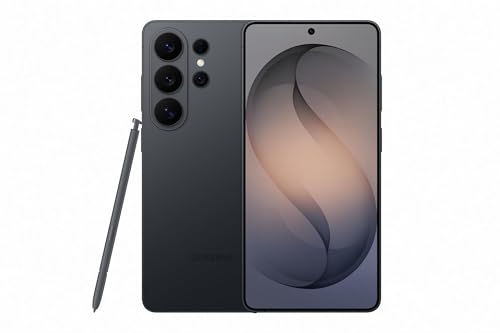
PRIVACY DISPLAY: Automatically hide your screen from those beside you. The built-in privacy display can be preset¹ to turn on when receiving notifications, typing passwords, or using specific apps
Importance of Keeping Software Updated
Keeping your phone’s software current helps fix known issues that contribute to battery drain. When manufacturers release updates, they often address bugs that may affect battery performance. For instance, an outdated operating system may include inefficient power management features. By checking for updates regularly, you can enhance your phone’s efficiency and prolong battery life. To check for updates, go to Settings > Software update > Download and install.
Potential Bugs and Issues
Bugs in older software versions commonly lead to unnecessary battery consumption. These bugs may cause apps to run in the background excessively or prevent the phone from entering sleep mode. If your device drains battery quickly without significant usage, potential software-related issues could exist. Reported bugs may vary by model, so it’s wise to search online or visit Samsung’s support page for specific information related to your device. Keeping your software updated protects against known bugs, improving your overall device performance.
Conclusion
You don’t have to live with a draining battery on your Samsung phone. By taking a few simple steps you can significantly improve your battery life and enjoy your device without the constant worry of recharging.
Regularly checking your battery usage stats can reveal which apps are the biggest culprits. Adjusting your settings like screen brightness and location services can also make a big difference.
Don’t forget to keep your software updated to ensure your phone’s performance stays at its best. With a little effort you can extend your battery life and keep your phone running smoothly throughout the day.
Frequently Asked Questions
What causes rapid battery drain in Samsung phones?
Many factors contribute to rapid battery drain in Samsung phones, including background apps that consume power, high screen brightness, location services, and outdated software. Regular monitoring and adjustments to settings can help mitigate these issues.
How can I identify which apps are draining my battery?
You can identify battery-draining apps by accessing the settings menu on your Samsung phone. Navigate to “Battery” or “Battery Usage” to see statistics on which apps consume the most power. This allows you to pinpoint and manage resource-intensive applications.
How do I limit background app activity?
To limit background activity, go to your phone’s settings, select “Apps,” and review battery usage stats. Force stop any unused apps and restrict background data for apps that aren’t essential. This can significantly improve battery life.
What should I do to improve screen brightness for better battery life?
To enhance battery life through screen brightness, enable adaptive brightness in your settings. This feature automatically adjusts the screen brightness based on environmental lighting. Additionally, consider reducing the overall brightness level manually.
Is it necessary to update my Samsung phone regularly?
Yes, updating your Samsung phone regularly is essential. Software updates often include fixes for bugs that cause battery drain. Keeping your phone’s software current helps maintain optimal performance and reduces issues related to excessive background activity.
How does location services affect battery life?
Location services can significantly drain battery life, especially if enabled for multiple apps. To conserve battery, disable location services for non-essential apps and switch to “Battery Saving” mode when not actively using GPS.
What is Battery Saver mode, and how can I use it?
Battery Saver mode is a feature that limits background data and reduces device performance to conserve power. You can enable it in the settings under “Battery.” This will extend your phone’s battery life during low charge situations.
How does screen timeout impact battery performance?
Shortening your screen timeout can help conserve battery life. By reducing the duration before your screen automatically turns off, you minimize unnecessary power usage. Set the timeout to a shorter duration to maximize battery efficiency.
Can bad battery health affect performance?
Yes, poor battery health can lead to rapid discharge and performance issues. Regularly checking your battery health in settings helps you monitor its condition. If you notice significant degradation, consider replacing the battery for better performance.
