

Key Takeaways
- The blinking battery light on your ASUS laptop can signify various issues, including low battery life, charging problems, or hardware malfunctions.
- Different blinking light patterns indicate specific conditions, such as rapid blinking for critical battery issues and slow blinking for insufficient power delivery.
- Ensure your charger and connections are secure, as loose connections or damaged chargers can trigger blinking lights.
- Checking battery health and updating drivers or BIOS from the ASUS support site can resolve software-related conflicts affecting battery performance.
- If you encounter continuous blinking, overheating, or visible battery swelling, seek professional assistance before further damage occurs.
Have you noticed your ASUS laptop battery light blinking and wondered what it means? You’re not alone. Many users face this puzzling issue, and it can be frustrating when you rely on your laptop for work or leisure.
Understanding why that light is flickering can save you time and help prevent potential problems down the road. In this article, you’ll discover the common reasons behind a blinking battery light and what you can do to fix it. By the end, you’ll feel more confident in troubleshooting your laptop’s battery issues and keeping it running smoothly.
Understanding ASUS Laptop Battery Indicators
ASUS laptops feature various battery light indicators that help you monitor power status and troubleshoot issues. Understanding these indicators can enhance your ability to address battery-related concerns effectively.
Common Battery Light Colors and Meanings
- Solid Green: Indicates that the battery is fully charged. Your laptop is receiving power.
- Solid Orange: Shows that the battery is charging. Keep your laptop connected to the power source.
- Blinking Orange: Signifies that the battery is low on charge. Plug in the laptop soon to avoid shutdown.
- Blinking Green: Typically signals a faulty battery or charging issue. Check connections and consider battery replacement if needed.
What Blinking Lights Indicate
Blinking lights can signal specific battery problems. Consider these scenarios:
- Rapid Blinking: Indicates a critical battery issue. If the light blinks rapidly, shut down the laptop and troubleshoot or seek professional help.
- Slow Blinking: This may suggest that the battery is charging, but the adapter isn’t delivering enough power. Ensure you’re using the correct charger and verify its functionality.
- Alternating Blinks: Signals a possible hardware issue. Inspect the power adapter or battery connections.
By observing these light patterns, you can respond to potential issues promptly and maintain your ASUS laptop’s performance.
Potential Reasons for Blinking Battery Light
A blinking battery light on your ASUS laptop can indicate various issues. Understanding these issues helps you troubleshoot effectively.
Recommended Products

♣Battery type: Li-ion; Capacity: 2200mAH; Cells: 3-cell; Voltage: 11.1V. The battery is durable and has overcurrent protection, anti-overcharge, anti-overdischarge and temperature control functions.

♣14.8V,2200mAh, The battery is durable and has overcurrent protection, anti-overcharge, anti-overdischarge and temperature control functions.

C41N1533 Laptop Battery Replacement for Asus Q524U Q534U Q524UQ Q524UQK Q534UX Q534UXK Q504UQ Q504UX ZenBook Flip UX560UQ UX560UX UX560UXK UX560UQK 4ICP3/63/120; Voltage: 15.2V ; Capacity: 52Wh 3450mAh.
Battery Health Issues
Battery health can impact performance. A worn-out or degraded battery may cause flickering. You can check battery health through built-in diagnostic tools. Look for swelling or unusual heat as signs of battery failure. If you suspect health issues, consider replacing the battery.
Charger and Connection Problems
Charger problems often lead to a blinking light. Ensure the charger is compatible and functioning properly. Examine the connection between the charger and the laptop. Loose connections can interrupt charging and trigger blinking lights. Test another charger if available, and inspect the charging port for debris or damage.
Software and Driver Conflicts
Software or driver conflicts might also contribute to blinking lights. Outdated or corrupt drivers can cause power management issues. Update your BIOS and battery drivers via the ASUS support site. If the problem persists, a system restore might resolve software-related conflicts, reverting settings to an earlier, stable state.
Troubleshooting Steps
You can follow these troubleshooting steps to address the blinking battery light issue on your ASUS laptop.
Recommended Products

Battery Type: Polymer. Voltage: 11.55V Capacity: 42Wh ; Cells: 3-cell; Color: Black, Packages includes: 1x B31N1912 battery , with auxiliary installation tool and user manual.
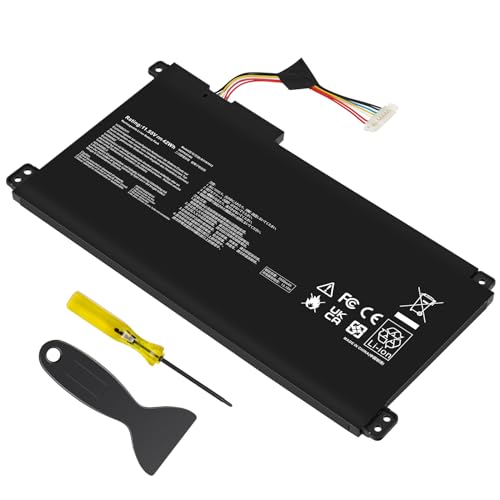
【Capacity】42Wh/3550MAH Cell: 3-Cell Voltage: 11.55V Battery type: Li-ion

Compatible Models: A31-K53 / A32-K53 battery for Asus A53, K53, K54, K84, K93, N53, A43, A45, A83, A84, K43, P43, P43S, P53, X43, X44, X54, X84, and X84H series.
Checking for Hardware Issues
- Inspect the Charging Cable: Look for frays, cuts, or damage on the charger. A damaged cable can lead to insufficient power delivery.
- Examine the Battery Connection: Check if the battery is securely connected. A loose battery can also trigger blinking lights.
- Remove and Reinsert the Battery: If your laptop has a removable battery, power off the device, unplug it, and remove the battery. Reinsert it properly and see if the issue persists.
- Test Different Outlets: Plug the charger into another electrical outlet. Sometimes, faulty outlets cause inconsistent power supply.
- Run Hardware Diagnostics: Use the built-in diagnostics tool from ASUS, if available, to identify any hardware problems.
Updating Drivers and BIOS
- Go to Device Manager: Find the Device Manager in the Control Panel. Look for the “Batteries” section.
- Update Battery Drivers: Right-click on “Microsoft ACPI-Compliant Control Method Battery” and select “Update Driver.” Follow the prompts to complete the update.
- Check for BIOS Updates: Visit the ASUS support website to find the latest BIOS version for your laptop model. Follow the instructions for downloading and installing the update.
- Restart Your Laptop: After updating, restart your laptop to ensure all changes take effect.
Resetting the Battery
- Shut Down the Laptop: Completely power off your ASUS laptop.
- Disconnect All Power Sources: Remove the charger and battery (if removable).
- Drain Residual Power: Press and hold the power button for 15-20 seconds to clear any residual power.
- Reassemble the Laptop: Reconnect the battery and charger, then power the device back on.
- Check the Battery Light: Observe if the blinking indicates a resolution after performing the reset.
By following these steps, you can effectively troubleshoot and potentially resolve the blinking battery light issue on your ASUS laptop.
When to Seek Professional Help
If you’re unable to resolve the blinking light issue on your ASUS laptop, consider seeking professional help. Certain signs indicate when this step is necessary.
Recommended Products

【Customer First】24 x 7 email support. We specialize in providing quality power products. (Note: Amazon return windows will close after one month, If you have any problem with battery, please Contact us - in “YOUR ORDER” options click the “contact seller”.)

Battery Model : B31N1912 Voltage: 11.55V Capacity: 42Wh Li-ion polymer Battery

Power Specs: Battery Type: Li-polymer Voltage: 11.1V Capacity: 5200Mah; The battery is durable and has overcurrent protection, anti-overcharge, anti-overdischarge and temperature control functions.
Signs of Severe Battery Issues
- Constant Blinking: If the battery light blinks continuously and not just during charging, it suggests an underlying problem.
- No Power: When the laptop fails to turn on even when plugged in, battery replacement might be essential.
- Overheating: If the battery or laptop gets excessively hot during use, this could signal battery malfunction.
- Swelling: Any visible swelling in the battery is a critical indicator of battery failure, demanding immediate attention.
- Charging Problems: Problems like the battery not charging despite using a functional charger suggest deeper issues.
Recognizing these signs early helps prevent further damage to the laptop.
ASUS Support Resources
If you encounter persistent battery issues, utilize ASUS support resources. Here’s where to find help:
- ASUS Support Website: Visit the official ASUS website for troubleshooting guides tailored to your model.
- User Manuals: Check the manual for specific instructions on your laptop model, particularly related to battery maintenance and troubleshooting.
- Customer Support: Contact ASUS Customer Service directly for personalized assistance. They can guide you through advanced diagnostics.
- Service Centers: If your laptop requires repairs, locate an authorized ASUS service center using the website. Professional technicians can assess and replace batteries safely.
These resources ensure you find the right solution for your ASUS laptop’s battery issues efficiently.
Conclusion
Dealing with a blinking battery light on your ASUS laptop can be a hassle but you’re not alone. By understanding the different light indicators and their meanings you can take the right steps to troubleshoot and resolve the issue. Whether it’s a simple fix like checking connections or something more serious like a battery replacement knowing what to look for can save you time and frustration.
Don’t hesitate to reach out for professional help if needed. Keeping your laptop in top shape ensures you can stay productive and enjoy your device without interruptions. Remember to stay proactive about your laptop’s health and you’ll be well on your way to a smoother experience.
Frequently Asked Questions
Why is my ASUS laptop’s battery light blinking?
A blinking battery light on your ASUS laptop often indicates a low battery or power supply issues. A blinking orange light usually means the battery is running low, while a blinking green light may suggest a battery fault. Checking your charger, connections, and battery health can help identify the specific cause.
What do the different battery light indicators mean on ASUS laptops?
A solid green light indicates a full charge, while a solid orange light means the battery is charging. A blinking orange light signals a low battery; a blinking green light may point to a faulty battery. Rapid blinking indicates critical battery issues, and slow blinking suggests insufficient power from the adapter.
How can I troubleshoot the blinking battery light issue?
To troubleshoot, check your charger and connections for damage, ensure the battery is securely connected, and test different electrical outlets. Running hardware diagnostics with ASUS’s built-in tools can also help identify issues. Updating drivers and BIOS may resolve software conflicts contributing to the blinking.
When should I seek professional help for my ASUS laptop’s battery issue?
Seek professional help if the battery light blinks constantly, your laptop fails to turn on, or if there’s visible battery swelling. Overheating and persistent charging problems also warrant professional assessment. Early recognition can mitigate further damage to your laptop.
Where can I find additional resources for resolving ASUS battery issues?
You can find additional resources on the official ASUS website, which provides troubleshooting guides and user manuals. Customer support is also available for personalized help, and you can locate authorized service centers for professional repairs if needed.
