

Key Takeaways
- Identify Background App Usage: Monitor and limit apps running in the background to conserve battery power effectively.
- Adjust Screen Settings: Lower screen brightness and shorten screen timeout to extend battery life.
- Manage Location Services: Disable unnecessary location access and utilize battery-saving modes for apps that require location data.
- Keep Software Updated: Regularly check for system updates to enhance battery efficiency and resolve software issues.
- Be Aware of Hardware Factors: Consider battery age and use quality charging accessories to prevent damage and maintain battery health.
- Utilize Battery Saver Mode: Activate and customize the Battery Saver mode when necessary to prolong usage during critical times.
Ever find yourself scrambling for a charger halfway through the day? You’re not alone. Many Android users face the frustrating issue of rapid battery drain. It can feel like your phone’s battery has a mind of its own, leaving you in a bind when you need it most.
Common Reasons For Battery Drain
Battery drain can stem from several factors. Understanding these causes helps you manage your phone’s energy consumption more effectively.
Background App Usage
Background apps consume power even when you’re not actively using them. Apps like social media, email, and music streaming can run continuously in the background. To minimize battery drain, check your app settings.
- Investigate running apps: Access your device’s settings to view active apps.
- Close unnecessary apps: Swipe away apps you don’t need.
- Limit background activity: Adjust app permissions to restrict background activity.
Screen Brightness and Timeout Settings
Screen brightness significantly affects battery usage. Brighter screens drain energy faster. To conserve battery:
- Adjust brightness: Set it to automatic or reduce it manually based on your environment.
- Shorten screen timeout: Set your screen to turn off after 30 seconds to 1 minute of inactivity.
Location Services and GPS
- Disable unnecessary location access: Turn off location services for apps that don’t need it.
- Use battery-saving modes: Choose high-accuracy, battery-saving, or device-only modes depending on your needs.
- Manage location settings: Regularly review which apps have access to your location and make adjustments as needed.
Software Issues
Software problems often contribute significantly to battery drain on Android phones. Ensuring your device runs smoothly requires attention to both the operating system and the applications you use.
Recommended Products



Outdated Operating System
An outdated operating system can lead to poor battery performance. New updates typically include optimizations and bug fixes that enhance battery efficiency. Check your device settings for system updates. To do this, navigate to Settings > System > Advanced > System update. If an update is available, install it to improve performance.
Misbehaving Apps
Some apps drain your battery faster than others, especially if they don’t function properly. Misbehaving apps may run in the background, even when you’re not using them, consuming valuable battery life. To identify these apps, go to Settings > Battery > Battery usage. This section lists apps by the amount of battery they use. If an app consumes too much power, consider uninstalling it or checking for an update. Also, disabling auto-start for non-essential apps can help reduce their impact on battery life.
Hardware Factors
Several hardware factors can affect your Android phone’s battery life. Understanding these elements helps you pinpoint potential issues and take action.
Recommended Products
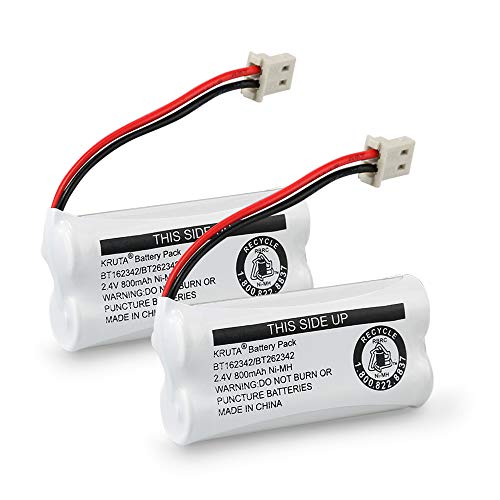
Voltage: 2.4V - Capacity: 800mAh - Type: AAA*2 . Connector Type:5264; Jack: Round. - (Tips: This battery model not suit for all cordless phone model, please kindly read our listing in details and confirm your old battery model, then select correct battery model.)

🎃2.4V 400mAh Ni-MH,Replace of original Battery BT183342 BT283342 BT166342 BT266342 BT162342 BT262342 2SN-AAA40H-S-X2

BAOBIAN BT183342/BT283342 2.4V 400mAh Ni-Mh - Type: AAA*2, Replace of original Battery BT183342 BT283342 BT166342 BT266342 BT162342 BT262342 2SN-AAA40H-S-X2
Battery Age and Wear
Batteries naturally degrade over time. As your phone ages, the battery’s capacity declines, leading to shorter usage periods. If your device is several years old, consider replacing the battery for optimal performance. You can check the battery health using apps like AccuBattery. Regularly monitoring battery health can help you identify when it’s time for a change.
Faulty Charging Accessories
Using low-quality or incompatible charging accessories can harm your battery. Faulty chargers can cause overheating, which negatively impacts battery life. Always opt for chargers and cables recommended by your phone’s manufacturer. If you’re unsure, look for original equipment manufacturer (OEM) products. Checking the condition of your charging accessories can prevent long-term damage. Replacing any damaged items will help maintain your phone’s battery health.
Tips To Improve Battery Life
You can take several steps to enhance your phone’s battery life effectively.
Recommended Products


LONG BATTERY LIFE FOR ALL-DAY RIDING - Up to 7 hours recording at 1080P and 4.5 hours at 4K. Ideal for long-distance touring, adventure riding and motorcycle road trips

THE FIRST SHOTGUN MIC WITH 32-BIT FLOAT – Captures clip-free audio every time without setting gain, so filmmakers and content creators never have to worry about missing a take due to clipping or bad levels.
Adjusting Settings
Adjusting your device settings helps maximize battery performance.
- Lower Screen Brightness: Decrease brightness manually or enable adaptive brightness to reduce power usage.
- Shorten Screen Timeout: Set screen timeout to 15 or 30 seconds instead of longer durations. This reduces the time your screen stays on when idle.
- Disable Unused Connectivity: Turn off Wi-Fi, Bluetooth, and mobile data when not in use. These features consume battery when searching for connections.
- Limit Background App Refresh: Go to your apps’ settings and restrict background activity for apps that don’t need it. This stops them from using battery while inactive.
- Manage Location Services: Use location services only when necessary. Opt for apps to access your location while in use.
Using Battery Saver Mode
Utilizing Battery Saver mode helps prolong your device’s battery life during critical times.
- Activate Battery Saver: Find the feature in your settings and turn it on when your battery level drops below 15%. This mode reduces background activity, limits performance, and decreases screen brightness.
- Customize Battery Saver Settings: Adjust preferences within the battery saver mode, allowing your phone to optimize settings according to your habits.
- Schedule Power Saving: Schedule Battery Saver mode to activate automatically during certain hours, like overnight or at work, when you might not use your phone as much.
Implementing these changes can significantly improve your Android phone’s battery life, keeping it functional for longer periods.
Conclusion
Dealing with a draining battery can be frustrating but you have the power to make a difference. By understanding the factors that contribute to battery drain and implementing the tips shared throughout this post you can extend your phone’s battery life.
Regularly checking your app settings and keeping your device updated can go a long way. Don’t forget to monitor your battery health and consider replacing your battery if it’s showing signs of wear.
With a few simple adjustments and mindful habits you can keep your Android phone running smoothly and stay connected longer.
Frequently Asked Questions
What causes rapid battery drain on Android devices?
Many factors contribute to rapid battery drain, including background app activity, high screen brightness, and constant use of location services. Additionally, outdated software and misbehaving apps can also significantly impact battery performance.
How can I manage background app usage?
You can manage background app usage by checking your device settings. Close unnecessary apps running in the background and adjust app permissions to limit their activity. Regularly monitoring battery usage can help identify power-hungry applications.
Does screen brightness affect battery life?
Yes, high screen brightness can drain your battery quickly. Lowering your screen brightness and reducing the screen timeout settings can help conserve power and extend your battery life.
Why should I update my Android operating system?
Updating your Android operating system is crucial as it can fix bugs and improve battery performance. New updates often include optimizations that enhance power efficiency and address software issues related to battery drain.
How can I identify misbehaving apps?
To identify misbehaving apps, go to your device’s battery settings. Review the battery usage statistics to see which apps consume the most power and consider updating, uninstalling, or disabling them if they are non-essential.
Can the age of my battery affect its performance?
Yes, as batteries age, they naturally degrade and hold less charge, which leads to shorter usage times. If your device is older, consider replacing the battery for improved performance.
What charging accessories should I use?
Always use chargers and cables recommended by your phone’s manufacturer. Low-quality or incompatible accessories can cause overheating and damage the battery, impacting its overall lifespan.
How does Battery Saver mode help?
Battery Saver mode reduces background activity and performance when your battery is low. It can extend your device’s battery life by limiting non-essential features and can be customized to fit your usage patterns.
